
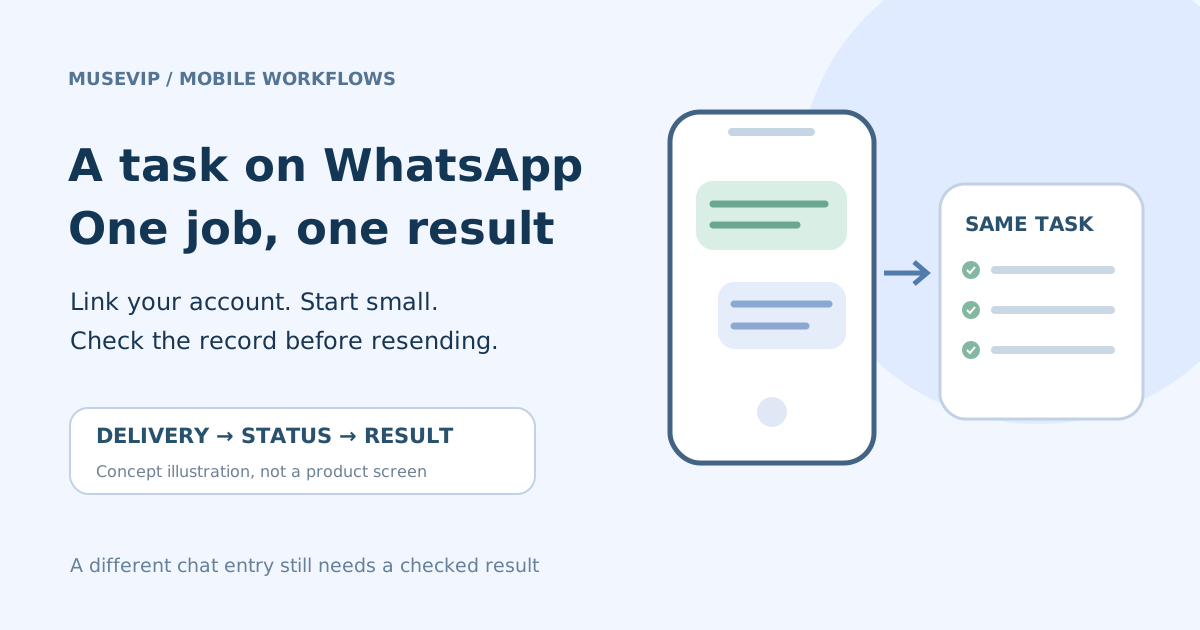
This guide focuses on “Muse WhatsApp tutorial” and turns the question into practical steps you can check.
01 | Start from your own Muse account
Meta’s Muse product page and launch announcement describe chatting with Muse directly in WhatsApp. On October 1, @xxxdemo9 shared screenshots of a linked messaging channel. This guide combines those screens with the official description; it does not report a test on your account.
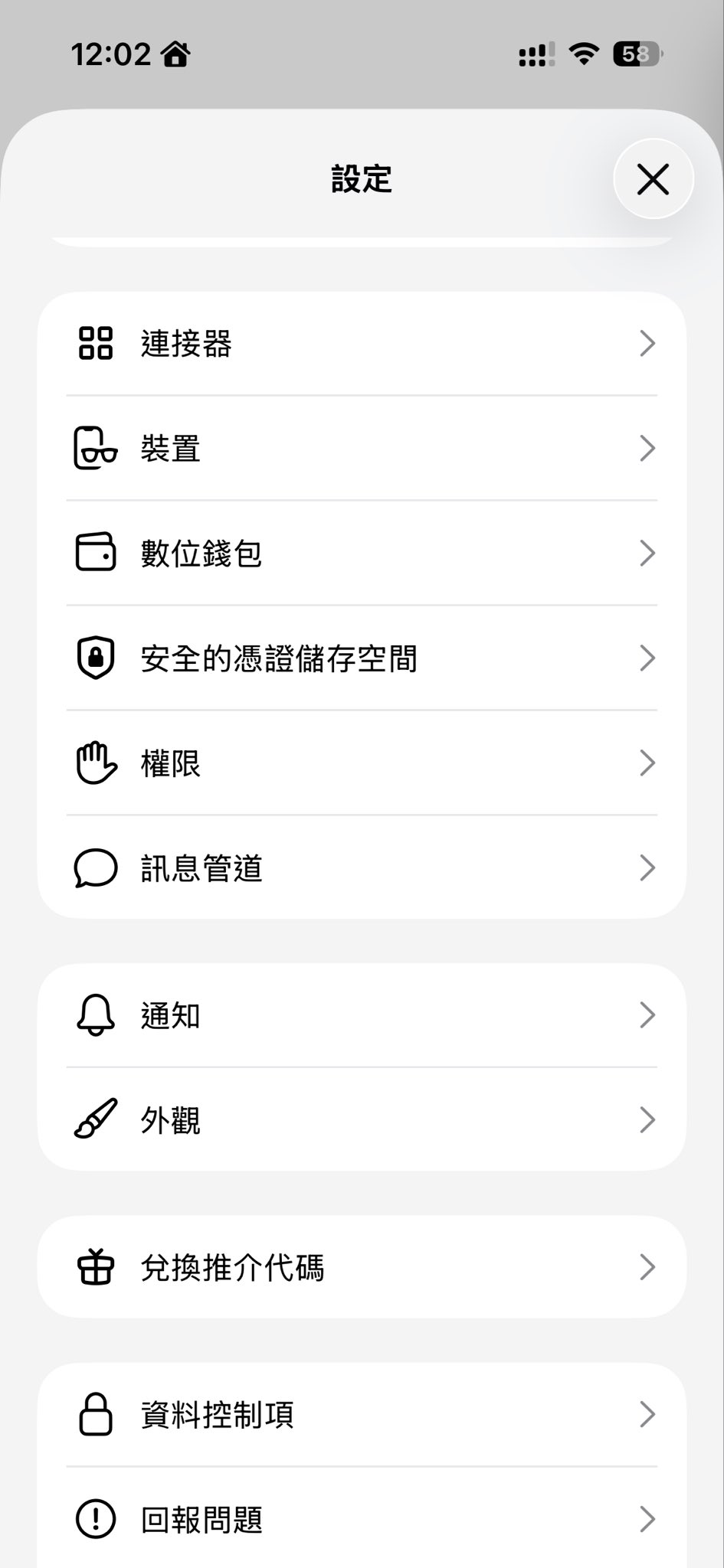
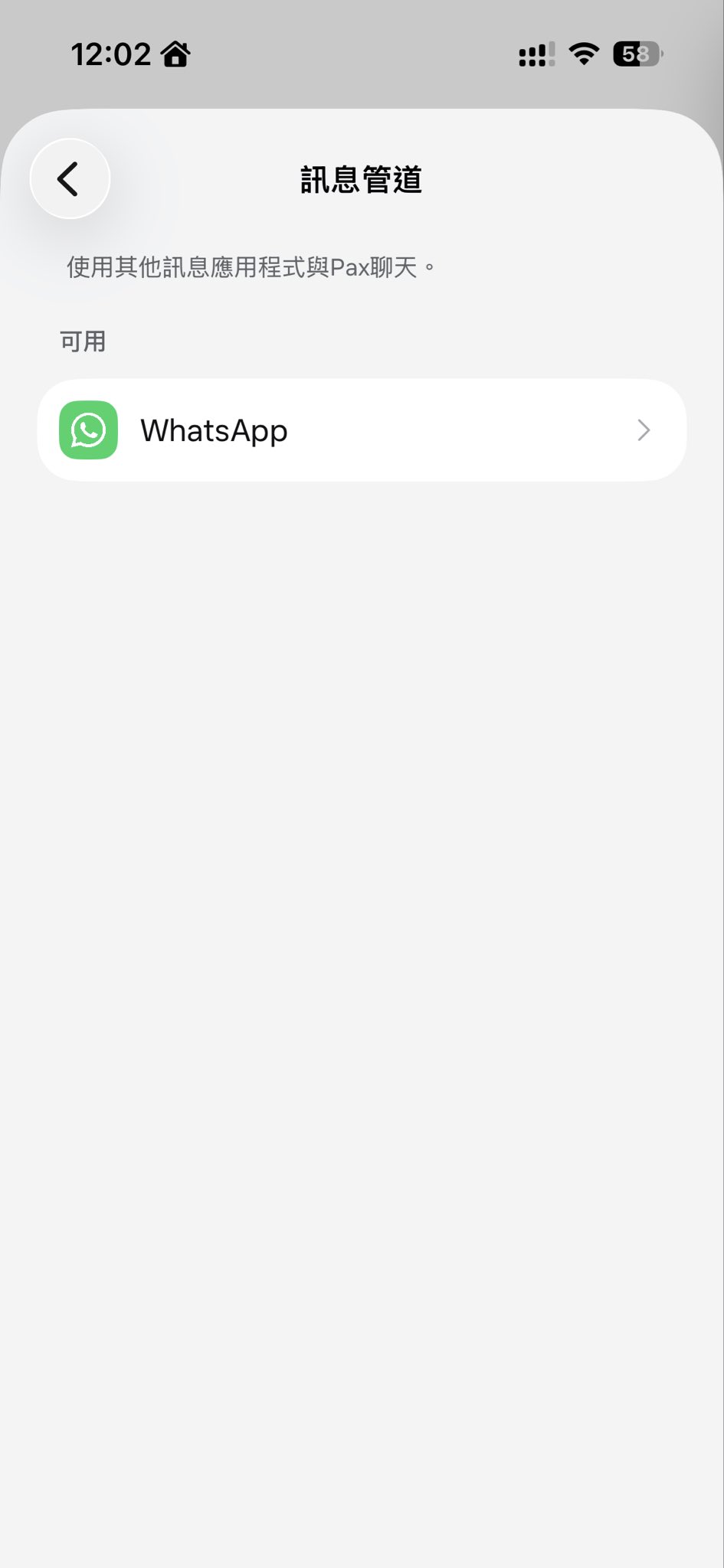
Sign in to your own Muse and WhatsApp accounts. In Muse settings, look for the messaging-channel entry. The creator’s Traditional Chinese screen labels it 訊息管道, separately from Connectors. Follow the labels in your current version. If the entry is absent, use Muse directly rather than adding a phone number supplied in someone’s comment.
02 | Choose WhatsApp and follow the account’s linking flow
The creator’s messaging-channel screen lists WhatsApp as available. Open that item in your own account, read the description, and follow the current linking flow. If it asks you to switch apps or verify identity, do so inside the official flow. The screenshots do not show the full verification process, so this guide supplies no invented QR code or fixed confirmation steps.
Check which WhatsApp account actually opens. If you have WhatsApp Business or two phone numbers, verify the intended account and recipient before sending anything. Linking this channel should not become an invitation to sign in to unrelated services or let a stranger bind the account for you.
03 | Try a small task with an obvious answer
Paste a short piece of non-sensitive text that you can check yourself. Turn three meeting-preparation notes into a checklist, for example. For the first run, avoid connected mail, third-party messages, purchases, and ongoing reminders. Check that this conversation reaches your own agent first.
Try this instruction. Label this request “Channel check 1001.” Turn the text below into three action items. Use only the supplied text and mark any missing owner or date as unspecified. Reply to me here. Do not contact anyone, modify other apps, or create an ongoing reminder.
That label is a search aid you supplied, not a guaranteed product task ID. Compare each returned item with the source text, including anything the agent added or treated as an agreed deadline.
04 | Check the result after the acknowledgement
An acknowledgement tells you the request has started. Wait for the actual checklist, then inspect the corresponding chat or activity in Muse. If the task produces a file, open it and check the contents; a statement that a file was created does not verify the file.
Meta says Muse can keep working after the app closes. Delivery timing and notifications still depend on the task and your current account. Use this small run to understand your own delivery and result-return path before starting persistent work.
05 | If it goes quiet, inspect before resending
On September 24, @moneyeducator reported that the WhatsApp entry and browser connection were not working for them. That individual report does not establish a current outage, but it gives a practical reason to check the existing request before sending it again.
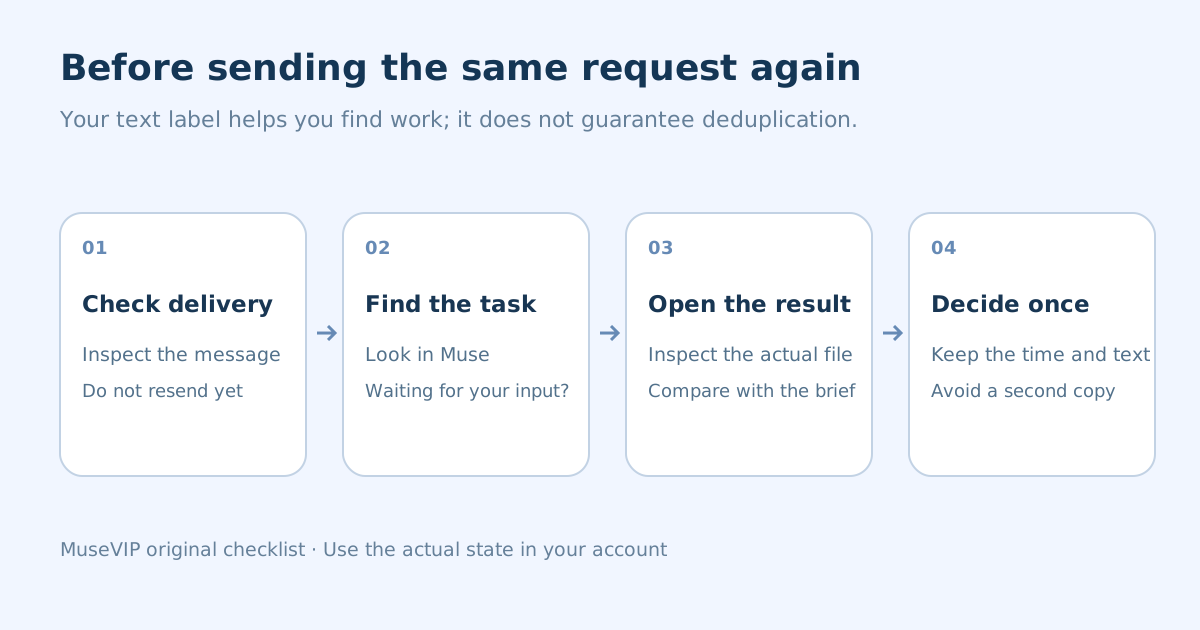
Check WhatsApp connectivity, then open Muse and look for the original request. Is it running, waiting for material, or awaiting approval? If it exists, ask for the current status of “Channel check 1001” without creating or repeating the job. If it is absent, save the message and its time before deciding to submit once more.
Avoid starting separate copies in WhatsApp and Muse. Refer to the same request description from both places. The product does not promise automatic deduplication from your text label, so this remains a check you make before resending.
06 | Supply the material the task actually needs
Chatting with Muse, granting access to other WhatsApp conversations, and sending a message to a third person involve different permissions. This tutorial covers the chat entry. Linking it does not establish access to group history or authority to reply as you to every contact.
Provide only the relevant material that you are entitled to share. Check for unnecessary phone numbers, order identifiers, and attachments. If a screenshot contains an unclear field, explain that field in text instead of asking the agent to guess. Consider the other people involved before forwarding their information.
07 | Make approval specific
Meta describes approval before certain actions, including sending messages or purchases, with behavior affected by saved permission settings. Review the destination, exact content, and effect before responding to an approval request.
For a draft, say “Return the draft here and leave it unsent.” If the messaging view does not show the complete action, inspect it in Muse before approving. A third-party send is still a separate action to review; connecting WhatsApp is not a standing approval for all future messages.
08 | Review the connection and remaining work when you finish
Return to messaging channels and inspect the connection status. If the current page provides an unlink or disconnect action, follow its description. Separately inspect ongoing tasks you no longer need. Logging out of WhatsApp or deleting a chat does not establish that the task stopped in Muse.
Review mail and other connectors in their own settings. Meta says disconnecting a connector stops further data exchange while information already used may remain in memories or conversation history. Do not infer that a messaging-channel disconnection erased earlier content; use the product’s actual data controls and task records.
For longer work, continue with <a href="/en/guides/muse-ongoing-task-progress/">tracking an ongoing task</a>. For email, use the <a href="/en/guides/muse-email-send-approval/">review-before-send guide</a>.
References
These sources support the product information in this guide. Musevip is an independent publication and is not affiliated with Meta.
Last reviewed 2026.10.01. Product pages may change.