

This guide focuses on “Muse ongoing tasks” and turns the question into practical steps you can check.
01 | A long task is not ‘set it and forget it’
When a task takes several steps, spans a few days, or depends on something changing, the risk is often not the first step. It is the task slowly drifting. You thought Muse was gathering information, then it starts signing in, messaging someone, or submitting something. Or it gets stuck and you never know.
Meta says Muse can keep working on some longer tasks after you close the app, then return when something changes or when it needs approval. That is a product-level description. The background-task, Goals, or reminder controls you see depend on your current account and interface. ‘Can keep working’ does not mean ‘safe to ignore.’
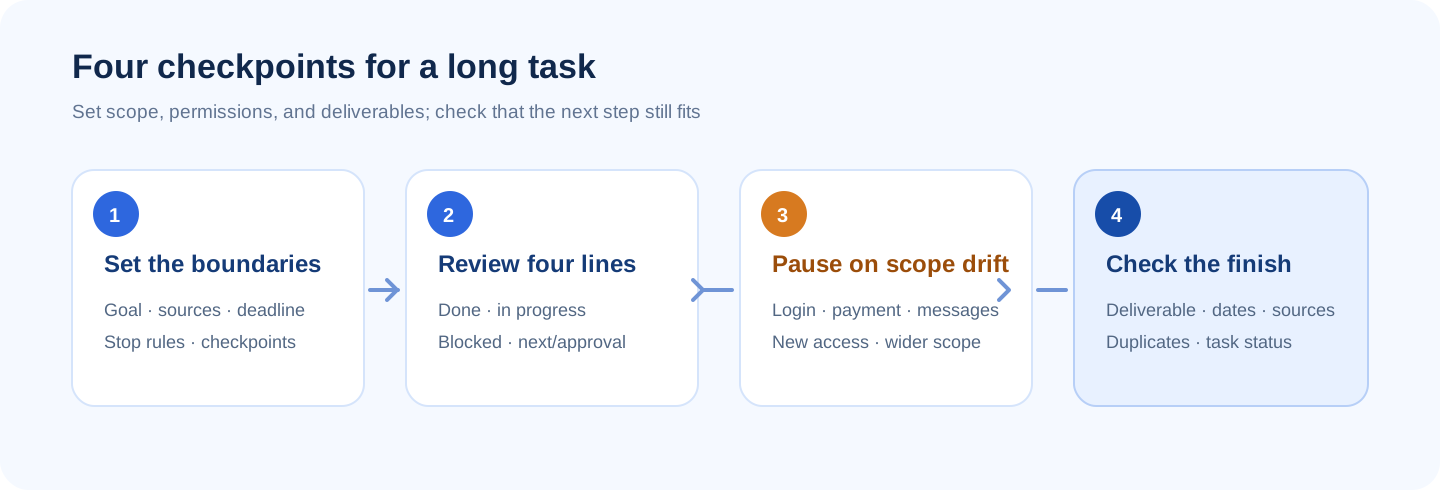
02 | Set four things before it starts
Write down a result you can actually check, then define the scope, deadline, and stop conditions. Instead of ‘handle my job search,’ try: ‘Collect public job listings from five companies, with links and closing dates, and make a table by Friday noon. Do not create accounts, apply, or contact recruiters.’
Say what information it may add and which actions need your approval. Boundaries matter more when a task is long: report missing information, and stop before connecting an account, paying, or sending anything outside the task.
03 | Ask for the same four-line update each time
‘How’s it going?’ can get you a vague ‘I’m working on it.’ Ask for four items instead: what is done, what is in progress, what is blocked, and what happens next or needs your input. Ask it to include the latest source or deliverable so you can spot-check.
Use the update to check whether the goal changed, where the task is, whether new permissions or external actions appeared, and whether the next step still fits your instructions. If it expanded to a site, contact, or personal data you never mentioned, pause and reset the scope.
04 | When to update it and when to pause
- An update is usually fine when the goal is unchanged and you are adding a public source, specifying the format, or changing a deadline. Ask Muse to repeat the updated scope.
- Pause first if it asks for unrelated account access, hits a login or CAPTCHA, needs personal information or payment, or wants to contact someone or submit a form.
- Stop if the goal is no longer needed, the task repeats the same step, an important assumption changed, or the result can no longer be checked against the original criteria.
- Before starting a second copy, check whether the first task is still running, waiting for approval, or finished. That avoids duplicate tasks working against each other.
05 | Add a checkpoint you can understand
Agree on intermediate deliverables: a source list before a summary, a shortlist before outreach, or a first draft you can review before the next stage. A checkpoint makes it easier to catch a wrong direction early instead of waiting until the whole task is finished.
Use a specific date, time zone, and output format for the deadline. If your account does not show a scheduled time or background-task status, do not assume Muse will send a reminder. Put important dates in your own calendar or task manager too.
06 | Copy this long-task instruction
Replace the brackets with your task and use the pause or progress controls currently available in your account.
- Goal: [checkable final result]. Scope: only [allowed sources, sites, or materials].
- Deliver [file/table/checklist] by [date, time, and time zone]. First send [checkpoint deliverable]; wait for my review before the next stage.
- For each update, list: completed, in progress, blocked, next step, and anything you need me to approve. Link important claims to sources and mark uncertainty.
- Do not sign in, pay, contact anyone, send messages, submit forms, or change account settings. Pause and explain if you reach one of those steps, a CAPTCHA, a permission change, or anything outside scope.
- If I add a requirement, briefly repeat the updated scope first. If I cancel the goal, stop and tell me what is complete so far.
07 | Check the result and task status at the end
Seeing ‘done’ is not the whole check. Open the actual file or destination page and spot-check dates, links, and numbers. Confirm nothing was submitted twice, then check whether the task has ended and whether it still has access it no longer needs.
If your Muse version offers task controls, pause or remove work you no longer need using the current interface. Meta’s public materials describe longer tasks and approval points, but the controls can vary by account. If the status is unclear, ask Muse to list what is complete, what remains, and whether it will continue working.
References
These sources support the product information in this guide. Musevip is an independent publication and is not affiliated with Meta.
Last reviewed 2026.09.27. Product pages may change.