
This guide focuses on “Muse activity log” and turns the question into practical steps you can check.
01 | A background task should still leave something you can inspect
Muse can continue working after you close the app. That is useful, but a chat message saying it is working does not tell you which page it opened, what it needs, or whether the last step really succeeded.
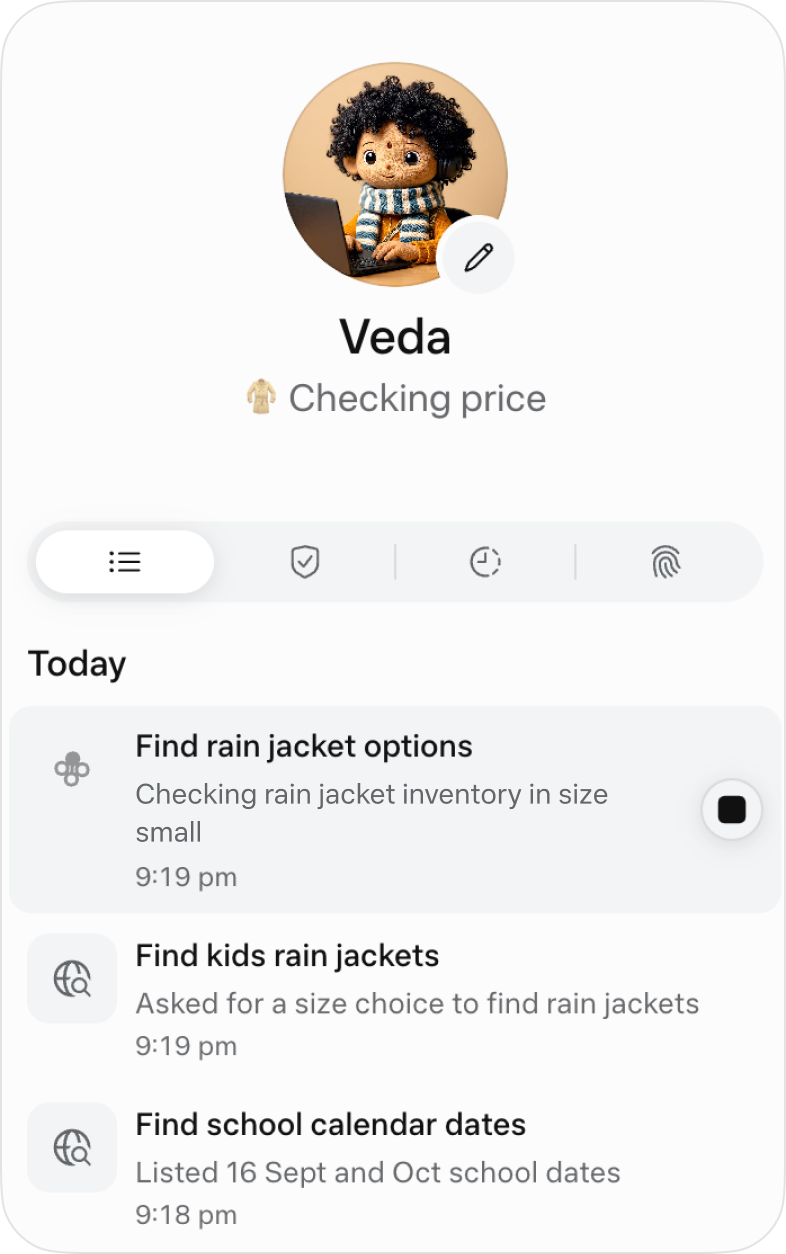
Meta says tapping the Muse avatar opens the full activity log and the permissions you have approved. A short current-status line also appears below the avatar. This guide turns those public product details into a review routine. We have not operated your account, and labels can differ across releases.
02 | Start with the status line
Meta's published screen shows a short status under the avatar. The list contains a price check in progress, a task waiting for a size choice, and a completed calendar-date result. The active item also has a stop control. These visible states make a vague progress message easier to question.
Open the full log when the status no longer matches your task or appears stuck. Avoid piling several new instructions onto the same run. Each extra request can create another branch and make the original problem harder to trace.
03 | Look for plans, blockers, and external actions
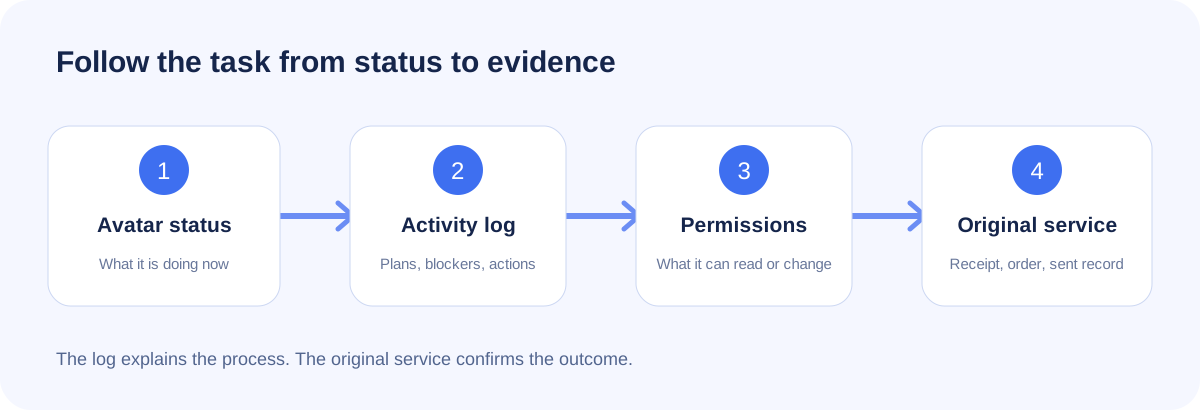
First, separate a planned action from one that ran. Meta says the audit trail can show what Muse has done and what it plans to do. Next, look for a blocker such as missing information, a login, or a site refusing access. Then identify anything that changes the outside world, including a sent message, purchase, form submission, or data shared with a connector.
A recent community post described car-shopping sites starting to block Muse. That report cannot predict how every site will behave, but it is a useful reminder that live pages change. When a page blocks the task, use the log to find the stopping point and decide whether to take over, switch to a public source, or end the run.
04 | Review the permission beside the action
Meta says Muse asks before actions such as sending messages, purchasing, or sharing information with a connected app. You may allow an action once, always allow it, or deny it, and default connector permissions can be changed later.
If the task only needs an inbox summary, reconsider whether send access is necessary. Disconnect a temporary service when the work is over. A permission change governs future access; it does not undo an email, calendar edit, or form submission that already reached the original service.
05 | Verify completion in the original service
The activity log tells you what the agent attempted. The external service holds the final state. Check the restaurant's confirmation, the Sent folder, the calendar event, the merchant order page, or the payment record. Without that evidence, a completed agent run does not prove the outside action succeeded.
If the browser shows an unexpected account, unfamiliar autofill, or content you did not request, stop the run. Do not diagnose the cause from one screen. Save the time and relevant activity details, inspect the original service's security settings, revoke unnecessary access, and report the issue through Muse. For payment accounts, use the provider's official security channel as well.
06 | A two-minute review checklist
- Does the current status still match the task I assigned?
- Is each item planned, waiting for input, executed, or merely summarized?
- Is the blocker missing information, a login handoff, a CAPTCHA, or a site refusal?
- Which connector did the step use, and does it have more access than this task needs?
- Did I see the exact recipient, amount, form, or shared data before approving an external action?
- Can I find the matching final record in the original email, calendar, merchant, or service page?
07 | A prompt for long-running work
- Before starting, list the steps you plan to take, the connections you need, and the actions that require my approval.
- During the task, mark missing information, site blocks, and login handoffs as waiting for me. Do not work around them silently.
- Before sending, buying, submitting a form, changing an account, or sharing connector data, show me the exact content and destination.
- At the end, list the steps actually completed, the unfinished steps, and the record I can verify in each original service. Write not yet verified when no external confirmation exists.
08 | Use the log to review the process
The activity log helps answer what Muse did, where it stopped, and which permissions were involved. Actions that affect money, accounts, or other people still need evidence from the service where they happened.
Start with a read-only exercise. Ask Muse to compare two or three public pages, open the activity log once during the run, and see whether the status, steps, and final sources line up. Once that chain makes sense, you can decide whether a longer task deserves more access.
References
These sources support the product information in this guide. Musevip is an independent publication and is not affiliated with Meta.
Last reviewed 2026.09.29. Product pages may change.