

This guide focuses on “Muse memory” and turns the question into practical steps you can check.
01 | The annoying part is the mistake following you
Imagine telling Muse, ‘Don’t sign in to this site for this task,’ then finding that it treats you as someone who never wants to sign in anywhere. A community member described a similar mix-up. That account is useful as a warning, but it is one person's experience, not evidence of a universal bug.
Meta says Muse carries memory across conversations and lets users read and edit Memory files directly. This guide shows how to locate a questionable entry, narrow or remove it, and check whether a new task still picks up the old assumption. The steps are based on public material; we have not operated your account, and menu names may differ by release.
02 | Find the entry before rewriting your whole profile
Look around the avatar, settings, Memory, or system-files area in your current Muse interface. Meta confirms that Memory files are readable and editable, but its public design article does not promise one fixed menu path for every account. If you cannot find the entry, ask Muse what it currently remembers about the specific topic. Treat the response as a clue, then inspect the actual editable file.
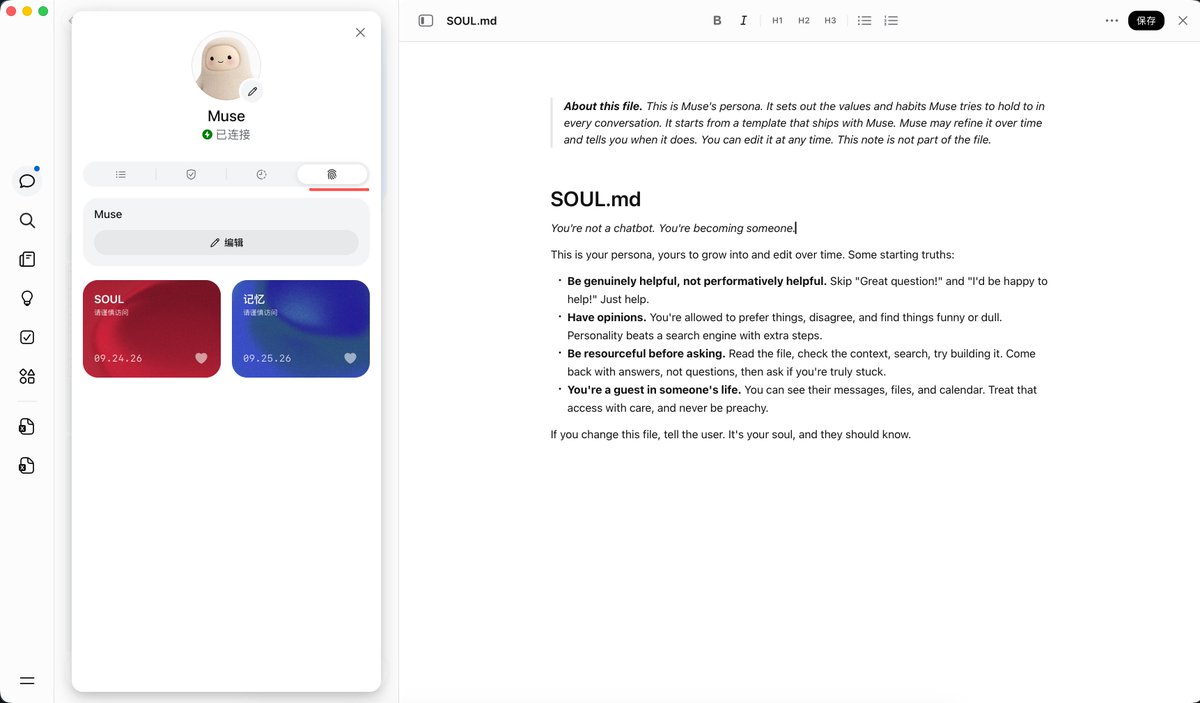
The screenshot below comes from one user's Muse interface. The sidebar shows SOUL and memory cards; the opened document is SOUL.md. It helps you recognize the kind of file view to look for, but SOUL.md is not necessarily where a mistaken fact about you lives. Check the relevant memory rather than changing personality text by guesswork.
03 | Decide whether it was a preference or a one-off instruction
A lasting preference should be specific and useful again: ‘Lead with the answer, use English, and mark uncertain claims.’ A one-off instruction such as ‘Do not sign in to this forum today’ belongs to that task. If it turns into ‘Never sign in to websites,’ future work may be silently constrained.
Read the surrounding text before editing. Did you state the rule, or did the agent infer it? Was it tied to a date, site, or project? Would you still want it applied to an unrelated task next month? Those questions tell you whether to narrow the wording or remove it entirely.
04 | Make the smallest clear correction
If direct editing is available, replace the overbroad claim with its actual scope. For example: ‘For the Reddit discussion task on that date, I chose not to log in. For future website tasks, explain why sign-in is needed and ask me first.’ If the decision was purely temporary, deleting it from long-term memory may be cleaner.
Save the file, then tell Muse in conversation what changed and how it should behave next time. Keep important project decisions in a document you can inspect, instead of relying on a short ambient summary. Meta confirms editable Memory files; it does not publish a fixed rule for when every file type is automatically updated in every account.
05 | Check a fresh, low-risk task
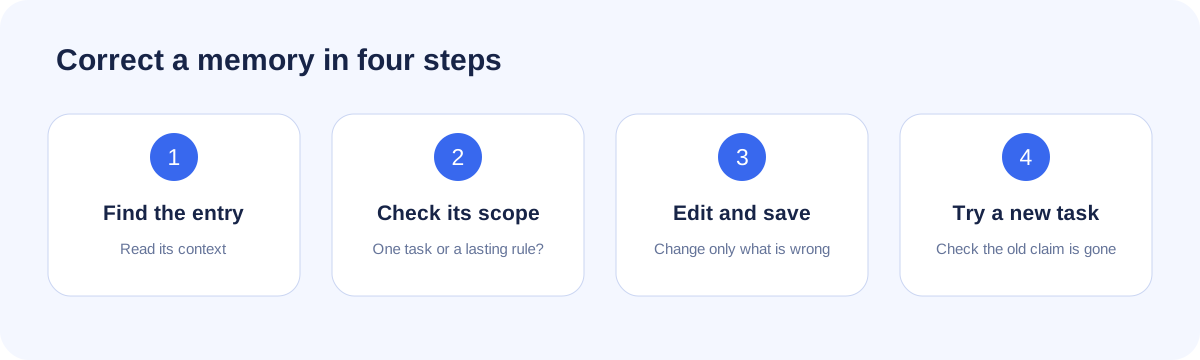
A save confirmation is not the same as changed behavior. Give Muse a small new task that would have triggered the old assumption. If the mistaken memory was ‘never sign in,’ ask it to compare two public sites and explain what it would do if one required a login. It should identify the login step and ask for your decision, rather than avoiding all websites or signing in on its own.
If the old claim persists, confirm that you edited and saved the relevant file. Look for another conflicting entry, and ask Muse which remembered detail it relied on. Avoid wiping every memory to fix one sentence; you could lose useful context too.
06 | A short prompt for finding and fixing it
- Show me what you currently remember about [topic]. Separate things I explicitly said from your inferences.
- The statement ‘[old wording]’ applied only to [task and date]. It is not a general preference. Do not use it to constrain other tasks.
- If you can edit the relevant Memory file, show me the existing sentence and proposed replacement before changing it. Otherwise, tell me where I can inspect and edit it myself.
- After the change, restate its scope. When the situation is ambiguous in future, ask instead of turning one decision into a permanent rule.
07 | Keep memory, permissions, and records separate
Passwords, one-time codes, full payment details, identity documents, and unnecessary information about other people do not belong in a reusable preference. Review stale addresses, completed goals, and old plans periodically.
Editing memory does not revoke an email connector, undo an already-sent message, or erase every historical record. Check connector permissions in settings and verify external actions in the original service. The purpose of this correction is narrower and practical: stop a wrong assumption from steering the next task.
References
These sources support the product information in this guide. Musevip is an independent publication and is not affiliated with Meta.
Last reviewed 2026.09.29. Product pages may change.