

This guide focuses on “Muse Skills” and turns the question into practical steps you can check.
01 | First, separate the Muse app from Muse Code
On September 29, 2026, Meta introduced Muse for Small Business and said it was adding a collection of business-focused Skills and connectors inside Muse. That announcement does not provide a complete set of steps for users to create, import, or install a personal Skill. What you can use depends on the features and permissions shown in your own account.
If you mean the developer tool Muse Code, its official documentation does describe reusable skills written as SKILL.md files, along with validation, installation, and invocation. The custom-skill steps below are for Muse Code. You cannot assume the same terminal commands work in the regular Muse mobile or web app.
02 | Choose one small, repeatable task that is easy to check
This guide uses a weekly sales review as an example. Each time, give Muse Code one sanitized CSV and ask it to total orders and refunds for a defined week, compare each channel with the prior week, and flag anything you should review. Do not start by connecting email, store accounts, or payment access, and do not ask it to send the report automatically. This is an editorial practice example, not a prebuilt Skill announced by Meta.
Write down when the task applies, what information you will provide, what result you expect, and when it must stop and ask you. Keep one Skill focused on one job instead of mixing customer replies, bookkeeping, and ad publishing into a single set of rules.
03 | Use two or three real examples to capture the hidden rules
Take two or three completed examples and remove personal data. Note which steps repeat, what you often have to correct, and how you decide whether the result is acceptable. Keep only the necessary field names and rules; remove names, email addresses, order IDs, and other personal details the model does not need.
You can ask Muse Code to draft the file with an instruction like: “Turn the approved workflow below into a Muse Code Skill at .agents/skills/weekly-sales-brief/SKILL.md in this project. Read only the sanitized CSV files I explicitly provide. Specify required fields, processing steps, output format, acceptance checks, and conditions that require a pause. Do not browse, alter the source files, send messages, or guess missing data. Show me the draft for review; do not enable it until I approve.”
In Muse Code, you can also type /create-skill to use the built-in skill that scaffolds and validates a new Skill. Review its output line by line. A generated file is not proof that the workflow is factually correct, and it does not restrict tool permissions by itself.
04 | Make inputs, steps, outputs, and stop conditions explicit
A useful Skill says more than “make my weekly report.” It tells Muse Code when to use it, which columns it needs, how to align date ranges, how to calculate differences, what to do when a field is missing, and who must review the result. The outline below is a starting point for your own file; change the example sales fields to match your CSV.
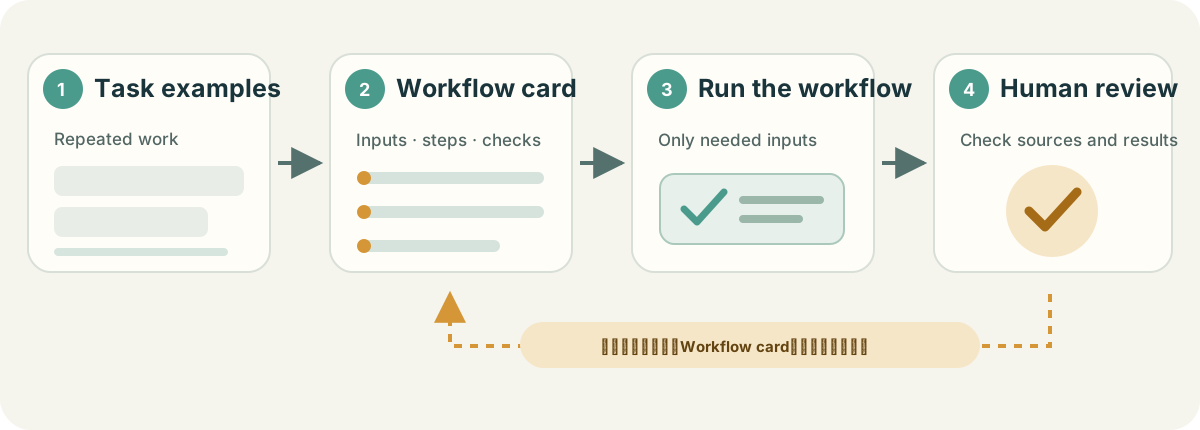
- Front matter: name the Skill weekly-sales-brief; describe that it applies only when the user asks for a weekly sales review. An optional metadata.short-description can summarize it in one line.
- Inputs: read only the sanitized CSV files provided for this run; require date, channel, order count, refund count, and amount fields. If currencies differ or fields are missing, do not merge or infer values; list the issue first.
- Steps: state the file names and week being reviewed; check columns and dates; total by channel; compare with the same period last week; list changes and anything that cannot be confirmed. Do not turn correlation into a causal claim.
- Output: include the reporting period, a table of this week / prior week / difference by channel, items to review, and the source file and row or field for each item. Mark numbers that cannot be traced as unverified.
- Acceptance and boundaries: check row counts, totals, and channel subtotals; do not edit source files, browse, sign in, email, publish, or pay. Pause and ask when a key field is missing or ambiguous.
05 | Validate before installing or invoking it
Save the file in the Muse Code project skill format, for example .agents/skills/weekly-sales-brief/SKILL.md. Validate the directory first: muse skills validate .agents/skills/weekly-sales-brief --json. Check that the result is valid and the name and description are correct. Then, in a project you trust, inspect it with muse skills list --source project --trust-workspace. Project skills are available in that project. To install a personal Skill for use across projects, the documented command is `muse skills install .agents/skills/weekly-sales-brief --scope user`; confirm it with `muse skills list --source user`. If your installed version shows different help, follow `muse skills --help`.
In a Muse Code session, invoke it with /weekly-sales-brief 2026-W40 and attach the current data. Begin with read-only, sanitized samples. If you use the regular Muse app and do not see a Skill management or installation feature, do not guess button names. Save the reviewed workflow card in your own notes and paste it into each new task, or use a built-in Skill the account explicitly offers.
06 | Use an acceptance checklist instead of trusting a completion message
Check whether the reporting week is right, every input file is accounted for, each number traces to a source field, channel totals reconcile to the overall total, refunds are not mixed into orders, and missing information is flagged. Finally, confirm that the output is only a draft and no action you did not authorize was taken.
One community user reported that Muse missed information while moving email details into a spreadsheet and did not keep a repeated rule as expected. Other commenters suggested saving repeated steps as a Skill. That is one person’s experience and community advice, not evidence that all Muse users see the same issue or that custom Skills are available in the regular Muse app. It is a reason to keep source-by-source checks in the workflow.
07 | When something is missed, change one rule at a time
If refunds were omitted, add a rule to report refunds separately and reconcile them with the source. If the date range was wrong, define the week’s start, end, and time zone. Change one rule, rerun the same baseline sample, and then try a second period to see whether the fix transfers. That makes it easier to tell whether the revision helped.
Add an update date and a short change note. Recheck the Skill if the data format, business process, or connector permissions change. Do not rely on long-term memory as a substitute for a workflow file you can inspect and revise.
08 | Keep sending, publishing, and spending under your review
Meta’s Muse for Small Business description says content is not published, messages are not sent, and money is not spent without approval. Include approval checkpoints in your own workflow rules, and grant a connected service only the access needed for the current task. Always read the permissions and confirmation shown in the live product; a Skill file is not a substitute for access controls.
If source data is sensitive, numbers do not reconcile, the task requires a sign-in, or it is about to submit something externally, pause and decide yourself whether to continue. Keep the first version limited to reading and drafting; expand it only after you have reviewed the results.
09 | If you only use the regular Muse app
Meta has publicly described built-in Skills, connectors, and an Ideas tab for Muse for Small Business, but its public announcement does not explain how an individual user can author and install a custom Skill. Check what your own account actually offers. If there is no matching management control, keep the workflow in your own notes and paste it into each new task. That reuses your instructions; it is not the same as installing a native Muse Skill.
Meta’s Muse Code developer documentation separately describes SKILL.md, /create-skill, and the muse skills commands. That is a developer-tool skill system, not the same feature surface as business Skills inside the Muse app.
References
These sources support the product information in this guide. Musevip is an independent publication and is not affiliated with Meta.
Last reviewed 2026.10.01. Product pages may change.