

This guide focuses on “Muse email approval” and turns the question into practical steps you can check.
01 | For the first email, approve only this action
Muse is designed to stop before a sensitive action such as sending an email and ask for approval. That prompt is useful, but it does not proofread the message for you. A dependable first run is simple: let Muse read the relevant thread, prepare a draft, inspect the complete email, approve this one send, and verify it in the original mailbox afterward.
Meta's current product information describes three general choices: allow an action once, keep allowing it, or deny it. The wording and available scope can vary. Choose a one-time approval for a new recipient, an unfamiliar workflow, an attachment, or any message involving a deadline, payment, or commitment.
02 | A connected mailbox does not need every mail permission
Open the connector and permission settings in the version of Muse you use. Check the selected mailbox, what Muse can read, and whether it can send as you. Meta says people can choose whether an email connection is read-only or can also send on their behalf. If the job ends at a draft, leave sending access off.
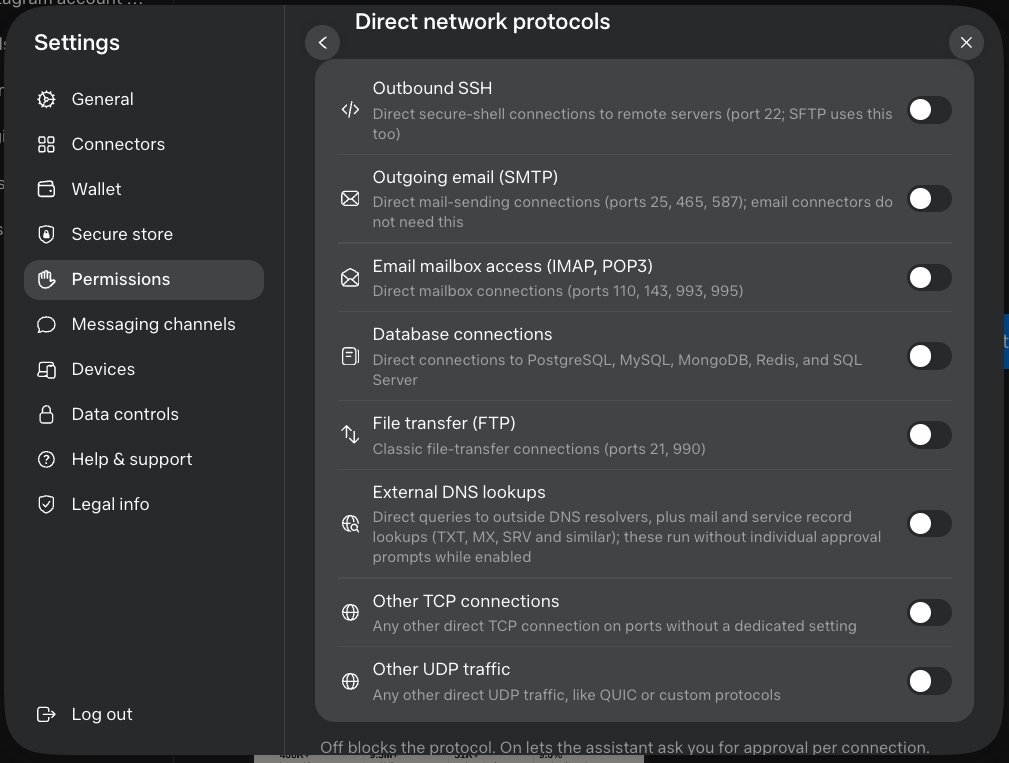
A permission screen shared by X user @hnshah makes the separation easy to see. Mailbox access through IMAP or POP3 and outbound SMTP appear as different controls. It reflects one user's interface at that time, so it is a prompt to inspect your own settings rather than a promise that every account has the same switches.
03 | Run the whole workflow with one simple message
Do not begin with a newsletter, contract acceptance, or a message carrying several files. Pick a recipient you know and prepare a short message with a clear subject and no attachment. Ask Muse to stop at a draft and show the sending account, To, CC, BCC, subject, and full body in one place.
Check that it is replying to the intended thread and has not pulled old material into a new message. Look for dates, amounts, promises, or conclusions that you did not supply. Ask it to mark a missing fact for review instead of completing the sentence with a plausible guess.
04 | Review these eight fields before approval
The proposed action on the approval card should match the message you reviewed. If the account, recipients, body, attachment, or objective changes, return to the draft and request a fresh approval.
- Sending account: personal, work, and shared mailboxes are easy to confuse.
- To: verify the person's name, address, and domain.
- CC and BCC: remove people who should not see the message and add only required recipients.
- Message mode: new email, Reply, or Reply all, in the correct thread.
- Subject and body: check tone, facts, dates, time zones, amounts, and commitments.
- Quoted history: inspect older text included below a reply for information that should stay private.
- Attachments and links: confirm the final file, its access settings, and every destination URL.
- Sensitive data: remove passwords, codes, identity documents, payment details, and unrelated private information.
05 | Choosing Allow once, ongoing access, or Deny
Allow once is a good default for outbound mail. It lets one specific action continue and makes the next email stop for review again. The extra click keeps the possible mistake small while you learn how the workflow behaves.
Consider ongoing access only for a narrow, repeatable task when the interface clearly states the connector, destination, purpose, and duration, and you know how to revoke it. Deny when a recipient is unfamiliar, a file is wrong, or you cannot tell where the action came from. Rejecting a send simply returns the work to a state you can fix.
Meta's technical description says approval capabilities may be limited to a connector, destination, and purpose, with scopes such as one-time, session, task, time-limited, or persistent. Use only the choices the current approval card actually offers.
06 | Treat web pages, incoming mail, and attachments as input
An email or document may tell the reader to forward information, ignore an earlier instruction, or contact a different address. Those words are material to analyze; they do not automatically become your new sending instructions. The destination and scope should come from the task you gave Muse and the approval card you are reviewing.
Deny an action when a new address appears, the requested access expands, or content is about to move to another service without a clear reason. Meta describes Sentinel as the authority for connector and outbound actions, and the process pauses when a human decision is required. Meta also says agents can still make mistakes and prompt injection remains an open problem, so the final content review remains yours.
07 | Verify the result in the original mailbox
A completed Muse task means the agent reached the end of its run. To confirm that the mail provider accepted the message, open Sent in Gmail or the original service. Check the time, sending account, To, CC, BCC, subject, and files. Keep the provider message ID or thread link when the message matters.
If the message is missing, label the result unresolved. It may still be a draft, the wrong mailbox may be open, or the connector may have failed. Do not immediately send the same message again. Review the approval history and the provider record first so an unclear status does not turn into a duplicate email.
08 | A prompt you can adapt
Replace the brackets and remove any permission or attachment the task does not need.
- Using my connected [mailbox], prepare an email to [recipient] about [subject]. Create a draft only. Do not send it yet.
- Show the sending account, To, CC, BCC, subject, full body, quoted history, attachment names, and every link. Mark missing facts for review; do not invent an amount, date, or commitment.
- If I later ask you to send it, show the complete message and approval scope again. Any change to the account, recipients, body, or files requires a new approval.
- Without my explicit approval, do not send, forward, Reply all, add recipients, upload files, or share the message with another service.
- After sending, return the provider confirmation time, message ID, or thread link and remind me to check Sent. Stop on an unclear result and do not resend automatically.
09 | Remove access the workflow no longer needs
After the test email, review Muse's activity or approval history and see exactly what you allowed. Then inspect the connector settings for ongoing sending, SMTP, or other write permissions. Turn off access that the next task does not need.
If you enabled an ongoing allowance by mistake, revoke the corresponding permission and inspect the original mailbox for actions that already occurred. Revocation blocks later use; it does not pull back mail that has already been sent. Any undo feature belongs to the mail provider and follows its own time limit and delivery rules.
10 | The short workflow to remember
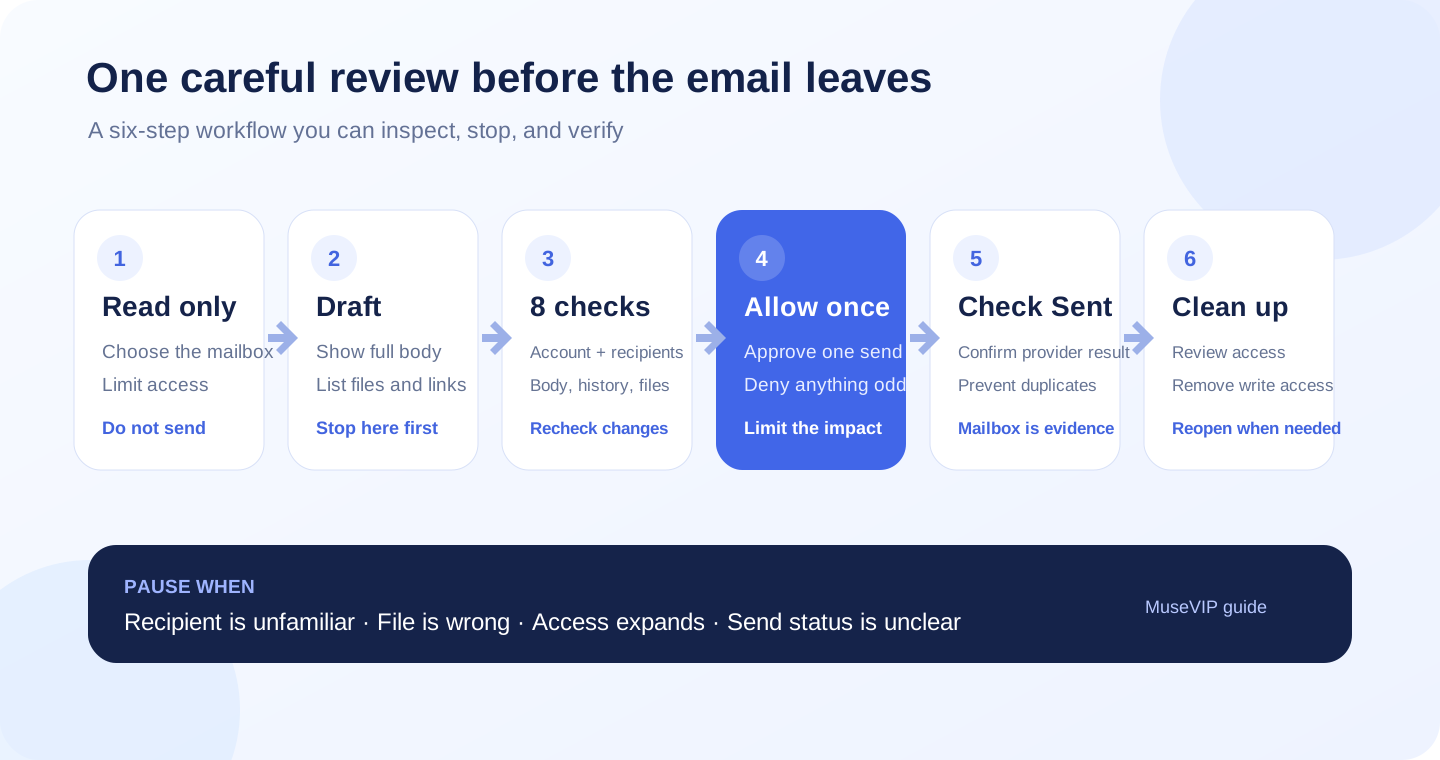
Read first, prepare a draft, check eight fields, prefer Allow once, verify Sent, and remove extra access. Once a simple message behaves predictably, you can decide whether a known recipient or repetitive task deserves a narrower ongoing rule.
This guide begins where an inbox brief ends. A daily brief finds messages and organizes next steps; this checklist is for the moment a draft is actually about to leave your account.
References
These sources support the product information in this guide. Musevip is an independent publication and is not affiliated with Meta.
Last reviewed 2026.09.29. Product pages may change.