
This guide focuses on “Muse voice dictation Mac” and turns the question into practical steps you can check.
01 | Know which Mac feature this guide covers
Meta calls the underlying model Muse Voice Transcribe. Its September 1, 2026 research release identifies Meta AI for Mac as the consumer Mac entry, and the official Mac download page describes Dictation Anywhere. The published gesture is to hold Fn while speaking into a text field.
Muse has a separate Mac app and download path. Do not swap its installer or menu instructions with Meta AI for Mac. The September 18 demonstration shared by @mattdeitke also shows a Meta AI control at the bottom of the document, so this guide stays with that documented consumer entry.
This feature produces text at the active cursor. It does not decide whether a message is ready to send, inspect every fact in the draft, or run a background Muse task. This workflow is based on the published documentation and source demonstration, not a MuseVIP account test.
02 | Install from the current official Mac page
Use Meta AI's official Mac download page when installing or updating. Avoid copying a menu path from an old social screenshot or using an unofficial installer from a search result. After installation, confirm that the current app shows a dictation cue before planning around the shortcut.
Meta describes dictation in desktop text fields. App behavior can still depend on the focused field, your current release, and the Mac configuration in front of you. Choose a destination that cannot send or submit anything for the first run.
03 | Check the Fn and Globe key before troubleshooting
Open macOS Keyboard settings and read the current Press fn key to or Press Globe key to choice. Apple documents several system uses, including changing input source, opening the character viewer, starting Apple's own Dictation, and doing nothing. Its Dictation shortcut can also change Fn behavior.
Those Apple settings explain a possible shortcut collision. Apple's Dictation and Muse Voice Transcribe are separate products. If Fn currently triggers a system action, note the existing setting before changing anything and avoid modifying several shortcuts at once.
04 | Create a low-risk test surface
macOS lists microphone access by application under Privacy & Security. When the official Meta AI app requests access, read the requester and grant only the permission needed for this test. A dictation problem is not a reason to enable Full Disk Access, screen recording, or a group of unrelated permissions.
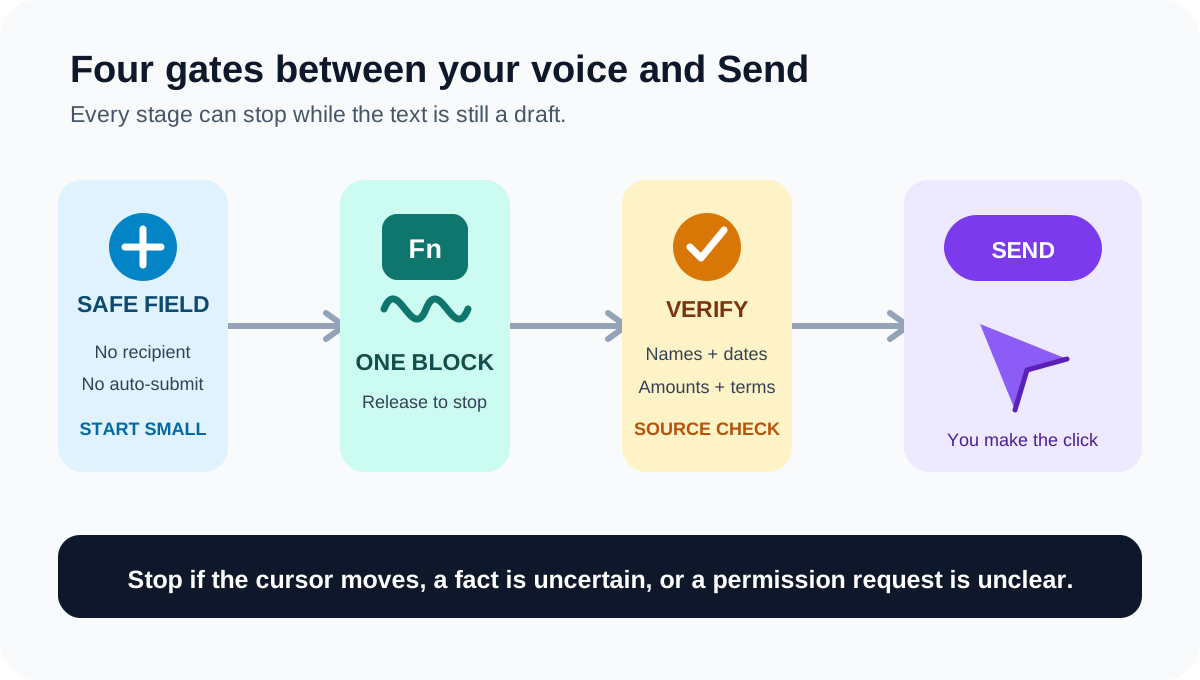
Use a new local note, blank draft, or another field with no recipient and no auto-submit behavior. Keep passwords, authentication codes, payment details, health information, and confidential work out of the first exercise. Place the cursor exactly where the text should appear.
05 | Run one sentence with deliberate failure points
Try a sentence such as, “Meet Lin Qiao at 3:00 p.m. Thursday. The cap is $2,450, and the project is Harbor North.” It includes a name, time, day, amount, and project name, so the review has concrete targets.
Hold Fn, speak the sentence at a normal pace, release the key, and wait for the text to settle. Stop there. Compare Lin Qiao, Thursday, $2,450, and Harbor North with the intended wording before dictating another paragraph.
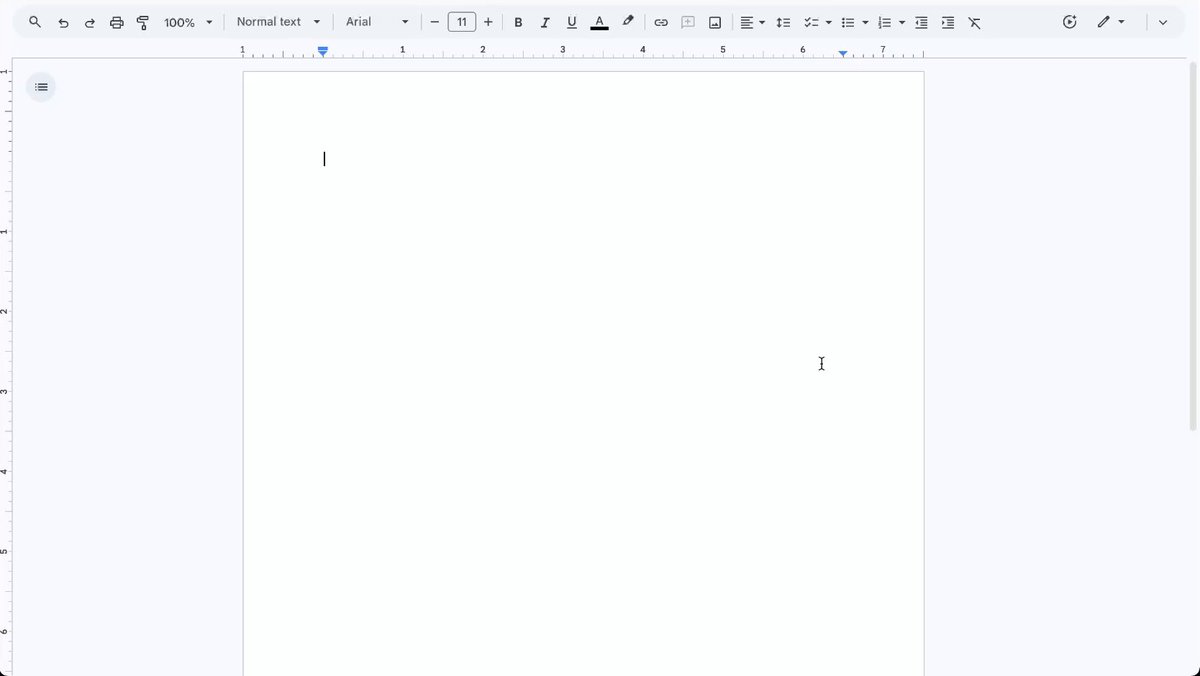
The short demonstration shared by @mattdeitke shows two English sentences entering a blank Google Doc. It illustrates the hold, speak, release, and review sequence. It does not establish identical behavior across every application, language, account, or Mac.
06 | Treat names and numbers as unverified input
Meta lists Chinese among the initial extensively verified languages and demonstrates switching between Mandarin and English. That makes mixed-language drafting a supported use case, while leaving every particular transcript open to error. Review people, places, amounts, dates, URLs, abbreviations, and product names character by character.
Give numbers context and units when you speak. “Budget cap of two thousand four hundred fifty dollars” is easier to audit than an isolated digit string. Correct an uncertain name with the keyboard, and compare important figures against the original calendar, brief, or source document.
07 | Compose longer work in short reviewable blocks
Dictate one idea at a time. State the decision, release Fn, review it, and then add context or next steps. Short blocks limit the repair when a name is wrong or the cursor has moved into the wrong place.
Use dictation to capture words you already intend to write. Research, document synthesis, and background work belong in a separately scoped Muse task with source and approval instructions. A dictation field does not verify the underlying claims in an email.
- Finish and inspect one thought before starting the next.
- Check quotations, prices, and dates against their sources.
- Stop when the cursor moves instead of speaking through the error.
- Save an important draft before extending it.
08 | Keep the final Send action human
Confirm the application, conversation, recipient, and cursor location. Read the whole result once, with extra attention to names, numbers, negations, times, attachment references, and code-switched terms. Remove filler words and anything captured from another speaker.
If holding Fn does nothing, check the focused field, whether Meta AI is running, microphone access, and the current Fn or Globe shortcut. Retry in a plain blank field before assuming a broader compatibility issue. Follow the help shown by the current release, and do not open unrelated permissions as a general fix.
- The destination and recipient are correct.
- Names, amounts, dates, addresses, and English terms match the source.
- Sensitive text, nearby speech, and filler have been removed.
- Links and attachment references match the draft.
- You press Send or Submit yourself.
References
These sources support the product information in this guide. Musevip is an independent publication and is not affiliated with Meta.
Last reviewed 2026.10.01. Product pages may change.