
This guide focuses on “Muse Spotify” and turns the question into practical steps you can check.
01 | Start with one playlist for one real moment
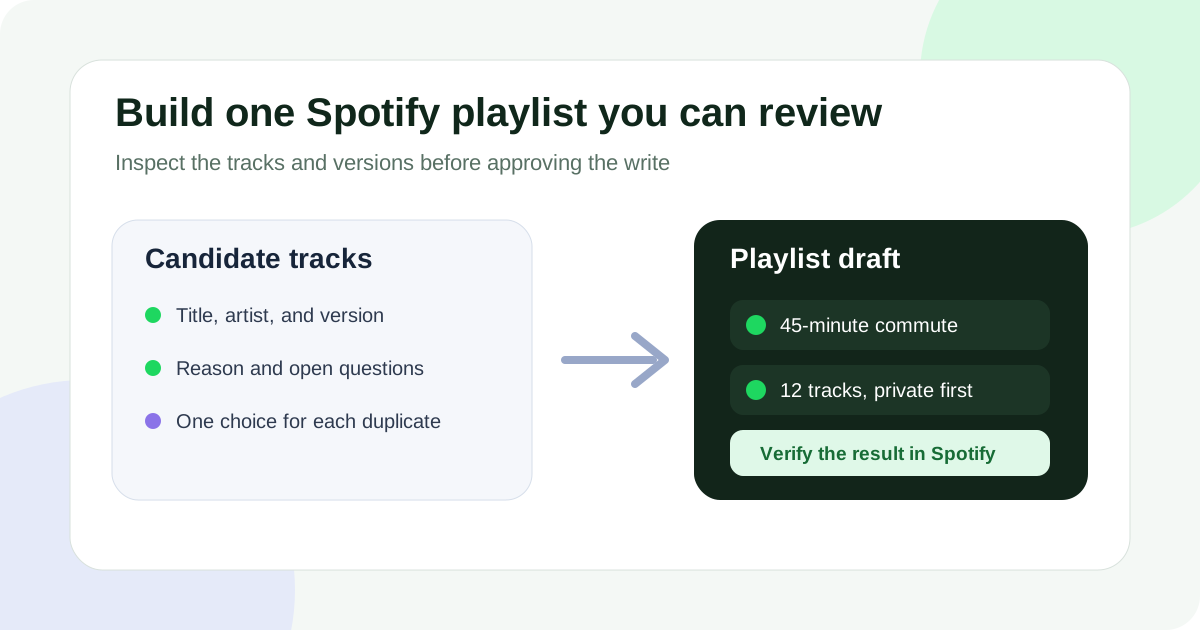
A 45-minute commute is enough scope for a first playlist. Define the duration and a few seed tracks, inspect the candidates, and approve the Spotify write only after the list looks right.
Spotify announced its Muse connection on September 23, 2026. Its release says a connected Muse can play audio, save songs to Your Library, search for music and other audio, build and name a playlist, and add newly found tracks. This guide stays within those published capabilities. Availability and authorization still depend on the connection shown in your current accounts.

02 | Read the connection and visibility settings
Spotify Support says an account will not connect to a third-party app without explicit permission. Read the authorization screen and keep access within this task. Spotify also lets you remove an app later from the account Apps page.
New Spotify playlists are public by default and are published to the profile by default under Spotify’s current support guidance. A title, description, cover, or public track list may reveal a trip, client, child, or surprise event. Use a neutral draft name and inspect visibility in Spotify immediately after creation.
03 | Protect an existing playlist before editing
Treat an established playlist as source material on the first pass. Ask Muse to read its name and tracks without removing, replacing, or reordering anything. Spotify says a particular playlist version cannot be recovered, although you can copy all tracks into another playlist with Add to other playlist.
For a first run, create a dated draft. If the job must update an existing playlist, provide its exact link and approve only a short list of additions. Leave every other playlist unchanged.
04 | Write a brief that can be checked
State the use, target duration or track count, two to five seed tracks, and a musical range. Add practical exclusions such as no live versions, one track per artist, or a preference about explicit-content labels.
Use both title and artist for each seed. When you only remember a lyric or an uncertain name, ask for possible matches first. If a track is unavailable in the connected region, keep the gap visible and review any substitute separately.
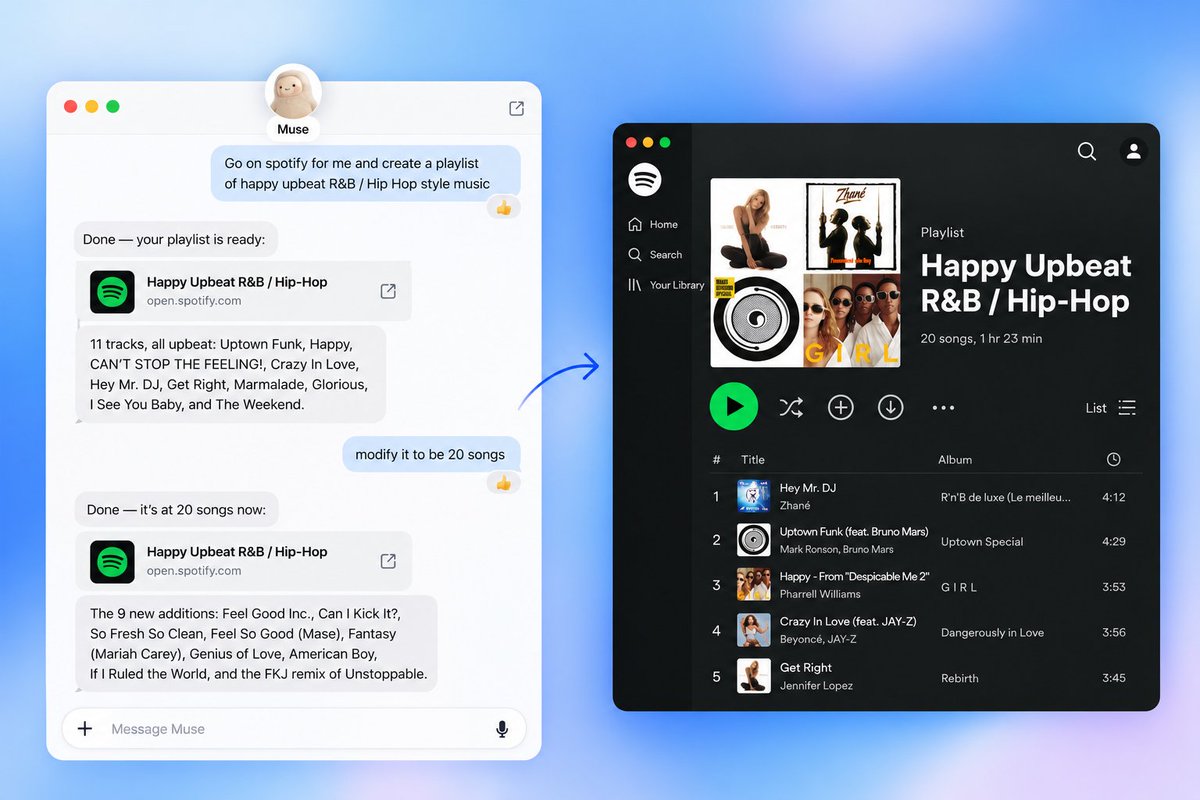
The screenshot shared by @mattdeitke starts with an upbeat R&B and hip-hop playlist and then expands it to 20 songs. It shows why track count belongs in the brief. The image does not establish permissions, regional availability, or the unseen steps in that user’s session.
05 | Copy this proposal-first request
Replace the brackets. The first pass produces a track proposal and makes no Spotify changes.
Using only the Spotify account I have connected and authorized, prepare candidates for [listening situation] lasting about [duration or track count]. Include [seed tracks and artists]. Keep the selection within [mood, language, or era]. Exclude [live versions, duplicate rule, content preference, or other exclusions].
List candidates before creating or changing a playlist. For each track, show title, artist, the visible album or recording version, why it fits, and any question I need to answer. Keep one candidate when several versions of the same song appear and explain that choice. Mark an uncertain match for review instead of substituting a similar title.
Arrange the proposal as opening, middle, and closing, then give the expected track count. Wait for me to approve the candidates and choose between a new playlist and one named existing playlist. Leave every other playlist, my Library, and playback state unchanged.
06 | Review identity before taste
A strong recommendation is still wrong when it points to the live cut, remaster, clean edit, cover, or duplicate you did not want. Keep title, artist, album or version, and selection reason in the proposal. Include an explicit-content label when it is visible and leave the field unresolved when it is not.
Check whether the same recording appears through different compilations and whether identical titles belong to different artists. Put extra tracks in a reserve group. The approved list should match the requested count before anything is written.
07 | Approve one narrow write
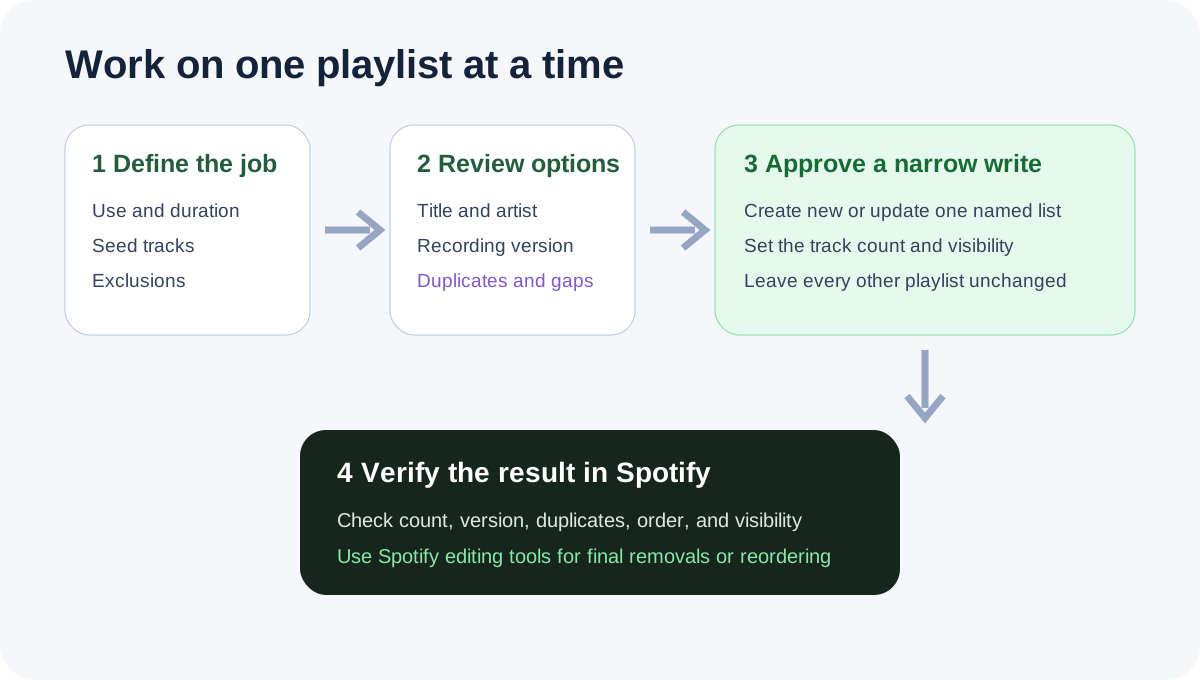
For a new playlist, approve the final name, desired visibility, and exact track list. For an update, provide the target link and allow only the selected additions. Ask for the resulting Spotify link and a report of what was actually added.
Spotify’s Muse announcement explicitly covers creating and naming playlists and adding music. That release does not promise deletion, bulk reordering, cover changes, or collaboration controls through Muse. Use Spotify’s current editing interface when the task reaches those actions.
08 | Verify the result where it lives
Open the resulting playlist in Spotify. Check its name, track count, and visibility, then inspect every seed, one version that was easy to confuse, and the final track. A completion message in Muse is an operation report. The Spotify page shows the result you will play or share.
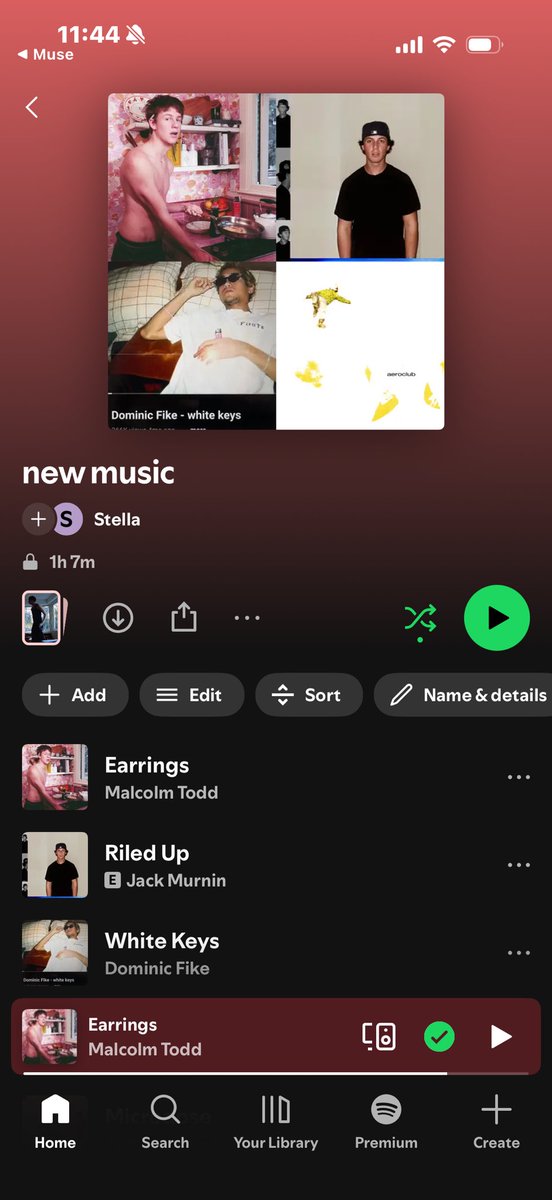
The screenshot shared by @stellakaval shows a private new music playlist with visible tracks and editing controls. It demonstrates what can be checked on the Spotify side. It does not prove how each track was selected or represent a MuseVIP account test.
09 | Make removals and ordering changes in Spotify
Write down the exact duplicate or wrong version before editing. Spotify supports removing tracks on mobile and desktop. Its current help page says mobile reordering requires Premium, while desktop users can drag tracks into place.
Fix one class of problem at a time. Remove duplicates, replace incorrect versions, then listen to the opening and transitions before changing order. Recheck the track count after every pass.
10 | Decide how the playlist may travel
Spotify playlists can be public or private. Spotify also offers expiring share links and collaborative playlists. Collaboration gives other people power to add, remove, and reorder tracks, so inspect the invitee and access level before sharing.
This workflow ends after one creation or one named update. Ongoing refreshes, automatic collection from Instagram, and release monitoring were not established by the Muse announcement used here. Confirm any later automation in the current product before relying on it. Remove Muse from Spotify’s Apps page when the connection is no longer needed.
- The Spotify page shows the intended name, track count, and visibility.
- Every seed track uses the intended recording.
- Duplicates, reserve tracks, and unresolved matches have been handled.
- No unrelated playlist or Library item changed.
- Sharing, collaboration, and connected-app access match the current need.
References
These sources support the product information in this guide. Musevip is an independent publication and is not affiliated with Meta.
- [1] Spotify official announcement for Muse
- [2] Spotify Support for creating and editing playlists
- [3] Spotify Support for playlist privacy and access
- [4] Spotify Support for collaborative playlists
- [5] Spotify Support for connected apps
- [6] Spotify Support for saving and recovering playlists
- [7] Spotify privacy policy