

This guide focuses on “Muse Marketplace price edit” and turns the question into practical steps you can check.
01 | Keep a baseline before lowering the price
You want to lower one price and keep the photos and description you already prepared. Save a copy of the current listing first, then check the actual fields after the edit before you let it go live.
Meta says Muse can list and sell items on Marketplace, and its Seller app supports listing management. This guide combines those official descriptions with one user report, without claiming an account test. It does not assume unchanged fields are guaranteed.
02 | Save a private baseline first
Open the exact item you plan to edit and record what is there now: the number and order of photos, title, description, price, condition, location, pickup or shipping details, and whether it is still available. If useful, capture the listing as shown in your own account. Keep it private and remove names, addresses, conversations, and other buyers’ details before storing or sharing it.
You can label image copies with simple names such as front, detail, and label. Treat the current listing page as the source of truth rather than relying on an old chat message.
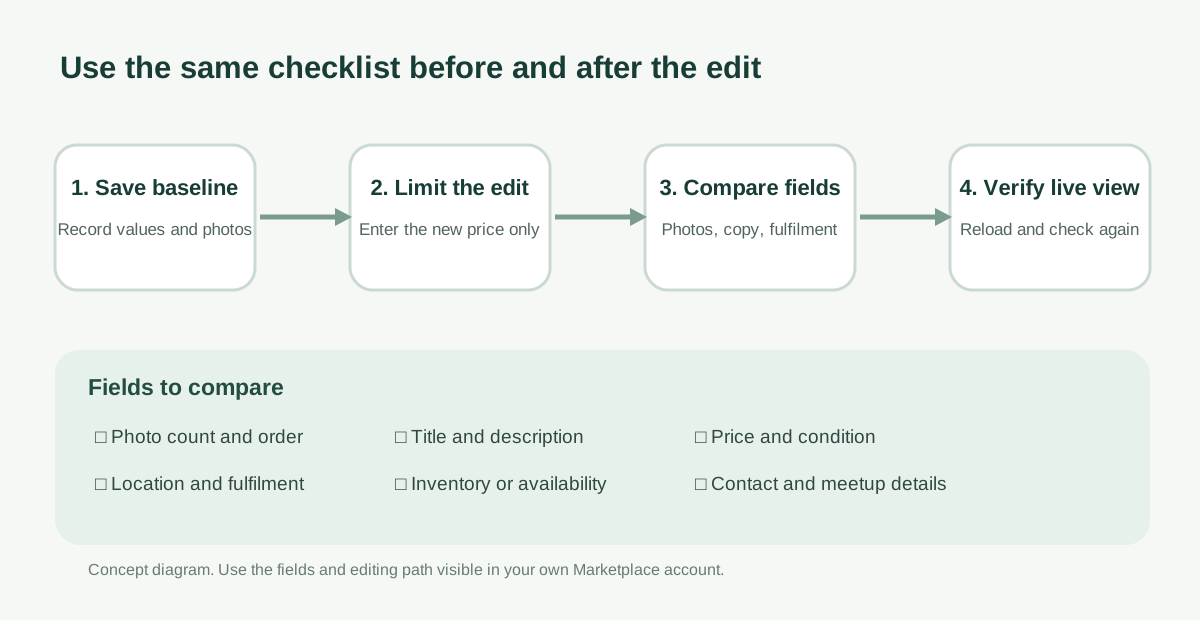
03 | Give Muse one specific change to make
Name the item or listing, its current price, and the new price. State that price is the only field you are authorizing. Ask Muse to preserve photos, title, description, condition, location, fulfilment settings, and contact arrangements. Ask it to identify the item and proposed change first, and to stop if it cannot identify the listing or sees a mismatch in any other field.
Prompt to adapt: ‘Change only the price on this Marketplace listing from [old price] to [new price]. Keep the photos, title, description, condition, location, pickup or shipping settings, and contact arrangements as they are. First tell me which item you identified and what you plan to change. If you cannot see a field, cannot identify the exact listing, or another field would need to change, stop and explain. Before saving or publishing, show me a field-by-field before-and-after summary for review.’ This communicates intent; it is not a permission control.
04 | Use the editing path available to your account
Meta’s July 2026 Seller app announcement says sellers can view and edit Marketplace listings. At the time of that announcement, the app was available to iOS users age 18 and older in the United States. Other locations, devices, and accounts may have different access. Use the Marketplace or Seller listing-management page you can actually open; do not assume another person’s screenshot shows your buttons.
Check that the item, original price, and photos match the listing you selected. If Muse cannot identify it clearly, or the interface asks for unrelated details to continue, pause instead of guessing between similar items.

05 | Compare the fields before saving
Compare each value with your baseline. The price should be the number you requested, in the same currency. Photo count, order, and content should match your copies. Confirm the title, description, condition, location, pickup or shipping settings, availability, and contact details. Do not skip the review just because the tool says it finished.
If the interface offers a preview or change summary, read each field. If it does not show everything, return to the actual listing to check. Mark anything you cannot see as unverified rather than assuming it was preserved.
06 | Verify the current listing, then choose whether to publish
Once the values match, use the save option that is actually shown. If there is a draft option, you can keep it as a draft first. If saving immediately makes the listing public, stop at the final confirmation and inspect the full preview before you decide. This guide does not assume every account has the same draft or confirmation flow.
After saving, reopen the item and check that its photos, description, and new price still appear correctly. If the page has not refreshed, something is missing, or a field changed without explanation, pause before sharing the listing, accepting an offer, or contacting a buyer.
07 | If a photo or detail is wrong, stop and restore from your copy
Do not keep trying several prompts in a row or delete the old listing immediately. Compare it with your private baseline and work out whether the page is still loading, you selected the wrong item, or a field is actually missing. If the interface allows it, restore the original photo or text from your copy and reopen the listing to verify. If the cause is unclear, use Meta/Facebook support and keep a record that does not expose buyer information.
An X user posted on September 29, 2026 that photos were missing after their price-edit attempt and described re-uploading them. That is one person’s report. It does not establish that Muse or Marketplace generally removes photos when prices change.
08 | Review transaction and privacy details too
Facebook Help Center points sellers to Marketplace selling guidance, responsible buying and selling, and safe-meetup resources. Before publishing, make sure the location and fulfilment details are ones you intend to share. Do not let an automated flow negotiate, send an address, agree to a meetup, or switch shipping terms unless you have reviewed the exact information and chosen to confirm it.
Item eligibility, shipping options, and available tools can vary by location and account. Check the current Facebook Marketplace Help Center and Commerce Policies when something is unclear. A prompt is not a way to bypass platform rules, and a public description is not a place for private contact details.
References
These sources support the product information in this guide. Musevip is an independent publication and is not affiliated with Meta.
Last reviewed 2026.10.01. Product pages may change.