
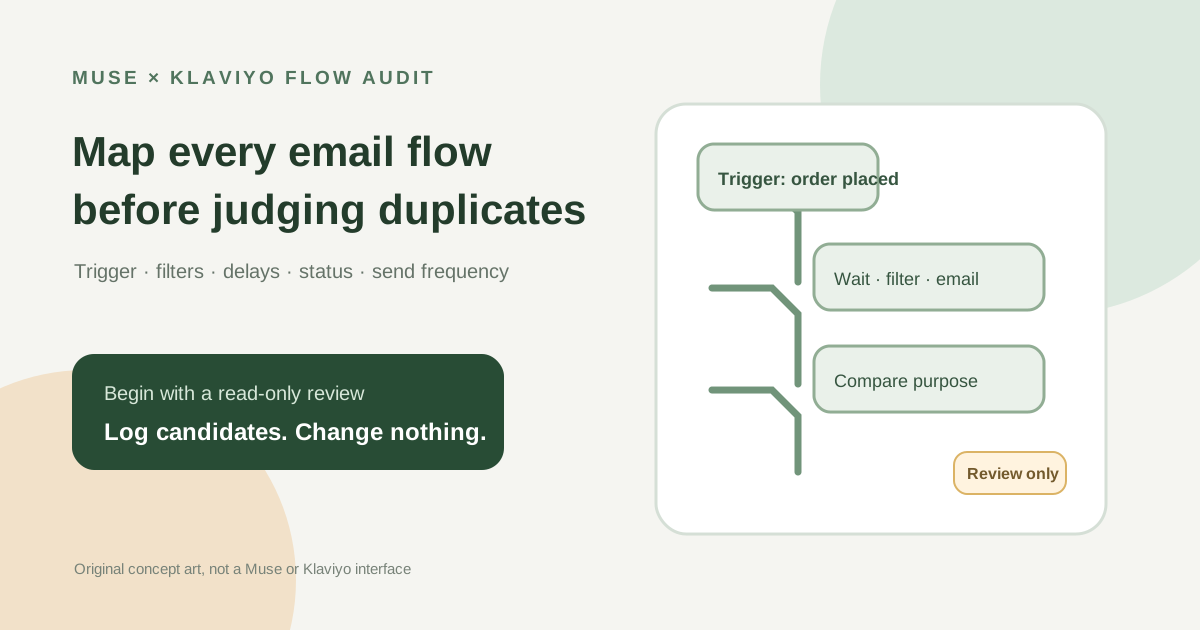
This guide focuses on “Muse Klaviyo flow audit” and turns the question into practical steps you can check.
01 | Limit the task to an inventory, with no changes to sending
A store may have welcome emails, abandoned-checkout reminders, post-purchase follow-ups, and winback messages. Similar names do not prove that two flows are duplicates. Compare who enters, how long each path waits, which messages follow, and whether the timing overlaps. Start with a read-only map of the account.
Meta’s September 29, 2026 Muse for Small Business announcement lists Klaviyo as a connector and says nothing publishes, sends, or spends without user approval. It also publishes a customer statement from April Polk, founder of JaeLuxe Shoetique. She says Muse audited her email automations, shut down flows that sent duplicate emails, recreated flows, rebuilt templates, and turned on sales tracking. This is one customer account published by Meta; it describes her reported experience, not a result established for every account or independently measured. This guide follows Klaviyo’s public documentation; MuseVIP did not test a connected account.
First confirm that Klaviyo is actually available and connected in your Muse account, and check what data it can see. If it cannot provide read-only access to the needed settings, collect the fields in Klaviyo yourself and ask Muse to compare them. Avoid pasting customer names, email addresses, shipping details, or order-level personal data into a chat when summary fields will do.
02 | Make a flow inventory instead of relying on names
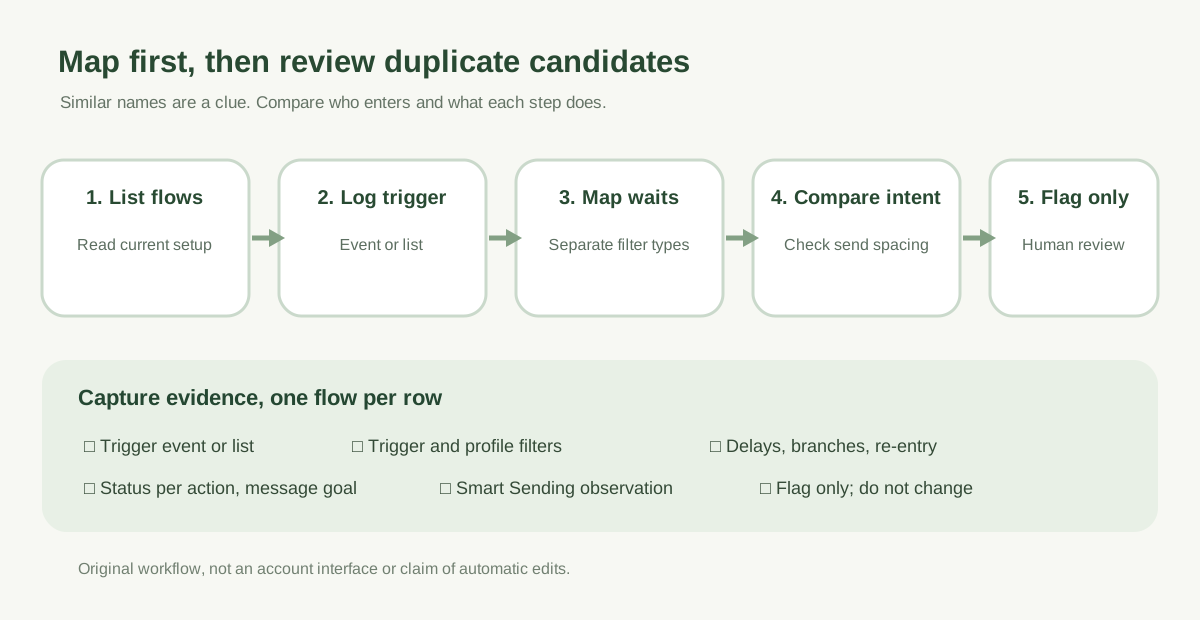
Use one row per flow. Record its name, overall status, trigger type, event or list, re-entry setting, main purpose, last update, and owner. Email actions can have their own statuses, so record each message action, its branch, and the delay before it as well. If analytics are visible, capture only the summary values and date range needed for the review.
Group flows by lifecycle stage to make them easier to scan: welcome, browse or checkout abandonment, post-purchase, replenishment or repeat purchase, and winback. These groups are an index, not a recommendation to merge. Two similar-looking flows may both be needed for different products or customer stages.
03 | Record the trigger and each filter type separately
Klaviyo distinguishes trigger filters from profile filters. Trigger filters look at data on the event or custom object that starts a flow, such as which products were in an order. Profile filters look at a person’s profile or previous behavior, such as whether they placed an order after starting checkout. Keep these in separate columns instead of combining them into one vague ‘filter’ field.
For an abandoned-checkout flow, record whether it starts from `Started Checkout` or another event, then check whether a profile filter excludes people who completed an order. For a post-purchase cross-sell, note which products or order properties the trigger filter includes. Klaviyo says profile filters are checked on entry and before later actions; a person can qualify at entry and still skip an individual action later.
Record re-entry criteria too. The same event can allow one entry, entry each time a person qualifies again, or re-entry after a minimum period. Those settings change who the flow reaches and can make two similar flows behave differently.
04 | Trace branches and delays to work out when the next email can arrive
Follow each path from the trigger. Record every delay, conditional branch, email, and other action. With no time delay between consecutive components, the next actions can happen immediately. A delay that also specifies a send time can use calendar-day behavior that differs from simply waiting a fixed number of hours. Read the actual settings; do not infer timing from a flow name.
For abandoned-checkout flows, check whether a purchase exclusion is reevaluated after the wait. Klaviyo’s example includes a delay before the first reminder to give a customer time to finish buying. Review the timing against the store’s actual purchase cycle instead of copying a sample interval as a universal rule.
Inspect status at the action level. A Draft email is not scheduled to send; a Manual email queues recipients for human review; a Live email sends automatically. If Live actions follow a Manual message, later messages may still send automatically while the earlier message waits for review. Record what you see, and do not change status to make the audit look tidy.
05 | Treat a pair of flows as a candidate, not a confirmed duplicate
Compare the trigger, audience overlap, product or order conditions, delays, branches, message purpose, and re-entry rules side by side. Check whether one flow covers a special product, region, or purchase stage. If a material condition differs, write it down instead of labeling the pair duplicate.
Similar names, matching templates, or similar open rates are prompts to investigate. Mark the pair as a candidate, list evidence for and against, and leave unknowns visible. Someone who understands the store’s campaigns and customer promises should decide whether to keep, combine, or revise anything.
06 | Check Smart Sending without treating it as a deduplication tool
Smart Sending is a per-message setting that limits how often an individual receives marketing messages within a time window. Klaviyo’s current help page lists a 16-hour default email window and says it can be changed; transactional messages are not skipped by Smart Sending. Record whether each flow email has it enabled and the account’s visible window during the review.
It cannot prove that two flows are distinct, or choose which email should remain. Similar messages can both send when they fall outside the window, and skips affect how many people actually receive each step. Treat Smart Sending as one frequency clue alongside delays and audience overlap; do not disable it for an audit.
07 | Ask Muse for a reviewable comparison with a read-only prompt
If the current connector lets Muse see the relevant Klaviyo settings, ask it for a table with one row per flow and mark unreadable fields as ‘not shown.’ Avoid a broad request to ‘clean up the account’ or ‘optimize sending,’ which mixes an inventory with actions.
You can write: ‘Read-only inventory of the lifecycle email flows in this Klaviyo account. View settings only. Do not edit, create, delete, pause, resume, or change any flow, email, filter, delay, Smart Sending setting, recipient queue, or status. Do not send messages or ask me to approve any of those changes. Use separate rows for each flow and email action. Record the name, trigger, trigger filters, profile filters, re-entry, branches, delays, action status, Smart Sending, visible recipient activity dates, and summary metrics. For possible overlaps, list similarities, differences, and evidence. Mark any unreadable field as not shown. Return candidates and questions for a human reviewer only.’
08 | Verify candidates in Klaviyo and let the owner decide
Open the original flow settings in Klaviyo and spot-check each candidate’s trigger, filters, delays, and action status against the table. Attach a date range to analytics; do not compare different months or different metrics as if they were the same. Fill in fields Muse could not see and keep its interpretation labeled as an interpretation.
Use four review outcomes: checked and serving different purposes, possible overlap awaiting an owner, not enough information, or owner-approved follow-up task. Plan any edits separately and review each proposed change before applying it. This audit ends with the candidate list; it leaves account sending and automation status as they were. For more on Muse connectors and everyday small-business workflows, see the Muse small-business weekly brief.
References
These sources support the product information in this guide. Musevip is an independent publication and is not affiliated with Meta.
- [1] Meta: Muse for Small Business (Klaviyo connector and approval statement)
- [2] Meta AI: Muse product overview
- [3] Klaviyo: Getting started with flows (delays, status, and analytics)
- [4] Klaviyo: Understanding flow triggers and filters
- [5] Klaviyo: How to add a time delay to a flow
- [6] Klaviyo: Understanding Smart Sending
- [7] Klaviyo: How to create an abandoned cart flow