
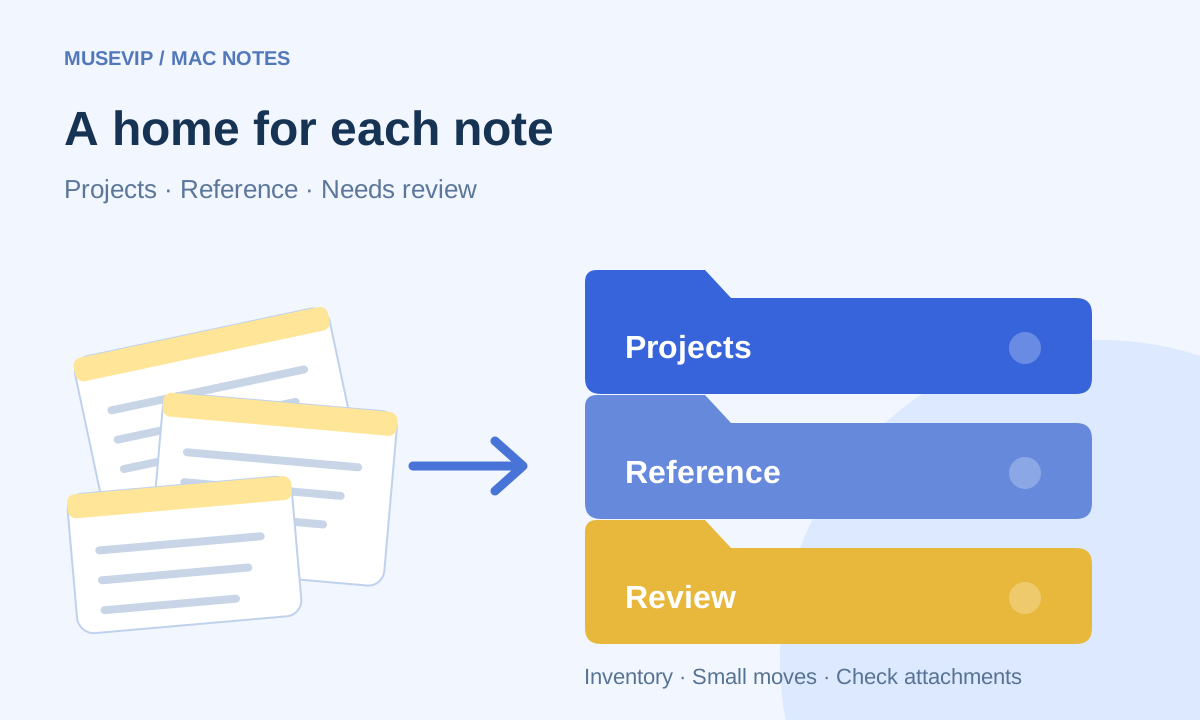
This guide focuses on “Muse Apple Notes” and turns the question into practical steps you can check.
01 | Choose a small set before asking for a cleanup
A shopping list, an unfinished idea, and a project log can all end up in the same Notes folder. Instead of asking Muse to organize everything, choose ten ordinary notes and request a proposed filing plan first.
Meta’s Mac download page lists permission-based access to Notes. Community posts by @EvanWritesX and @jinglian describe an organization attempt and trouble with device access. This workflow combines those reports with Apple’s documentation; it has not been run on your Mac.
02 | A working chat does not prove the Mac connection is online
Open the selected notes yourself and check the account they belong to. Then inspect the Mac listed in Muse’s device view and its current connection status. Receiving a chat reply alone does not prove the local operation connection is working.
@jinglian reported an offline device that later recovered. The post does not establish a specific network fix. Wake the Mac, check normal connectivity, save current work, and reopen Muse. If the device remains offline, stop and give official support the current message and version rather than changing security settings at random.
03 | Review the Notes permission separately
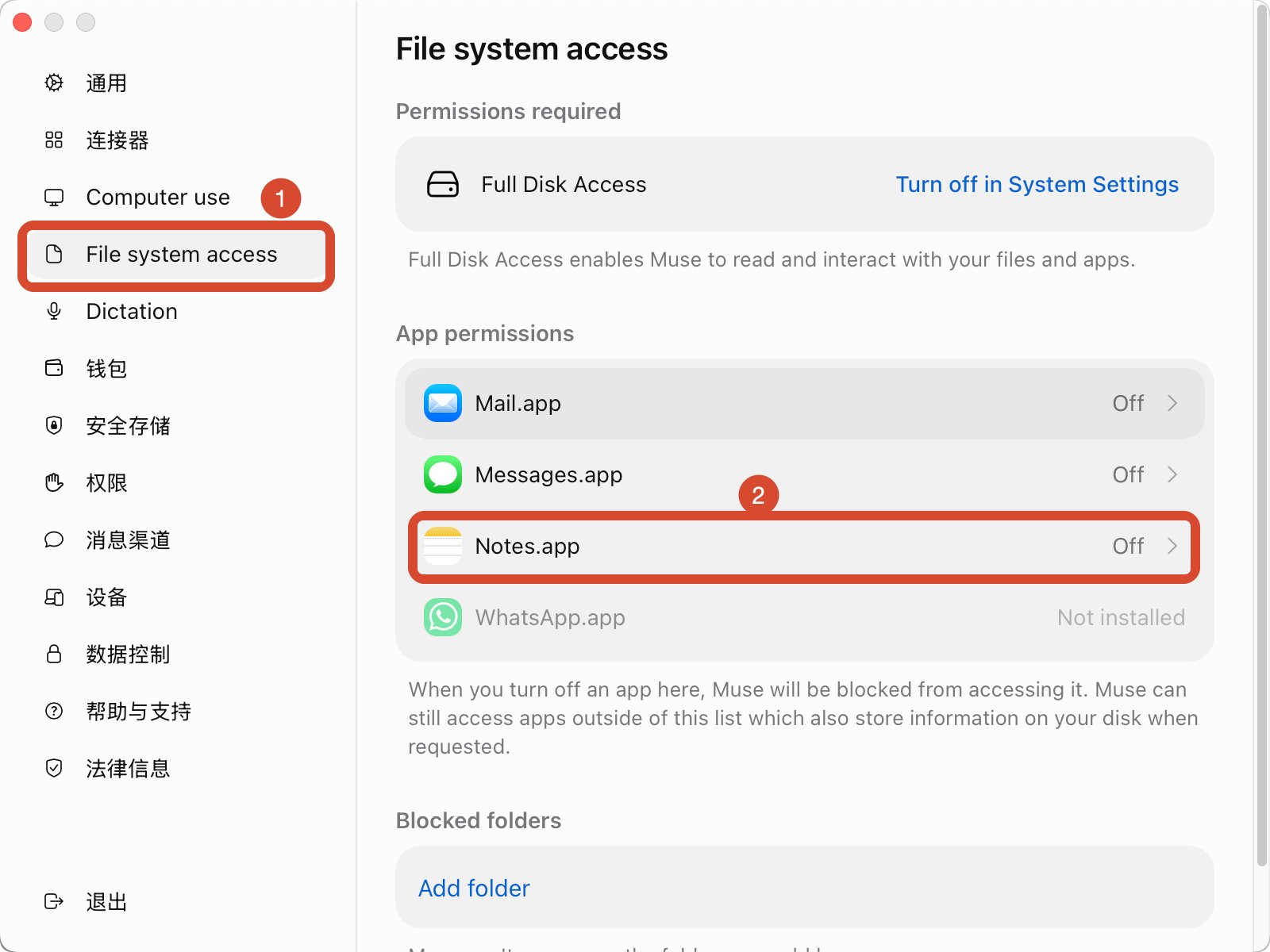
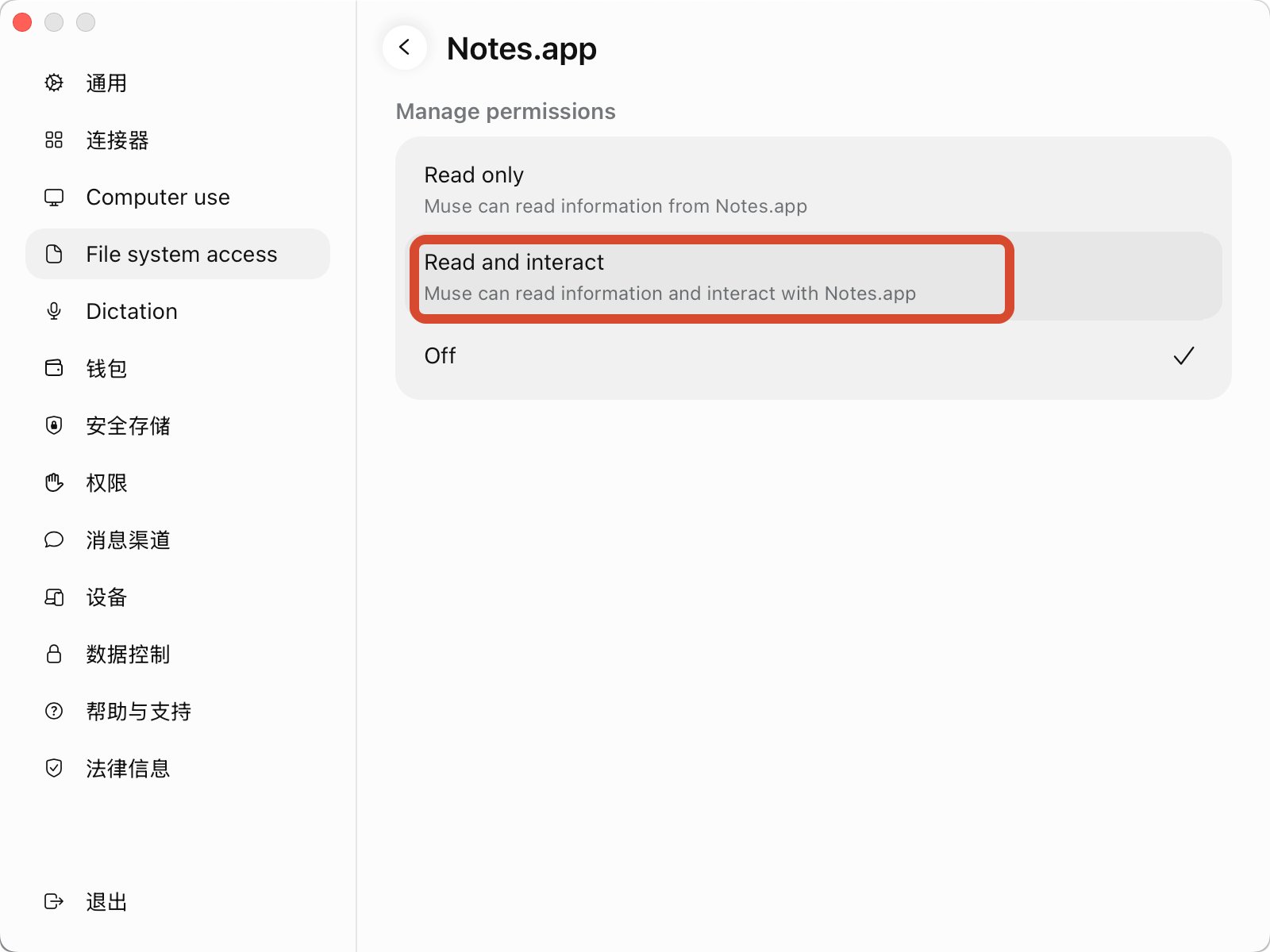
The original screenshots show Muse Settings, File system access, and Notes.app. Notes is marked Off, with separate Read only and Read and interact choices. Use your current interface if the names differ; the red annotations do not mean permission has already been granted.
For the initial inventory, select read-only access if it is offered and acceptable to you. Interacting with notes is a later decision for specific approved changes. The screenshot also displays Full Disk Access. Read its actual scope before granting anything: a prompt naming ten notes does not create a technical restriction to those ten notes.
If that scope is too broad, export the chosen nonsensitive content yourself and have Muse classify the file instead. Keep locked and shared notes out of the first batch, and do not enable unrelated messaging or mail access for this task.
04 | Ask for an inventory with a reason for each destination
Keep the account, current folder, title, a recognizable opening line, visible attachment status, proposed destination, and reason in each row. Unreadable information stays unknown. A title alone is not enough to identify a note.
Try this. Review only the ten notes I selected in [account/folder]. Preserve their titles and text. Propose folders and flag possible duplicates. Do not move, rewrite, merge, delete, or send anything. Explain missing access without expanding the scan.
05 | Use a few folders and keep possible duplicates
Active projects, reference material, and needs review are enough for a first pass. This is an editorial suggestion, not a required Notes structure. Keep an existing folder system if it already works for you.
Two notes with the same name may belong to different years or contain different scans. Ask Muse to list the differences in suspected pairs. Keep this job to filing; merging needs its own review.
06 | Keep readable copies and check attachments separately
Apple’s current guide offers PDF or Markdown exports of selected notes and copying content as Markdown. Available menus depend on your version. A readable export is not necessarily a complete backup of attachments, tags, sharing state, or timestamps. Open important attachments separately and confirm that you have copies.
Apple also documents dragging notes into a folder and Option-dragging to copy. If Muse proposes creating new notes and deleting the originals, pause. That may reflect its current tool limitation, not a limitation of Notes itself. You can carry out the approved moves manually while Muse supplies the filing plan.
07 | Approve only a few identified moves
The permission panel below distinguishes reading from interaction. Off remains checked in this screenshot; the red box highlights a choice, not an enabled setting. Review the actual permission and confirmation shown on your device.
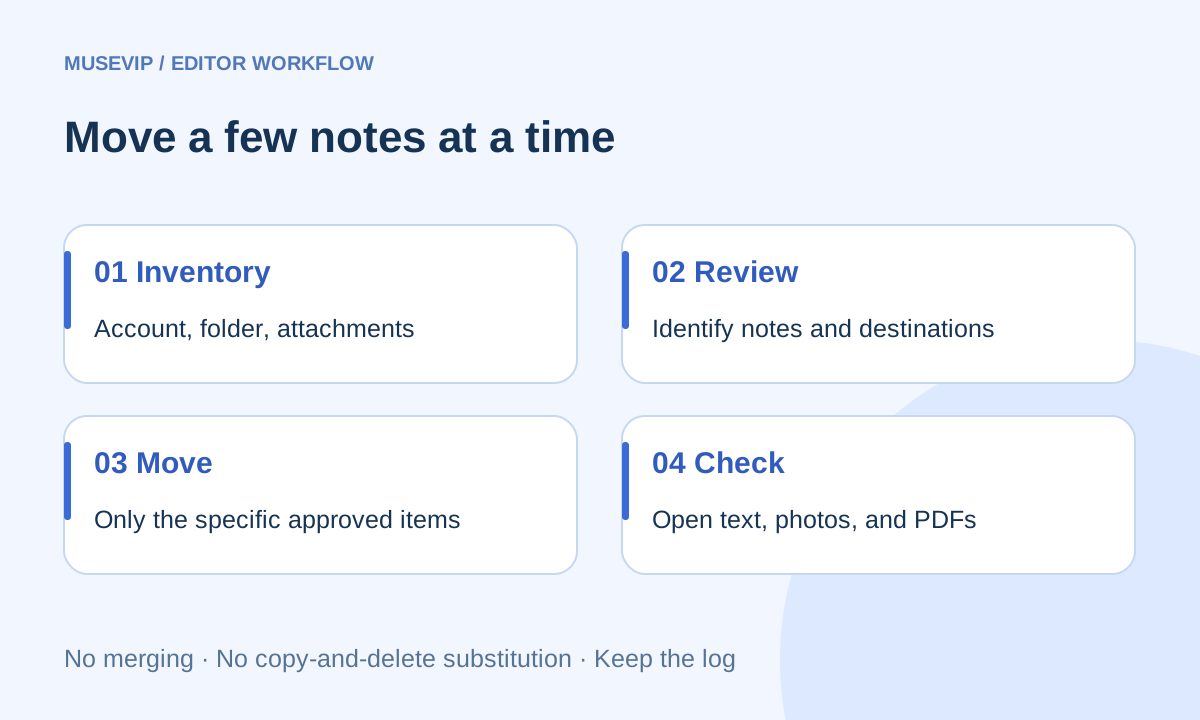
Try this. Move only inventory items A, B, and C to the destinations I confirmed. Preserve titles, text, and attachments. Do not move between accounts, alter sharing, merge, or delete. Show the three targets first. Stop if the tool requires copying and deleting, cannot identify a note, finds a destination conflict, or requests additional access.
Start with three ordinary notes and watch the action details. A written instruction does not replace an enforced permission setting. Stop and take over if a deletion or sharing action appears outside the approved plan.
08 | Check the results inside Notes
Use the change log to locate each of the three notes in its destination. Compare the text, open photos and PDFs, and check what happened at the original location. A total note count alone can hide a mistaken target or an extra copy.
Apple’s Attachments Browser helps find attachments, but its guide says the view excludes drawings and attachments inside locked notes. Open the relevant note directly before deciding an attachment is missing. Support also varies by account type and version.
To reverse the work, use the verified move log and return only those notes to their original folders. If content or attachments differ, preserve existing copies and stop the batch. Review whether Notes access is still needed. For ordinary files, see organizing Downloads with Muse.
References
These sources support the product information in this guide. Musevip is an independent publication and is not affiliated with Meta.
Last reviewed 2026.10.01. Product pages may change.