
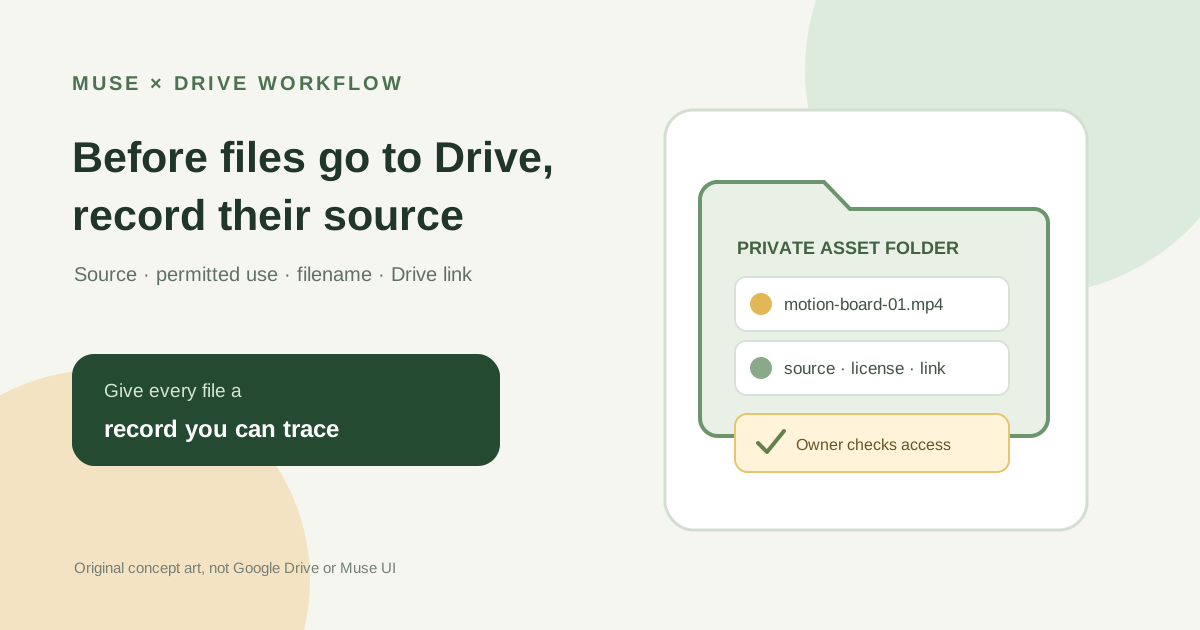
This guide focuses on “Muse Google Drive assets” and turns the question into practical steps you can check.
01 | Start with the asset and the rights you actually have
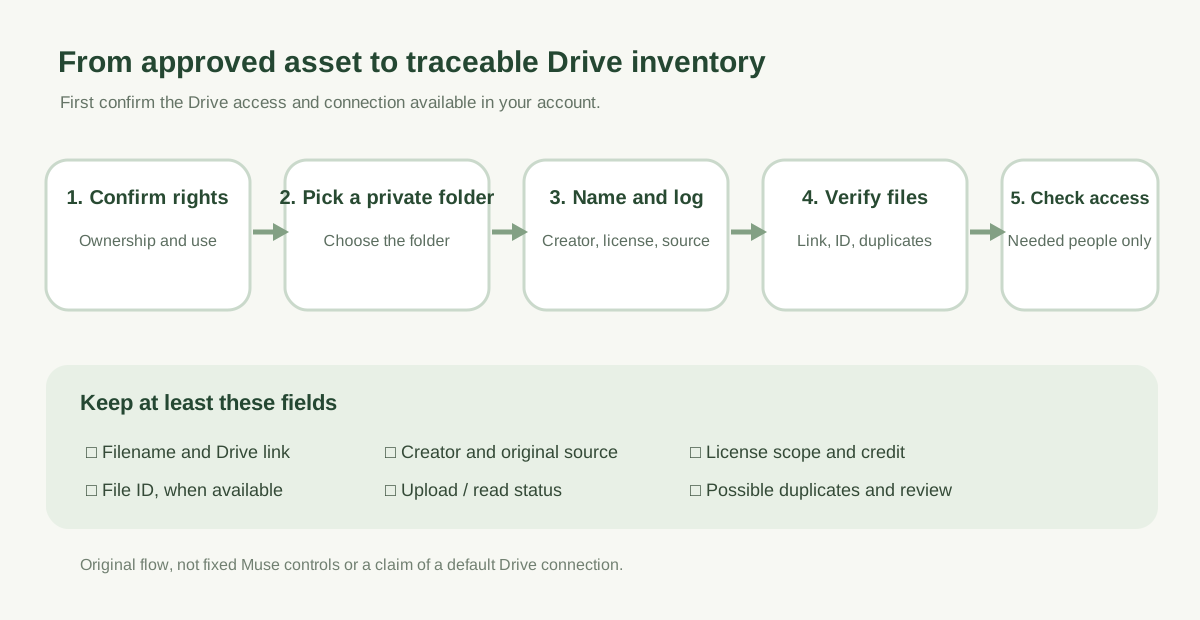
@huanfeng99991 shared an idea for collecting motion assets with Muse and storing them in Drive. For a real project, you also need to remember who made each asset, how you may use it, and which saved file is the right one. Start with ten assets you created or are authorized to store, and keep their source records beside the files.
Record the actual permitted use. If an asset is only licensed for private reference, do not mark it as available for public redistribution. Keep credit requirements and any expiry date too, so the filename is not the only thing left six months later.
Meta’s public Muse introduction describes browser use and work in connected apps selected by the user. I could not find an official, general Google Drive connector listing in the materials reviewed here. Check whether Drive access is actually present in your account. If it is not, ask Muse to prepare the inventory and upload the files yourself. This guide follows public documentation; it is not an account-level hands-on test.
02 | Choose a private destination folder first
Create a folder with a clear purpose, such as `Brand/Project/Motion-Assets`. If a license or client agreement limits who may see an asset, start in a private location rather than a shared team drive. Google recommends recognizable names and organizing by projects, dates, or keywords; use a pattern your team can keep consistent.
Before any online action, confirm the destination folder and account. If Muse can currently see Drive, ask it to identify the folder it plans to use. If it cannot, stop the online step instead of guessing between folders with similar names. You can still have Muse draft the inventory for a manual upload.
03 | List the sources before asking Muse to process them
Give Muse only the source links, asset names, and permission notes you have approved. Working through a short list is easier to check than asking it to save anything it finds online. If it hits a login wall, a dead link, a request to bypass access, or unclear license language, ask it to stop and record the issue.
You can ask this way. ‘Process only the assets listed below, and save only files I am authorized to keep in this private Drive folder: [folder name]. For each item, first list the creator, original URL, license text or permission note, permitted use, required credit, and date. If permission is unclear, the page is unavailable, or the file cannot be identified, do not download it; mark it for review. Do not visit unlisted sites or share any files.’
04 | Use clear filenames while keeping the original name
A consistent pattern such as `project-topic-source-date-version.ext` can make files easier to find. For example: `spring-campaign-motion-instagram-2026-09-v1.mp4`. Keep the name searchable; do not turn an unverified conclusion into a filename such as ‘commercial-use-approved.’ Put the permission details in their own fields.
If a file is renamed, keep both its original filename and current Drive filename in the inventory. When two files share a name, compare their size, duration, or contents before deciding whether to keep both. A matching name alone is not a reason to overwrite the original.
05 | Verify that the actual file reached Drive
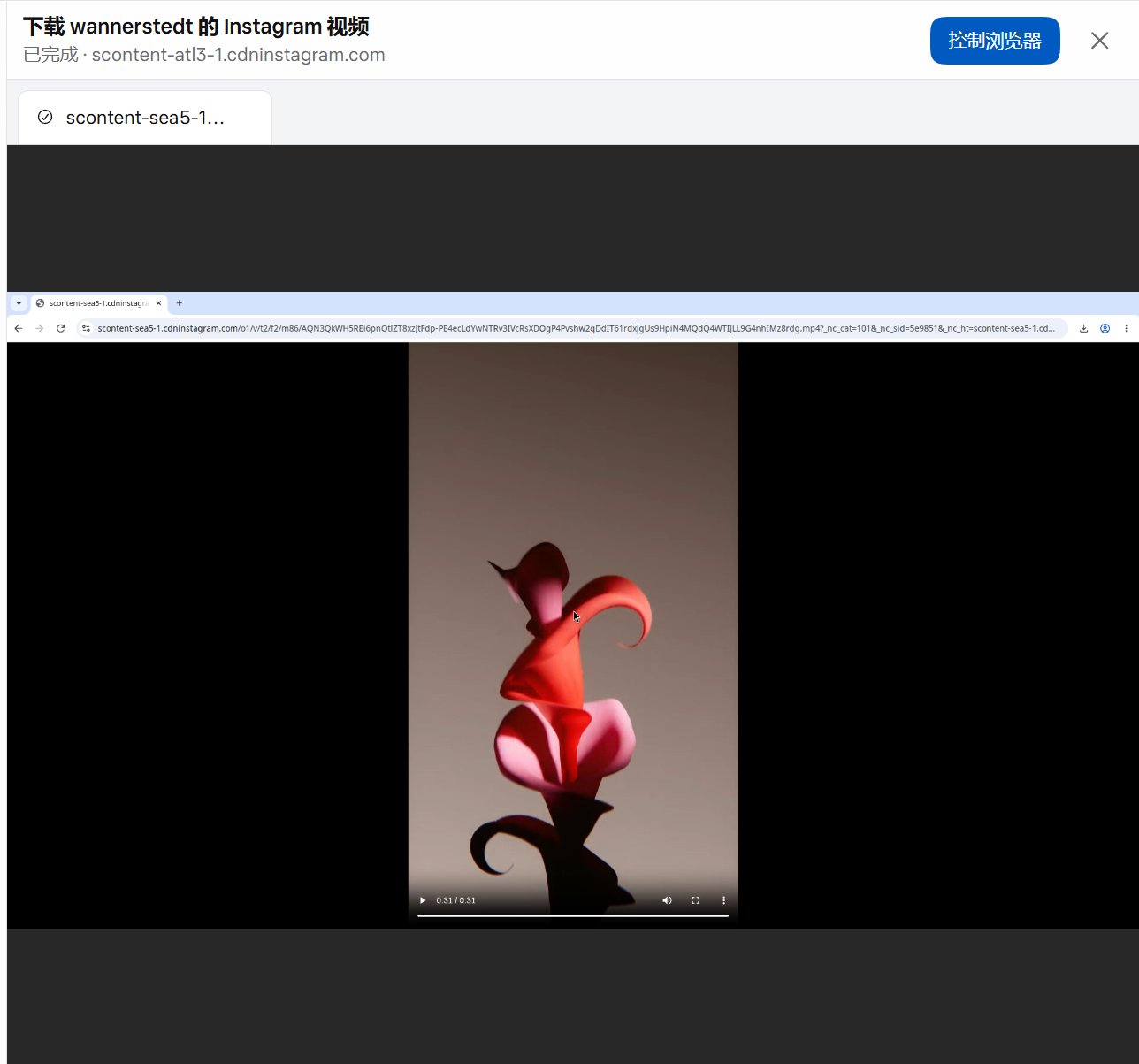
Open each file and compare its contents with the source. Check the extension, size, and duration too. Mark failed downloads, previews in place of files, damaged files, and thumbnails as failures or needing review. The creator’s screenshot shows a playable browser video, without a Drive upload result; it is a reason to do this check, not evidence that a file reached Drive.
A Drive file ID is a unique identifier that can remain the same when the file is renamed. Record it only if the current tool actually exposes it, and save a working Drive link as well. If Muse returns neither, mark the field ‘not shown’ and verify it yourself in Drive; do not guess an ID from a URL fragment.
06 | Track possible duplicates and failures separately
Useful status values include `verified`, `upload failed`, `source unavailable`, `possible duplicate`, and `permission review`. Similar files from different sources still need their own source records. Do not automatically merge or delete them; decide what to remove only after a human compares the contents and permission notes.
Google Workspace’s Drive guidance notes that uploading a file with the same name may create a new version. If you need both files, choose the option to keep both. Pause at a version prompt, compare the file and source records, and then decide whether to replace a version or retain separate copies. Do not let an automatic cleanup overwrite the original.
07 | Use one inventory to connect permission and location
Use one row per file. Track an inventory ID, asset name, creator, original source URL, license or permission evidence, permitted use, required credit, source date, review date, original filename, Drive filename, target folder, Drive file ID, working link, processing status, duplicate candidate, and human review note. Write ‘unconfirmed’ when there is no permission evidence; a blank field can look like it has already been checked.
Ask Muse for a CSV draft or table if that is useful. If your account cannot write to a spreadsheet, have it produce the draft in chat and copy it into your own inventory. Keep the source URL as evidence; do not let a paraphrase make the permission broader than the original terms.
08 | Check folder access before sharing with anyone
Drive’s sharing help describes restricted access and link-based access, with roles such as Viewer, Commenter, and Editor. Share only with the people who need the files and the least access they need. For a personal archive, confirm it remains restricted. Open a saved file link as the intended recipient to catch accidental exposure.
Files and later additions inherit parent-folder permissions. For narrower access, use a private folder outside the shared hierarchy, or follow Google’s limited-access-folder controls. An ordinary subfolder inside a shared folder does not automatically reduce access. Finally, open a few inventory links and check the file, name, source record, and actual audience.
References
These sources support the product information in this guide. Musevip is an independent publication and is not affiliated with Meta.
- [1] Meta AI: Muse product overview
- [2] Meta: Introducing Muse (connected apps and user-selected access)
- [3] Google Drive Help: Organize your files
- [4] Google Drive Help: Share files and access roles
- [5] Google Drive Help: Share folders and inherited access
- [6] Google Drive Help: Limited-access folders
- [7] Google Workspace Learning Center: Same-name uploads and versions
- [8] Google Drive API: File IDs and file metadata