
This guide focuses on “Muse Dropbox file request” and turns the question into practical steps you can check.
01 | Start with a missing-assets list, not a vague chase
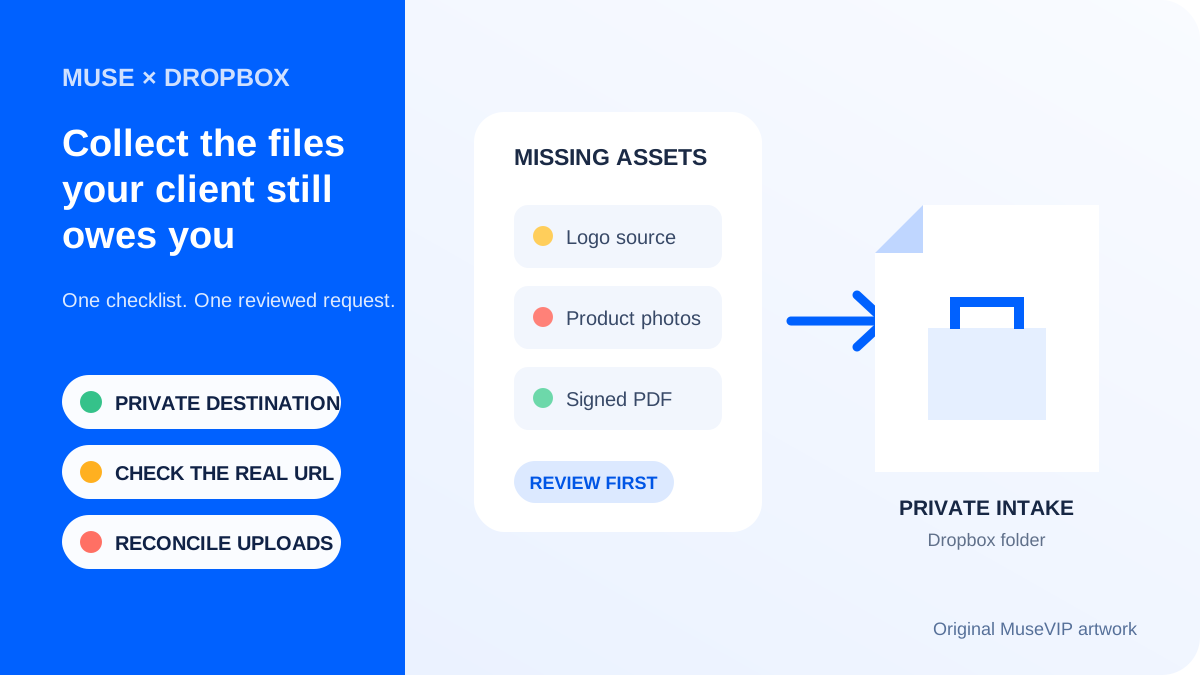
“Send the rest of the files” asks the client to reconstruct your project state. It also leaves you sorting screenshots, source files, and near-identical attachments after they arrive. Give Muse one project folder and the actual delivery checklist, then ask for three groups: present, missing, and unclear.
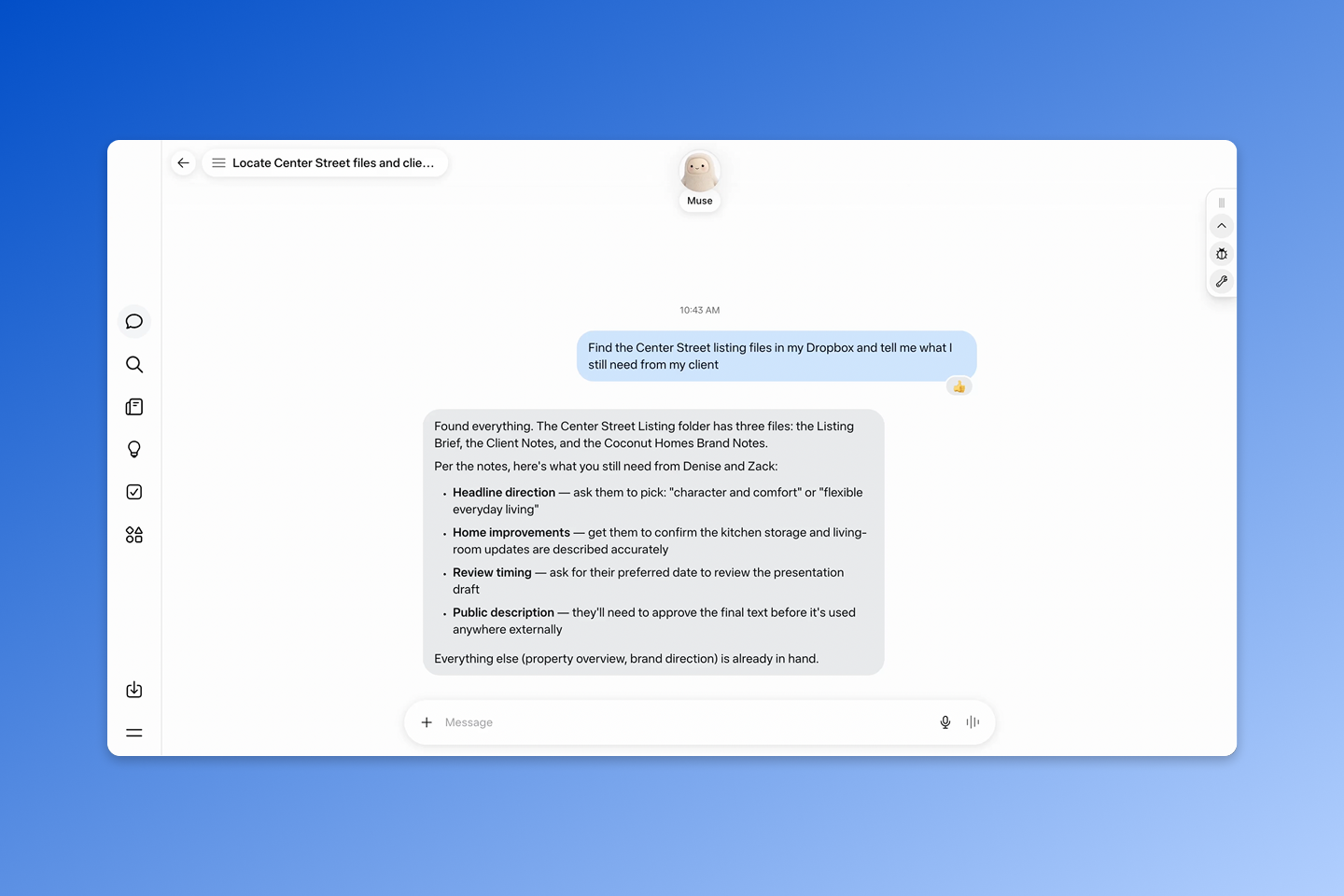
Keep the checklist name, intended use, acceptable format, and responsible contact for every missing item. Dropbox’s September 29 product demonstration uses a similar prompt to find what is still needed from a client. That official scenario establishes the intended workflow; it does not verify the contents of your project.
Use one client and one batch for the first run. MuseVIP has not tested this connector in a live Dropbox account. Available actions still depend on the connected account, region, team policy, and the result shown in your current Muse session.
02 | Verify the account, connector, and action settings
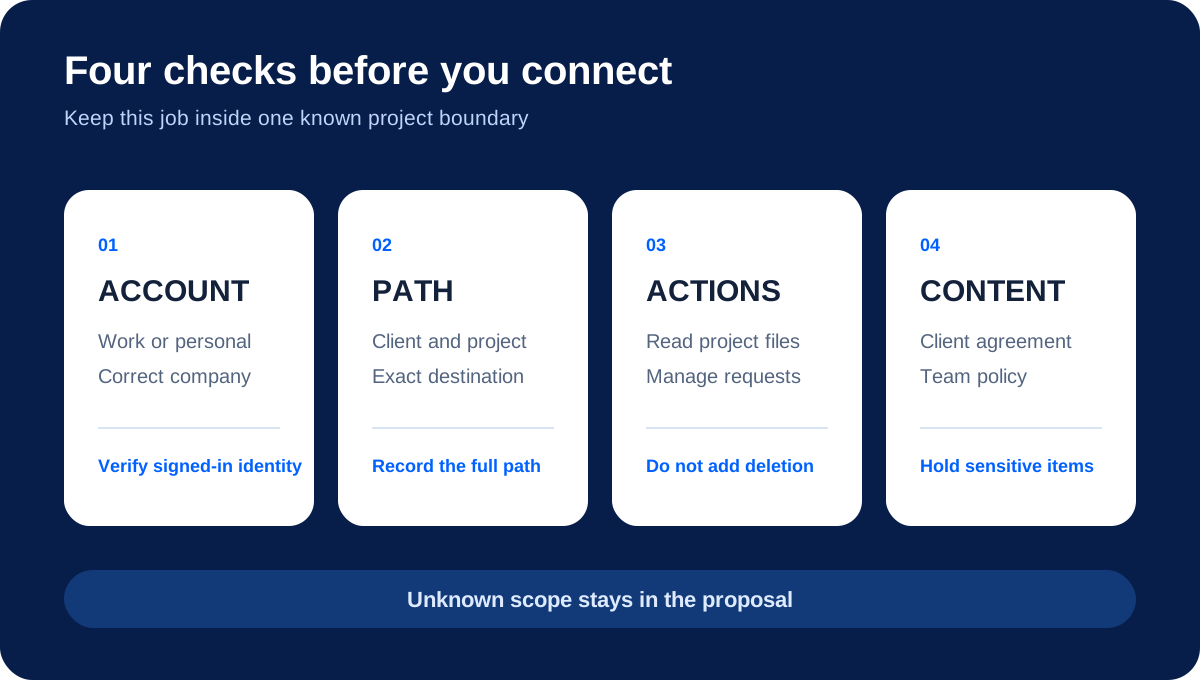
Dropbox currently documents the Muse connector for English-language use in the United States and Canada. It covers all Dropbox plans and all Muse plans. The published path is Muse Settings, Connectors, Dropbox, Connect. If Dropbox is absent, stop instead of treating a normal Dropbox web feature as an available Muse action.
Confirm whether you connected the work or personal Dropbox account. Dropbox lists separate connector controls for reading or downloading files, creating or deleting content, managing file requests, and sharing. Limit this job to the exact project path and the actions it needs. Connecting Muse does not rewrite the Dropbox sharing settings already attached to your folders.
Dropbox also says Meta may use data shared through the connection for model training under Meta’s policies. Check the client agreement and your team policy before connecting folders that contain identity documents, confidential contracts, or unreleased work.
03 | Choose a private intake folder and confirm plan limits
Create a dedicated destination such as “Client A / Fall Launch / Incoming Assets.” A Dropbox file request saves uploads to a folder you choose, and that destination is private by default. The upload link does not by itself grant the client browsing or editing access to the rest of the folder.
Selecting an existing shared folder changes the audience for incoming files. Open the destination in Dropbox and inspect its owner, members, and permissions first. Dropbox also notes that when a team member has linked personal and work accounts, request uploads default to a folder in the team account.
Every upload consumes the requester’s Dropbox storage. Requests created by Basic, Plus, and Family users accept individual files up to 2 GB. Professional, Essentials, Business, Business Plus, Standard, Advanced, and Enterprise requests can accept files up to 250 GB. Confirm the current plan and available space before inviting a large video or source archive.
04 | Write a request the client can follow without guessing
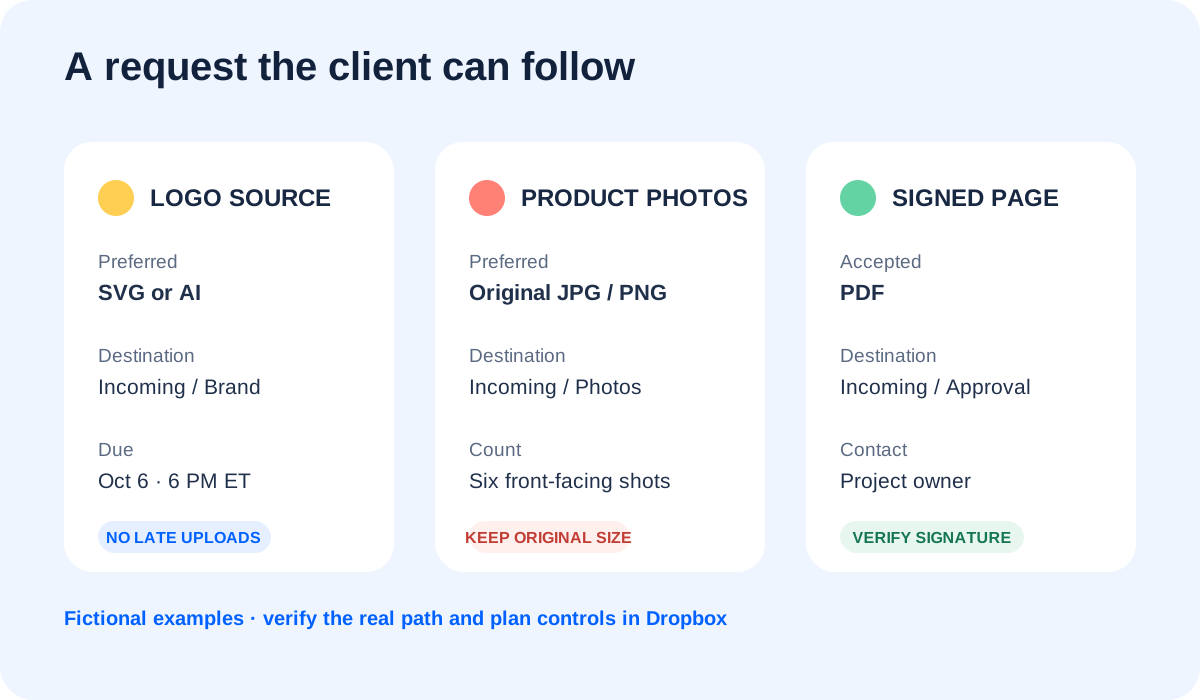
Turn each gap into one concrete line. Ask for “editable logo in SVG or AI,” “six front-facing product photographs at original size,” or “signed approval page as PDF.” Separate a preferred format from an acceptable alternative when either will work.
Use the project and batch in the request title. Put the missing items, their use, a contact, and the next review step in the description. A Dropbox file request collects uploads from people who may not have a Dropbox account. It is a narrower tool than inviting the client into a shared folder.
Deadline controls are plan-dependent. Professional, Essentials, and the listed team plans can set a date and time and decide whether late uploads are accepted. Basic, Plus, and Family users should not expect that control. Dropbox presents the deadline in the requester’s timezone, so include the timezone in the note you send to the client.
05 | Approve creation, then inspect and send the real link yourself
Ask Muse for a proposal before it creates anything. The proposal should show title, description, full destination path, deadline behavior, late-upload choice, and the Dropbox action it intends to use. An unknown path or unavailable plan feature stays unresolved.
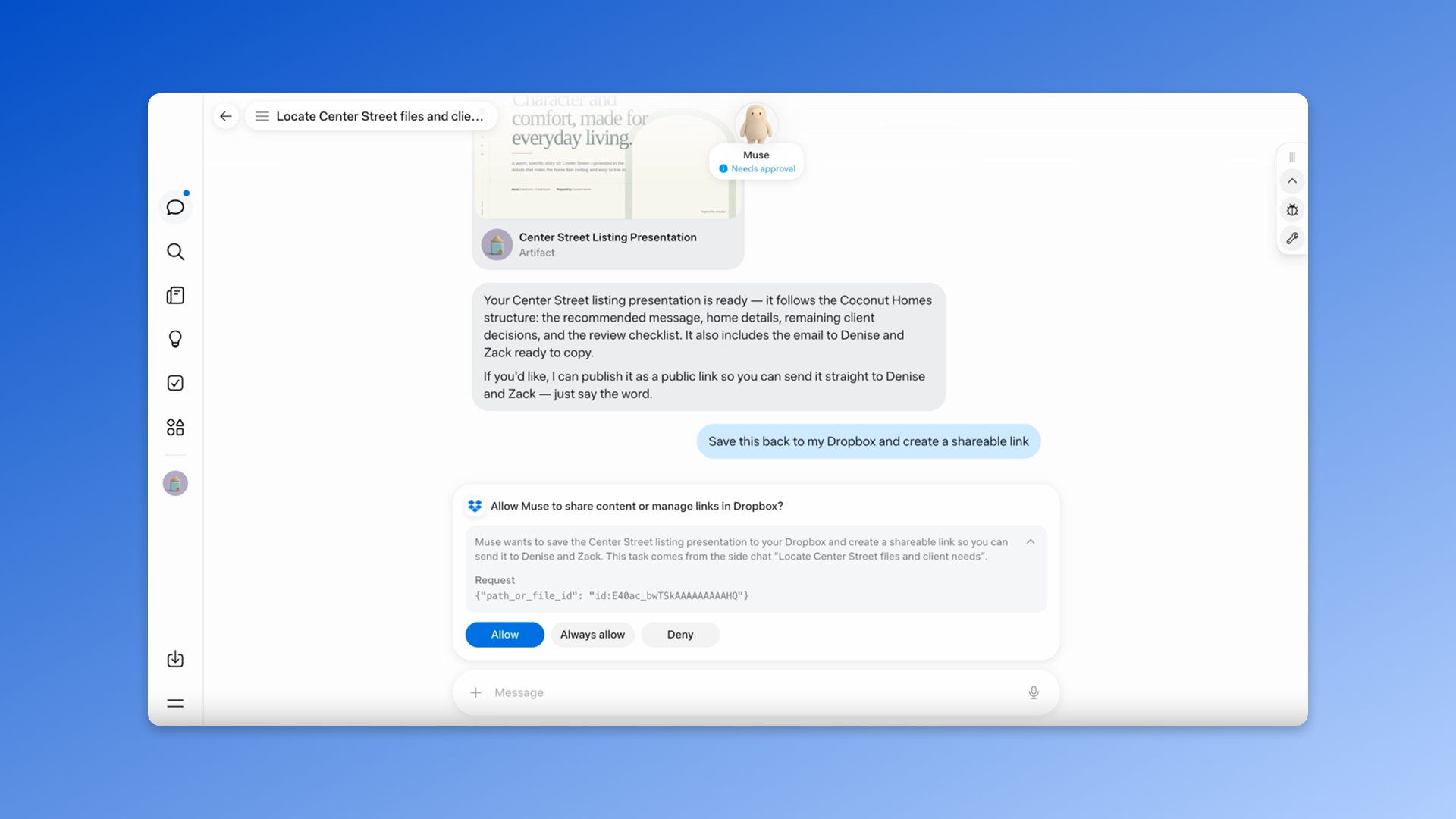
A narrow approval can say, “Create this one Dropbox file request. Do not email anyone, create a shared folder, or move or delete existing files. Return the request ID, actual destination path, and real upload URL.” Dropbox says actions that change content or sharing require added confirmation, so read the current approval card rather than relying on the prompt alone.
Open the returned URL yourself. Check requester identity, title, description, deadline, and any password, then view the client side in a private browser window. Dropbox previews are currently unavailable inside Muse, and a chat response is not proof that the upload page works. Send the checked link through your normal client channel and record its recipient and send time.
06 | Reconcile uploads against the checklist
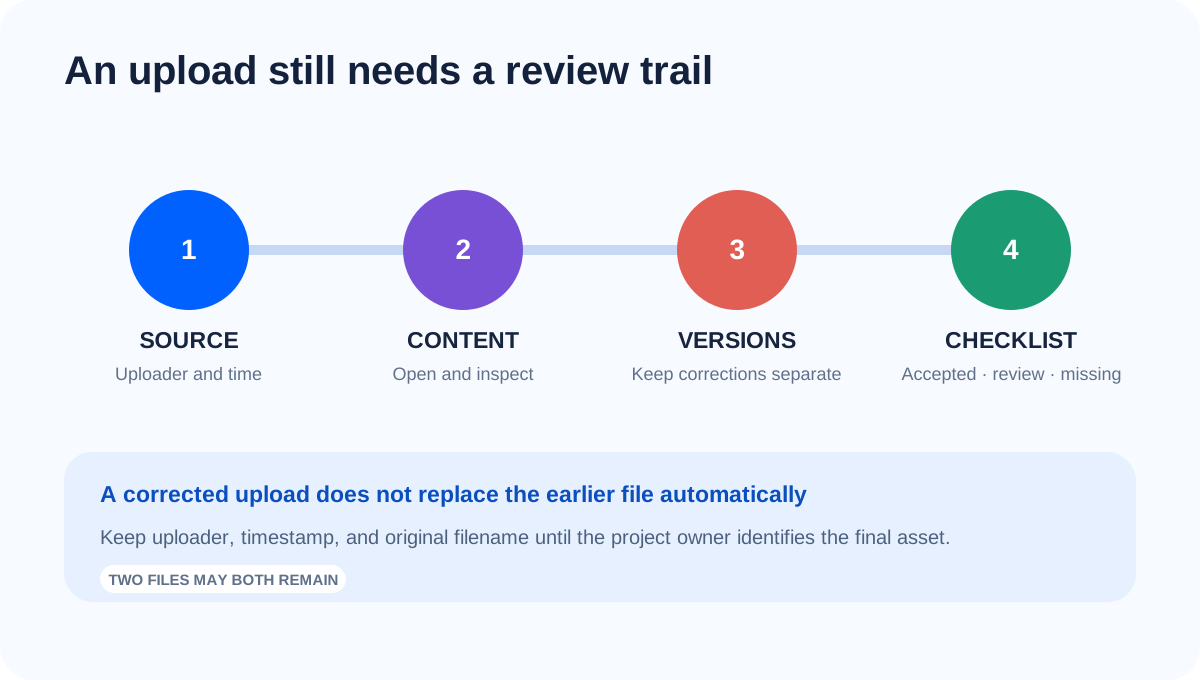
Dropbox sends the requester a notification when a file arrives. Open the actual destination and check whether each file opens, matches the requested asset, and meets the agreed format or dimensions. A submitter may be asked for a name and email, but uploader identity does not establish that the content is correct.
Treat corrected and duplicate names as separate evidence. Dropbox tells recipients who uploaded a wrong file to upload the correction through the same request, and both files are delivered to the requester. Do not delete the older file or select the newest timestamp automatically. Preserve uploader, upload time, and original filename until the client or project owner identifies the final asset.
Update every row to accepted, needs review, or still missing. An unreadable file or the wrong content remains in needs review even though an upload exists. If the invitation is forwarded, the new submitter can use the link but does not inherit the original recipient’s reminder emails, so direct follow-up remains your job.
07 | Close the request and disconnect the connector separately
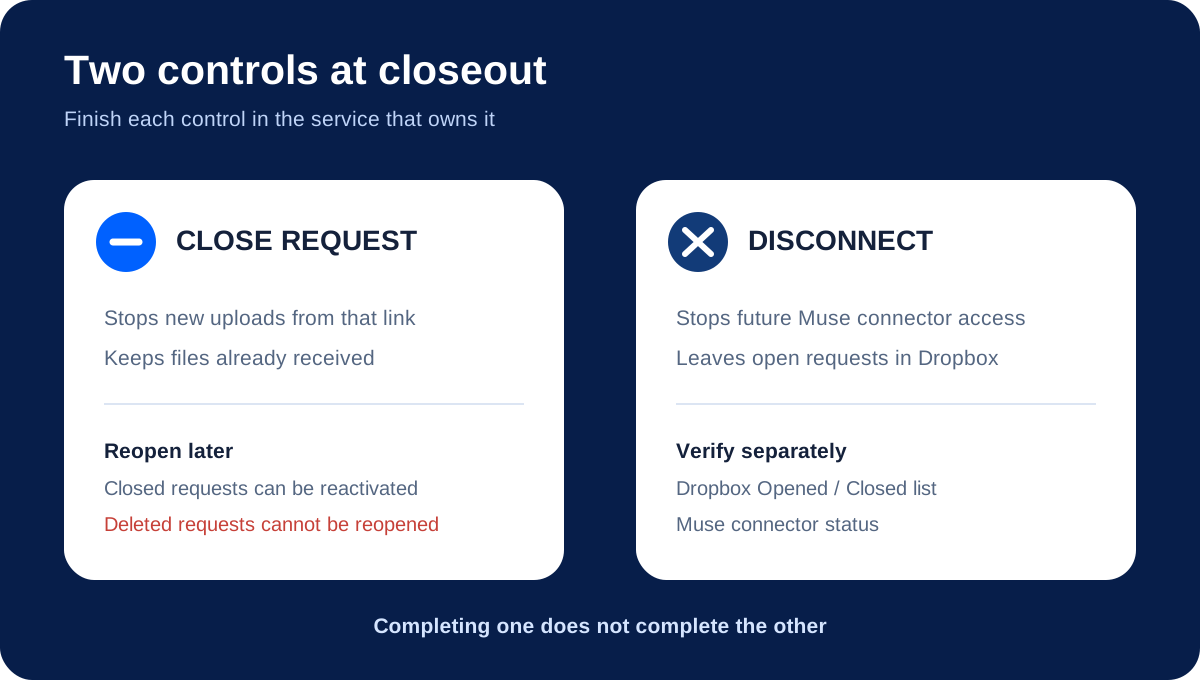
Close the file request after the accepted checklist is complete. A closed request stops uploads from the invitation link until it is reopened. It does not remove files already received. Deleting a request is a different action, and a deleted request cannot be reopened.
Disconnecting Dropbox in Muse stops future connector access. It does not close an open file request that remains in Dropbox. Closing one request also leaves the connector available for other work. Check the Opened or Closed list in Dropbox and the Dropbox status in Muse Settings as two separate controls.
For a linked project summary after intake, use the <a href="/en/guides/muse-notion-project-brief/">Notion project brief workflow</a>. When approved assets are ready for a designer or developer, continue with the <a href="/en/guides/muse-figma-design-handoff/">Figma handoff checklist</a>. Both should start from accepted files, not everything that happened to be uploaded.
08 | Copy this prompt and keep creation behind approval
Read only the Dropbox folder 【client / project】 and its 【delivery checklist】. Do not create, move, delete, or share anything yet. Sort assets into present, missing, and unclear. For each missing item, retain the checklist name, intended use, acceptable formats, and source-file link. State the exact path read, snapshot time, and any content you could not retrieve.
Prepare one Dropbox file request proposal for the missing items. The destination is 【full path】. Verify that it is private, belongs to the intended account, and has enough space. Use 【project + asset follow-up】 as the title. In the description, list each file, preferred format, acceptable alternative, and contact. If the current plan supports a deadline, use 【date, time, timezone】 and state whether late uploads are allowed. Otherwise put the date in the description without inventing a deadline setting.
Return the title, description, destination, deadline behavior, and proposed action, then wait for my approval. After approval, create one file request only. Do not email anyone, create a shared folder, change existing permissions, or move or delete files. Return the request ID, actual destination, and real upload URL. I will open and send the link myself.
When files arrive, read the request and destination again. Make a table with uploader, upload time, original filename, matching checklist item, and review state. Keep duplicate names and corrections as separate rows. After I confirm the accepted checklist is complete, propose closing this request. Do not treat closing the request as permission to disconnect the Dropbox connector.
References
These sources support the product information in this guide. Musevip is an independent publication and is not affiliated with Meta.
Last reviewed 2026.10.02. Product pages may change.