
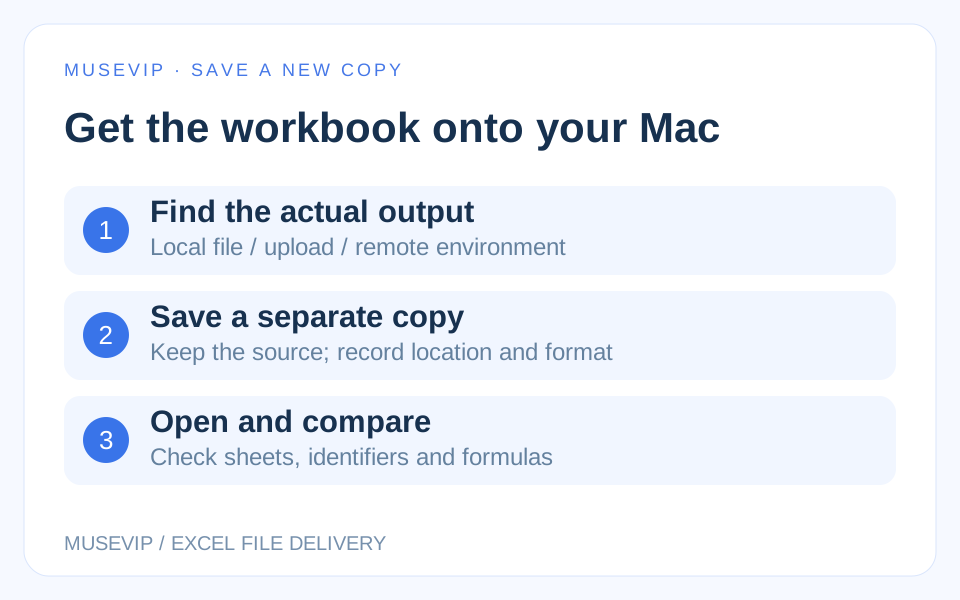
This guide focuses on “Muse Excel save Mac” and turns the question into practical steps you can check.
01 | A chat summary does not tell you where the file is
Muse may finish describing a spreadsheet edit while you are still looking for the workbook. Ask for the actual output location before copying the summary into your original file. A file in a remote environment, an uploaded copy and a workbook on your Mac can have the same name and different contents.
A recent Mac user described trouble getting a cloud-processed Excel result back onto their computer. That is an individual report. Meta currently says that Muse can find, read and update Mac files with Full Disk Access. Check the location, access settings and result of this particular task. This guide follows official documentation; it is not an account test on a Mac.
02 | Agree on a new filename before editing
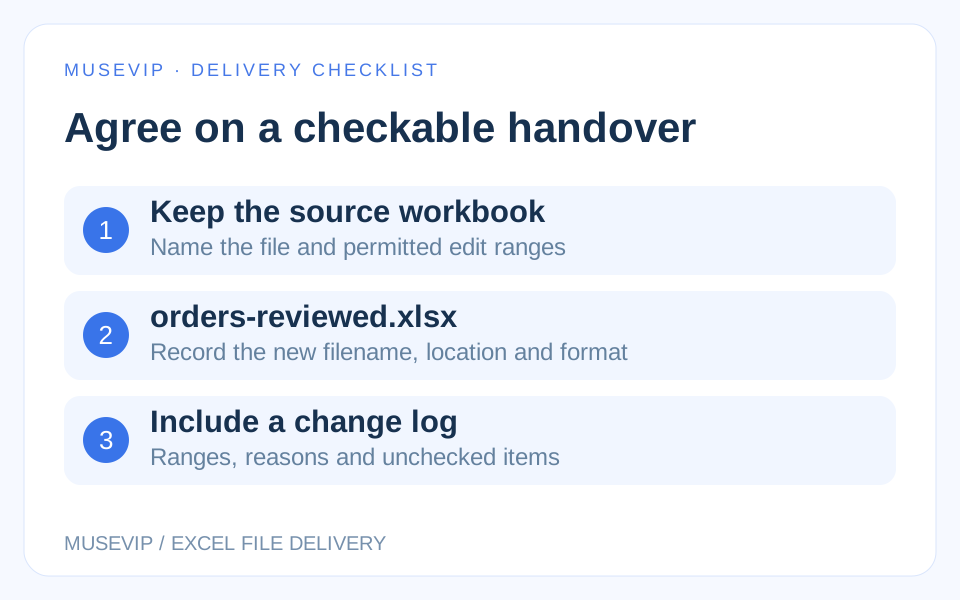
Keep the original workbook and request a separate output such as orders-reviewed.xlsx. Identify the source folder, sheets and permitted edit ranges. Include any requirements for formulas, text identifiers, dates or hidden sheets.
Try this instruction. Work only on the Orders sheet in the workbook I selected. Preserve the other sheets, existing formulas and leading zeros in order IDs. Produce a new orders-reviewed.xlsx copy without replacing the original. First identify whether you are using a Mac file, a remote file or an uploaded copy. List anything you cannot preserve and wait for my decision.
Ask for a change log with the sheet, range, before-and-after values and reason. If Muse returns a table in chat, establish whether it also produced a downloadable or locally saved workbook. The table alone cannot confirm file delivery.
03 | Check the current access scope before changing permissions
Review the available app and file access in Muse settings under File System Access. Meta also describes macOS Full Disk Access for file operations and Automation for local app actions. An app set to read only needs a task that fits that access.
Full Disk Access reaches files across the Mac; it is not permission for just one working folder. Before granting more access, establish whether the task ran locally or remotely and whether an output was produced. Ask Muse to report the specific failed step or missing result.
You can download an existing output yourself. If a permission change is needed, review the actual controls under System Settings, Privacy & Security, and revoke access there when appropriate. An instruction to edit only one file does not narrow an existing system grant.
04 | Save the received copy to a deliberate Mac location
Use the output entry your current interface actually provides, and check the extension and completed download. Muse entry points may differ. For a workbook in Excel for the web, Microsoft documents File, Create a Copy, Download a Copy.
In Excel for Mac, open the new copy and use File, Save As, or Command + Shift + S. Choose the folder and new name before saving. Office for Mac documentation says On My Mac switches an online location view to local storage. If you see Online Locations instead, the dialog is already showing local folders. Available locations can depend on version, account and permissions.
The Microsoft image below is a Word example from the Office for Mac help page. Its Word Document format is visible. It illustrates the location switch, not an Excel session tested for this article. Check your own workbook format separately.

05 | Compare the sheets, rows and sensitive data types
Open both the original and the new copy. Compare sheet names, record counts and the intended edit range beyond the first screen. If a three-sheet workbook comes back with one sheet, investigate before accepting it. Check hidden sheets, filters and merged cells separately.
Spot-check text identifiers such as 0017, dates and amounts. Leading zeros should survive when the original identifier is text. Check that day and month have not swapped. The summary can locate changes; the workbook is the actual result.
Keep unresolved items explicit, such as a missing order row, a changed identifier or two unchecked sheets. Correct the copy and retain the source until the review is complete.
06 | Inspect formulas as well as the displayed totals
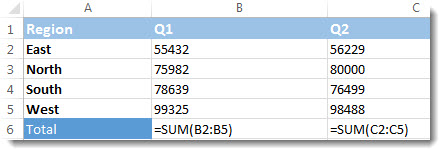
Select a total cell and inspect the formula bar. If the original contains =SUM(B2:B5) but the result contains only a number, its current display may match while later input changes will no longer update that total through the formula.
In Excel for Mac, use Formulas, Show Formulas to expose formulas in the sheet, then select it again to return to results. Microsoft’s sample below shows two SUM formulas in the Total row. Review the ranges in your workbook rather than copying the sample references.
Compare ranges, references across sheets and existing errors. If protected formulas cannot be inspected, record that limitation and ask an authorized owner to check. Removing protection or replacing errors with numbers can hide the issue.
07 | Treat CSV and macro formats deliberately
CSV can be useful for a single plain data sheet. Microsoft says text and CSV formats lose formatting and may lose data or features, and they save only the active sheet. One CSV is not a full replacement for a workbook with multiple sheets.
Saving an .xlsm workbook as .xlsx removes macros. Decide whether macros must be preserved before changing formats. For external connections, complex formulas or protected content that cannot be verified, request a change list and handle the edits in the original application.
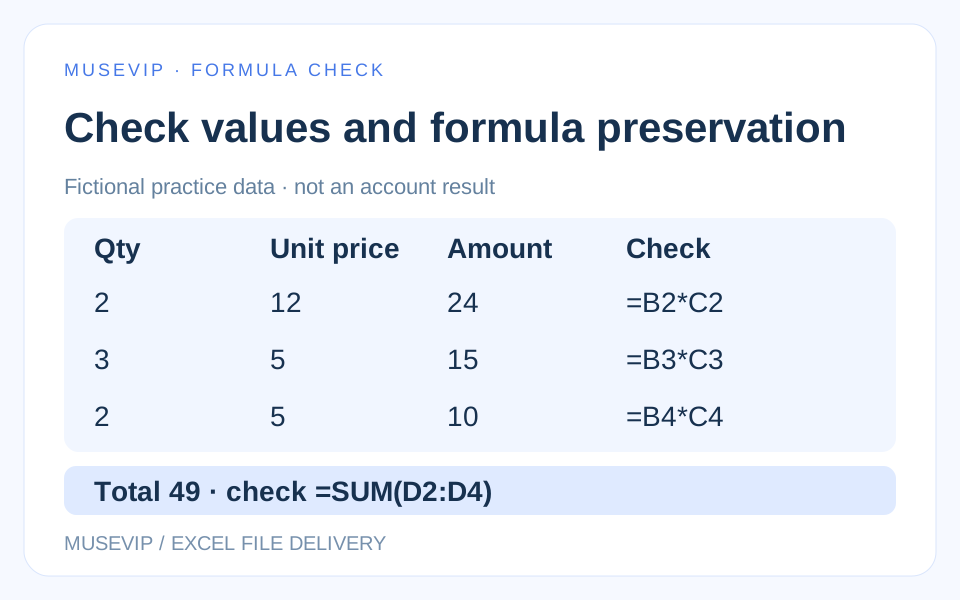
The diagram uses fictional practice data. Quantity times unit price produces 24, 15 and 10, with a total of 49. It demonstrates a check, not a real workbook result. Verify both the values and the original formulas and input types.
08 | Close the copy and open it again from Finder
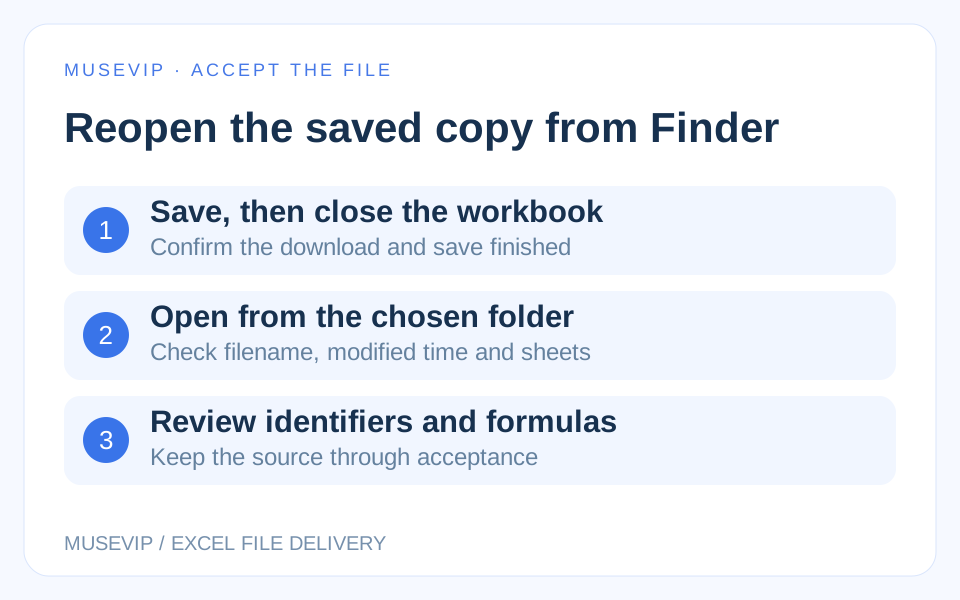
After saving, close the copy and reopen it from the chosen Finder folder. Confirm the filename, modified time, sheets and key formulas. This can reveal an incomplete download, wrong location, old copy or unsaved change.
The handover should specify the actual path or download location, new filename, changed ranges, completed checks and anything still unverified. Microsoft notes that AutoRecover does not replace saving and recommends keeping versions for important files. Retain the original through acceptance.
Reuse the same handover checklist for later spreadsheet tasks. If the first problem is finding the source file, see the Muse Mac Downloads guide. Get the small file workflow working before widening the job.
References
These sources support the product information in this guide. Musevip is an independent publication and is not affiliated with Meta.
Last reviewed 2026.10.02. Product pages may change.