
This guide focuses on “Muse parking payment” and turns the question into practical steps you can check.
01 | Park safely before taking the photo
Get fully into a spot, stop the car, and secure it before using a phone. Muse has a browser that can navigate sites and fill forms, and Meta says critical actions such as purchases require approval. It cannot decide whether the physical car blocks a hydrant, loading zone, bus stop, temporary closure, or directional restriction. Posted rules and the local authority remain the source of truth.
On October 1, 2026, one user described giving Muse a meter photo and intended duration so it could work through the steps. Link also posted about a Muse parking scenario that day. Those posts are useful leads, but they do not establish a native ParkMobile connector or guarantee that every parking operator accepts Link.
This guide stays with one parking session. Muse reads the image, lists gaps, opens the operator’s real route, and prepares a payment summary. You supply the vehicle, registration region, space, and duration, confirm that parking is allowed, and approve at the final step. MuseVIP did not sign into an operator or start a live session.
02 | Capture enough of the scene to reconstruct the rules
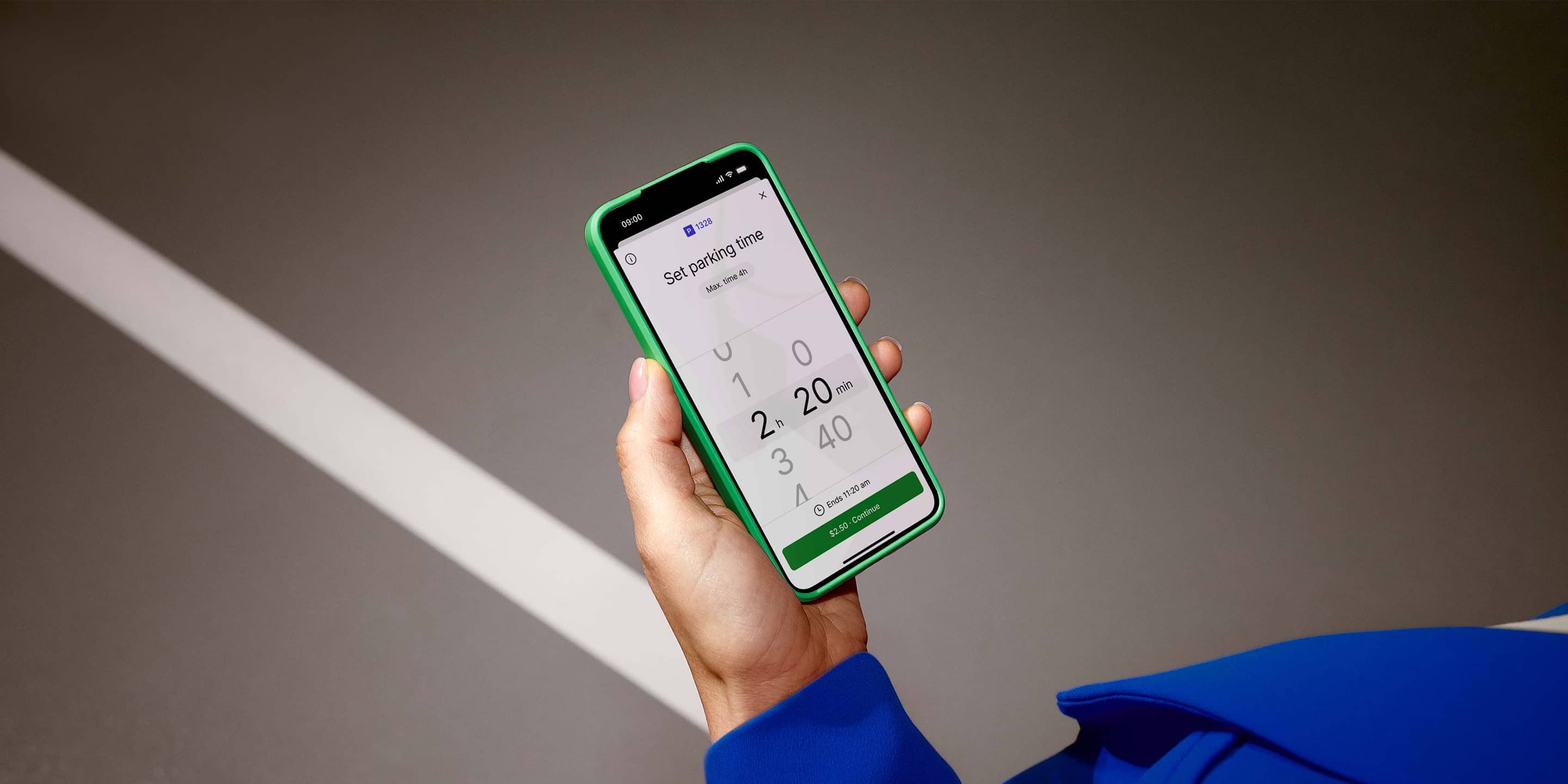
A QR code or meter display alone is too narrow. From a safe position, include the operator name, zone, rate, paid hours, maximum stay, plate or space requirement, directional arrows, and adjacent restriction signs. If one image cannot hold everything, take a close-up and state that both photos belong to the same parked vehicle.
Record the side of the street, nearest intersection or lot name, and any space number painted on the curb or pavement. ParkMobile explains that a zone can identify a spot, street section, or entire lot, while enforcement may match the zone with the plate and, where required, a space number.
When glare hides a digit or an arrow could point to another block, ask Muse to list competing readings. Walk back and resolve the ambiguity. ParkMobile says that if no ParkMobile zone is posted in the area, the driver should use the physical meter or kiosk instead of guessing a nearby zone.
03 | Build a known-and-unknown input card first
Ask for a table before opening payment. It should contain operator, city or authority, zone, payment route, plate, registration region, space, start time, planned departure, maximum stay, rate, service fee, and restrictions. Missing evidence remains Unknown; a blank field does not mean it is unnecessary.
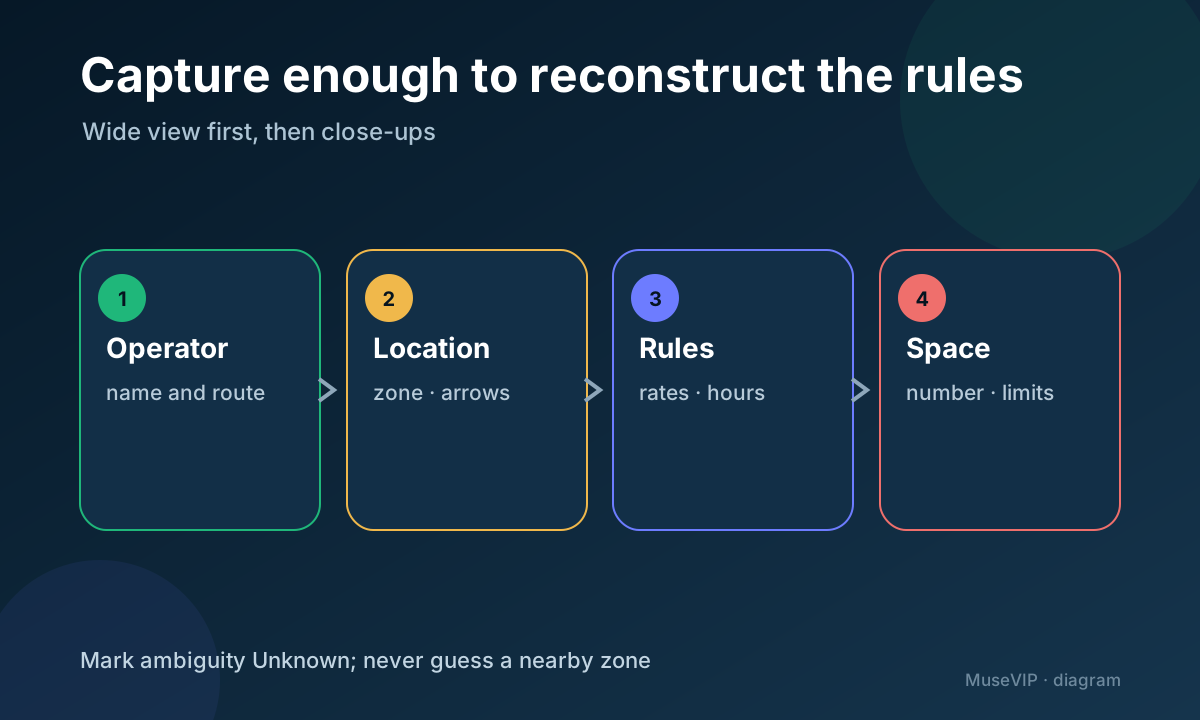
Read the plate character by character, especially zero versus the letter O. For a rental or multi-vehicle household, identify the car that is physically parked. Pay by Plate uses the plate; Pay by Space requires the curb or pavement number as well. ParkMobile notes that cities and operators choose different models.
Use a bounded prompt: Handle only this parking session. Transcribe the operator, city, zone, space, rate, paid hours, maximum stay, and restrictions from the photos. Mark ambiguity as Unknown. After I supply the plate and region, open the official route printed on the sign and return the proposed zone, location, plate, space, start and end time, duration, parking fee, service fee, tax, and total. Stop before payment.
04 | Match the zone to the city and physical sign
A zone number is not globally unique. ParkMobile says different authorities can reuse the same number, so a flow may also ask for the location. Compare the city, lot, or operator shown online with the sign beside the vehicle. A nearby-zone map helps with discovery but does not overrule the posted number.
ParkMobile zones contain one to eight digits, do not start with zero, and contain no letters or symbols. That catches obvious OCR mistakes; it does not prove the number belongs to the current space. If the official route does not recognize the posted zone, check the sign and regional route, then use another method allowed on site instead of trying adjacent numbers.
Verify eligibility separately. Accessible parking, resident rates, loading zones, event rules, street sweeping, and temporary closures can require credentials or prohibit parking. Paying cannot legalize a restricted spot. Preserve the rule text and its physical location rather than asking Muse to infer an exemption.
05 | Review the end time, rules, fees, and total
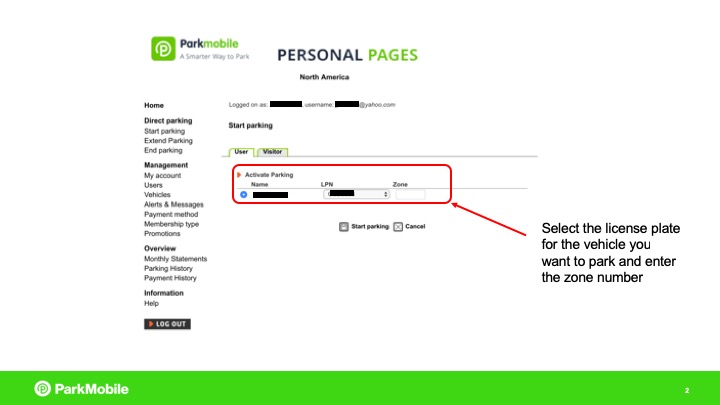
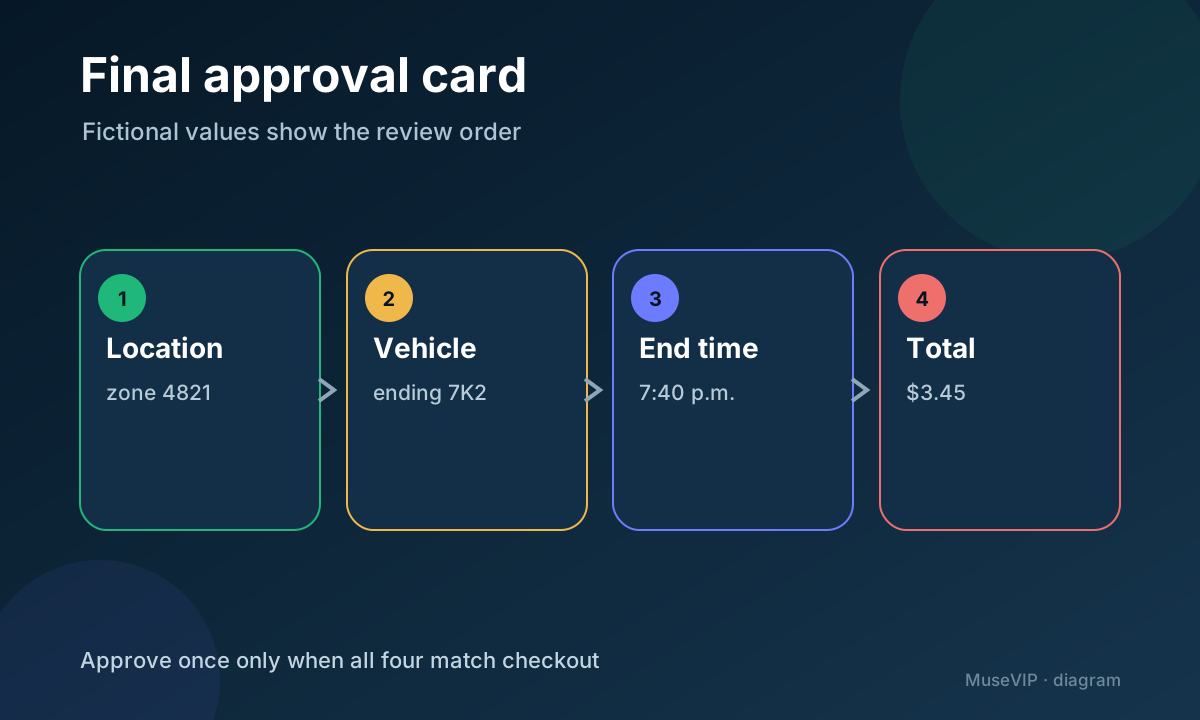
Translate “about 90 minutes” into an absolute end time. A session starting at 6:10 p.m. should end at 7:40 p.m., unless the location switches to free hours, enforces a minimum block, or applies a flat evening rate. Cities and operators set increments and maximum stays; ParkMobile does not set those local policies.
Use clearly fictional data for practice: zone 4821, an in-state plate ending 7K2, a 6:10 p.m. start, 90 minutes, a $3.00 parking fee, a $0.45 service fee, a $3.45 total, and a 7:40 p.m. end. Muse must replace every number with what the live operator page displays.
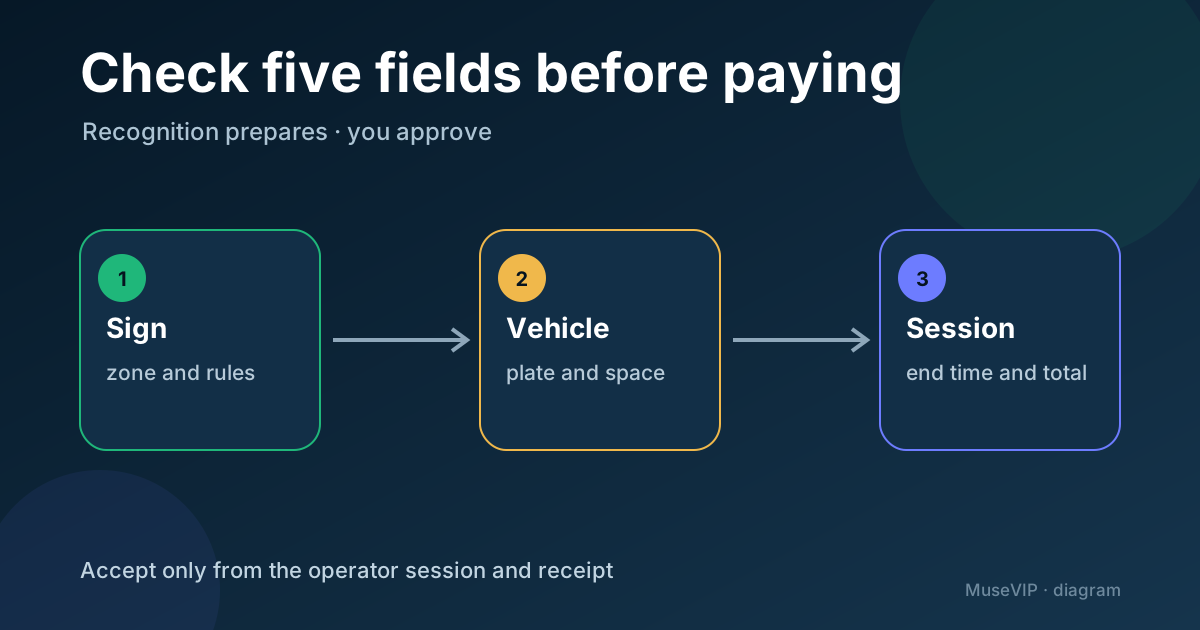
The approval summary should answer four questions. Does the location match the sign? Is the plate and region correct? Is a space required and correct? Does the end time stay within the posted maximum and avoid the next restriction? Any Unknown keeps the flow out of payment.
06 | Use Link only when the live checkout offers it
Meta says Muse can complete browser tasks and asks the user to approve purchases. Link’s agent page names Muse among supported AI agents, says the user confirms the amount for each purchase, and says payment credentials are not exposed to the agent. Those facts establish the Muse–Link payment path. They do not prove that ParkMobile or a particular municipal checkout offers Link.
When the operator’s real checkout presents Link, inspect the merchant, amount, payment-method suffix, and session end time before confirming the single request. If Link is absent, use an operator-supported method you accept or return to the physical meter. Do not ask Muse to create a wallet, save a new card, or switch to an unrelated parking site merely to finish.
Approve this transaction once. Meta describes purchase approvals as critical-action controls, and Link currently says the user approves the amount before every purchase. Decline a prompt that shows a broader recurring grant, another merchant, an unknown amount, or multiple charges, then return to the summary.
07 | A payment result is not yet an active parking session
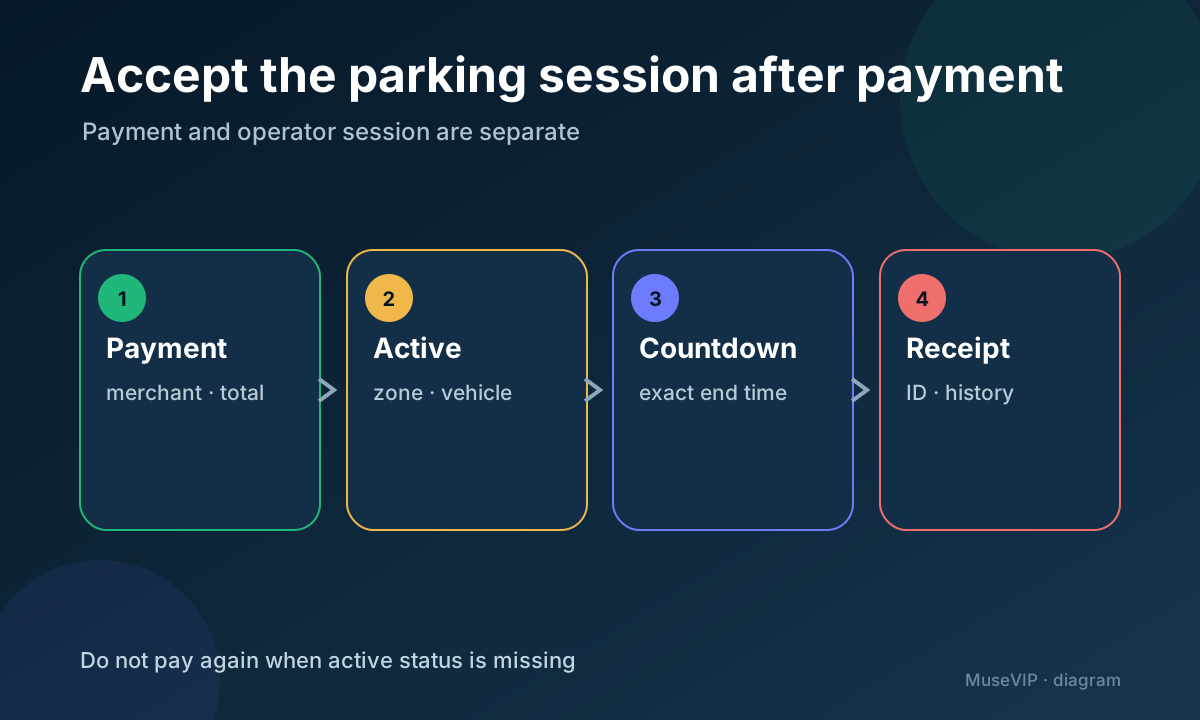
Look for the operator’s own success state after checkout. In ParkMobile, a successful start produces an active session and countdown, while Activity and History contain recent transactions and receipts. Save the operator, zone, plate or space, start, end, total, transaction or session ID, and receipt location.
The physical meter may not change. ParkMobile says enforcement in many locations looks up the backend session by zone, plate, and space. A red meter alone does not prove failure, while a Link payment success screen does not replace the operator’s active session. If the two results disagree, preserve both pages and timestamps and contact the operator.
Use a read-only verification prompt: From the operator success page or history, transcribe this session’s zone, plate suffix, space, start and end time, total, session ID, and receipt location. Mark missing fields Unknown. Do not pay again and do not start another session.
08 | Follow the current zone when extending, stopping, or correcting
To add time, first confirm that the active session offers Extend, then reread the posted maximum and the next restriction. ParkMobile says most locations permit extensions only up to the spot’s maximum; flat-rate and pay-on-exit locations may not need an extension. Do not route around a missing button through another site.
Do not assume an early departure stops billing. Only some ParkMobile zones show Stop, and a started session cannot be cancelled in the app when that control is absent. For a wrong zone, ParkMobile tells the user to start another session immediately with the correct one. Any refund for the first session goes through support; the correct second payment is not an automatic credit.
Keep the sign photos, approval summary, active-session record, end time, and receipt. If a citation arrives, ParkMobile directs users to obtain the transaction from History and contest it with the local parking authority. For a wider purchase-permission review, continue with the Muse permissions guide.
References
These sources support the product information in this guide. Musevip is an independent publication and is not affiliated with Meta.
- [1] Meta | Muse features, shared browser, approvals and payments
- [2] Link | Agent wallet and transaction approvals
- [3] Stripe | Link customer experience and supported checkouts
- [4] ParkMobile | What is a zone number and how do I find it?
- [5] ParkMobile | Frequently Asked Questions
- [6] ParkMobile | Why must I select my location?
- [7] ParkMobile | My zone number is not recognized
- [8] ParkMobile | Zone parking
- [9] ParkMobile | Paying on the website instead of the app