
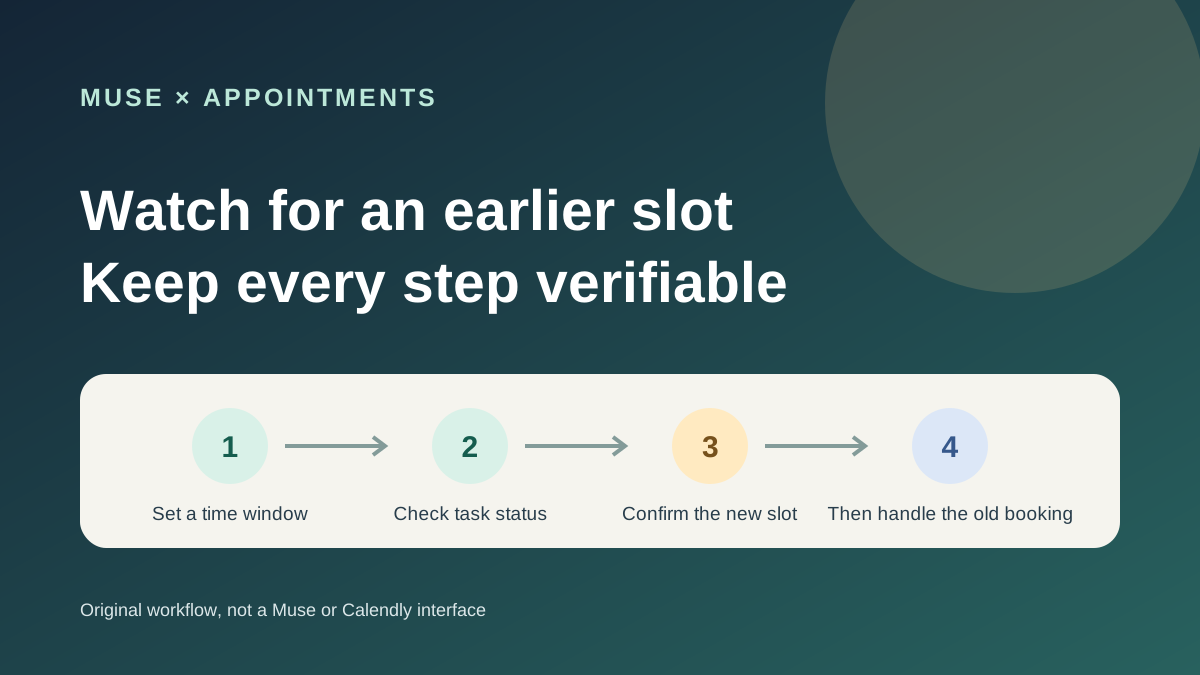
This guide focuses on “Muse appointment reminder” and turns the question into practical steps you can check.
01 | Choose the earlier window you actually want
Here is a fictional example. You have a portfolio consultation booked with an independent photographer next Thursday afternoon. Your plans change, and you would prefer to meet this week without losing the time you already have. Muse can help watch one booking link for a candidate opening, as long as you spell out the limits, task status, and rescheduling steps.
Meta's Muse page describes background tasks, reminders, and monitoring things you care about. Its productivity page also describes using a browser for forms and appointments. Meta has not documented a fixed Calendly polling interval or a native Muse connector for Calendly. This guide uses a public Calendly booking page as an example and is based on documentation; no account was tested.
02 | Write down the appointment requirements
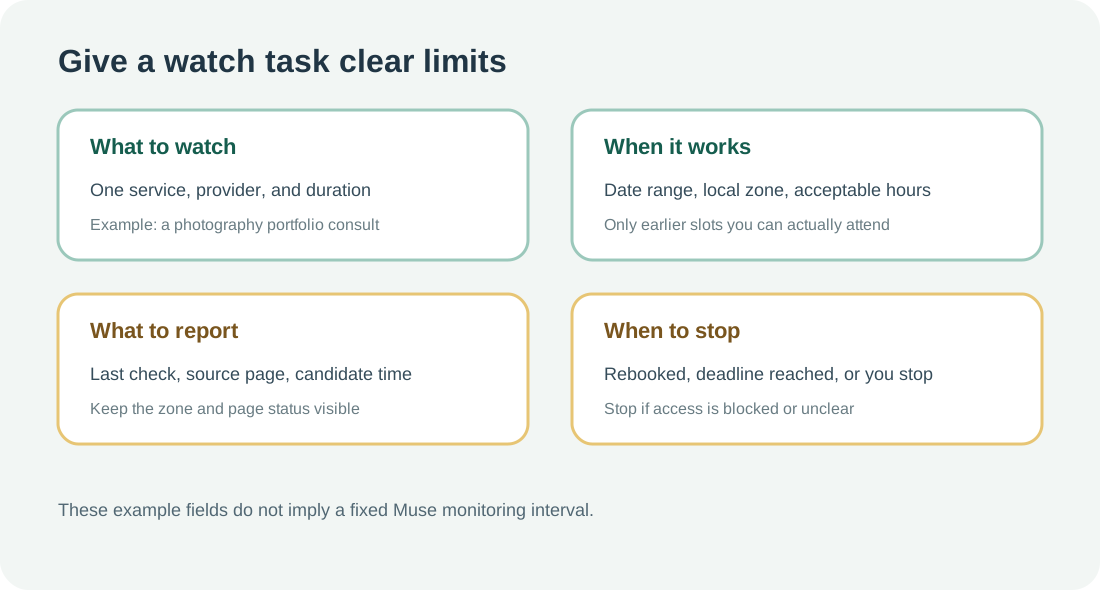
Do not just say “watch for a cancellation.” Name the service, provider, appointment length, and your current booking time. Add the earliest and latest dates you could move to, acceptable days and hours, any price ceiling shown on the page, and a firm stop date.
Include the time zone. Calendly says it detects time zones so participants see meeting times in their local zone. A device or profile change, or a daylight-saving change, can still make a displayed label easy to misread. Keep the zone shown on the booking page and preserve the original time in your calendar when comparing options.
For example, try “Watch for a 30-minute portfolio consultation with the same photographer. My current booking is Thursday, October 8 at 4 p.m. New York time. From October 2 through 7, report a weekday opening between noon and 3 p.m. only if it is still a 30-minute session and costs no more than $80. Stop after 5 p.m. on October 7.” Those dates, service, and amount are sample details; replace them with your booking information.
03 | Give it only the public booking page
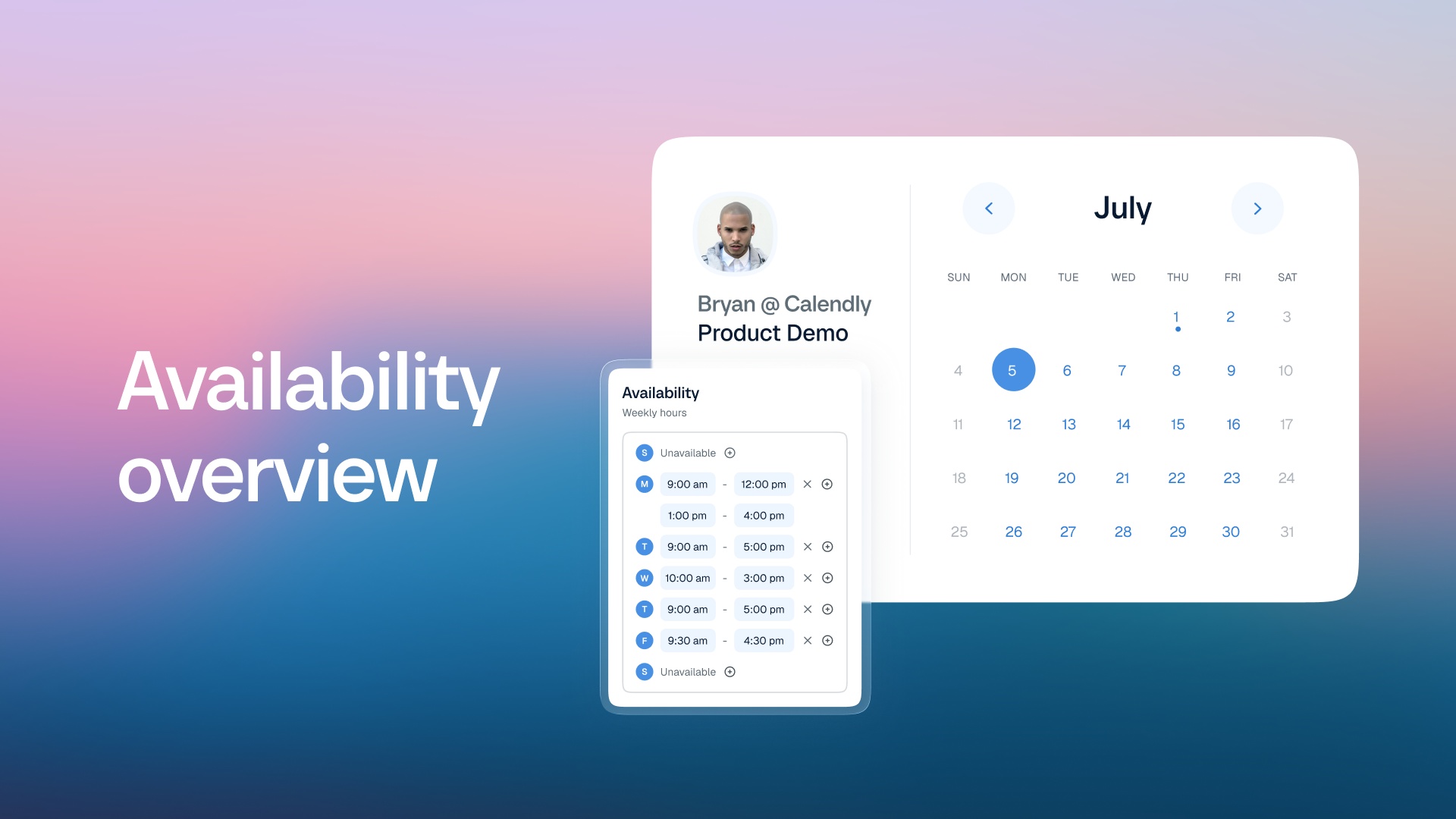
Share the public Calendly link the provider gave you, and ask Muse to check only the named event type and date range. Calendly says bookable times depend on the event schedule, date rules, and busy times from connected calendars. A canceled booking may not show up immediately if the event type's duration, minimum notice, or other availability rules do not allow it.
Ask Muse to record the visible time, time zone, service name, and page link exactly as shown. If the page does not show a price, duration, or availability status, mark it “not shown” instead of inferring it from another event. If the public page will not load, requires a login, shows a CAPTCHA, or blocks access, stop and open the original link yourself. Do not ask Muse to keep refreshing, bypass a restriction, or sign into an account.
04 | Check whether the task is actually still running
Muse's official materials describe background work, progress tracking, and monitoring things the user cares about. They do not promise that a Calendly page will refresh at a user-selected interval. After creating the task, ask Muse to repeat the target link, date range, acceptable times, price condition, stop time, and its current task status. Correct any mismatch before it checks again.
Ask for each check to include the time, the page result, its source link, and the next check it plans to make. Ask whether the task is still active and when it will check next. If it cannot state an interval or verifiable status, treat continuous monitoring as unconfirmed and set a calendar reminder to open the page yourself. “I’ll keep an eye on it” is not proof that a recurring task is running.
05 | Review a candidate before changing anything
When an alert arrives, reopen the provider's current booking page and confirm the time can still be selected. Check the date, start time, time zone, service name, appointment length, provider, location or call method, and price. If the time has disappeared, report that the candidate is no longer available. Do not rely on a screenshot from an earlier check.
Find your original appointment in your calendar and verify the attendee, service, and time. Changing it could affect work or travel plans, and a provider may have cancellation fees or rescheduling limits. Make sure you can attend the new time before you use the provider's reschedule flow.
06 | Use the original rescheduling route
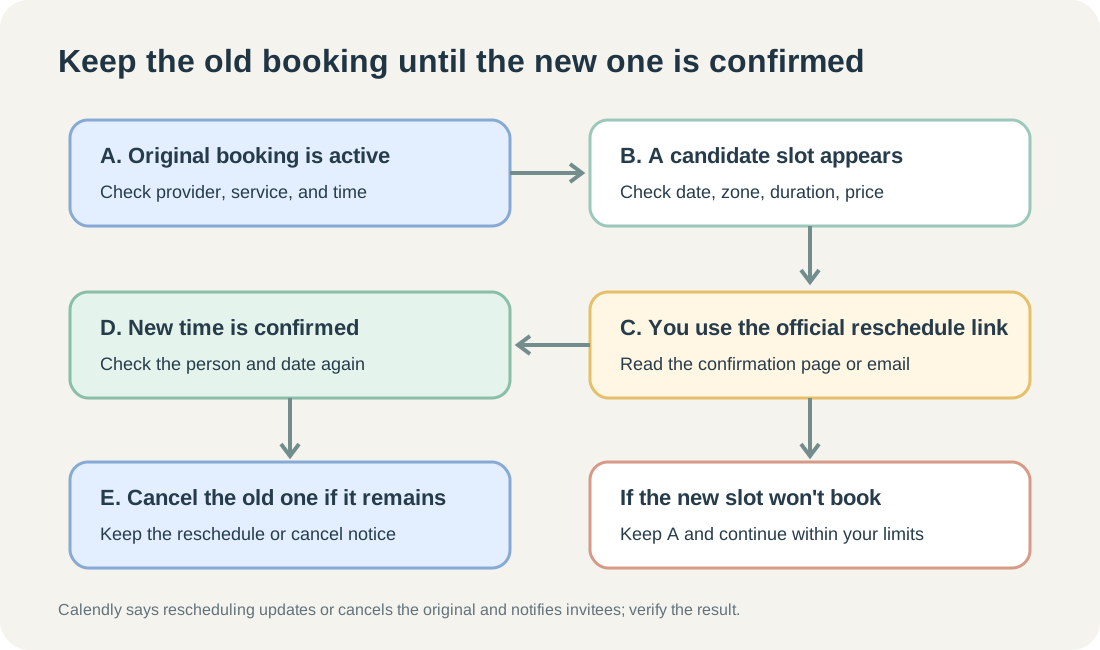
If the original confirmation email has a reschedule link, start there. Calendly says the host can choose whether to include cancel and reschedule links in email invitations and reminders, so an invitee may not receive one. A host can also open a booked meeting from the Calendar page and choose Reschedule, then share new times or move the invitee to a new time. That flow updates or cancels the original meeting and notifies participants.
As an invitee, your options depend on the link and the provider's settings. Use the original confirmation email or a link the provider sent you. If you do not have a reschedule option, ask the provider before booking another event from a similar page and assuming the old one will be canceled automatically.
07 | Handle the old booking only after the new one is confirmed
If the provider asks you to make a separate booking and cancel the original yourself, leave the original in place for now. Once the new booking is submitted, check the confirmation page or email for the attendee, service, date, time zone, price, and meeting location. Check that the new event appears in your calendar; only then cancel the original if it is still there. Calendly says a cancellation notifies participants and removes the meeting from the schedule. Canceling a group event can affect its other invitees.
If the new slot disappears before confirmation, the page errors, or no confirmation arrives, check the calendar and contact the provider as needed. A click alone does not prove the reschedule succeeded. Do not let Muse cancel your old booking before the replacement is confirmed. If the confirmation page, email, and calendar disagree, have the provider resolve it.
08 | Give the watch task a clear finish line
Keep the task on one appointment. Stop after a new time is confirmed, when the deadline arrives without a match, or whenever you no longer want to move it. Each report should include the latest check time. If nothing new fits, a short “no matching time found” update is enough; there is no need to resend the old list.
If Muse shows a task still running, its checks, and a completion state, compare those details with the limits you set. If the status is unclear, return to manual checks. Openings can disappear and a site can restrict browser access, so this process may save time, but it cannot guarantee that you will get a canceled slot.
References
These sources support the product information in this guide. Musevip is an independent publication and is not affiliated with Meta.
- [1] Meta Muse product page
- [2] Meta Muse for Productivity
- [3] Meta: How We Built Safety Into Muse
- [4] Meta Help: How Muse works with Connectors
- [5] Calendly Help: Availability overview
- [6] Calendly Help: How to set your availability
- [7] Calendly Help: How to troubleshoot unavailable times
- [8] Calendly Help: How to reschedule a meeting
- [9] Calendly Help: Invitee cancellation and reschedule links
- [10] Calendly Help: How to cancel a meeting
- [11] Calendly Help: Scheduling FAQs