
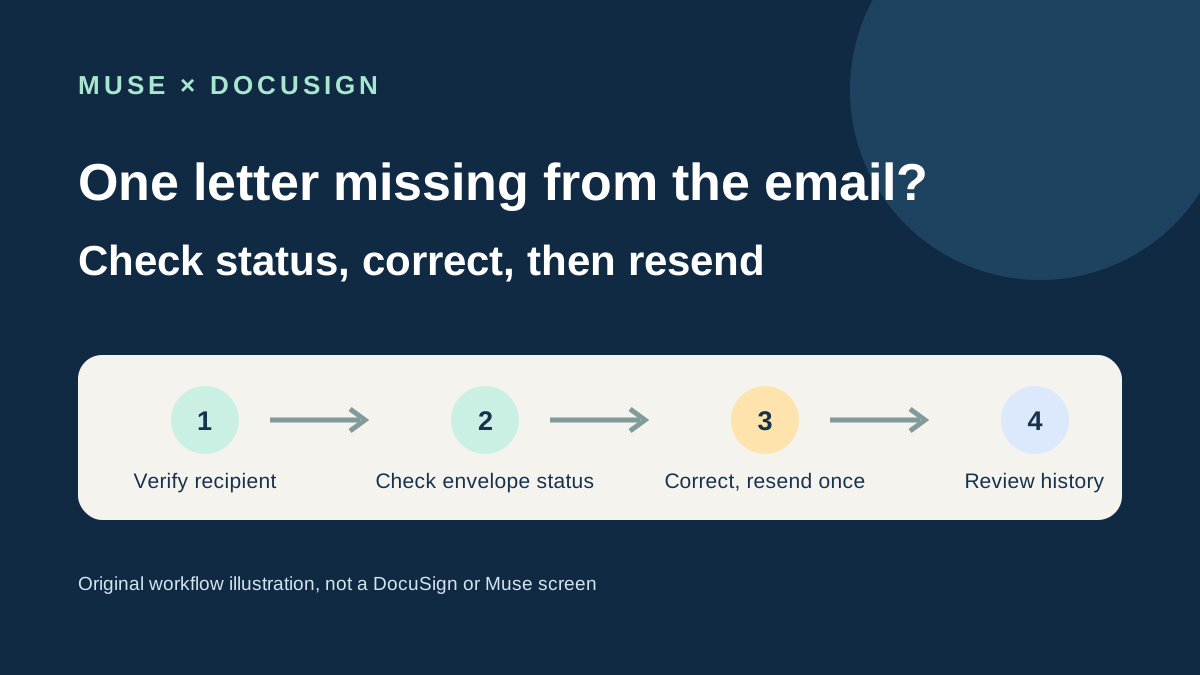
This guide focuses on “Muse DocuSign” and turns the question into practical steps you can check.
01 | Find the same envelope first
A recent user report described Muse flagging a possible missing character in a DocuSign recipient address. That is one user's account; it does not establish a native Muse–DocuSign connector. Here is a fictional example. Lin sends a service confirmation for a small studio, and the signer says the invitation never arrived. Return to the sender's DocuSign records and identify the send date, subject, and person currently expected to act. Do not create a second envelope or ask Muse to find or forward a private signing link.
DocuSign describes an envelope awaiting action from recipients as in progress. Ask Muse to organize the envelope ID, subject, sender, recipient name, address, and current status from the record you provide. Compare each item with the original sender-side record. If Muse has no approved DocuSign connector or browser permission in your account, use it to prepare a checklist only; do not assume it can access your account.
02 | Ask the recipient to confirm the full address
Have the signer write out the complete address again through a channel you already use to identify them. Do not guess a missing character from their name, company domain, or usual spelling, and do not let Muse complete it. Compare the new address with the envelope record character by character, including the user name, dots, the domain after @, and the ending.
DocuSign Developer Support lists misspellings, extra spaces, and nonexistent addresses as common delivery-failure causes. Its invalid-email example also shows that a space between @ and the domain can make the address invalid. Maya Chen and [email protected] are fictional placeholders; never paste a real recipient address into a public chat or prompt.
03 | Separate not-sent, sent, and delivery failure
Check the envelope's current status and latest activity in its details or history. A draft has not been sent to the recipient. Sent means the send action was submitted; that label alone does not prove the email reached the recipient's inbox. If the sender account has the relevant API or Connect delivery events configured, DocuSign's autoresponded recipient status indicates an automatic email-delivery failure and may include a reason. Regular web users may not see this technical field.
If the status is unclear, ask the sender to confirm that the envelope is still in progress. Do not resend, copy the envelope, or decide that the address is wrong just because the signer has not replied yet. Spam filtering, a temporary recipient mail-server issue, or account delivery settings may also affect notifications.
04 | Correct only the confirmed recipient
Once the recipient confirms the address and you have verified the typo, the envelope sender should open the original record. DocuSign says Correct is available when the sender has access and the envelope is awaiting recipient action, rather than completed or voided. Sender access and the current interface can affect whether the option appears. If you cannot find Correct, stop and ask your account administrator or DocuSign Support.
In the correction flow, replace only the target recipient's email address. Recheck the recipient name, role, signing order, and document subject. Read the confirmation after saving before deciding whether to resend. Do not use an email correction as a reason to change the document, other recipients, or authentication method. If the target recipient already shows as signed, or the envelope is completed or voided, do not try to rewrite a completed signing record. Ask the sender or DocuSign Support what the current state allows.
05 | Correct and Resend are separate actions
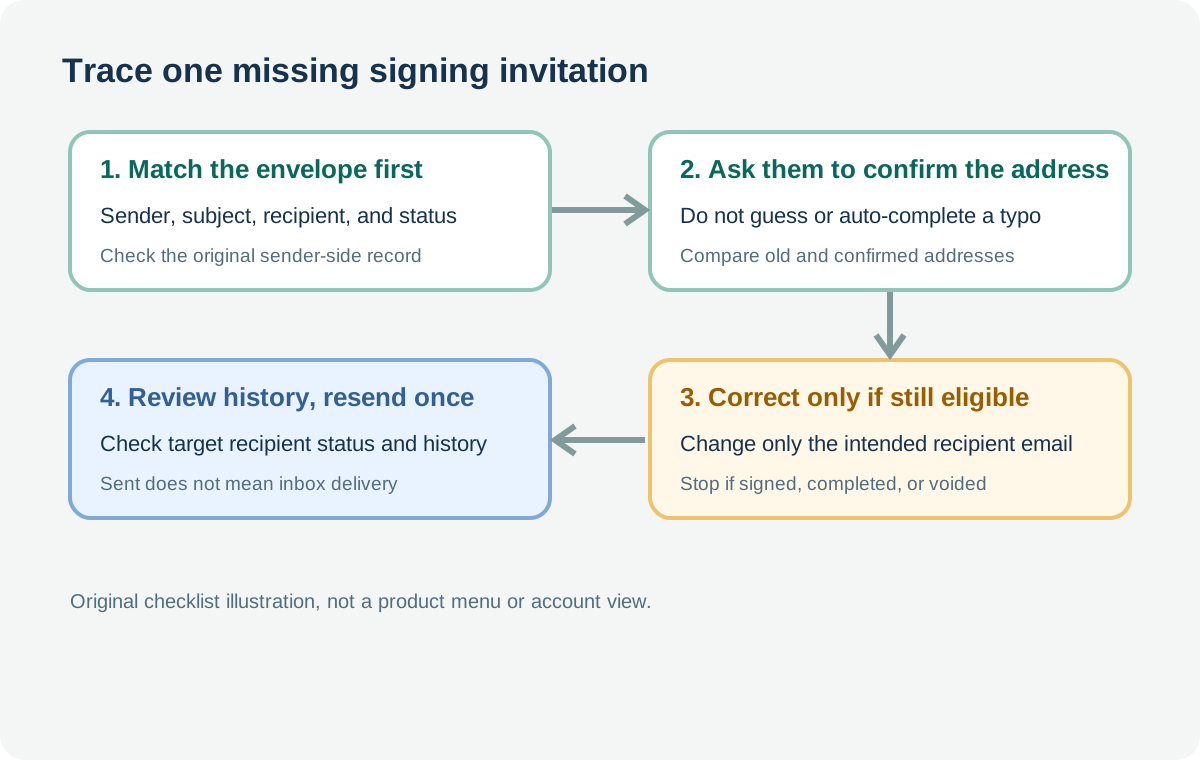
Correct changes an envelope that is still in progress. Resend sends another notification to recipients who are currently next in line to act. DocuSign's resend guidance limits the action to an envelope the sender sent or has shared access to, while it remains incomplete. Draft, voided, and completed envelopes do not qualify for that resend flow.
Before clicking, check which recipients are still pending. DocuSign says an envelope-level resend may notify one or more recipients who are next in the signing order, so it may reach more than the person whose email you changed. Account settings may also send a correction notice when a recipient email changes; that notice alone does not prove the new address received a signing invitation. Check History and the target recipient status first. If no new invitation appears, have the sender resend once. Do not click repeatedly or create a duplicate envelope to prompt a response.
06 | Have Muse prepare a checklist and stop before approval
Adapt the prompt below to your situation. Give Muse only the envelope record you are authorized to handle and the address the recipient has confirmed. Do not paste a private signing link, the full agreement, or unrelated personal information.
“Check only the DocuSign envelope I provide. List its envelope ID, subject, current status, target recipient name, and recorded email. Compare that email with the address I separately confirmed and show any character differences. Do not guess the address, open or forward the signing link, correct, resend, copy, or void the envelope. Stop if the envelope is completed or voided, or if the target recipient has signed. Give me the findings first.”
If your account actually offers an approved DocuSign action, keep the address correction and resend as two separate confirmations. First approve changing one recipient's address to the full address you verified. Review the correction summary. Then separately decide whether to resend once. A Muse prompt does not replace account permissions or DocuSign's confirmation steps.
07 | Review history and the recipient's mailbox
After a correction or resend, return to the same envelope's details and History. Check the latest events, recipient status, and action time. DocuSign's help page says the details view can open the full history and the certificate of completion. One DocuSign Salesforce Connect event reference defines recipient Delivered as the recipient opening the file on the signing site; it does not mean the email itself reached the inbox. Check which record or event view you are reading.
Ask the signer to check spam, quarantine, and search results. If needed, use DocuSign's official email-domain guidance or ask their IT team to check filtering. If the address is correct but no invitation appears, stop sending repeats. Keep the envelope ID, status, event time, and any failure message for the account administrator or DocuSign Support.
08 | If the envelope is already signed or completed, hand it back
When anyone has signed, changes to the recipient identity, signing order, or envelope state need care. Do not ask Muse to guess whom to replace, void the envelope, or send a new copy for re-signing. DocuSign correction eligibility depends on the current state, sender access, and interface. If the record does not allow correction, have the sender ask the account administrator or DocuSign Support.
This guide covers notification addresses and envelope-status troubleshooting only; it does not assess the agreement or its legal effect. Keep a short record of the original envelope ID, the address the recipient confirmed, whether correction succeeded, whether a resend occurred, and the latest status and time. An email being sent does not prove it was received or signed.
References
These sources support the product information in this guide. Musevip is an independent publication and is not affiliated with Meta.
- [1] Docusign: Enhancing email delivery with Docusign
- [2] Docusign: How to fix missing Docusign email notifications
- [3] Docusign: Troubleshoot invalid email errors
- [4] Docusign: Correct an envelope from your app
- [5] Docusign: Resend your envelope
- [6] Docusign: How to resend email notifications after updates
- [7] Docusign Support: View the history or certificate of completion
- [8] Docusign Support: Envelope and recipient events reference
- [9] Docusign eSignature security and allowlists