

This guide focuses on “Muse email calendar” and turns the question into practical steps you can check.
01 | What this workflow gives you
An inbox can hold a payment reminder and a meeting invite while the actual meeting already sits on your calendar. Reviewing one place at a time makes it easy to miss the other. A daily brief brings the dated items together, then separates what needs attention today from what can wait.
Meta describes Muse as able to filter email, draft replies, and help coordinate a calendar. A community member shared a similar daily action-list idea. The steps below are a guide built from those public descriptions, not a claim that we tested your account. Connector names, menus, and availability may differ in your region.
02 | Read the permission screen before connecting
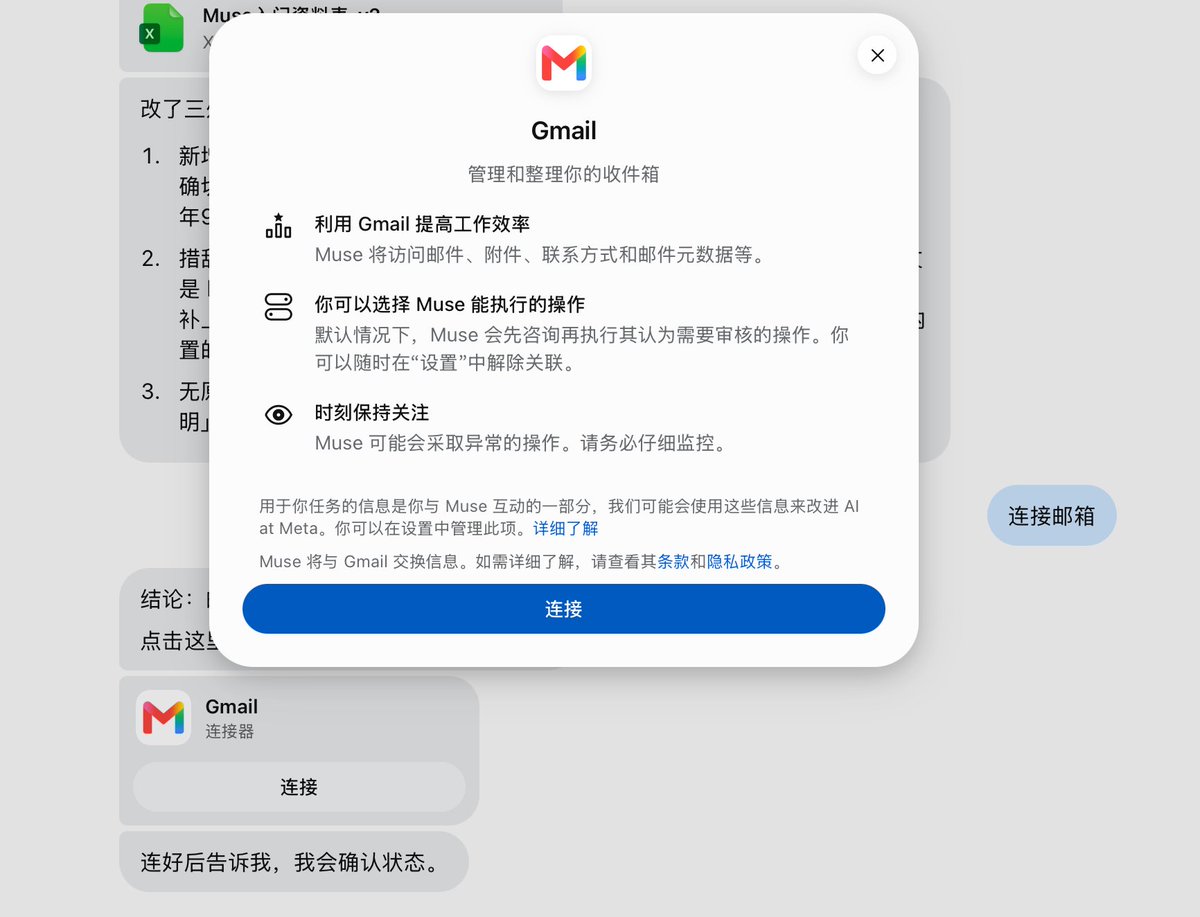
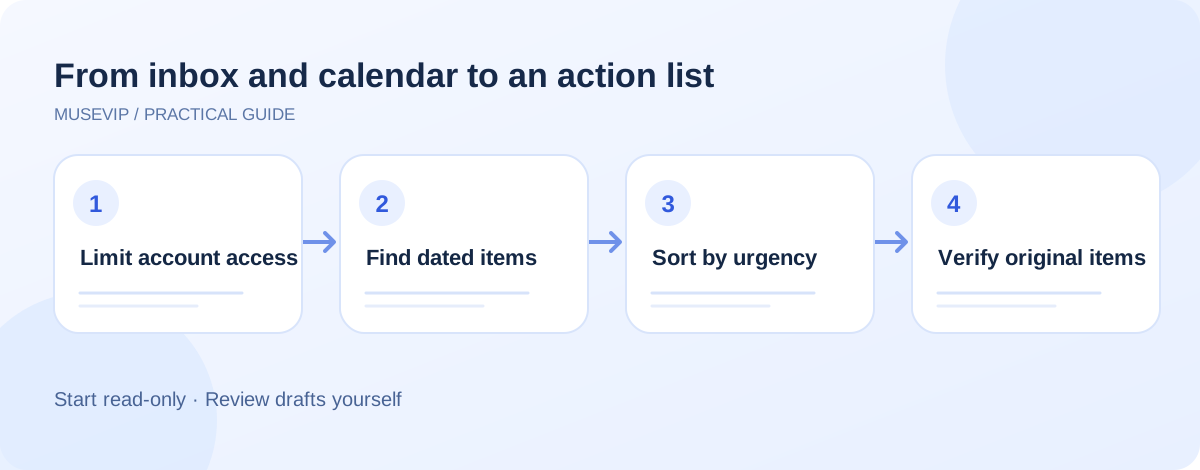
Open the connectors or settings area in your current Muse interface and locate the email and calendar services. Connect only the accounts needed for this task. Read the authorization card for each one. Can Muse only read, or can it also send messages and change events?
Do not assume a prompt can narrow an account-wide permission down to one folder. If you are not ready to connect an inbox, try the same format with a few non-sensitive example messages and events first. Think carefully before sharing medical, school, or financial correspondence that the task does not need.
03 | Collect items first, without acting on them
Start with a short window, such as unresolved messages from the past three days and events in the next seven. Ask Muse to find items with a clear deadline or a response you owe, and show the original message or event, time zone, and reason it included each item.
Watch for duplicates. A meeting can arrive by email and then appear on your calendar. A bill can generate several reminders. Ask Muse to merge those into one action while keeping every source. If a date is unclear or a link cannot be opened, label it for review instead of inventing a deadline.
04 | Use three short columns
Ask for Today, This week, and FYI. Each row needs only the action, exact date and time, source message or event, what is blocking it, and who needs to act next. This is easier to scan than a long summary.
A calendar event at 3 p.m. does not automatically require another RSVP, and a marketing countdown is not necessarily urgent. Have Muse explain its grouping, then adjust the priorities yourself. A proposed reply is still a draft; it has not been sent.
05 | A prompt you can adapt
Keep the first run read-only. Expand permissions only after the list proves useful.
- Review the email and calendar accounts I have authorized. Find unresolved messages from the past three days and events in the next seven days. Tell me which sources and permissions you can access before starting.
- Create three groups named Today, This week, and FYI. For each item show the action, date, time zone, original source, whether it is already on the calendar, and anything uncertain.
- Merge duplicate email and calendar references into one item but retain both sources. Never guess a missing deadline.
- Organize only. You may draft replies for my review, but do not send or delete messages, edit my calendar, contact anyone, or submit anything without showing me the exact action first.
06 | Check the result against the originals
Open the three most important source messages or events. Check the date, time zone, recipient, and attachments. Look for promotional mail mistaken for an obligation and tasks that have already been completed. For payment or account-security notices, go to the provider's official site instead of blindly following a mail link.
If your version has schedules or reminders, confirm when a repeat task would run and what access it retains. Meta describes background work, but that does not guarantee identical controls in every account. Try a short brief for a day or two before keeping an ongoing connection.
07 | When the brief is empty or messy
- Check that the intended email and calendar accounts are connected and that the selected date range is right.
- If dates are wrong, inspect the time zone and merge invitations that already became calendar events.
- A draft and a sent message are different states. Check the Sent folder in the email service itself.
- When you no longer need the connection, review or revoke it in settings. Any changes already made in the original service still need to be handled there.
References
These sources support the product information in this guide. Musevip is an independent publication and is not affiliated with Meta.
Last reviewed 2026.09.29. Product pages may change.