
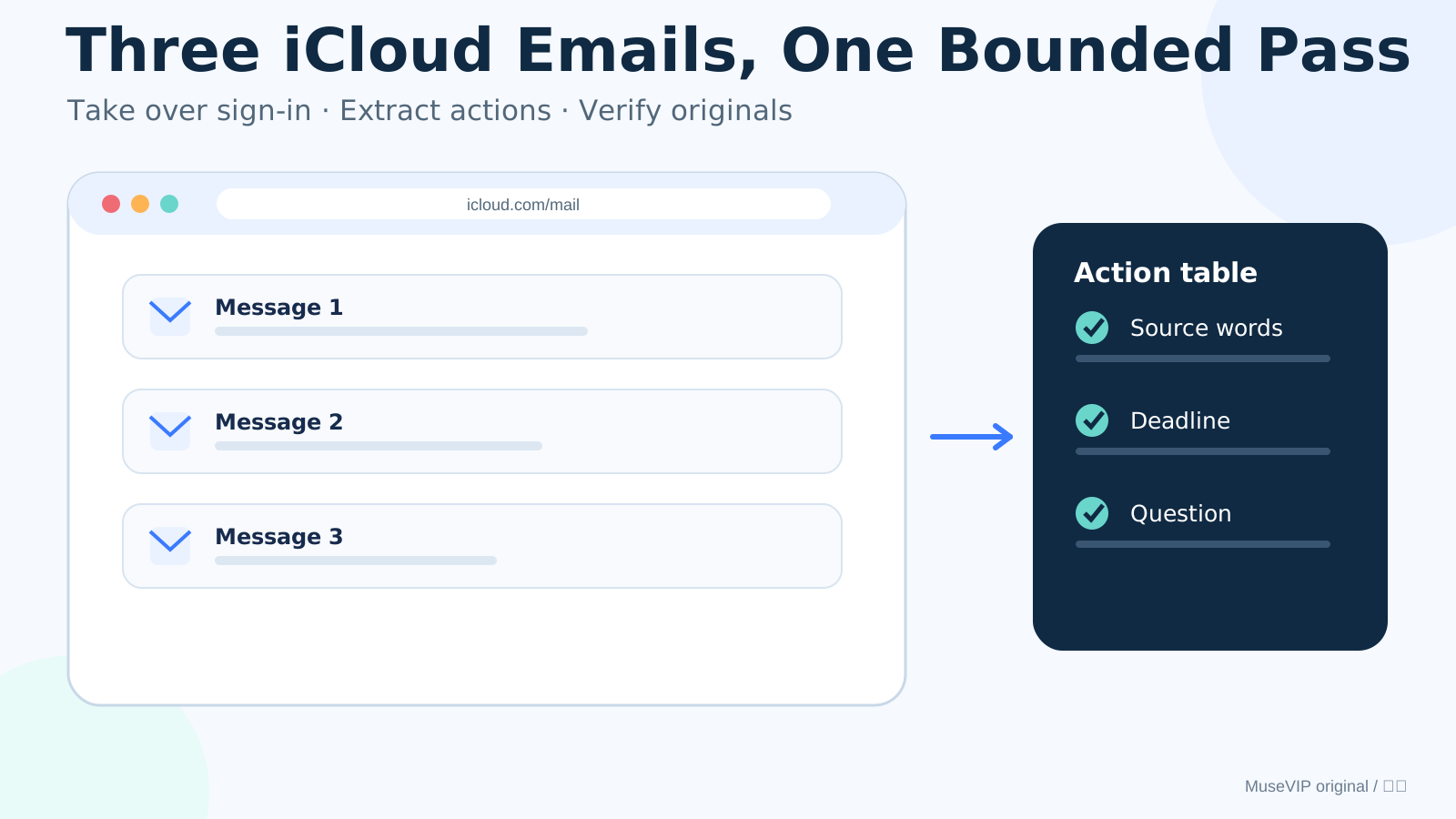
This guide focuses on “Muse iCloud Mail” and turns the question into practical steps you can check.
01 | Use this as a conditional browser fallback
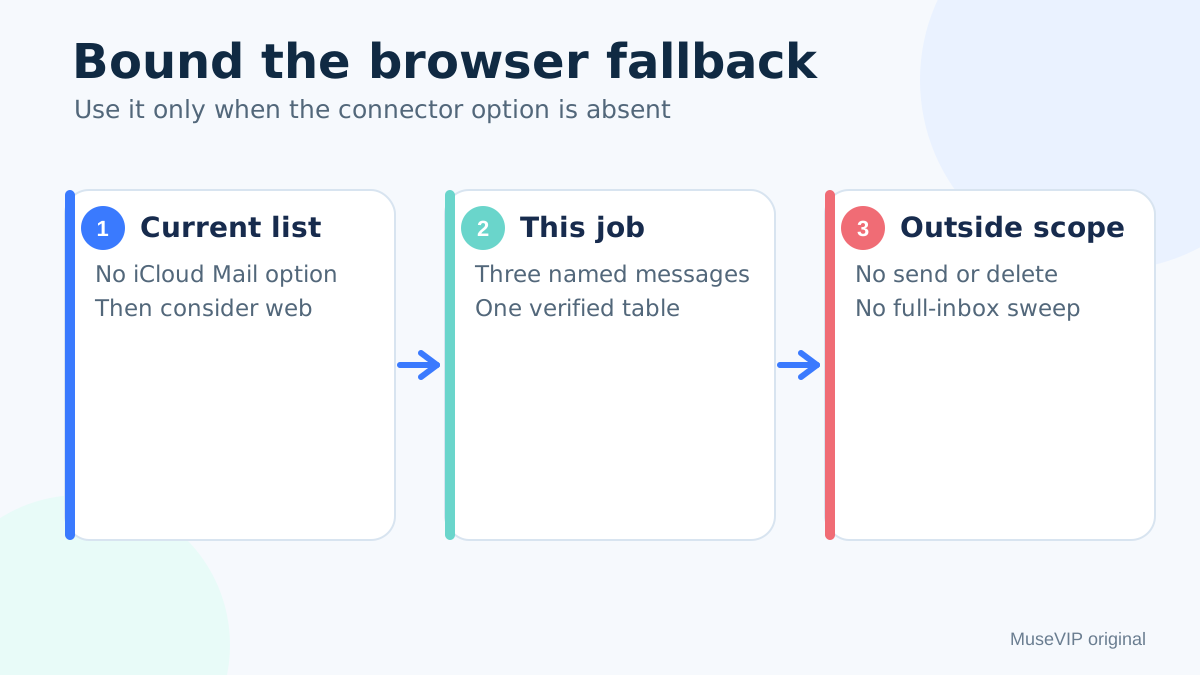
Check Muse Settings and Connectors first. If your account shows an iCloud Mail option with an acceptable scope, follow the current connector disclosure. Use the browser route when that option is absent. No public page provides a permanent, exhaustive connector list, so this guide does not claim iCloud Mail will always be unavailable as a native connector.
The browser route opens iCloud.com for one web session. It does not establish a native mail connection and is a poor fit for continuous inbox monitoring. Meta documents that Muse operates a Chromium-based browser, shows its work, and lets the user take over at any time.
Limit the first job to three messages and one action table. Keep sender, subject, received time, explicit action, stated deadline, and unresolved question. Sending, replying, deleting, moving, archiving, creating rules, and downloading attachments stay outside the task.
02 | Prepare locators for exactly three messages
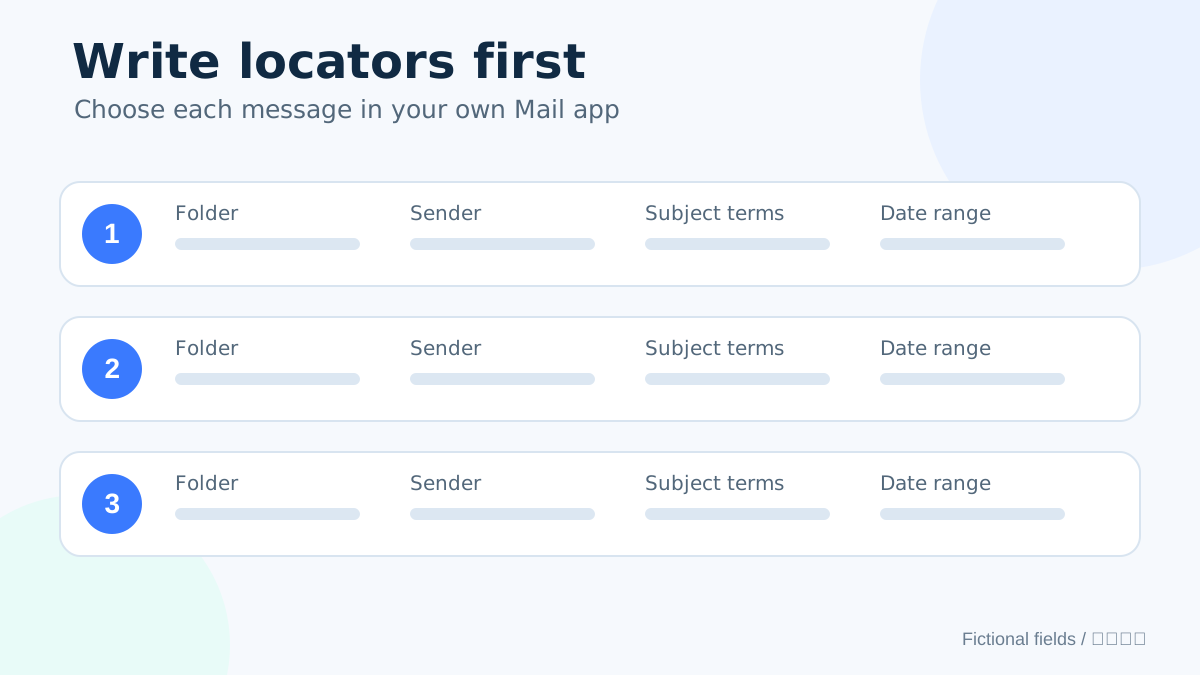
For the first trial, choose three messages you have already read. Opening an unread message can change its read status, so browser reading is not guaranteed to leave every state unchanged. Select them in Mail on your own iPhone or Mac before opening the remote browser. For each one, record the mailbox or folder, sender, a few subject words, and an approximate date. Exclude one-time codes, password resets, identity records, health information, and confidential client material from the first run.
Apple supports searching a chosen iCloud.com mailbox or folder by sender, subject, unread state, multiple terms, and time period. Use those locators to identify the three messages rather than asking Muse to decide what matters across the whole inbox.
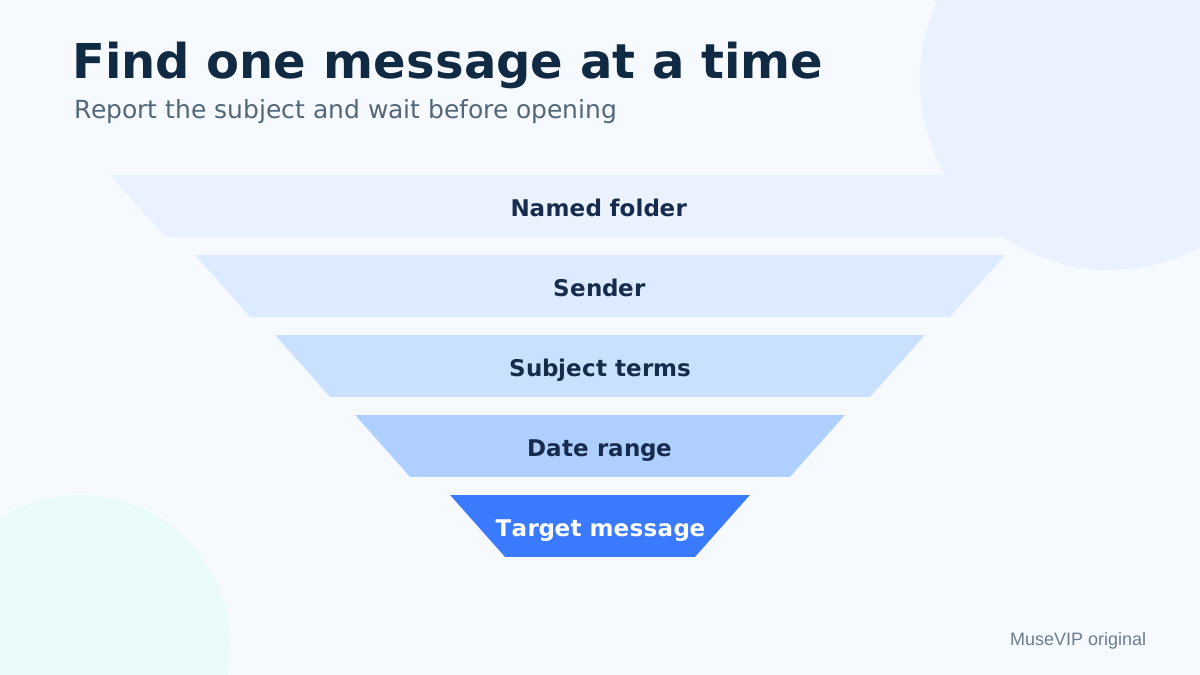
Define completion in advance. All three messages must be located, every action row must trace back to an original, and an absent date remains absent. If one message cannot be found, stop with “not found” instead of widening the search through the account.
03 | Check whether iCloud web access is intentionally off
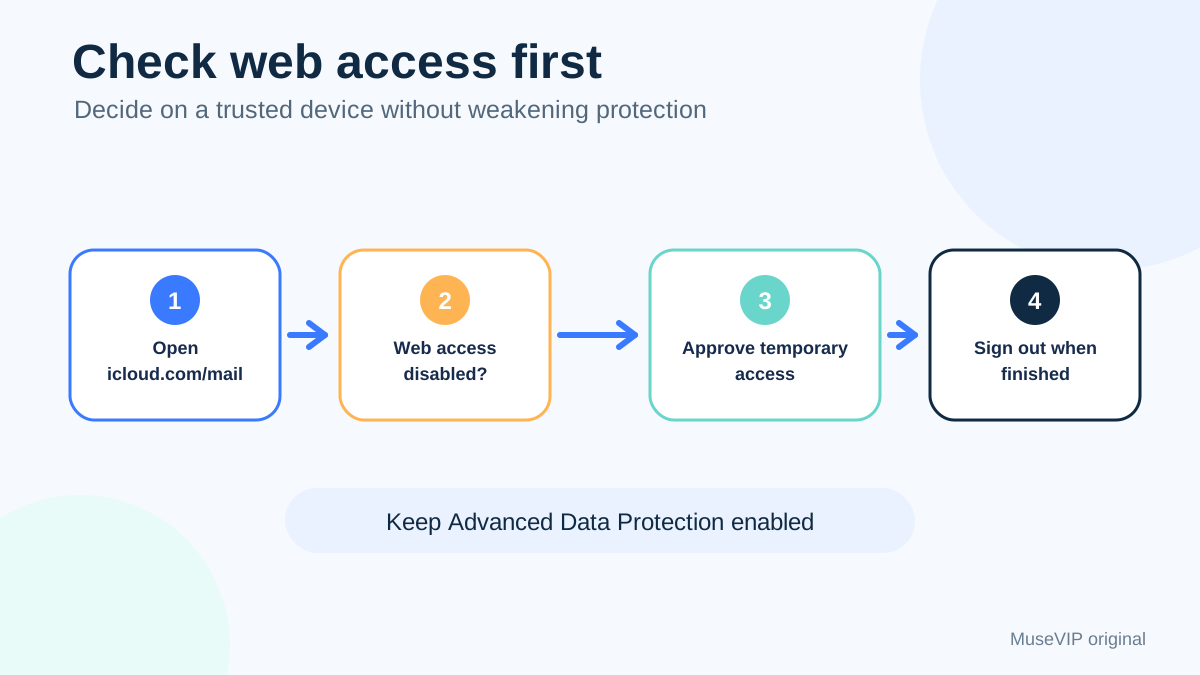
Open icloud.com/mail. If Apple says web data access is disabled, inspect the iCloud setting on a trusted iPhone, iPad, or Mac. Apple says turning off web access keeps mail, contacts, calendars, photos, notes, reminders, and files available only on trusted devices.
Advanced Data Protection disables iCloud.com data access automatically. You can keep Advanced Data Protection enabled, allow web access from a trusted device, and approve temporary access. Apple says the trusted device can be asked to approve each new data category during the next hour; an opened category remains available until you sign out or close the browsing session.
Opening web access is your decision. Stop on a shared computer, a managed device, or a screen you cannot verify. A manual excerpt from the three messages is a workable alternative and does not require weakening Advanced Data Protection.
04 | Take over sign-in and keep credentials out of chat
Ask Muse to open only https://www.icloud.com/mail and stop at the sign-in screen. Verify the domain, take over the browser, and enter the Apple Account and verification code yourself. Never paste a password, recovery key, or verification code into the Muse conversation.
Meta’s browser architecture is specific here. Muse runs a virtualized browser that the user can take over. The agent pauses during takeover. Its client credential flow routes the login to a separate secure credential store, and the main agent does not see the entered value. Follow the login controls actually shown in your current client.
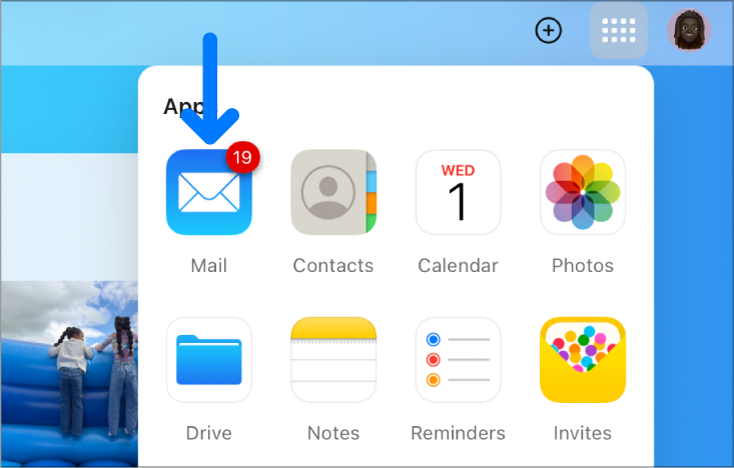
Apple documents icloud.com/mail as the web entry for iCloud Mail. After sign-in, confirm the expected account before opening Mail. The official Apple image below shows the iCloud.com app launcher and contains no real message content.
05 | Locate and open one message at a time
Select the named folder and enter the sender or subject term for the first message, then add the date range. Apple’s web search offers Sender contains, Subject contains, Message is unread, and date suggestions. Have Muse report the result count and proposed subject, then approve opening only the intended message.
Extract only the task-relevant sentence. Preserve the original sender, full subject, received time, and any written date or amount. When a message says “next Friday,” keep those words beside the email date instead of silently converting them into a calendar date. Record an attachment name and presence without opening or downloading it.
Return to the results after each message. Do not enable categories, cleanup recommendations, or rules. Those actions sit outside the three-message reading task, which should preserve the existing mailbox organization.
06 | Copy explicit actions without inventing decisions
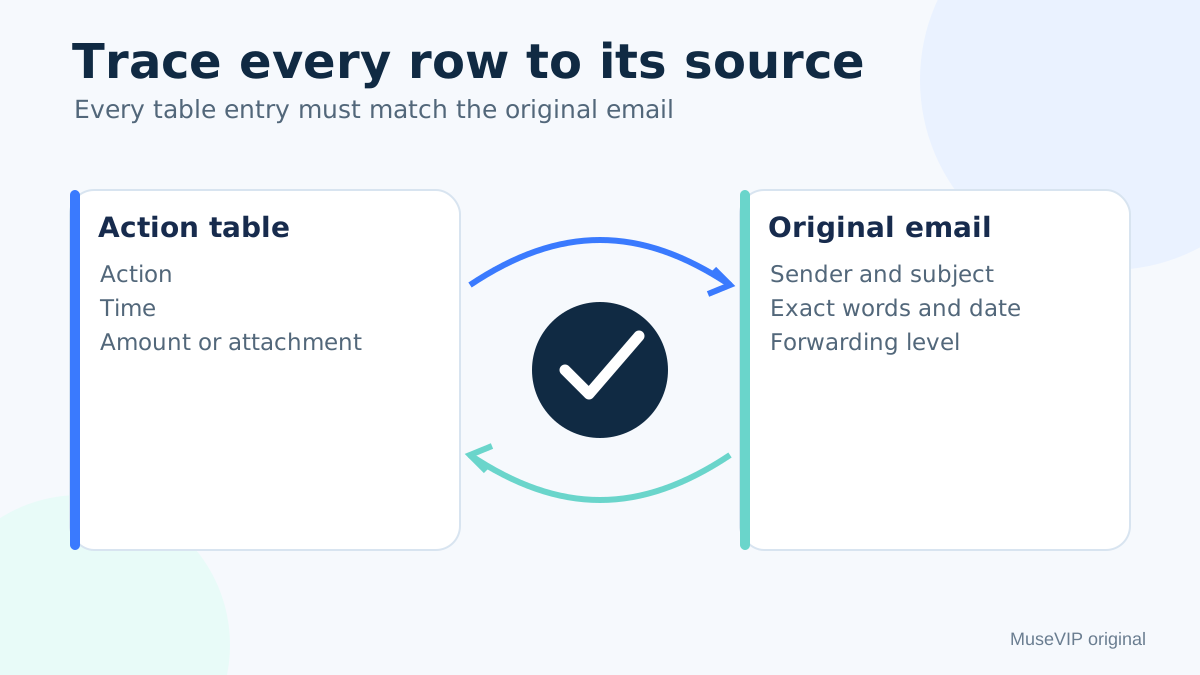
Give each email one source row. The action is what the message explicitly asks you to do. Fill a deadline with the stated time and timezone. Add an owner only when the message names one. A notice, copied message, or informational update with no request becomes “no explicit action.”
Separate evidence from interpretation. “Confirm quantity by Friday” supports the action and the written deadline. “A new order might be needed” belongs in unresolved questions until a person decides. If two messages describe the same task, one action can retain both sources.
Use this prompt: “Process only the three iCloud Mail messages I listed. Locate each by folder, sender, subject terms, and date. Report the subject before opening it and wait for approval. Extract only explicit actions, named owners, stated deadlines, amounts, and unresolved questions. Do not send, reply, delete, move, archive, mark, create rules, or open or download attachments. Use ‘not stated’ for missing fields.”
07 | Verify every row against the original message
Reopen the three originals in action-table order. Check sender, subject, date, relevant sentence, and attachment name yourself. In a forwarded message, distinguish the current sender from the author inside the forwarded text. Signatures, quoted history, and automated disclaimers do not become new actions.
Apple says encrypted mail that cannot be read on iCloud.com should be opened on a trusted device. Keep the row as “not verified on web” and avoid any workaround. Take over again for a verification code, reauthentication request, or unusual-sign-in warning.
Copy the verified table to your own notes using only the fields the job needs. To combine these items with a calendar, continue with the email and calendar daily brief. Use the separate email send-approval guide before any outbound message.
08 | Sign out of Apple before ending the browser task
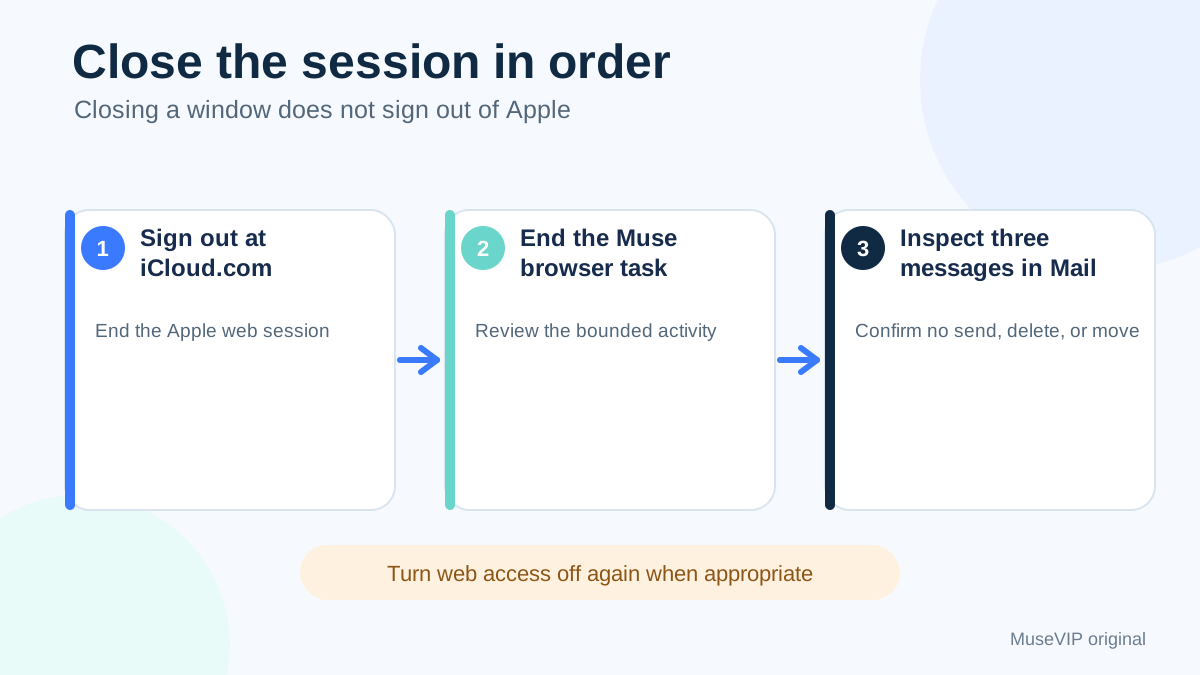
Use the account control on iCloud.com to sign out of the current browser. Apple also offers Sign Out Of All Browsers in iCloud Settings. Use that option when the remote session state is uncertain or you need to close other iCloud.com sessions, after checking that no other browser has unsaved work.
End the Muse browser task and inspect its activity for only the three searches and action output. Closing a Muse window does not establish that Apple signed out, so complete the iCloud.com step first. The Muse activity-log guide covers the broader review path.
If you enabled iCloud web access solely for this job, you can turn it off again from iCloud settings on a trusted device. Finally, inspect the three messages in your regular Mail app. Confirm that no message was sent, deleted, moved, archived, used for a rule, or downloaded as an attachment. Keep that check with the delivered table.
References
These sources support the product information in this guide. Musevip is an independent publication and is not affiliated with Meta.
- [1] Meta AI Research | How We Built Safety Into Muse
- [2] Meta | Muse for Productivity
- [3] Meta | Muse features and capabilities
- [4] Apple Support | Use Mail on iCloud.com
- [5] Apple Support | Read email in Mail on iCloud.com
- [6] Apple Support | Search, filter and flag email
- [7] Apple Support | Manage web access to iCloud data
- [8] Apple Support | Sign in and use iCloud.com
- [9] Apple Personal Safety | Keep your Apple Account secure