
This guide focuses on “Muse Zoom integration” and turns the question into practical steps you can check.
01 | Turn the meeting into next steps you can check
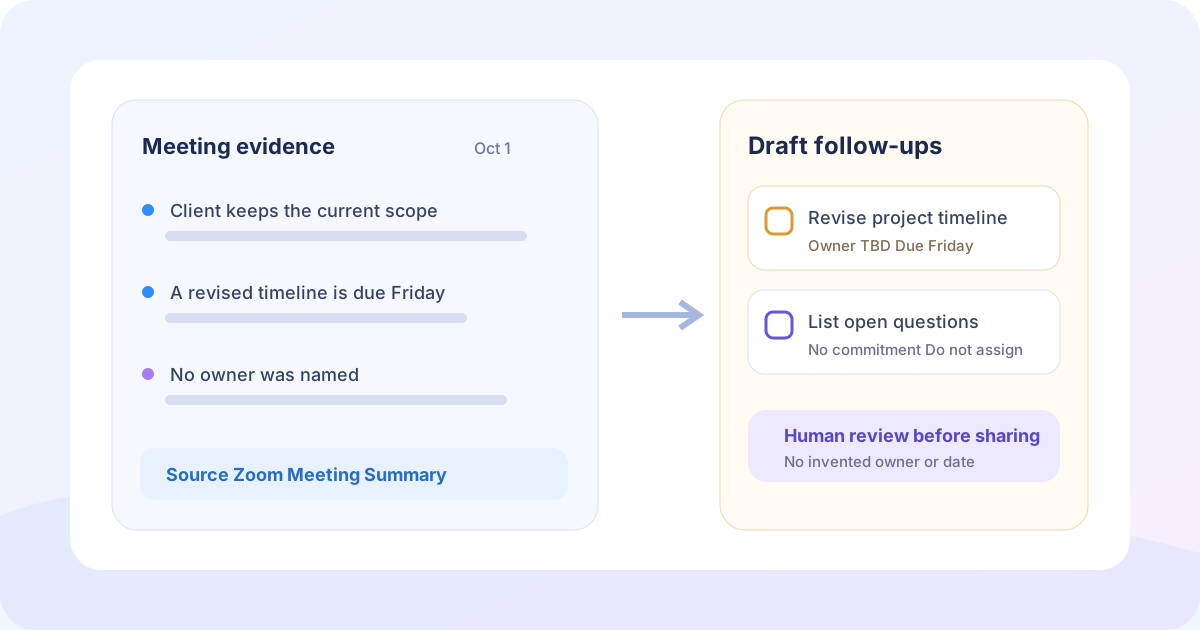
A summary can capture the discussion while leaving the next step unclear. Ask Muse for a small draft that shows what was agreed, who committed to do it, and which details still need a question. You can then inspect the evidence before sending a recap.
Zoom announced its Muse integration on September 29, 2026. The official release says the Zoom MCP server can bring relevant content from Zoom Meetings and My Notes into Muse, retrieve summaries and key takeaways, and schedule a new meeting once the services are connected.
Meta lists Zoom among its Muse for Small Business connectors and directs users to the current connector list in Muse app settings. This guide assumes that your account shows the connection. When it does not, use the supplied-notes route later in the guide. Do not infer a hidden connector or a universal button from a social post.
02 | Establish whose material you can use
A Meeting Summary and My Notes do not have the same sharing model. Zoom Support says meeting participants can receive a summary when the host enables sharing. The host can edit it, and the account owner may have access. A user’s My Notes remain personal by default and are not automatically shared with the host or other participants.
My Notes transcription also depends on the eligible account, supported client, enabled features, microphone and system-audio permission, and meeting controls. A host can see participants using My Notes transcription and can allow or stop it. Follow recording and transcription notice rules that apply to the meeting and organization.
Read the authorization screen when connecting Zoom. Keep access within the work you are allowed to perform. An organization can disable AI, MCP, summaries, or My Notes. This workflow does not bypass those controls or treat a private note as a shared record.
03 | Resolve the meeting identity first
Ask Muse for candidates before asking for action items. Provide the approximate date, meeting title, party, and purpose. Have it list the date and available source type for each match, then select one yourself.
Record the title, date and time zone, whether the material is a Meeting Summary or My Notes, who created or controls it, and when it was retrieved. Similar meetings should remain separate. When two results cannot be distinguished, compare them in Zoom or the calendar instead of letting Muse pick the likely one.
04 | Use a source-first retrieval brief
Replace the brackets and run the task in two stages. Selection comes before extraction.
Search only the Zoom material I am connected to and authorized to read for [date and time zone], [meeting title or party], and [purpose]. List candidate meetings with date, title, and available source type, then wait for my selection. Do not use another meeting to fill gaps.
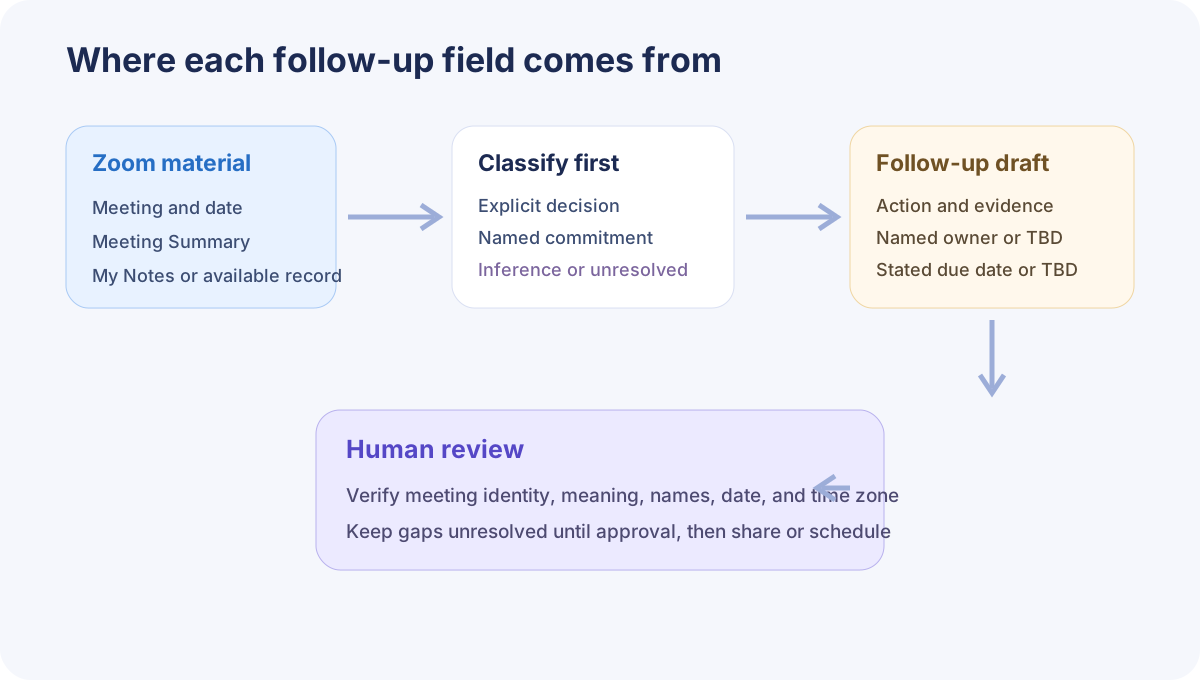
After I select the meeting, read only its accessible Meeting Summary, My Notes, and existing key takeaways. Label every item as an explicit decision, a named commitment, an open question, or your inference. Keep the source type with each item.
Build a draft action table only from commitments in the material. Use owner TBD when no person or role was assigned and due date TBD when no date was stated. Preserve relative wording such as Friday and flag the exact date and time zone for confirmation. Do not send, create an external task, invite anyone, or schedule a meeting.
05 | Separate record, interpretation, and proposed work
A compressed summary may say that a team will continue the work without showing whether anyone accepted a task. Classify before drafting. An explicit decision needs support in the accessible material. A commitment needs both an action and evidence that a person or role accepted it. An open question remains unresolved. A model suggestion belongs in a separate proposed section.
When no transcript or timestamp is available, cite the meeting title, date, and material type. Add a timestamp, citation, or original-note location only when the connected account actually exposes one. Zoom’s Muse announcement does not promise a complete transcript for every user.
06 | Build an owner-safe action register
Use columns for action, source, owner, due date, dependency, and status. Write an action that another person can verify as complete. “Send the revised timeline to the client for confirmation” is reviewable. “Move the project forward” is not.
Accept an owner only when the meeting material names a person or role. A summary that says “the team will handle it” gets owner TBD. Treat dates the same way. Preserve “by Friday,” then ask which calendar date and time zone apply. Familiar team habits do not supply missing evidence.
07 | Turn gaps into confirmation questions
A blank owner or date should generate a short question for the participants. Name the action and ask for one missing field at a time. This is easier to answer and safer than filling the table with a plausible guess.
A draft might say, “The meeting record confirms that the project timeline needs an update, but it does not name an owner. Who will take it?” For a relative date, ask whether Friday means the proposed calendar date and state the time zone. Review names and recipients before sending either question.
08 | Draft a compact recap
Open with the meeting identity, then list confirmed decisions, action items, and unresolved questions. Every action carries its owner and due date, or an explicit TBD. Keep model suggestions out of the agreed-work section.
Ask Muse for a private source audit beneath the draft. It should list the selected meeting and which points came from Meeting Summary, My Notes, or a recommendation. Remove that audit from the recipient-facing version after you have checked it. Route pricing, employment, health, legal, or sensitive client material to the responsible reviewer.
09 | Schedule only after the recap is approved
Zoom explicitly includes new-meeting scheduling in the Muse integration. Treat it as a separate step because it affects other people’s calendars. Ask first for a preview containing the title, full date, start time, time zone, duration, attendees, and agenda.
Approve the preview through the controls shown in your current Muse version. Convert “next Tuesday” into a calendar date before proceeding. Stop when the attendee list, time zone, or purpose is uncertain. Meta says publishing, sending, and spending through Muse for Small Business require approval. The visible confirmation flow can vary by version.
10 | Use supplied notes when the connector is unavailable
When Zoom is absent from settings, the organization blocks it, or the meeting has no accessible summary, provide notes you are authorized to use. Remove unnecessary personal information and identify the meeting date, note author, and included sections.
Limit Muse to that material. It can classify and draft, but it should say that it reviewed supplied notes rather than a Zoom meeting. The same evidence, owner, date, and review rules still apply without promising connector access for every account.
11 | Review before anything leaves the draft
Community posts describe the appeal as meeting summaries plus next steps. They identify a real use case but do not establish feature scope. The useful deliverable is a traceable draft with visible gaps and a human decision before sharing.
- The meeting title, date, time zone, and parties identify one record.
- Meeting Summary, My Notes, and supplied notes are distinguished.
- Decisions, commitments, open questions, and inference remain separate.
- Every owner and due date has support, with missing fields still marked TBD.
- Relative dates have been converted and checked with a time zone.
- Sensitive information goes only to authorized recipients.
- Messages, external tasks, and meeting invitations remain drafts or previews until approval.
References
These sources support the product information in this guide. Musevip is an independent publication and is not affiliated with Meta.
- [1] Zoom official announcement for the Muse integration
- [2] Meta official Muse for Small Business announcement
- [3] Zoom official expanded MCP capabilities
- [4] Zoom Support for My Notes access and transcription controls
- [5] Zoom Support for Meeting Summary access and sharing
- [6] Zoom official meeting summary guide