
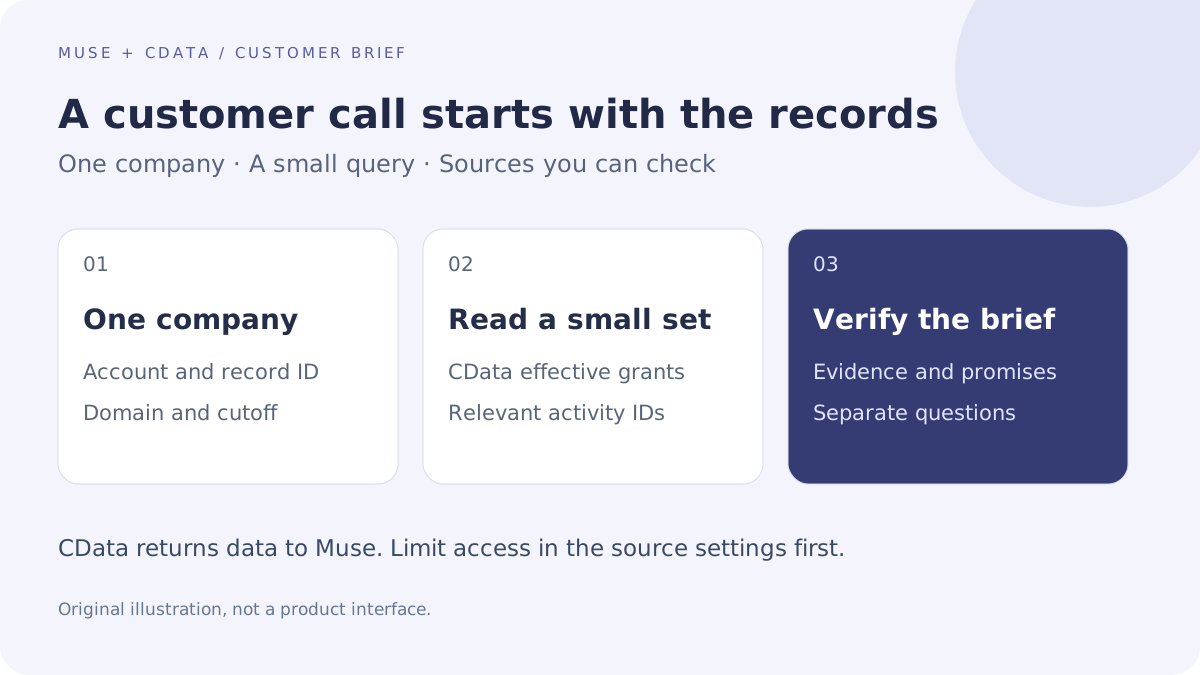
This guide focuses on “Muse HubSpot tutorial” and turns the question into practical steps you can check.
01 | Choose one customer and one meeting
Start with the company record you intend to discuss. Write down the HubSpot account, company ID, domain, and meeting date. A shared company name is a weak identifier when subsidiaries, duplicate records, and related contacts appear together. The useful output is a short account of the last conversation, commitments, and unresolved questions.
CData author Joe Karlsson published a Muse business-data walkthrough. This guide combines CData’s Muse walkthrough with its interface documentation and HubSpot’s record rules; we have not run it in a live customer account. Obtain your organization’s permission and begin with a harmless test record through CData Connect AI.
02 | Authenticate the HubSpot source in CData
Use a HubSpot account allowed to read the chosen records and a CData Connect AI account. In CData, open Sources, choose Add Connection and HubSpot, then complete the Sign in OAuth flow. Confirm the intended HubSpot account. After authentication, inspect the source in CData’s data browser and retrieve a known record.
Use the actual tables, association structures, and column names exposed by that connection. A query copied from another organization may target different names. Compare the test row’s ID and domain with HubSpot before giving Muse a broader question.
03 | Limit the effective data permissions
Have an administrator inspect the CData user’s effective connection and workspace permissions. This brief needs Select. Remove unrelated Insert, Update, Delete, and Execute grants. Roles and direct grants are additive, so reviewing one role alone can miss another grant. Workspace assets are governed by workspace permissions rather than the underlying source permissions; a user without source access may still read an exposed workspace asset. Review the assets exposed through workspaces and Toolkits too.
List other connections reachable by the account and remove unrelated access. Read-only access still exposes the data it permits reading, and retrieved rows travel to remote Muse. For a managed set of particular tables, columns, and operations, ask an administrator about a Toolkit. Current CData documentation requires Growth+ and an administrator to configure one.
04 | Create the connector and use its secure credential field
CData’s Muse walkthrough uses a custom connector and an Authorization header. Ask Muse to create the CData connection using the provider’s endpoint and authentication requirements, then inspect the connector card and available tools. This is CData’s published route; successful setup must be established in the client you actually use.
For its Basic-authentication route, create a dedicated PAT in CData Settings, Personal Access Tokens. A dedicated PAT makes revocation easier; it does not automatically narrow the user’s existing data grants. Combine the CData email and PAT with a colon, Base64-encode them locally, and add the Basic prefix. The encoded result remains a secret. Use an offline local tool and put it only in Muse’s dedicated secure credential field. Avoid online encoders and ordinary chat. Copy the PAT when created; stop if the safe credential flow is missing.
CData documents this read-only advertised tool list: https://mcp.cloud.cdata.com/mcp?ops=get_catalogs,get_schemas,get_tables,get_columns,get_instructions,queryData. The ops parameter narrows advertised tools; backing data permissions must also be read-only. Verify the generated connector’s actual tools. The URL does not prove every Muse client is a native MCP client, and an older demo’s twelve-tool count is not a fixed requirement.
05 | Retrieve one known record before summarizing
Ask for a small check first. “Inspect my authorized HubSpot source and describe the available tables and fields. Retrieve only the ID, name, and domain for company ID [actual ID]. Do not change records or execute stored procedures.” Compare those values with the original record.
CData queries use the actual Catalog, Schema, and Table names discovered through metadata tools; query results are returned as CSV. If the check fails, inspect the authenticated account, source state, schema, and PAT expiry. A successful query with no matching row is not evidence that the customer was deleted. Avoid repeatedly broadening the search.
06 | Check activity associations before using a conversation
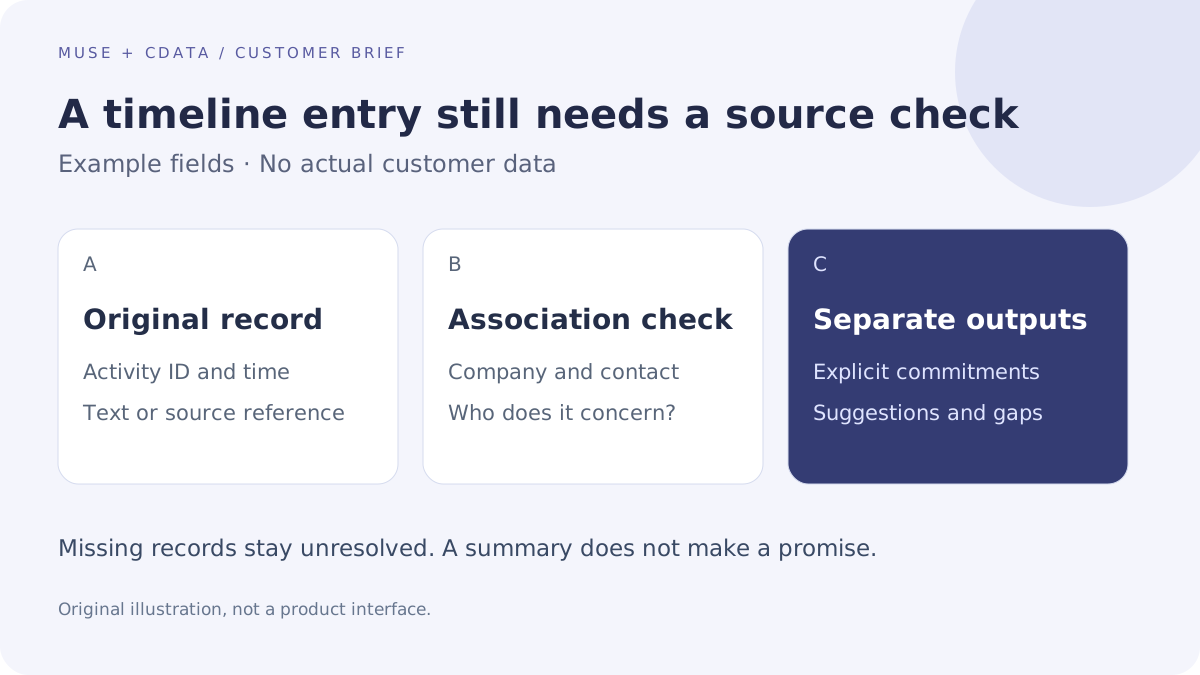
Request a limited set of emails, calls, meetings, and notes from the past thirty days. Keep the activity ID, retrievable source reference, timestamp, and company/contact associations. Deduplicate by ID, then select three items relevant to this meeting. If activity or association data is unavailable, request the smallest needed grant or supply the original records yourself.
HubSpot can associate one activity with several records. An email appearing on a deal timeline may concern a different deal or customer. Read the original content before attributing a promise. Some free accounts created on or after February 4, 2025 show only thirty days of certain timeline activity; older items can be checked on activity index pages. An empty timeline does not establish that no contact occurred.
07 | Ask for a brief with evidence and separate questions
Use a request such as, “Prepare a meeting brief only for company ID [actual ID], as of [date and time zone]. Include three relevant interactions, unresolved issues, and explicit commitments, each with its source reference. Separately suggest questions to ask. Mark missing owners, dates, or source text as unresolved. Do not update records, create tasks, or send messages.”
Check the three statements that could most affect the meeting. Confirm quote expiry against the quote, delivery dates against actual agreements, and the opportunity stage against its current property. Muse can suggest questions; a commitment needs supporting evidence. Keep a decision as a question until the responsible person resolves it.
08 | Keep the query trail and close a temporary connection
In CData Logs, filter Query Log by time, user, and connection, then inspect query text, status, and ID. Audit Log records administrative changes separately. Download relevant troubleshooting log files promptly; CData documents a seven-day retention period for those files. Keep internal queries in your organization’s controlled storage.
After a temporary trial, disconnect the connector in Muse Settings and delete its dedicated CData PAT or remove the test user’s grants. Regenerating a PAT invalidates the old value for every application using it, so avoid disturbing a shared team credential. Review existing briefs, conversations, and memories separately. Use the verified brief with the meeting follow-up guide when you are ready to assign actions.
References
These sources support the product information in this guide. Musevip is an independent publication and is not affiliated with Meta.
Last reviewed 2026.10.02. Product pages may change.