
This guide focuses on “Muse Google Business Profile” and turns the question into practical steps you can check.
01 | Find the notice before creating another profile
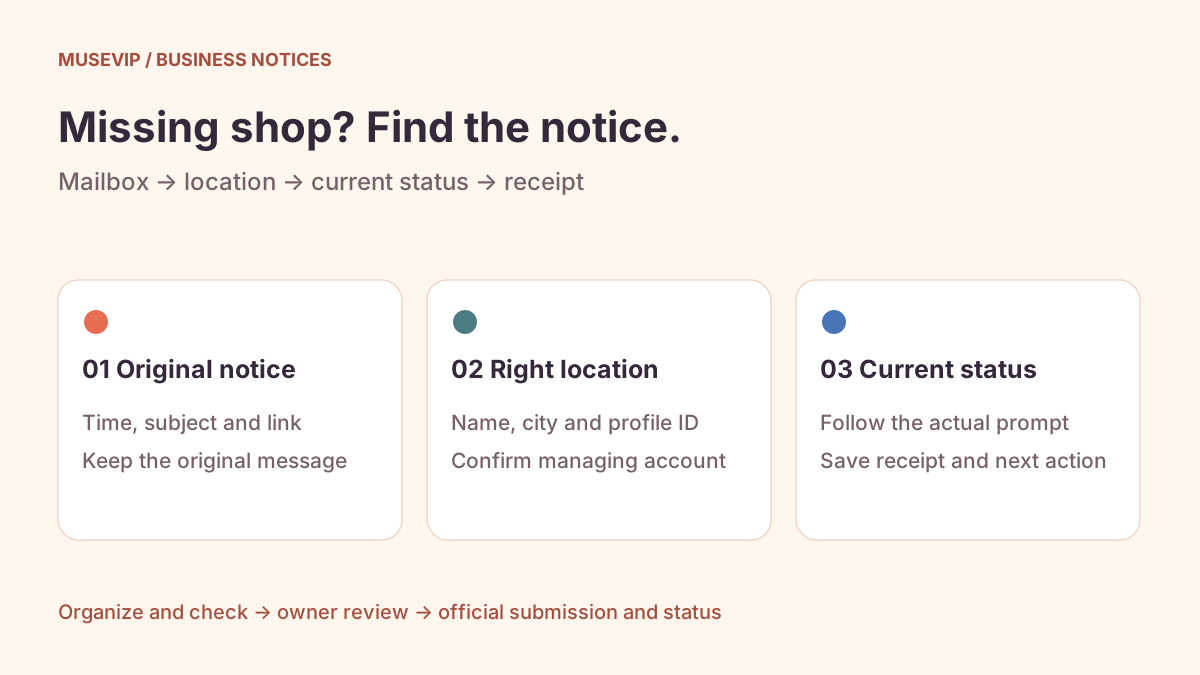
A customer cannot find your shop on Maps. The shop is still open, but a notice has been buried under marketing email. Start by finding the message and checking the management screen.
Meta employee Vishal Shah shared a grocer’s missed-alert story on September 29. It is an account from a party involved with Muse, not evidence that Muse can restore every listing. This guide follows current Google documentation; we did not test an owner account. Muse can help locate messages and organize a response. Google determines verification and appeal outcomes.
02 | Search one mailbox and keep the original messages
Connect the mailbox used for this location’s notices. Read the current authorization under Settings → Connectors and start with search only. The managing Google account and the inbox you usually check may differ.
Try this request: Read only the last 30 days in 【mailbox】 for Google Business Profile notices concerning 【business and city】. Include verification, suspension, rejected edits, acknowledgements and decisions. Return subject, date and time zone, sender, original message link, affected location, exact recorded status and requested next step. Mark unread information. Do not forward, reply, delete messages or change the profile.
Thirty days is your scope, not a product limit. Extend it once if an earlier acknowledgement is missing. Build a timeline with original message links, then open the official Google service yourself. Do not treat an arbitrary sign-in button in email as proof of authenticity.
03 | Match the account and location first
Sign in with the associated Google account and search the business name plus city, or my business. For multiple locations, record the exact name, address and Business Profile ID. Do not attach one location’s notice to another similarly named shop.
Check your role under People and access. Google distinguishes owners, one primary owner, and managers. A missing profile or control may be an account or role problem. Record that before asking for any changes.
Give Muse the current screen status, inspection time and location link. Keep that observation alongside the email date: the notice may describe an earlier stage. Resolve the identity first, then compare the status.
04 | Separate verification, suspension and a rejected edit
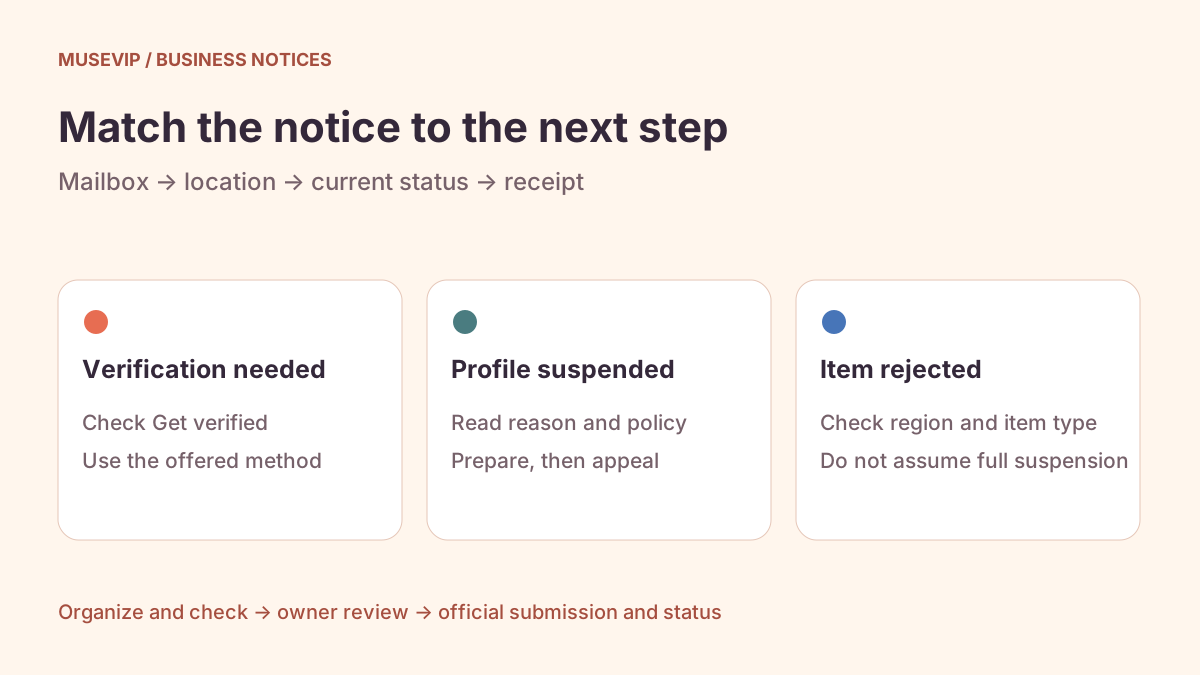
For verification, use the Get verified options actually offered to this profile. Google chooses the methods; Muse cannot promise a switch to SMS or video. Enter verification codes yourself on Google’s screen.
A suspended or disabled profile has a profile-appeal path. One rejected edit, photo or post is a content decision, with different routes by region. A rejected hours edit does not establish that the whole business has disappeared.
A poor search position alone also does not establish suspension. Record the query, city, public link, time and management status. Ask Muse to separate confirmed restrictions, search-performance changes and cases lacking enough information.
05 | Make a discrepancy table before changing fields
Compare the current name, address or service area, category and website with actual signage and business records. Use four columns: current field, documented fact, source, and person who confirms it. Leave the cause unknown when the evidence does not establish one.
Google’s representation rules require accurate real-world business details. Promotional words in a name or an unstaffed virtual address cannot be repaired by persuasive prose. A service-area business also needs the appropriate address treatment. Review differences individually instead of repeatedly changing fields to see what works.
Ask Muse for a brief response draft: which notice and profile, when you observed it, what is supported, and what remains missing. Put any proposed edit in a separate approval list. Do not invent a fix, a storefront photo or a license.
06 | Have the evidence ready before opening submission
Prepare the relevant registration, license or utility documents locally and check the name and address against this location. Muse’s checklist can use filenames and necessary fields. Keep full sensitive documents under your control and upload them to the official form.
Google documents a 60-minute evidence window. Prepare first and add evidence immediately after submitting the appeal, following the current screen’s timing. Do not spend the window hunting for files.
Google’s suspension help links a Ben Fisher tutorial. Its original cover is below. It can help explain the process, but an older video’s interface or file limits do not replace today’s instructions.

07 | Submit once and preserve the actual acknowledgement
Select the correct account and location in Google’s official tool, review the statement and attachments, then submit yourself. Record the time, profile ID, case number if issued, acknowledgement and evidence result. A chat completion message is not a receipt.
Do not submit duplicate appeals while a decision is pending or create another profile for the same business during review. If an email, tool status and public page disagree, record each observation separately.
After denial, check whether Google offers an additional review with new evidence. An account restriction may require resolving the account before the profile. Save the actual error or ineligible status for the owner rather than attempting a workaround.
08 | Keep follow-up narrow and time-bound
Save who manages the location, which mailbox receives notices, the open discrepancies, latest receipt and next inspection date. If Muse supports a continuing task in your account, limit it to this account and location, new notices only, and an explicit end date.
Disconnecting email and ending a task are separate checks. After verification or a reinstatement decision, inspect both management status and the public profile. Use the <a href="/en/guides/muse-email-send-approval/">email approval guide</a> for outbound messages and the <a href="/en/guides/muse-small-business-weekly-brief/">business weekly brief</a> for the rest of your operational queue.
References
These sources support the product information in this guide. Musevip is an independent publication and is not affiliated with Meta.
Last reviewed 2026.10.02. Product pages may change.