
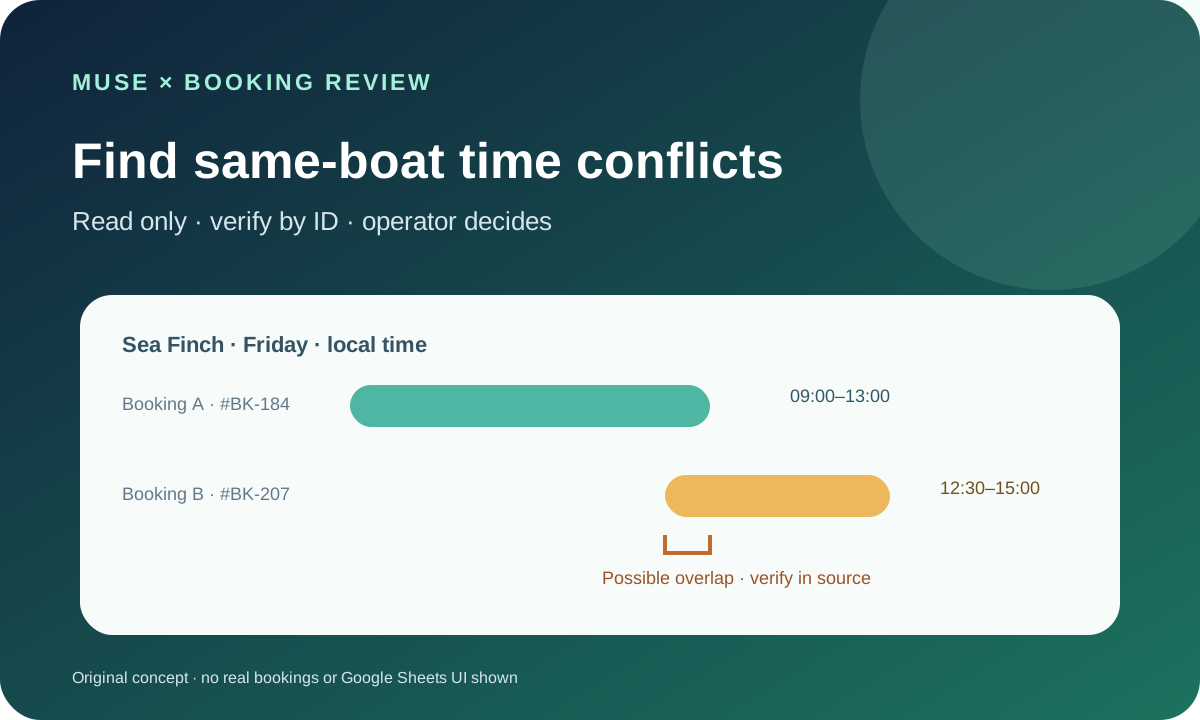
This guide focuses on “Muse Google Sheets” and turns the question into practical steps you can check.
01 | Define a conflict before searching
Two rows on the same date are not automatically a conflict. You are looking for active bookings on the same boat whose service intervals overlap. A morning trip and an afternoon trip can both run on one date. Two boats with identical times are not a collision either.
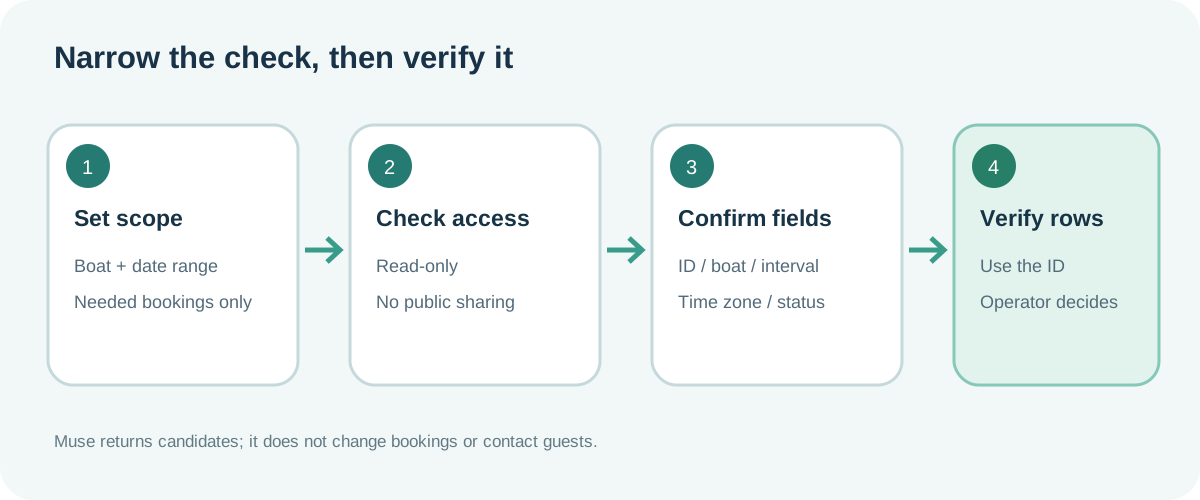
Start with a short window, such as the next two weeks for one boat. Ask Muse to list candidate rows, then have the scheduler open the source sheet and verify them. This narrows the review; it does not account for every factor such as deposits, weather, crew, or dock logistics.
02 | Confirm which read-only path Muse can actually use
Meta describes Muse as having its own browser for work across apps under your direction, and says it can connect cloud storage. Public documentation does not confirm a native Google Sheets connector for every Muse account or promise that Muse can see your particular file. First check whether the Google Sheet opens in your current Muse environment. If it does not, stop there.
If you need to share the sheet, Google Sheets can grant Can view access to a specific account you recognize and intend to authorize. Do not change sharing to “Anyone with the link” just to make the file visible, or share it with an account you do not recognize. Another option is for the sheet owner to make a copy, keep only the needed columns and date range, remove customer details, then use File > Download as > CSV. Provide that copy only through a file input that actually exists in your current Muse interface. If that option is absent, the owner can paste a small necessary sample or keep checking manually. Keep the CSV and copy inside the same authorized scope.
Muse’s Secure VM browser and Google Sheets sharing permissions are separate. A browser that can open a site does not automatically have permission to read this file.
03 | Keep only the fields needed for scheduling
Read the header row first. Confirm which columns hold the boat or vessel, booking ID, service date, start and end time, booking status, and any cleaning or turnaround buffer. Do not guess that Date means departure date or End means an end time. Ask Muse to restate the actual column names and meaning so the sheet owner can correct them.
Customer name, phone, email, payment notes, and identity details usually are not needed for an overlap check. Give Muse only the rows and fields it needs. Keep a stable identifier such as booking_id instead of relying on a row number; sorting or inserting rows can change row positions. The output can include both the stable ID and the row number observed at read time.
04 | Confirm what the dates and times mean
Charters are usually scheduled in local marina time. Ask the sheet owner which time zone the table uses, such as America/Los_Angeles, then inspect the spreadsheet’s locale and time zone settings. Google says those settings affect default date and number formatting across the whole spreadsheet for every collaborator. Read the setting; do not change it for this analysis.
A value like 7/8/26 may mean July 8 or August 7 to different readers. If the time is stored as text, date formats are mixed, or a daylight-saving transition creates a repeated or missing local time, mark those rows for the owner. Do not convert an ambiguous value and present it as certain.
05 | Use one consistent rule for two intervals
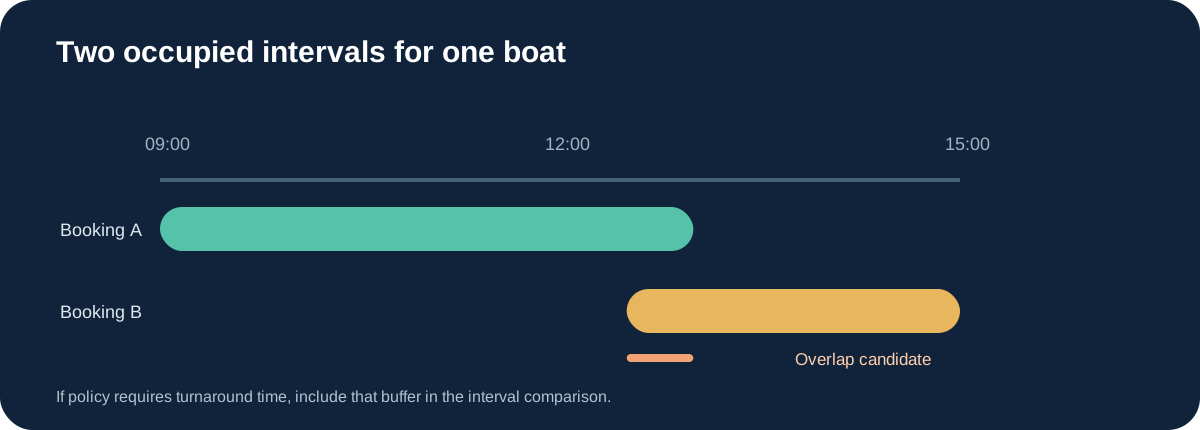
Treat each booking as a period during which the boat is occupied. For the same boat, booking A and booking B overlap when A starts < B ends and B starts < A ends. A trip ending at 12:00 and another starting at 12:00 are back-to-back by default. If the operator requires time to clean or refuel, include the owner’s turnaround minutes in the comparison.
Apply the company’s actual status rules. Exclude cancelled bookings from active occupancy; check confirmed bookings separately; list pending requests or holds as possible conflicts instead of mixing them with confirmed conflicts. If status is blank or unfamiliar, or the end time is missing or crosses midnight, flag it for review rather than deciding on behalf of the business.
06 | Give Muse a complete read-only task
Ask Muse to say whether it can access the sheet and restate the worksheet, data range, time zone, status meanings, and boat to review. Correct anything that is wrong before asking it to scan the rows.
You can use a prompt like this.
“Read only the charter booking sheet from YYYY-MM-DD through YYYY-MM-DD, and check bookings for Sea Finch only. First list the worksheet name, range, column names, spreadsheet time zone, whether booking_id values are unique, and the actual status values you can see. Do not edit, sort, save filters, comment, share, or send messages. Use only booking_id, boat, service date, start, end, status, and the row number observed at read time. Do not copy customer names, contact details, prices, or notes into the result. Count confirmed bookings as definite conflicts; exclude cancelled bookings; list pending bookings separately. Find overlaps for the same boat using the actual turnaround interval. Flag unclear time zones, statuses, and missing values for human review. Return candidate IDs, row numbers, local dates and times with time zone, statuses, overlap explanation, and a source-sheet verification step. If a row number is not visible, mark it unavailable instead of guessing. Do not change booking records.”
07 | Verify each candidate in Google Sheets
Open the source sheet and use each booking_id to find the record. Check the row observed at read time, boat, date, start and end, time zone, and current status. The ID is the stable locator; the row number only describes where the record appeared when Muse read it. If a row has changed, use the current data the scheduler sees and reassess it.
A Google Sheets filter view can keep filtering in your own view. Google also says a viewer can create a temporary filter view, but it will not be saved. If you use one manually, leave the original sorting and filters alone. Protected ranges can reduce accidental edits, but Google says protection is not a security measure, so share carefully.
08 | Report candidates; leave schedule changes to the operator
Make the result a compact table with boat, date, both booking IDs, row references at read time, local start and end times, statuses, the point of overlap, and the overlap duration. Put uncertain items in a separate review list, such as mixed time formats, unclear turnaround policy, or blank status. If no candidate was found, say which dates and boats were checked.
The scheduler decides whether to change a boat, move a trip, or contact a customer. Muse’s task ends with the candidate list and source-sheet verification notes; the business schedule, booking status, and customer communication stay with the operator.
References
These sources support the product information in this guide. Musevip is an independent publication and is not affiliated with Meta.
- [1] Meta: Muse personal AI agent
- [2] Meta Newsroom: Introducing Muse
- [3] Google Sheets Help: Collaborate in Sheets
- [4] Google Sheets Help: Sort and filter data
- [5] Google Sheets Help: Spreadsheet locale and time zone
- [6] Google Sheets Help: Protect sheets and ranges
- [7] Google Sheets Help: Export spreadsheets
- [8] Google Sheets Help: Use both Excel and Sheets
- [9] Google Docs Editors Help: Privacy basics