
This guide focuses on “Muse HighLevel” and turns the question into practical steps you can check.
01 | A card that has not moved may still be progressing
Do not begin by asking Muse to message every old opportunity. A proposal might have been sent ten days ago while the owner spoke to the customer yesterday or booked a meeting next week. The stage can remain unchanged while work continues.
A recent HighLevel community discussion described functioning automations with gaps in the handoff to salespeople. I checked that discussion against HighLevel’s Muse announcement, connection guide and opportunity help. The result is a read-only review of three records, prepared from documentation rather than a live customer account.

02 | Connect LeadConnector and choose the right business
HighLevel’s current documentation lists LeadConnector as an official app in Muse. Find it in your current connector list and complete LeadConnector’s OAuth sign-in and consent. For the first review, select only the intended sub-account. Handle login and consent yourself rather than pasting passwords or tokens into chat.
An agency connection may include several sub-accounts. Ask Muse to list the locations the connection actually exposes, then confirm the business name and ID. The documented list_locations tool supports this choice, and each request still targets one location. Stop if similar names make the destination ambiguous.
The OAuth grant determines what the connection can do. Writing “read-only” in a prompt does not technically reduce that grant. Review the actual scopes and available operations, restrict them where possible, and approve only this lookup. Treat later writes or messages as separate decisions. If the app is missing, check your current account rather than borrowing another client’s MCP setup command.
03 | Separate pipeline stage from opportunity outcome
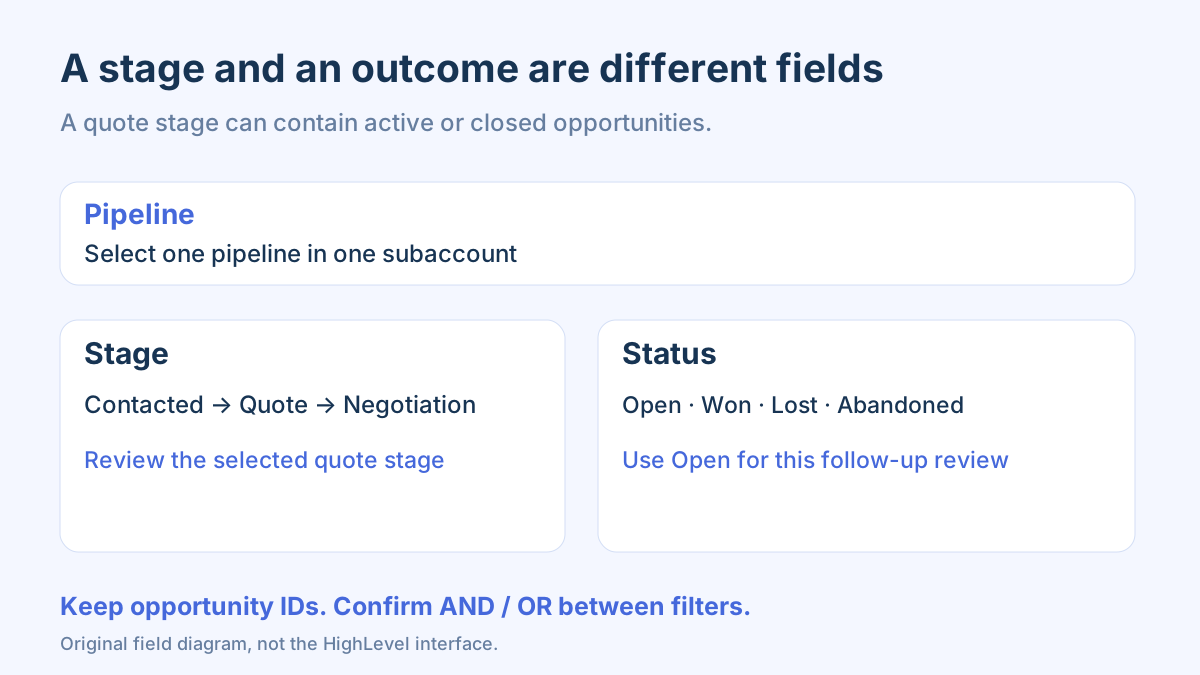
A pipeline represents the sales process. A stage is a step such as Contacted, Proposal or Negotiation. Status records the outcome; HighLevel’s default values are Open, Won, Lost and Abandoned. Keep stage and status as separate columns.
This review considers Open records. Won, Lost and Abandoned belong in a separate retrospective, and should not be reactivated automatically. Preserve the location, pipeline, opportunity ID, contact ID and opportunity owner. Names can repeat, and one contact may be associated with more than one opportunity.
In HighLevel, open Opportunities, select the pipeline and inspect Advanced Filter. The help guide says the default view usually shows Open records, so inspect active filters when a record appears missing. Specify AND or OR deliberately: Open AND Proposal is a narrower question than Open OR Proposal.
04 | Explain the rule with three fictional records
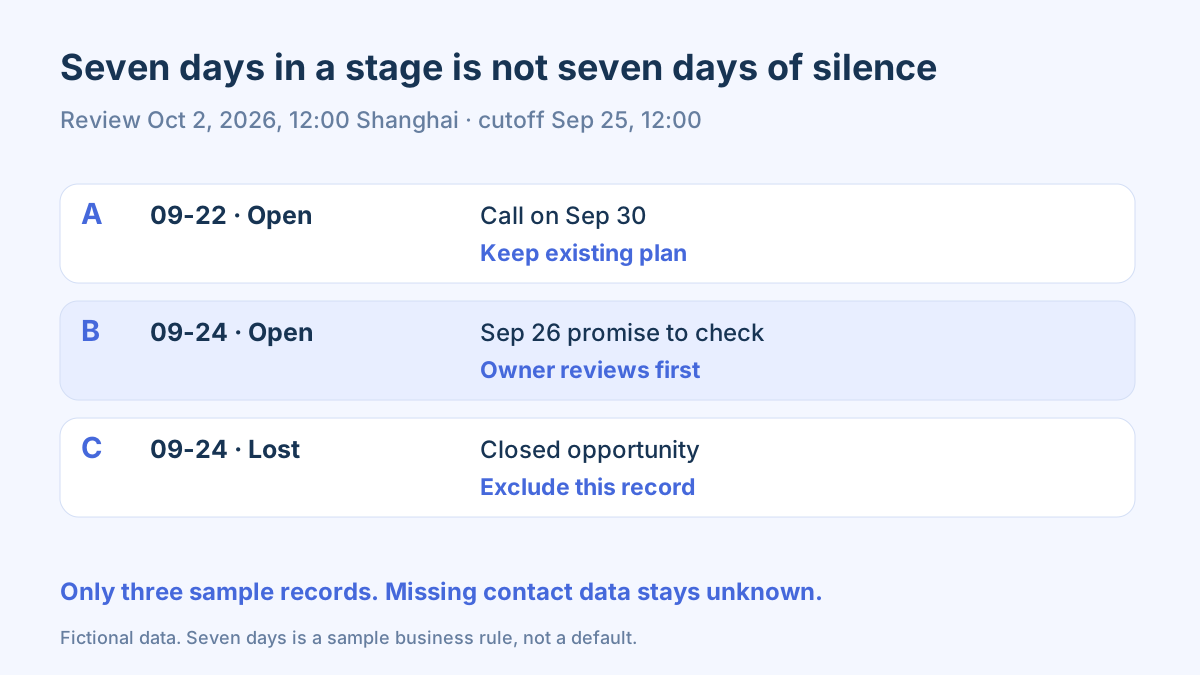
Choose an explicit review time. These teaching records use Asia/Shanghai and October 2, 2026 at 12:00. Suppose this business treats more than seven days in Proposal as an initial flag. The cutoff is September 25 at 12:00. That is this example’s business rule, not a HighLevel-prescribed sales cadence.
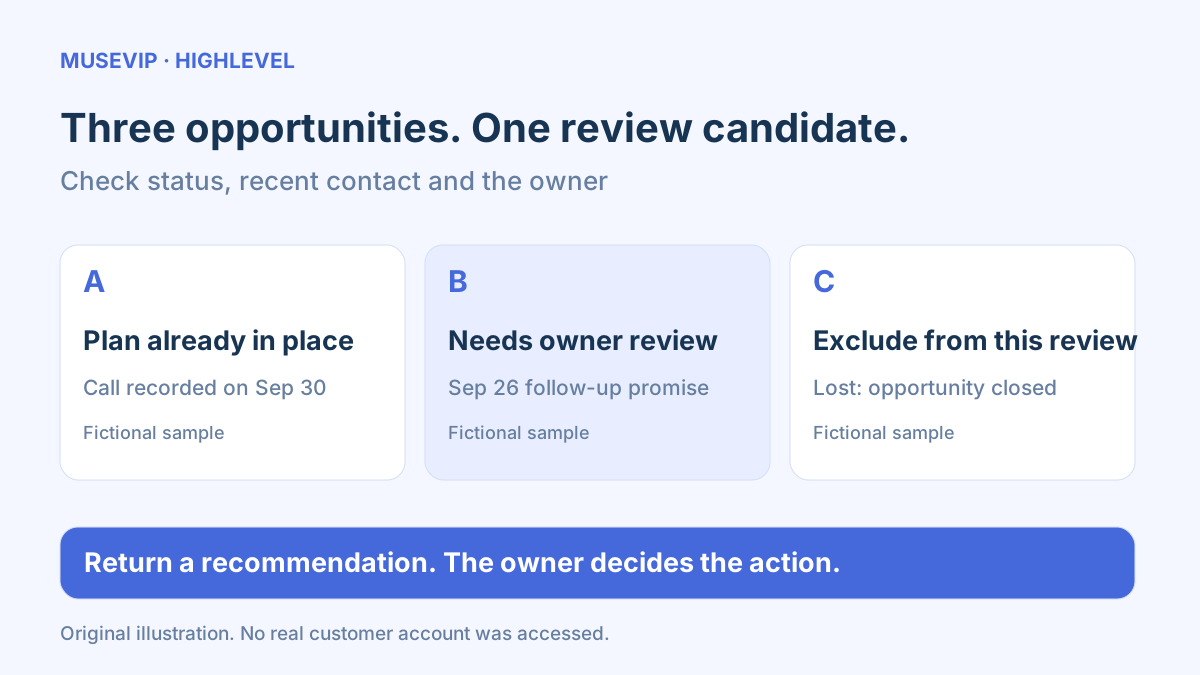
Sample A entered Proposal on September 22 and is Open, but its owner logged a call on September 30 and agreed the next contact. Keep that arrangement. Sample B entered Proposal on September 24, remains Open and had a September 26 follow-up commitment with no later relevant conversation found; it needs review. Sample C also entered on September 24 but is Lost, so exclude it from the active follow-up list.
Ask Muse for both inclusion and exclusion reasons. If conversations cannot be read, mark the record as needing owner input rather than declaring that the customer never replied. Label a three-record result as a sample review, not a completed audit of the whole pipeline.
05 | Give Muse a scope and a checkable output
“Read only the three opportunities I select in this HighLevel sub-account and pipeline. First return the business name, location ID, pipeline, opportunity IDs and available read operations, and wait for scope confirmation. Do not change statuses, move stages, create tasks, send messages or enable workflows.”
“Using my review time and time zone, flag Open opportunities that entered Proposal more than seven days ago. Check relevant recent conversations, existing appointments, promised follow-up dates and opportunity ownership. Return source record links, evidence, a proposed next step and missing information. Keep recommendations separate from completed actions.”
LeadConnector documents search_operations, describe_operation and execute_operation. Discover the required read operation, inspect inputs, scopes and returned information, then run the confirmed query. Use the operations this connection actually exposes rather than guessing from someone else’s screenshots.
06 | Date fields shortlist records; conversation evidence finishes the check
Last Stage Change tracks the latest stage move. Last Status Change tracks the latest outcome change. Updated On indicates that the opportunity record was modified, not necessarily that someone contacted the customer. HighLevel’s reporting guide also notes that reopening a record resets its status-change date, so it is not the original historical date of that status.
Read only the necessary notes, tasks or messages related to the selected opportunity, and preserve the source and time. A conversation about another project for the same contact does not establish progress on this deal. If the connection lacks a suitable read operation, ask the owner to supply the relevant evidence from HighLevel rather than expanding access automatically.
HighLevel’s FAQ explains how to copy a specific opportunity’s URL and use its ID to open associated audit logs. Audit entries help identify field changes. A price edit can change a record without establishing that a sales call took place.
07 | Give the owner a short, actionable handoff
Keep the opportunity ID, source link, stage and status, owner, recent relevant conversation, prior commitment and proposed action on each row. For Sample B, start with “Confirm whether there was an unlogged call; if not, prepare a follow-up.” Preserve Sample A’s arrangement and record the reason for excluding Sample C.
If a message would help, draft it first: “I wanted to check whether there is anything else you need from our earlier discussion. Please let me know if your timing has changed.” The owner must verify the recipient, wording and actual earlier conversation. Do not invent discounts, deadlines or promises, and do not report a draft as sent.
After handling the record, capture the real result and next action in the CRM before deciding whether a stage change is appropriate. This review identifies issues in three samples; it does not decide which customers have bought.
08 | Add native stale reminders only after the review rule works
HighLevel has its own Stale Opportunities workflow trigger with duration, pipeline and stage filters. It is separate from Muse preparing this list. The help guide says it does not calculate stale duration retroactively before the trigger is added, so a new workflow does not replace reviewing existing records.
Before automating reminders, check existing workflows for duplicate notifications. HighLevel gives recent notes, email replies and logged calls as example exclusions. Also review agreed future appointments; if the current workflow has no suitable appointment filter, exclude those records manually first. Use test records to check actual triggering and internal notifications. Saving a draft, testing it and publishing it are separate steps; publication activates the workflow. This tutorial creates or enables none.
First establish who owns each record, which one needs attention and which one lacks evidence. For broader pre-meeting context, continue with the HubSpot customer brief guide. For outgoing wording, use the email approval checklist.
References
These sources support the product information in this guide. Musevip is an independent publication and is not affiliated with Meta.
Last reviewed 2026.10.02. Product pages may change.