
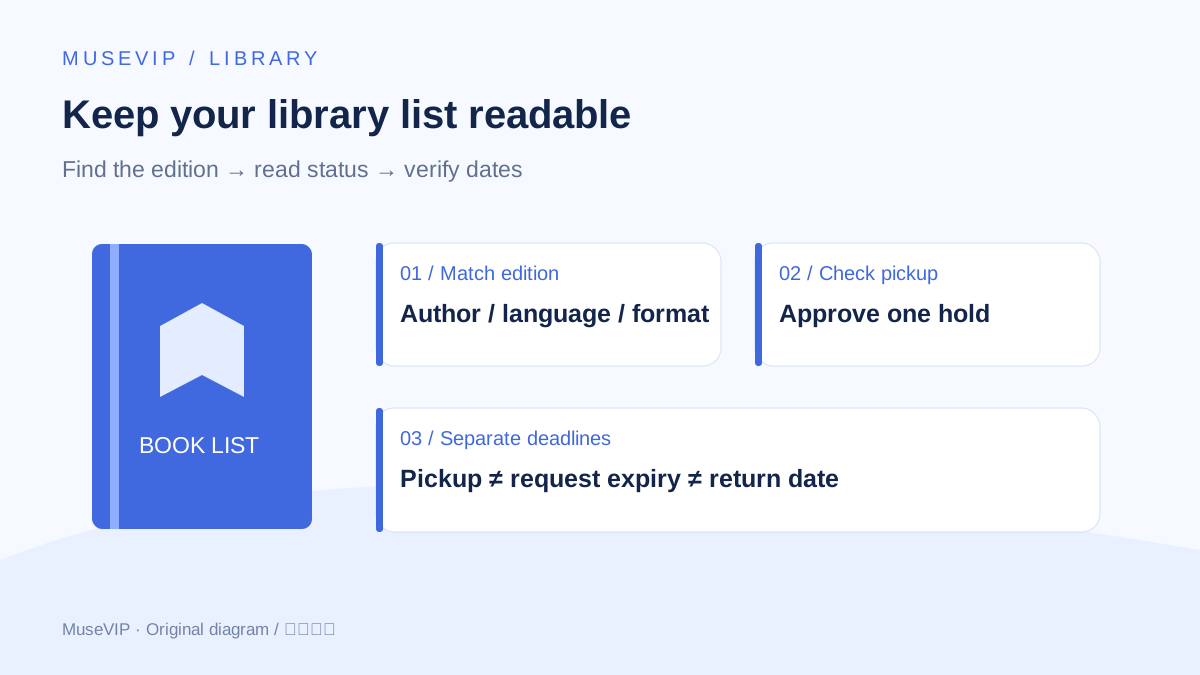
This guide focuses on “Muse library holds” and turns the question into practical steps you can check.
01 | A reading list is easier to keep when the admin is visible
Finding a book is only the beginning. You still have to choose the edition, select a branch, watch the hold queue and remember the return date. With several requests open, a book travelling between branches can easily get mistaken for one that is ready to collect.
A reader’s library workflow inspired this guide. The steps were checked against Meta, Toronto Public Library (TPL) and BiblioCommons documentation, rather than tested in a borrowing account. We have not confirmed a native TPL connector for Muse. Start with public catalogue pages and records you explicitly allow it to read; approve each hold and renewal. Other libraries have different rules.
02 | Match the edition before placing anything on hold
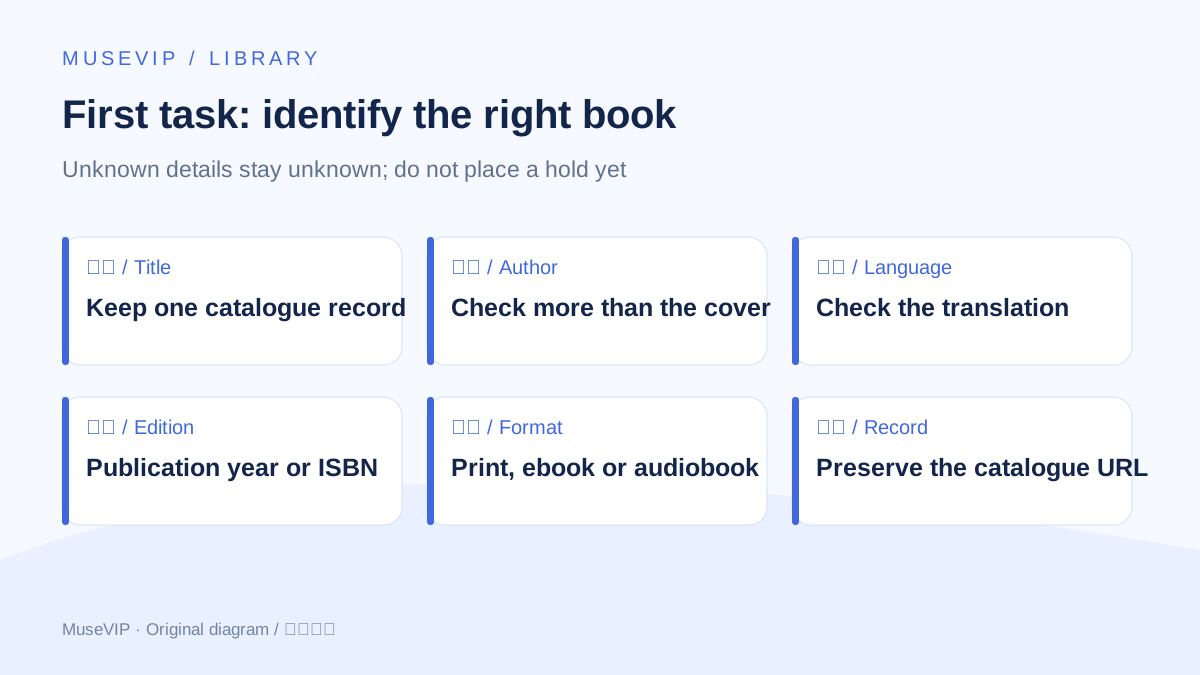
Give Muse a cover photo and ask it to identify the title, author, language, publication year, edition and format. Unreadable details should stay unknown. A print book, ebook and audiobook can share a title while using different borrowing paths.
Try: Identify this book and find candidates in my specified library catalogue. Show author, language, edition, format and catalogue URL. Do not sign in, place a hold or download anything. Ask me about unreadable details. Add a translator or ISBN if a particular edition matters, then open the candidate yourself.
Keep the selected catalogue URL or record ID for later checks. TPL does not allow holds on every item; reference materials and Best Bets are examples of exclusions. Digital items may use a separate checkout or hold process.
03 | Check the pickup branch and single-click setting
If login is needed, take control of the shared browser and enter your card details and PIN yourself. Keep them out of ordinary chat. Meta describes a shared browser that lets you intervene; if the page or account is unavailable, provide a redacted record yourself rather than asking Muse to bypass access controls.
Specify the full pickup branch name. Before approving one hold, ask to see the exact title, format and location. The saved default branch may not be convenient for this trip.
BiblioCommons Single-Click Holds can skip location selection and use your default immediately. Check that setting before clicking Place hold. After submission, require both a success message and the matching entry in On Hold before marking the request as placed.
04 | Keep Ready, In transit and Not ready separate
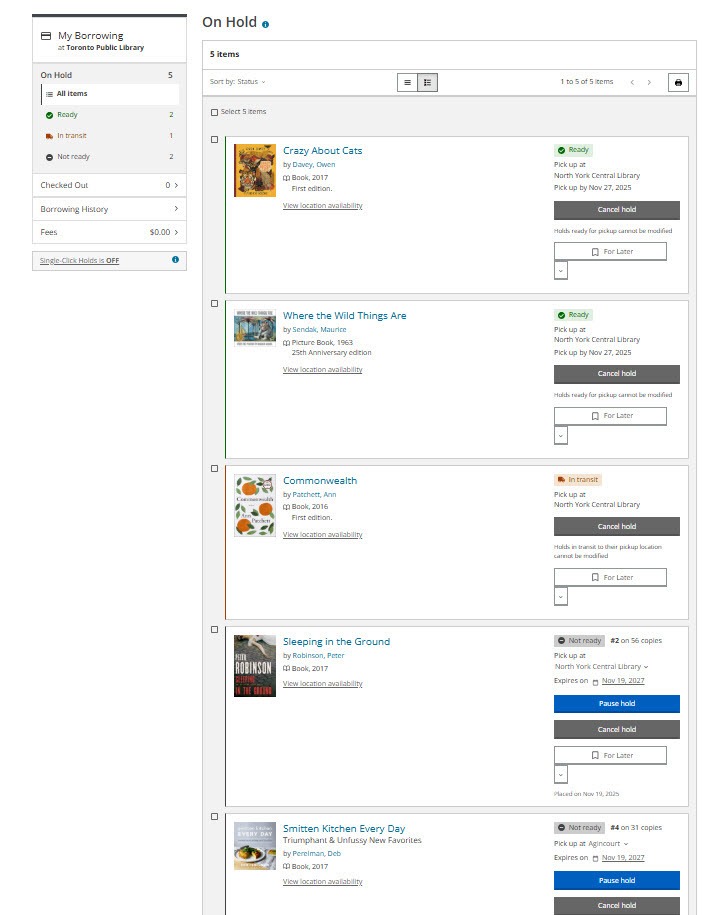
Ready means the item can be collected. In transit means it is travelling to the pickup branch. Not ready means the request is still waiting. Record a queue position if shown, but do not turn it into a promised arrival date.
The TPL help screenshot below shows all three states together. Its books and dates are documentation examples, not your account. For your own list, keep title, record ID, status, branch, pickup deadline, return date and the time the page was read. Use “not shown” for missing fields.
Ask Muse to read just three selected records without changing the account, preserving exact dates and links. An In transit item should not produce a pickup trip. Spot-check one Ready record and one waiting record against the original pages.
05 | A pickup deadline is different from request expiry
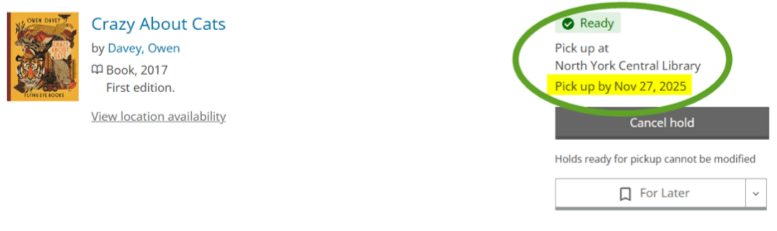
TPL normally gives seven days to collect a ready hold. Use the actual Pick up by date for that item and the branch’s opening hours. Do not add seven days to the notification email: TPL sends pickup notices the day after the item arrives.
Expires on can describe the hold request’s lifespan; TPL’s default request expiry is two years. That does not mean a ready item stays on the shelf for two years. A checked-out item has a separate Due date. Give these three fields separate names in the table.
The highlighted date below belongs to an older help-page example. Use the live account date for your reminder, with the library’s local time zone. If you are travelling abroad, write the local closing time explicitly rather than silently shifting a date-only value to your current location.
06 | Keep the library notices and add a checkable reminder
Review Contact Preference in your TPL account, save any changes and verify a new email address through the confirmation message. TPL emails due-date reminders two days before checked-out materials are due. Email and telephone notifications do not cover exactly the same events.
Ask Muse to draft a reminder containing title, branch, deadline, local time, account link and a final status check. A promise to “check daily” is insufficient. Count a recurring task as configured only when your current account shows the actual task, next run and notification destination. Otherwise add the reminder to your calendar yourself and retain the library notices.
The fictional table below gives a Ready item a pickup reminder, an In transit item a later status check, and a checked-out item a return-date check. They should not all receive the same “collect tomorrow” action.
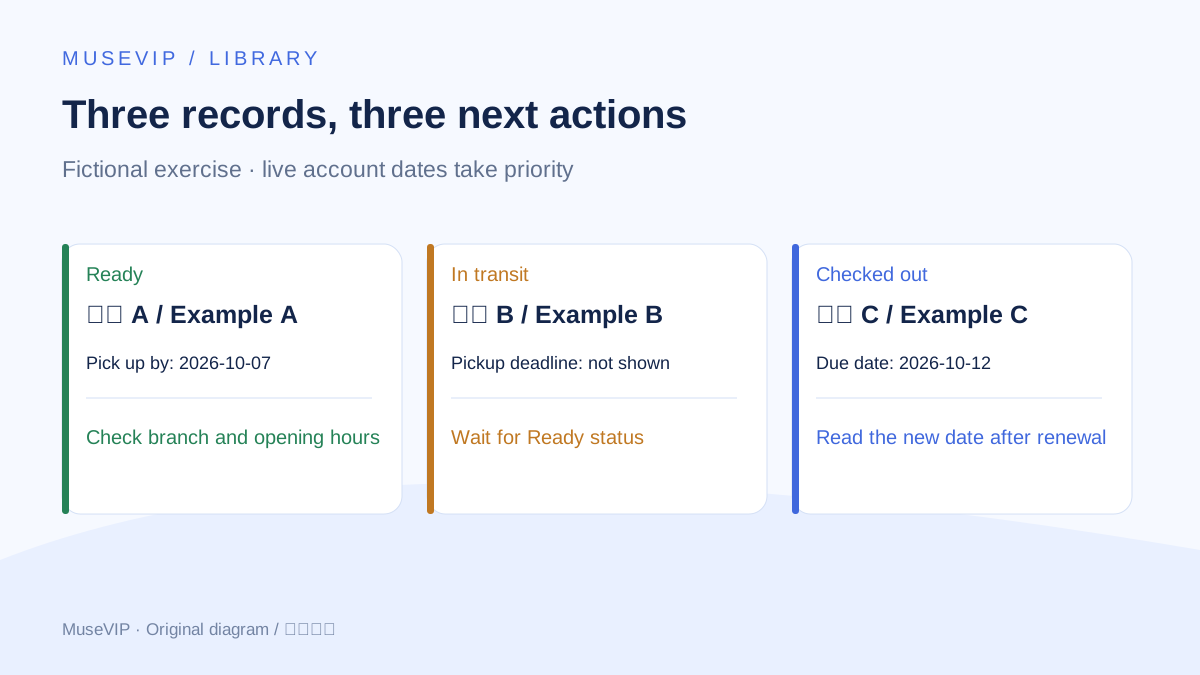
07 | Renew one item, then read the returned date
In Checked Out, select one item and review its current due date before approval. BiblioCommons supports an individual Renew action or Renew selected for checked items. Avoid selecting everything for a first run.
TPL calculates a renewal period from the day you renew, not by adding it after the previous due date. Renewing very early can therefore give less extra reading time than expected. TPL generally recommends renewing one or two days before the deadline; eligibility still depends on the item, renewal count and whether another reader is waiting.
Read the new due date from the account before updating the reminder. If renewal fails, return the page’s reason, such as a renewal limit, waiting request or expired card. A click is not proof of success. Leave a clear return or branch-contact task instead of retrying repeatedly.
08 | Pause a waiting request before a trip
TPL allows pausing requests that are still waiting, but not ones already In transit or Ready. Check the current state before setting pause dates. A paused request can continue moving towards the front of the queue, so check the account again after it resumes.
Cancelling loses that request’s queue position. Review a single item, confirm the cancellation and check the list afterwards. If a ready item cannot be collected, contact the branch about your options; changing the pickup branch is not always available at that stage.
Finish with a borrowing list linked to the original records, verified reminders and outstanding actions for you. On the next pass, update statuses and dates without placing duplicate requests. For fitting these tasks into a weekly routine, see the weekly goals guide.
References
These sources support the product information in this guide. Musevip is an independent publication and is not affiliated with Meta.
- [1] Meta | Muse shared browser and goals
- [2] Toronto Public Library | Placing holds
- [3] Toronto Public Library | Managing holds
- [4] Toronto Public Library | Renewing materials
- [5] Toronto Public Library | Account notifications
- [6] BiblioCommons | On Hold
- [7] BiblioCommons | Renewing checked-out items
- [8] BiblioCommons | Single-click holds