
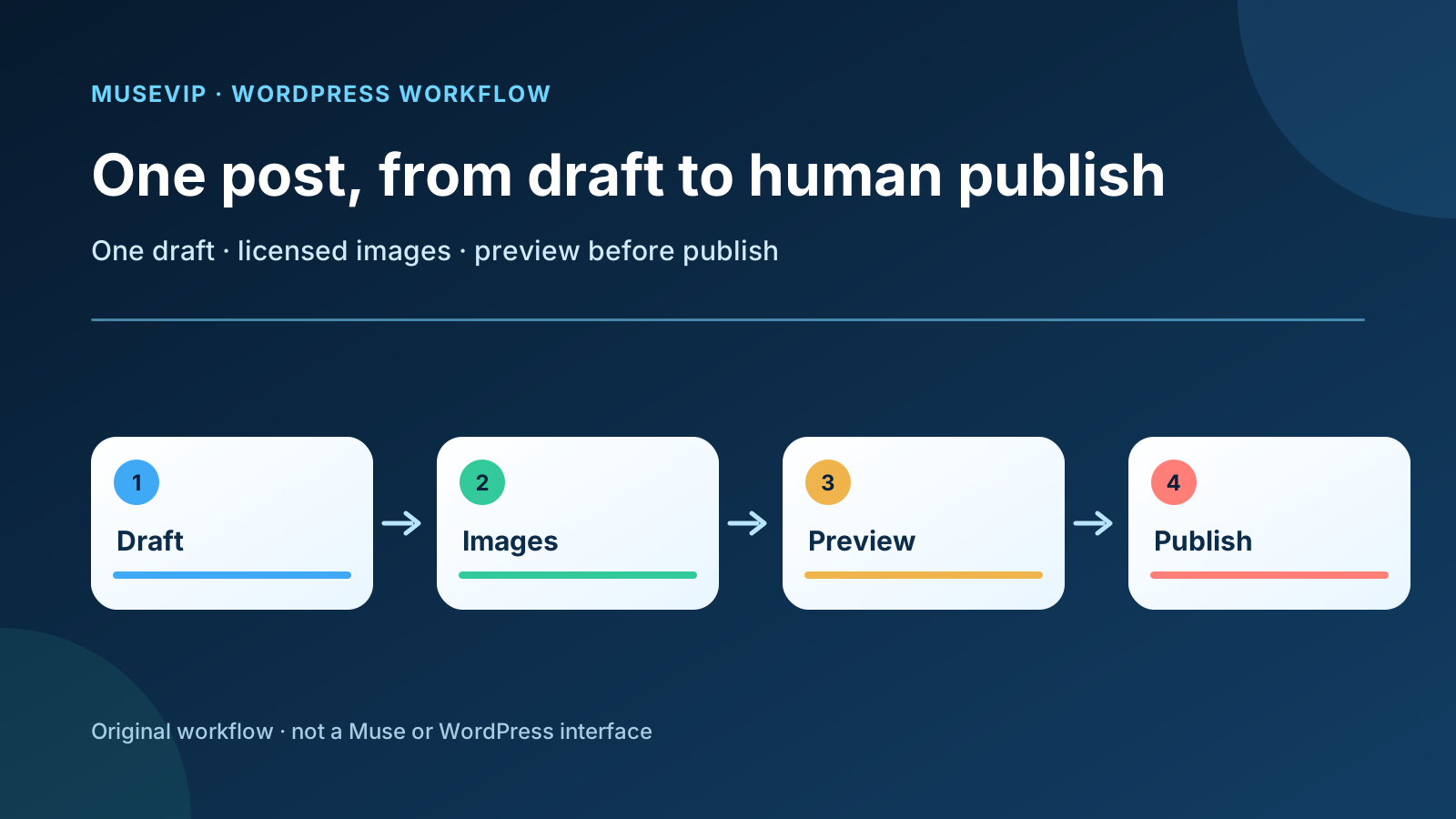
This guide focuses on “Muse WordPress workflow” and turns the question into practical steps you can check.
01 | Identify the site and contain the job
Start with the sign-in address and hosting context. WordPress.org provides open-source software that can be installed on your own host. WordPress.com is a hosted service operated by Automattic. Both may use the block editor, while sign-in, plugins, themes, and some settings differ. Follow the controls visible on the current site instead of transferring every WordPress.com instruction to a self-hosted installation.
No official source reviewed for this guide establishes a native Muse connector for WordPress. This workflow relies on the remote Chromium browser Meta documents for Muse. The user can observe it and take over, and Meta also says Muse can make mistakes. Individual social posts describe WordPress browser use and a separate WordPress-to-GitHub project, but neither report establishes broad availability or production reliability.
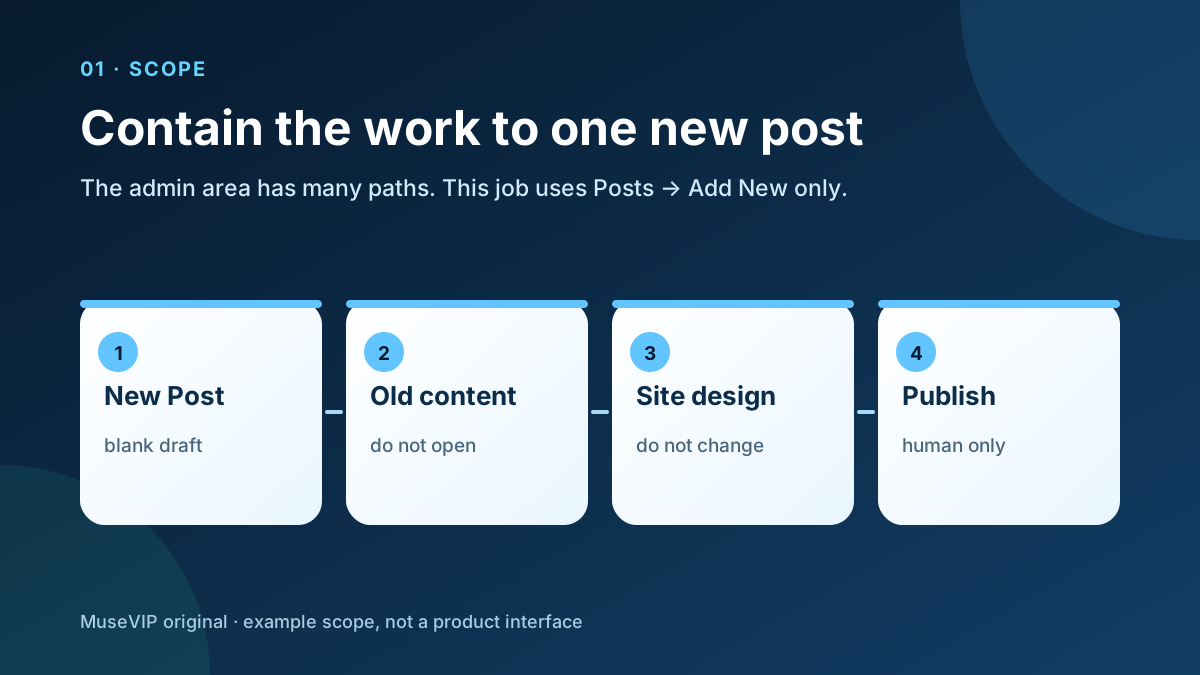
The allowed change is one new Post in Draft status. Exclude existing posts, pages, menus, themes, templates, plugins, users, site settings, scheduling, and publishing. If the editor, role, or page structure does not match the expected path, stop with the prepared content pack and finish the admin work manually.
02 | Prepare the complete post package before sign-in
Finish the working copy outside WordPress. Prepare the title, body, excerpt, proposed slug, one existing category, image files, alt text, and captions. Mark heading levels below the post title. For every link, retain both its visible wording and destination.
Keep a source and permission record for every image. Upload only material you own or are permitted to display on this site. Alt text should explain the image purpose in this article. Leave it empty or mark the image decorative when it adds no information. A visible caption can hold attribution and license details; alt text is a poor place for keyword lists or copyright notices.
Define the delivered state before opening the admin area. The result is a new Draft with the expected blocks, inline images, featured image, slug, category, and excerpt, plus desktop and mobile preview notes. Preserve the post ID or edit URL so the reviewer can reopen the exact draft.
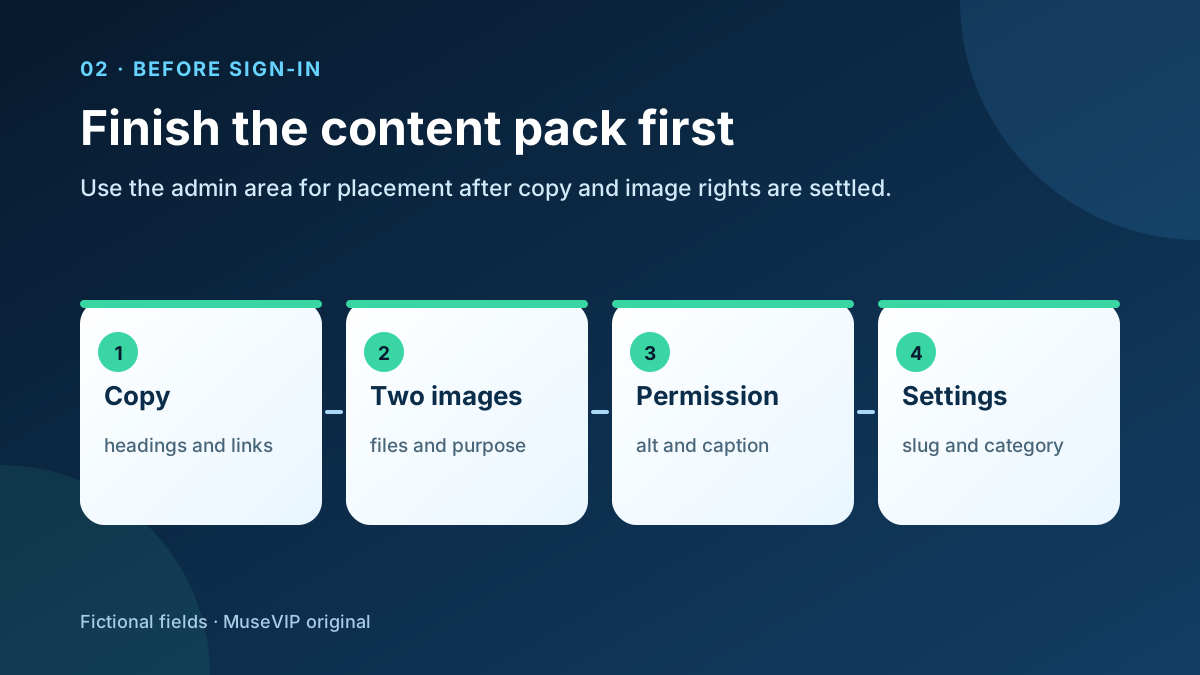
- Begin with no more than two inline images and map each file to its alt text and caption.
- Name the featured image rather than letting the agent choose from the Media Library.
- Select an existing category and avoid creating taxonomy during the first pass.
- Leave publication, scheduling, and updates to existing posts to a person.
03 | Take over sign-in and open only Posts, Add New
Ask Muse to open the WordPress admin address you verified and stop at sign-in. Take over the browser and enter the account credentials and second factor yourself. Meta says the agent pauses during takeover and that values entered through its secure credential interface are not exposed to the main agent. Use the login controls actually presented by the site.
Confirm the site name and your role after sign-in. In the default WordPress roles, an Editor can publish and manage posts by other users, an Author can publish their own posts, and a Contributor can write their own posts without publishing them. Plugins and custom roles can change those capabilities. Keep the Muse task draft-only even when the account can publish.
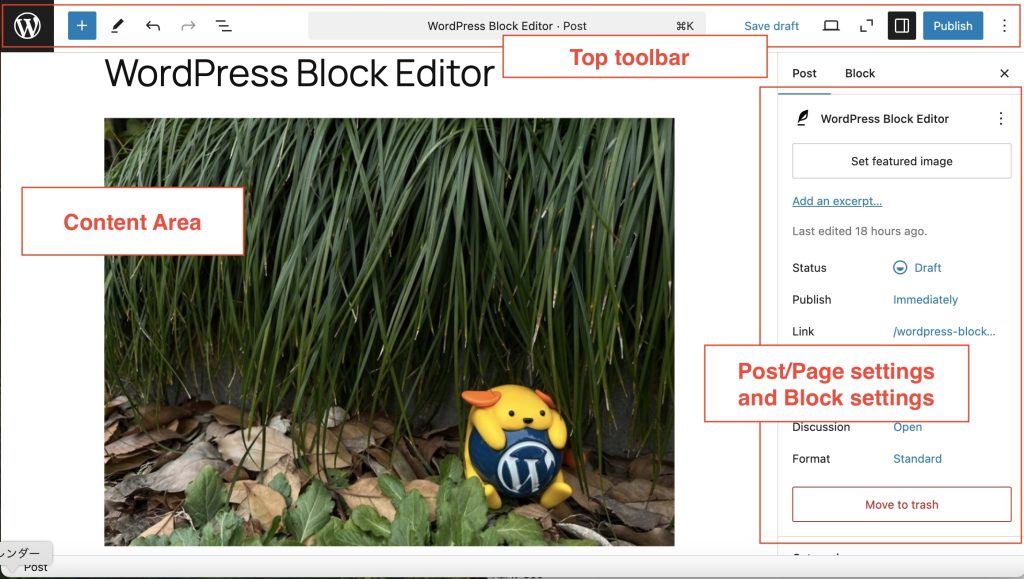
Open Posts and then Add New. Verify that this is an empty Post with Draft status. Exit if the browser opened an existing post, a Page, the template editor, or the Site Editor. The official screenshot below identifies the content area, top toolbar, and post settings sidebar; the actual layout can differ by version and configuration.
04 | Build the article from blocks and stop at Saved
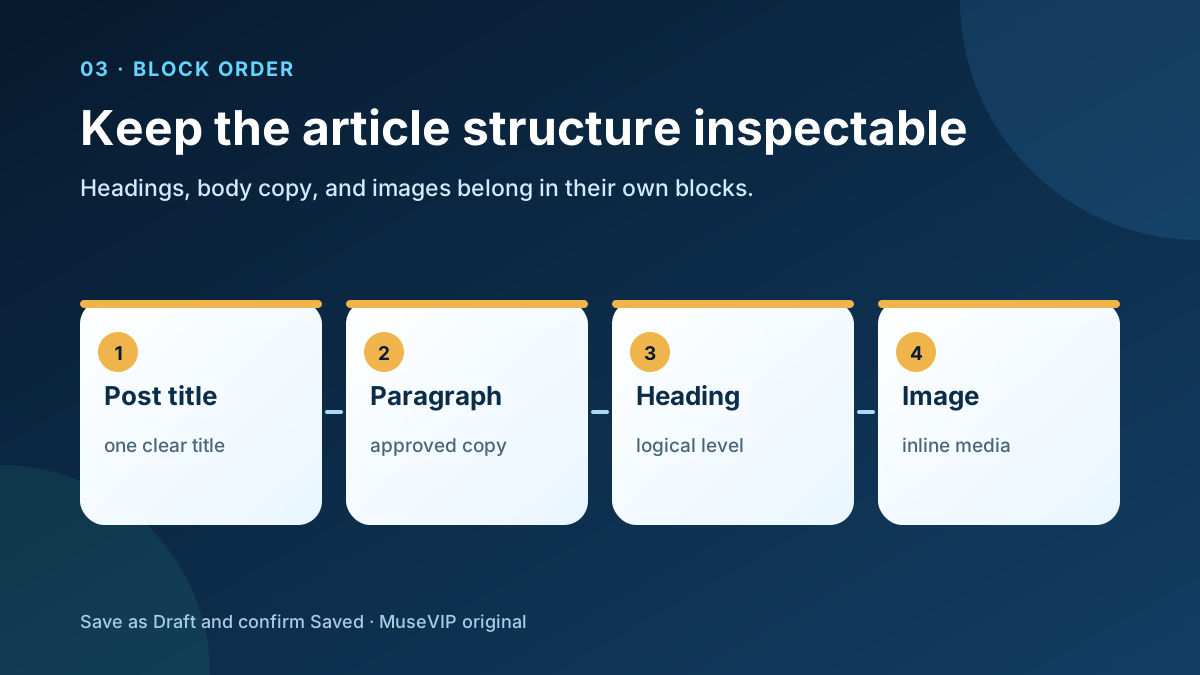
Enter the title, then create Paragraph, Heading, List, Quote, and other necessary blocks from the approved copy. Avoid putting the entire article into a Custom HTML block, and do not edit a template to solve a post-width problem. Document Overview reports the blocks and heading outline, making it useful for finding a jump from an H2 directly to an H4.
Check each link label and destination. Leave an external link unresolved when it redirects to an unfamiliar domain, requires sign-in, or fails to open. After the first complete pass, choose Save draft. WordPress documents that a successful save changes the toolbar label to Saved, while the post remains unpublished.
Use this instruction. “Create one new Post on the site I confirmed. Build blocks from the approved package and preserve its heading levels and links. Save the first complete pass as Draft, then report the post ID, current status, and unresolved items. Do not open or change other posts, pages, templates, themes, plugins, users, or settings. Do not schedule or publish.”
05 | Treat inline images and the featured image as separate checks
Use an Image block for a picture that belongs inside the article. After upload, confirm its filename, dimensions, alt text, caption, and link behavior. WordPress documents that alt text set in block settings applies to that insertion, while Media Library alt text becomes the default for later insertions. When an image is pasted from another document, confirm that a copy has reached the Media Library so the post does not depend on the external file location.
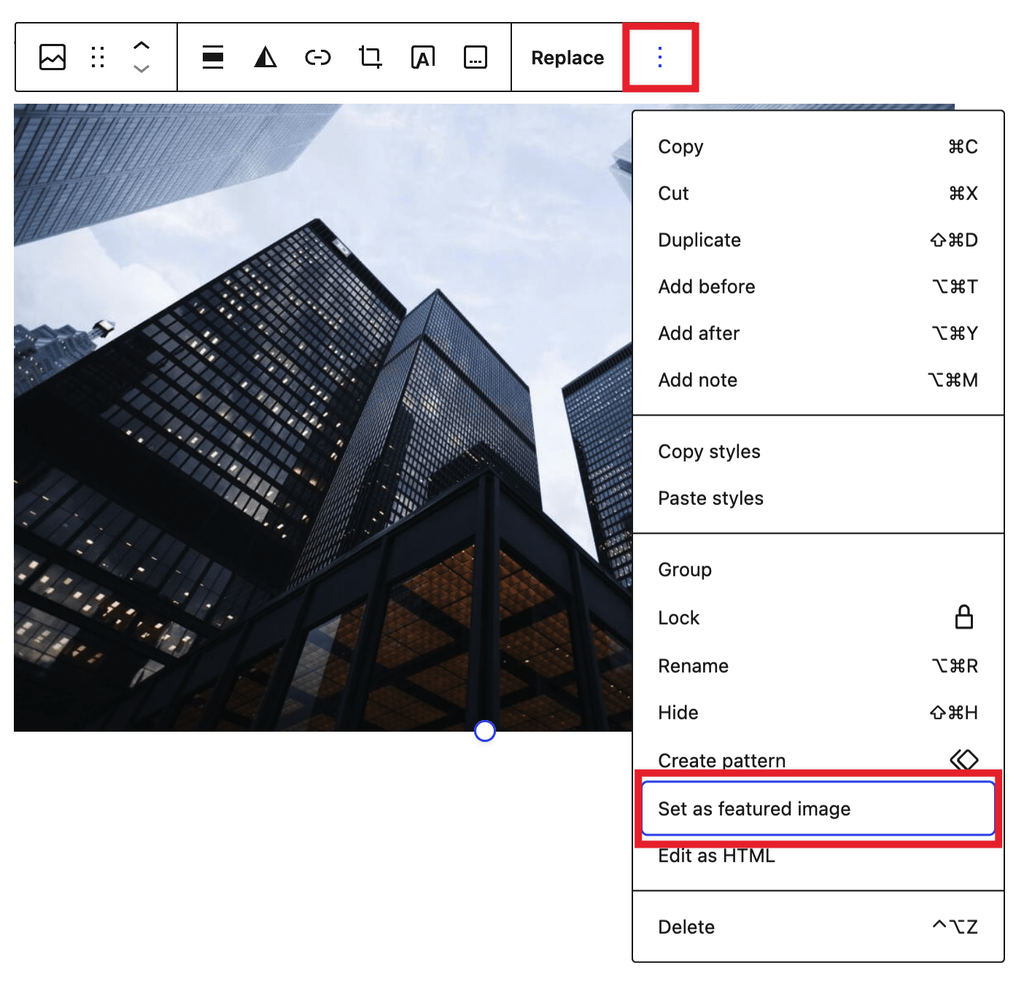
The featured image represents the post and is often used by a theme on indexes, social previews, or above the article. It is a separate post setting from the inline Image block. The editor can set a selected inline image as featured, or use the Post settings sidebar. Preview afterward because a theme may render the featured image above the content and repeat the same picture already used as the first inline image.
The official screenshot below shows Set as featured image in the current Image block documentation. If that menu item is absent, use the Post settings sidebar. Its presence does not establish where the theme will render the featured image.
06 | Review the slug, category, and excerpt after saving
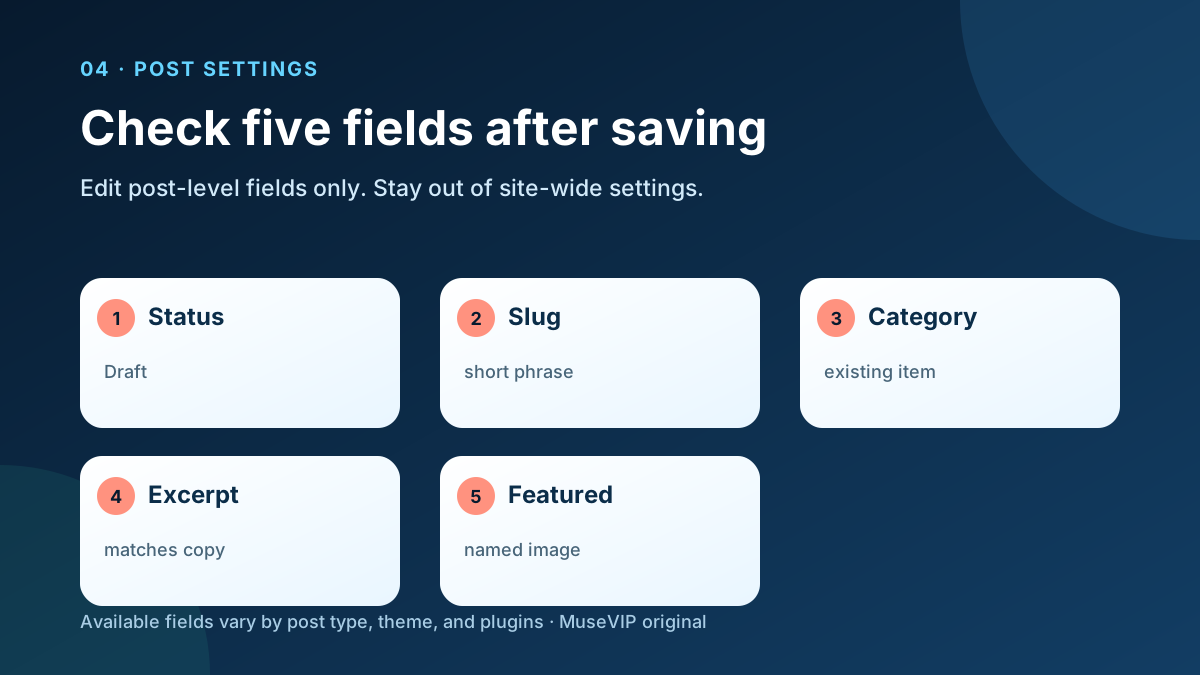
Save the draft once, then open the Post settings sidebar. WordPress documents that the final URL segment, or slug, becomes editable after the first draft save. A site using Plain permalinks may not show this control. Confirm the short proposed slug without changing the site-level Permalink Settings.
Choose only the existing category named in the content pack. Write a one- or two-sentence excerpt that matches the article and adds no unsupported promise. Check author, status, publication time, and visibility. Status remains Draft, and the publication time remains untouched rather than becoming a schedule.
Featured image, category, excerpt, and template controls vary by post type, theme, and plugins. Record a missing field instead of entering the Site Editor or plugin settings to add it. Leave the template unchanged so a single-post task cannot alter the site layout.
07 | Save before every responsive preview
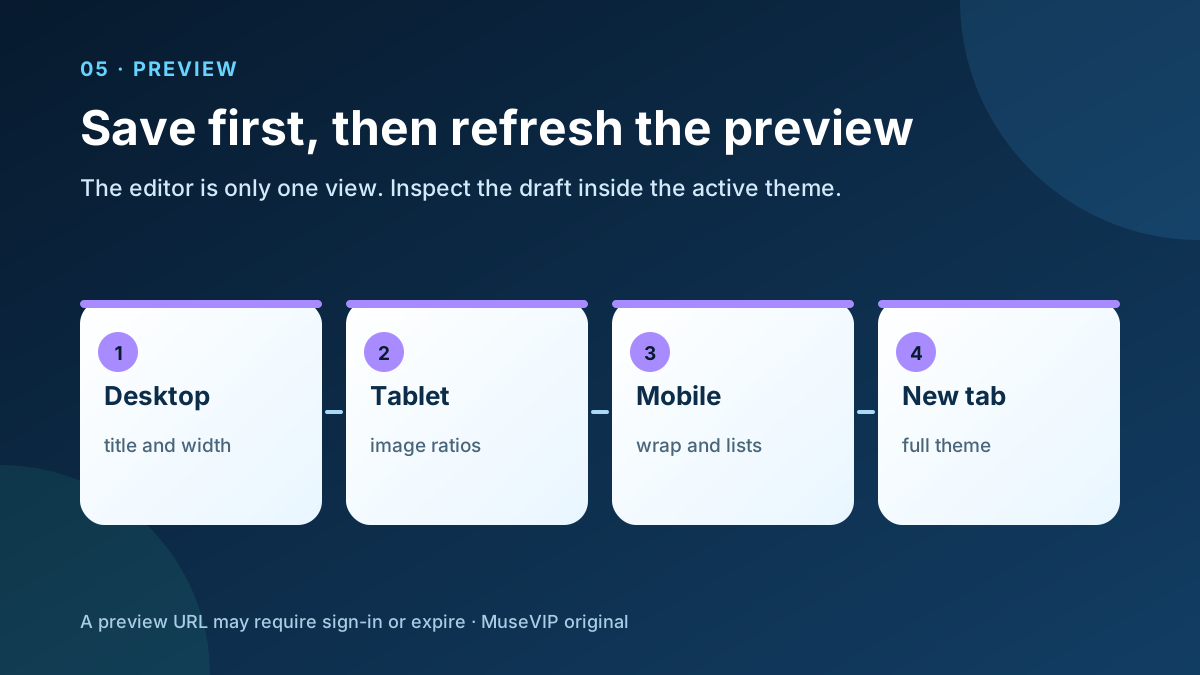
Confirm Saved before using View or Preview in new tab. A WordPress preview applies the current theme, where a title can wrap differently, an image can crop, a caption can crowd the column, or a list can exceed the content width. After each edit, save the draft again and refresh the preview tab so it reflects the latest version.
Inspect Desktop, Tablet, and Mobile views. Check the title wrap, first screen, heading hierarchy, inline images, featured-image duplication, aspect ratios, alt-text mapping, captions, links, and long words. Device presets provide useful widths; Preview in new tab adds the complete theme header, content, and footer.
A preview URL may require authentication or expire. Do not treat it as the public article URL or send it to a client as the final page. Keep the browser output to review notes and screenshot locations, without reposting preview content elsewhere.
08 | Use revisions for recovery, not approval
WordPress stores revisions for saved drafts and published updates, although an administrator can limit how many are retained. Revisions can compare changes to the title, author, body, and excerpt and restore an earlier version. They help locate an accidental edit; they do not approve factual claims, image rights, or brand language.
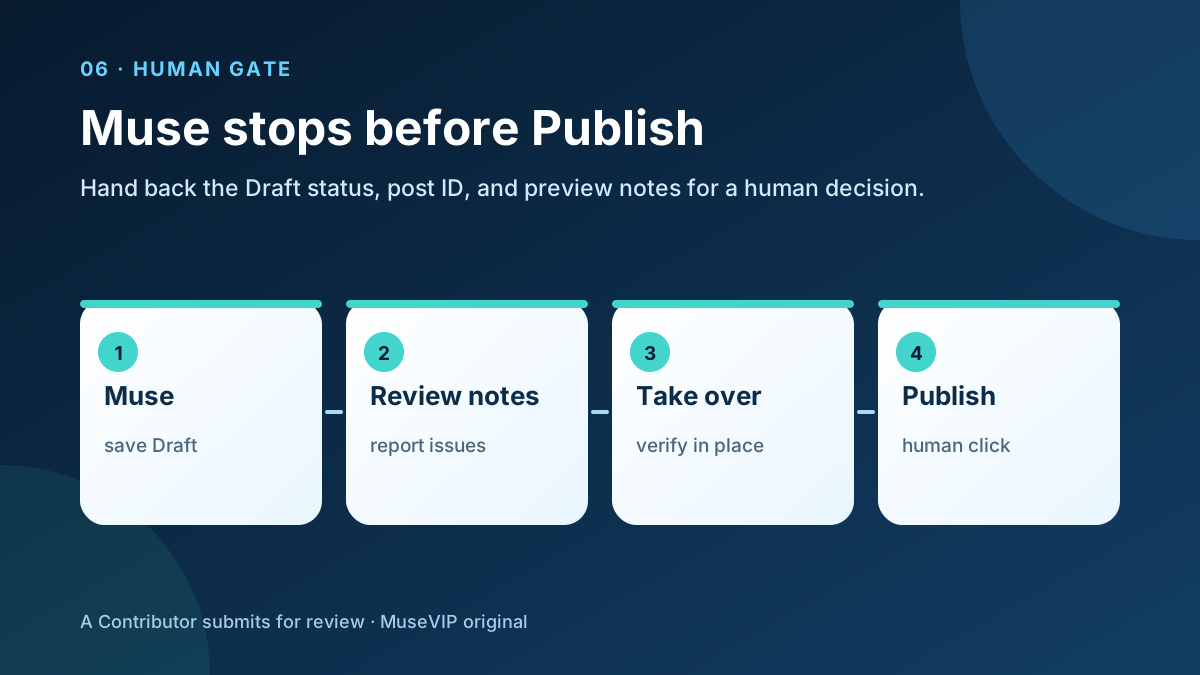
After the final save, ask for the post ID, Draft status, save time, image filenames, slug, category, excerpt, and remaining preview issues. Reopen the draft yourself. Sample the heading outline, two links, two images, and their alt text, then inspect whether the expected saved revision exists. A missing Revisions entry may mean there is no comparable version yet or the site uses a different retention configuration.
When the team requires review, use Pending status or the site’s existing workflow. WordPress core shows Submit for Review to a user who has edit_posts without publish_posts. An account with publishing capability can still show Publish. This guide does not assume an editorial approval plugin is installed.
09 | Take over for the final publish decision
End the Muse task when the draft is saved and the preview report is complete. Take over the browser and recheck the site, title, status, visibility, and publication time, along with any final panel shown by that installation. Click Publish yourself only after those checks. A Contributor should submit the post for review and leave publication to someone with publish_posts capability.
Open the live URL after publication. Check its response, title, featured image, inline images, captions, category, and important links. Return to the Posts list and confirm that only this post changed status. If the page is wrong, return it to Draft or follow the site’s repair process instead of asking for a bulk edit across older content.
For a source-heavy document, continue with the source-checked report and PDF guide. Treat a whole-site redesign as a separate scoped task. This workflow ends with one article published by a person.
References
These sources support the product information in this guide. Musevip is an independent publication and is not affiliated with Meta.
- [1] Meta AI Research | How We Built Safety Into Muse
- [2] WordPress.org | WordPress.org and WordPress.com explained
- [3] WordPress.org | WordPress Block Editor
- [4] WordPress.org | Image block
- [5] WordPress.org | Page and Post settings sidebar
- [6] WordPress.org | Preview with the View feature
- [7] WordPress.org | Post status
- [8] WordPress.org | Roles and capabilities
- [9] WordPress.org | Revisions
- [10] WordPress.com | Preview your content
- [11] WordPress Documentation Team | Documentation licensing