
This guide focuses on “use Muse for job applications” and turns the question into practical steps you can check.
01 | Work on one opening at a time
Give Muse one job description and your real resume. Ask it to identify the role's needs, find evidence in your background, and prepare draft resume edits and a cover letter. One opening per session makes it easier to check the details and keeps one employer's requirements from leaking into another application.
Meta describes Muse as able to browse the web and fill forms, and its safety overview says people can take control of the browser. Meta's public pages do not document a fixed job-application button or identical approval screen across sites. This guide uses a prepare, inspect, and applicant-approved submission flow; the page you see depends on your account and the employer's site.
02 | Gather the source material and trim what is unnecessary
Use the full posting, your current resume, and one or two accomplishments you want to explain. Remove a home address, identity number, or other sensitive detail if the application does not need it. Keep an untouched local copy before you edit anything.
Open the employer's official job page and confirm the title, location, work arrangement, deadline, and application link. A social summary may be out of date, so use the employer's own listing for the final application.
- Use a posting tied to a real employer and opening.
- Keep a source you can check for each date, title, project, and metric in your resume.
- Decide what Muse may read and what personal details should stay out of the conversation or form.
03 | Match each requirement to evidence you actually have
Have Muse analyze the posting before it writes. Each important requirement should point to something already in your resume or another fact you can verify. Mark unsupported requirements as gaps. Related experience can be described as transferable; it should not be rewritten as experience you do not have.
AI at Meta's general job-search article recommends connecting resume evidence to a specific role and checking every factual claim. That article is about Meta AI, not Muse. We use the writing principle here, not its product flow or interface instructions.
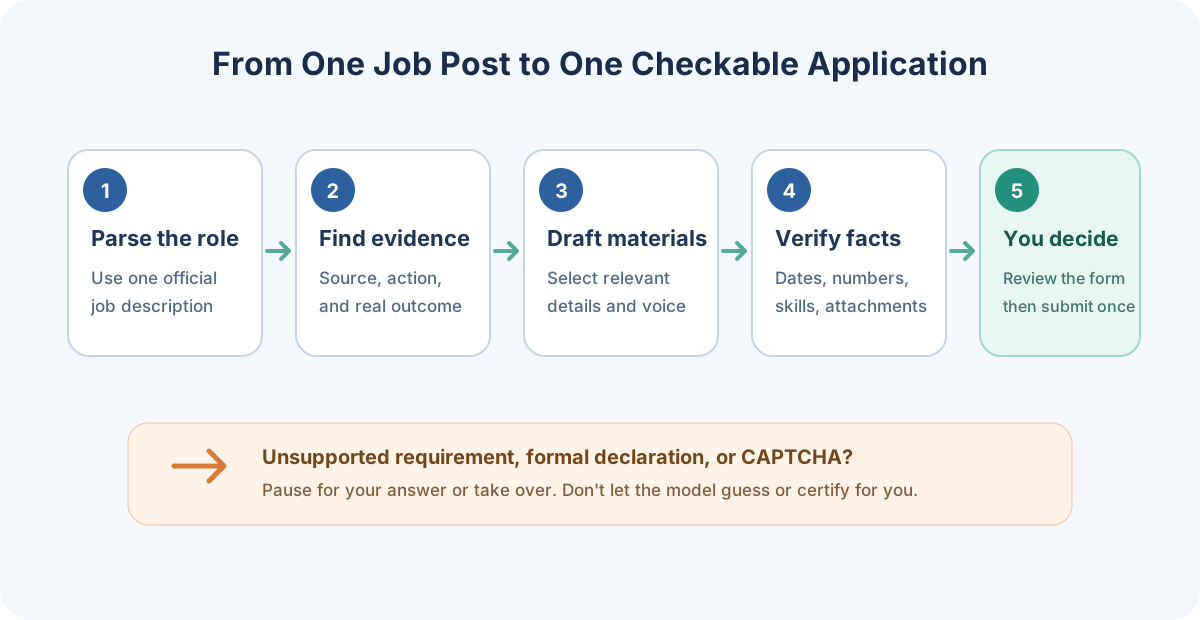
- List the five most important responsibilities or requirements in this posting.
- For each one, cite the line or section in my resume that supports a match, plus my action and result.
- Label it direct evidence, related experience, or no evidence yet.
- Do not add skills, years, credentials, duties, metrics, or outcomes that are not in my materials.
- Ask me for missing facts and wait for my reply before drafting around them.
04 | Edit only the resume details that fit this role
Ask Muse to suggest edits for the most relevant experience. Keep your actual title, dates, and project names. It can make the work clearer and use the employer's terminology where that terminology accurately describes what you did. Do not insert a keyword for a skill you have not used.
For every bullet, check what you did, which part was yours, and what result you can show. A concrete deliverable or scope is enough when you do not have a defensible metric.
05 | Write a cover letter that adds a useful connection
A cover letter can explain a connection that a resume line cannot. Pick one or two examples and show how they relate to the job's work. If you mention why you want to join the company, tie it to a specific product, team responsibility, or public project. Do not invent company details to make the letter sound personal.
Meta AI's public writing advice says to check dates, numbers, and names and keep your own voice. It is general guidance, not evidence that Muse can predict hiring decisions or that AI-written materials will pass an employer's screening system.
- Based only on the verified resume evidence, suggest two possible angles for this letter.
- For each angle, show the matching job requirement and the source in my materials.
- After I choose an angle, draft a concise, natural letter. Flag unsupported details as questions instead of filling them in.
- List the title, employer, project names, dates, and numbers at the end so I can verify them.
06 | Let Muse prepare form fields; answer sensitive questions yourself
If browser actions are available in your Muse account and work on the employer's site, you can ask Muse to open the official application page and draft ordinary fields supported by your materials. Meta says Muse can browse and fill forms. Site compatibility and approval prompts vary by page, account, and action risk.
Tell it to pause for work authorization, salary expectations, background checks, disability disclosures, criminal-record questions, references, signatures, or consent terms. These are personal choices or formal statements, so Muse should not guess. Handle passwords, one-time codes, and payment details yourself.
- Start by asking Muse to read the questions and prepare draft answers without submitting.
- Check each field for names, contact details, role information, work history, and attachments.
- Take over if the site redirects somewhere unfamiliar, shows a CAPTCHA, or asks for identity documents. Verify the site and the need first.
07 | Review every field and submit once
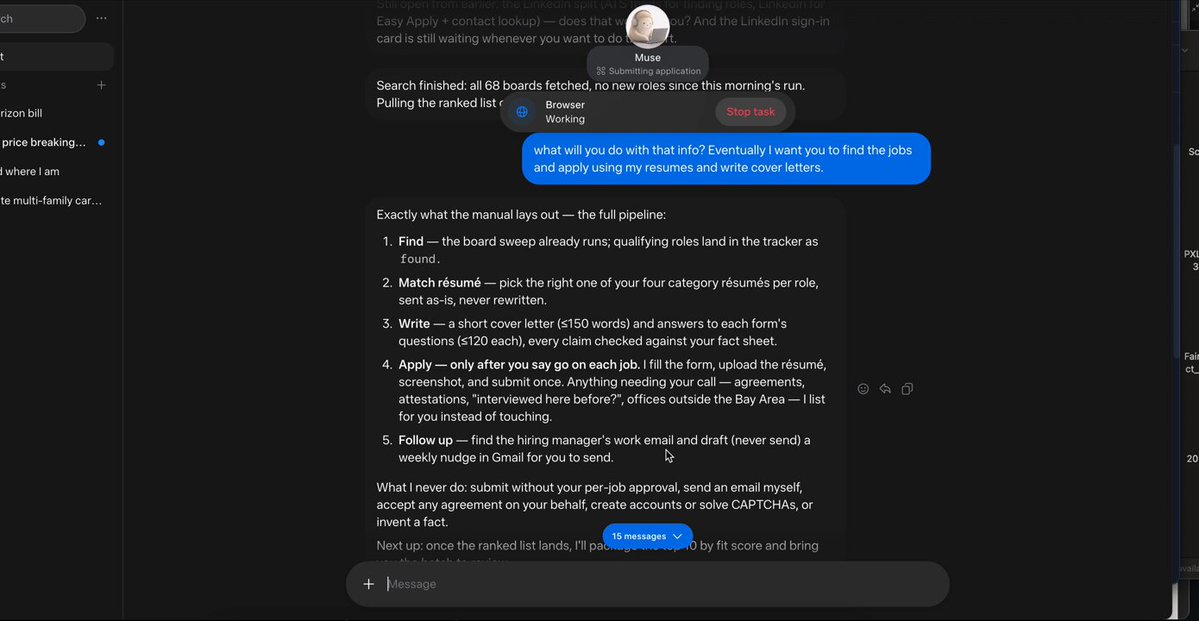
The image below is a Muse conversation shared by @ImperiumMentisX. It separates matching materials, filling forms, and seeking approval before submission. It shows a personal plan and an in-progress status; a completed application still needs a receipt from the employer’s site. Use the staged review approach to check your own role-specific application.
Before submission, review the employer, role, attachments, required declarations, and destination on the page yourself. Submit only after the entered answers match what you chose. Save the confirmation page or email with the job link and date. If no receipt appears, check your application account before trying again.
08 | Final checks before you send it
- The employer and role match the official opening.
- Dates, metrics, skills, and experience in every field can be verified from your materials.
- The attached files are the versions requested for this role and render correctly when opened.
- You have read and chosen every formal declaration, permission, and confirmation yourself.
- Save the receipt or account status. If it is missing, check the record before you submit again.
References
These sources support the product information in this guide. Musevip is an independent publication and is not affiliated with Meta.
Last reviewed 2026.10.01. Product pages may change.