
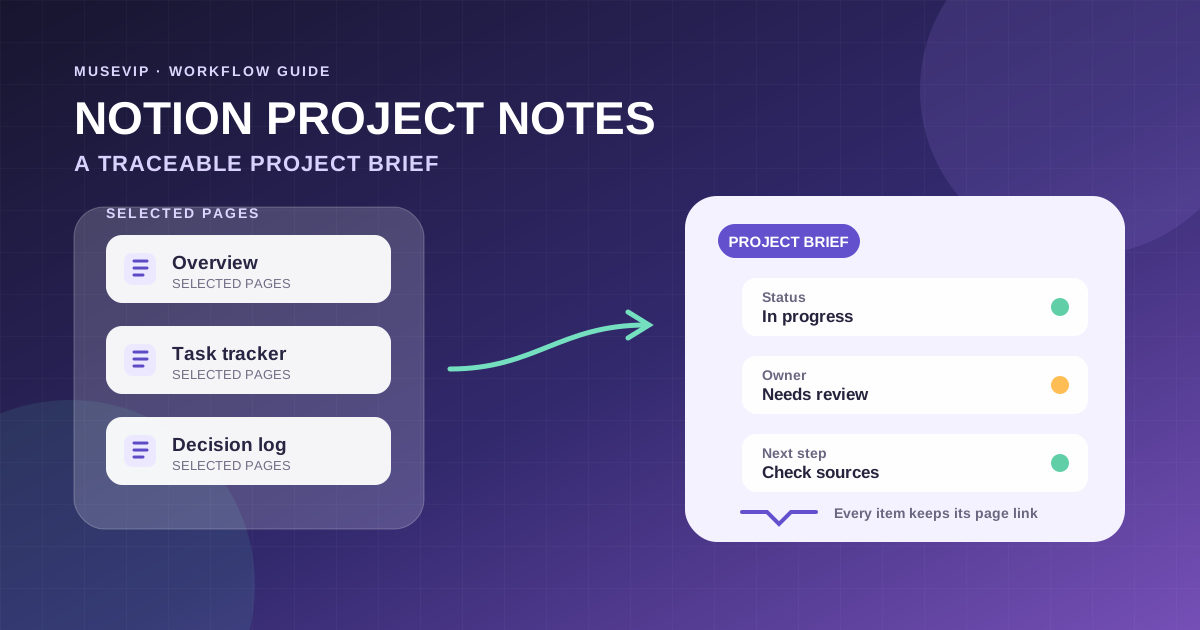
This guide focuses on “Muse Notion connector” and turns the question into practical steps you can check.
01 | Define a brief you can audit
A project workspace often has the goal on one page, status in a database, and decisions inside meeting notes. A request to summarize the entire workspace gives the model too much room to combine old and current material.
Start with one project and a short page list. The deliverable is a draft whose status, owner, milestone, decision, blocker, and next action each point back to an actual Notion page. An absent field remains unresolved instead of being completed from context.
Meta named Notion as a Muse for Small Business connector in September 2026 and directs people to the current connector list in their Muse settings. This guide follows the published product and permission documentation. It is not a test of your account or workspace.
02 | Verify the native connector first
Open Settings and Connectors in Muse and check whether Notion appears for your account. Meta’s connector help describes choosing Connect, reviewing the information, continuing, and completing any service login or authorization steps.
Stop if Notion is absent. Availability can depend on account, rollout, region, or organization policy. A partnership announcement does not establish that every account has the same control, and a developer endpoint is not a substitute for a missing native connector.
This first job only needs retrieval. Read the connector card and current authorization screen. When a retrieval-only choice is offered, use it for the initial brief. Meta says many connectors can be configured for retrieval, but the options shown to your account are the source of truth.
03 | Grant the smallest useful page set
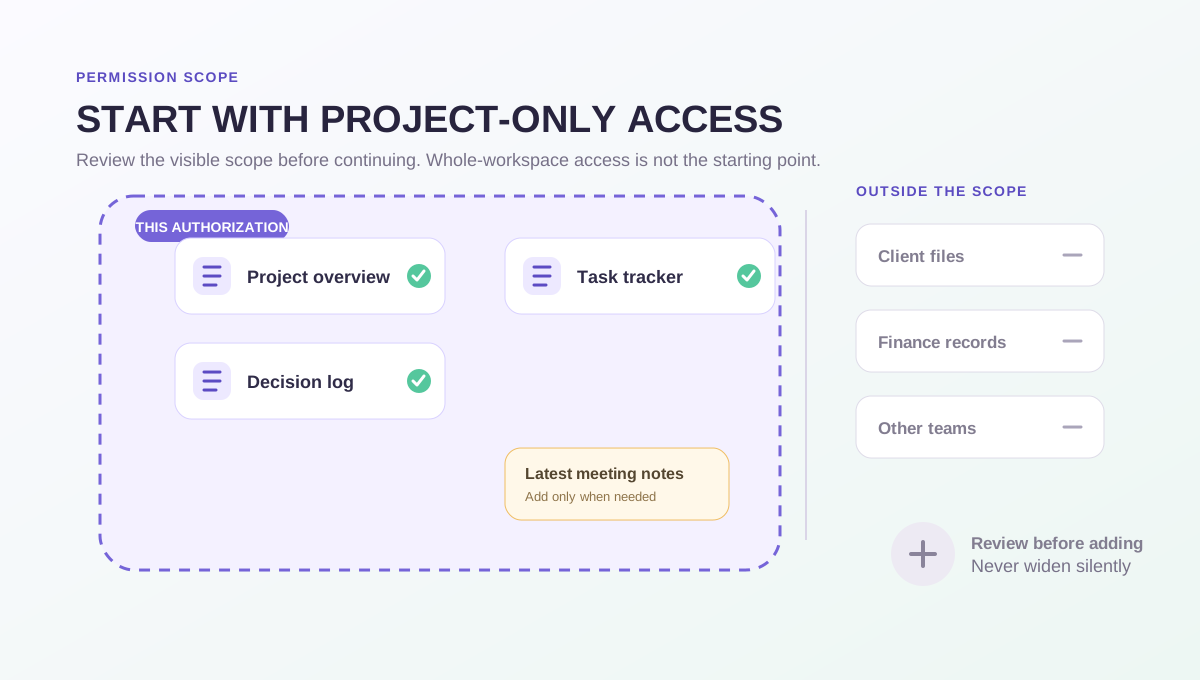
Notion’s documented public-connection authorization flow explains the requested capabilities and lets the user select pages or databases. If the Muse to Notion flow shows Notion’s Select pages step, choose the project overview, current tracker, decision log, and only the meeting notes needed for this update.
Do not assume the picker or button wording will be identical in every version. When the picker is missing, review the requested scope and organization policy before continuing. If you select a parent page, inspect whether its child content also becomes available.
Workspace owners can restrict connections, while page sharing still controls what an individual can see. Ask the page owner or administrator to resolve access. The workflow should never be used to work around existing Notion permissions.
04 | Inventory readable pages before summarizing
A successful connection does not prove that every project page is readable. Give Muse the expected page names or links and ask for an access inventory first. Separate pages it can open from pages that fail, duplicate titles, and ambiguous matches.
Keep the page title and actual link with every result. Two pages called Project Plan may belong to different teams or years. Confirm the inventory yourself before asking for a summary.
If the tracker is available but the decision log is not, record that gap. Do not allow another page or model inference to silently replace the missing source.
05 | Use a two-stage source-first prompt
Replace the bracketed project name and run the request in two stages. The first response should be an access map, not a polished brief.
Read only the Notion project pages I have authorized and that you can actually open for [project]. Do not create, edit, move, or delete Notion content. First list each readable page with its exact title and actual link. Separately list inaccessible pages, permission failures, and duplicate or ambiguous titles. Wait for me to confirm the source set.
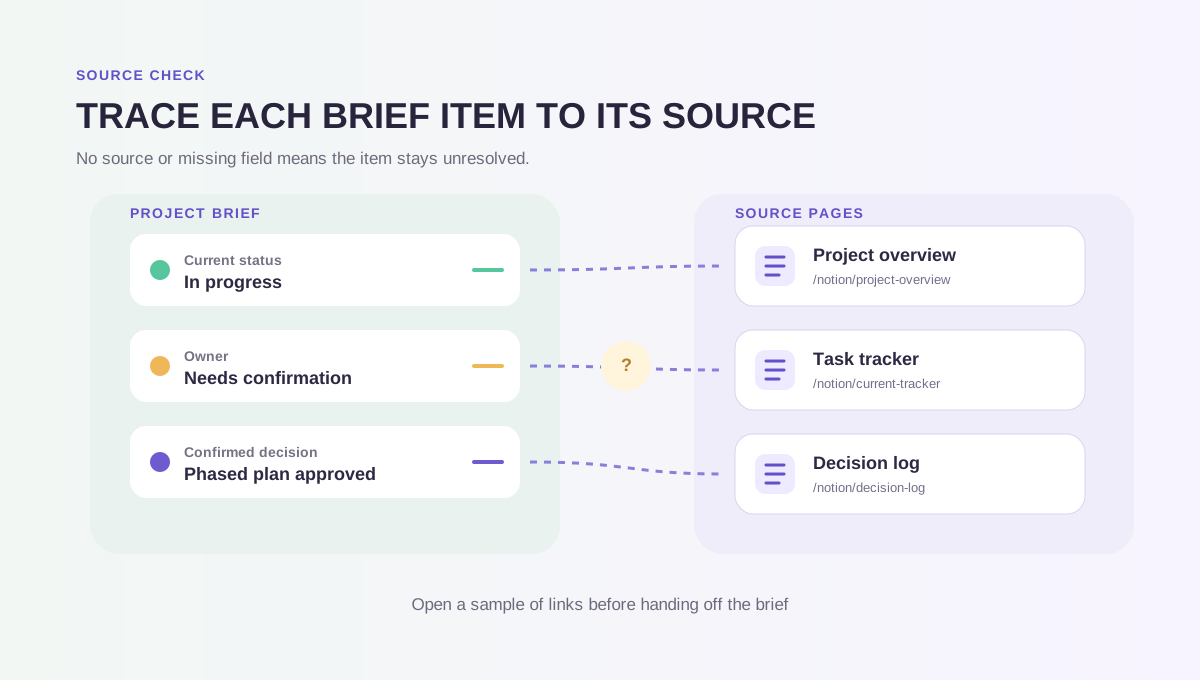
After confirmation, draft a brief with the project goal, current status, owner, due date or next milestone, latest update, confirmed decisions, blockers, and next actions. Attach the supporting page title and link to every item. Use not provided or confirmation required when the source does not name a status, owner, or date. Do not infer those fields from the last editor, a meeting speaker, or surrounding context.
When sources conflict, show both statements with their page links instead of selecting one. Return the complete draft for review. Do not write it back to Notion or share it with anyone.
06 | Keep missing fields visible
The most damaging shortcuts look reasonable. The last editor is not automatically the project owner. A page modification time is not a status update. A person mentioned in meeting notes did not necessarily accept the action.
Use a small schema with goal, status, owner, due date, latest update, confirmed decision, blocker, next action, source page, and unresolved question. Blank or unresolved fields make the handoff more useful because they identify the question the team still needs to answer.
Preserve relative dates as written. If a source says Friday, record Friday and request the calendar date and time zone. The system date should not convert an ambiguous commitment into a fact.
07 | Trace each claim back to a page
The source column should contain an actual Notion page link, not a plausible URL generated from a title. Sample at least two status claims, owners or dates, and decisions by opening their pages and checking the supporting text.
Do not resolve a conflict by choosing the latest edit automatically. An older page may be the approved plan, while a newer meeting note may still be a proposal. Put both claims, page titles, links, and update times in the unresolved section for the project owner.
A deleted page, unstable link, or page you cannot open cannot support a verified claim. Keep the gap visible and route it to somebody with the right access.
08 | Diagnose access without widening it
When the connector is unavailable, provide a small export or excerpt that you are allowed to share, together with the source page title and link. Muse should then say it reviewed supplied material. It should not claim to have read the Notion workspace.
- Confirm that Muse is connected to the intended Notion account and workspace.
- Check whether the page or database is in the selected authorization set.
- Verify that the page was not moved, archived, or restricted to another group.
- When a parent is visible but a child is not, inspect the connection’s actual page scope.
- If organization policy blocks third-party connections, ask an administrator or use an approved excerpt.
09 | Keep the native connector separate from Notion MCP
This workflow uses the official Notion connector shown in Muse settings. Notion MCP is a separate remote service for MCP-capable clients and has its own OAuth connection. Notion’s help page names clients such as Claude, ChatGPT, and Cursor; it does not identify Muse as a supported client on that page.
Notion also says its MCP tools operate with the authenticated user’s full Notion permissions and can search, read, create, or update content. Not every chat product supports MCP. Do not create an API token, paste the MCP endpoint into Muse, or treat MCP as a shortcut for a missing native connector. A technical team considering MCP should review client support, permissions, and write tools as a separate project.
After the brief is complete, disconnect unused access in Muse Settings and Connectors, and in Notion Settings and Connections or the affected page connection. Meta notes that disconnecting stops future information exchange, while previously used information may remain in Muse memories or conversation history. Review and remove sensitive conversations or memories through the current product controls when the project no longer needs them.
References
These sources support the product information in this guide. Musevip is an independent publication and is not affiliated with Meta.
Last reviewed 2026.10.01. Product pages may change.