
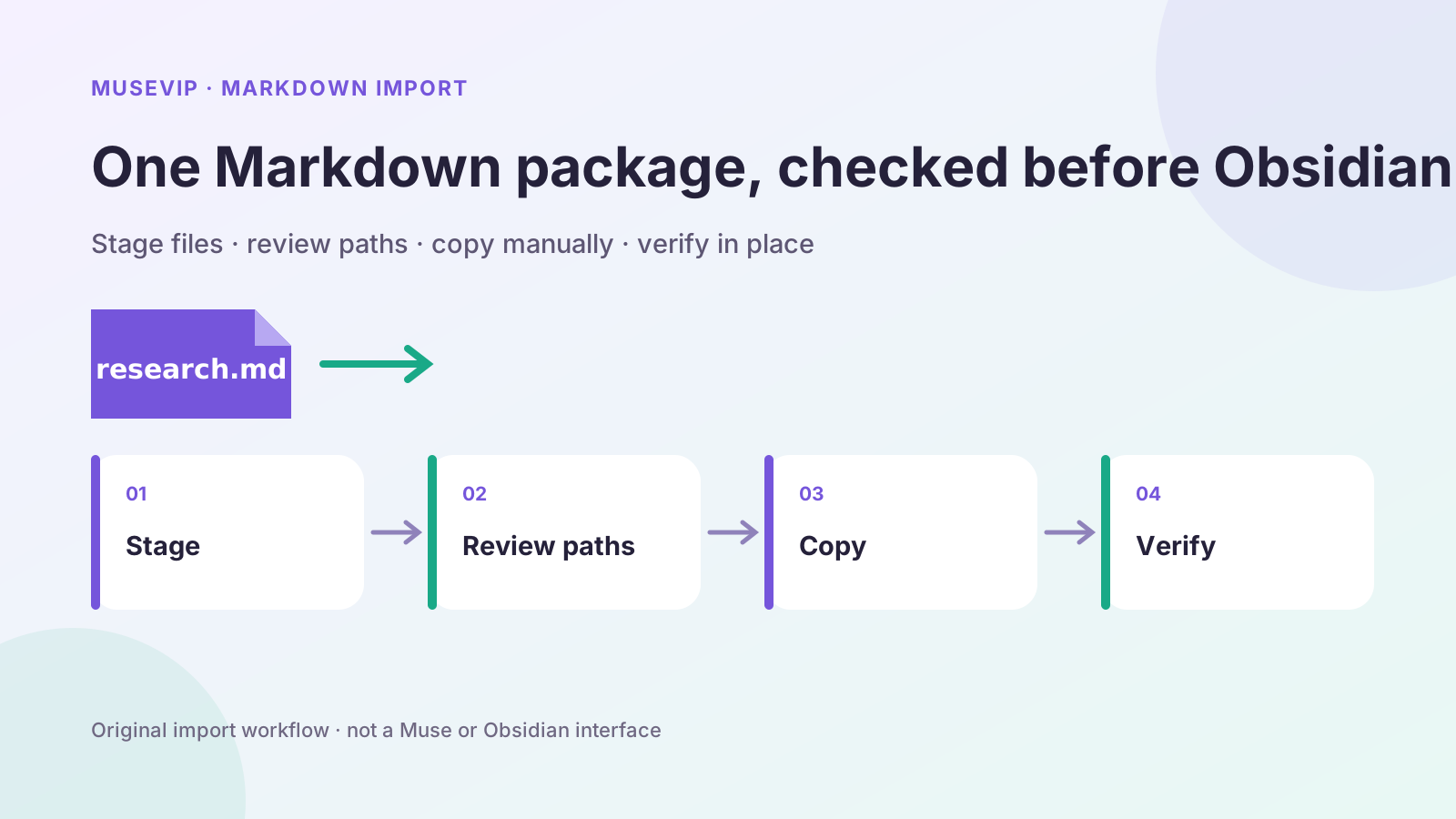
This guide focuses on “Muse Obsidian workflow” and turns the question into practical steps you can check.
01 | Start with one reversible package
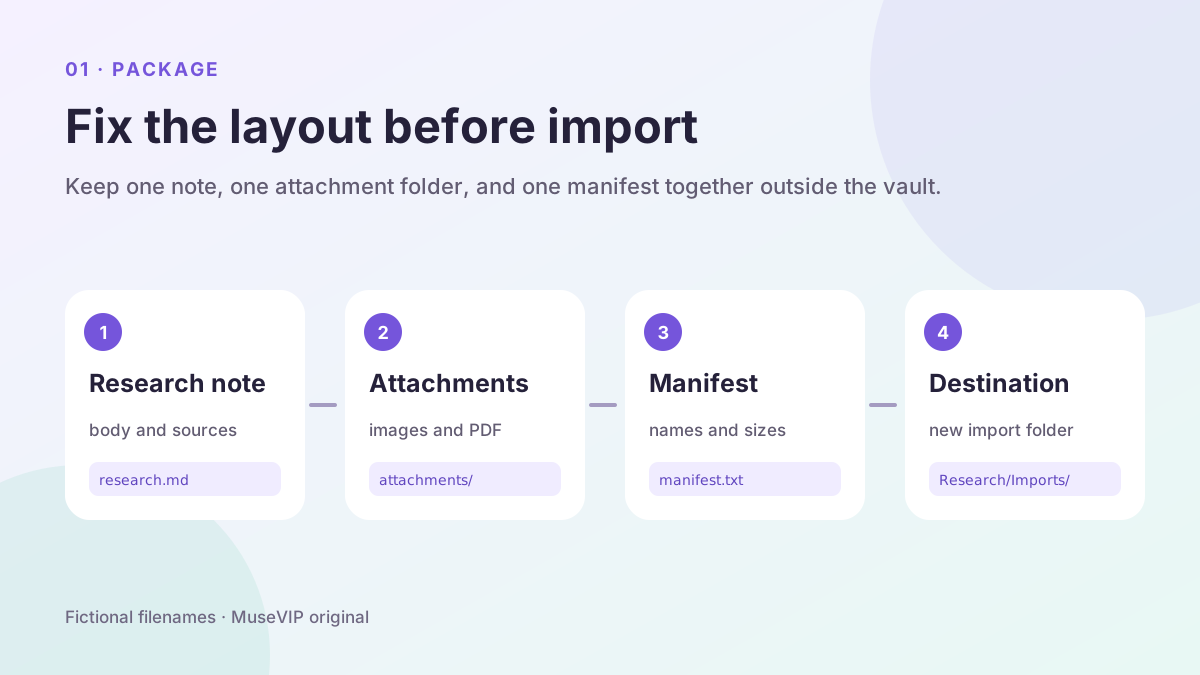
Define a small deliverable: one research.md, one licensed image, and one source PDF in a topic folder. Muse can organize the material, while you place the finished folder into Obsidian. No official source reviewed for this guide establishes a native Muse connector for Obsidian or default access to a local vault.
Meta documents that Muse can produce documents, PDFs, web pages, and other outputs, and that it has its own filesystem and terminal. It does not describe Markdown export as a fixed control available to every account. If your Muse session cannot download .md, request plain Markdown and an attachment list, then save the text locally as UTF-8 research.md.
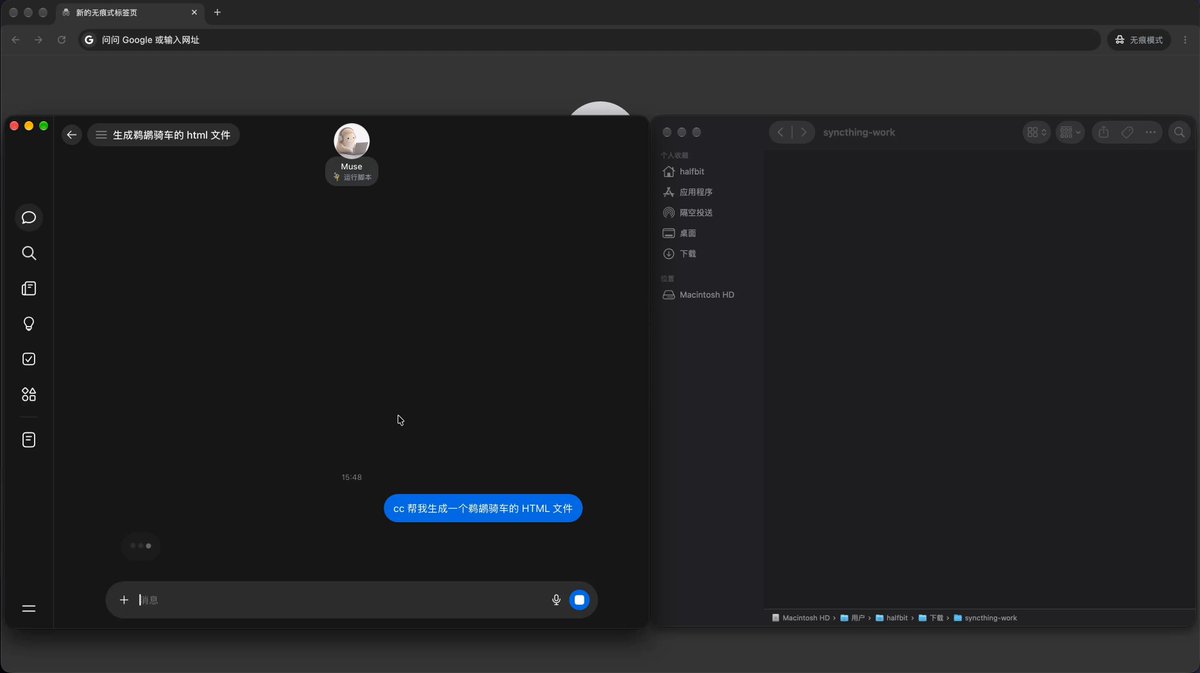
A community author has shown Muse alongside a local folder through a third-party bridge. The original poster below shows a Muse window and Finder, without an Obsidian interface. It is evidence of one person experimenting with a local file bridge, not evidence of a native integration or general availability.
02 | Choose the destination and back up the vault
Obsidian stores a vault as a folder on the local filesystem, with notes saved as Markdown plain text. It refreshes when files change outside the app. Manual import is therefore simple, but a wrong path or filename collision can affect existing notes immediately.
Choose a new destination such as Research/Imports/muse-obsidian-demo/. Keep research files out of .obsidian, which holds vault configuration. In the system file manager, confirm that the destination does not contain another research.md or attachments folder. Make a separate copy of the vault before importing. Obsidian also warns that synchronization is not a backup.
The first pass only adds this folder. It does not overwrite, move, or delete existing notes. If the vault uses Obsidian Sync, iCloud, OneDrive, or another sync service, wait for the current sync to finish before copying and inspect its status again afterward.
03 | Ask for a fixed Markdown and attachment layout
Provide the approved sources and the expected directory structure. Keep the body to ordinary headings, paragraphs, lists, quotations, and links. Preserve each attachment filename, source, and permission note. Put missing citations, inaccessible pages, and uncertain dates in an unresolved section instead of smoothing them into a confident summary.
Use this request. “Create an Obsidian staging package from only the sources I provide. Return research.md, attachments/claim-map.png, attachments/source-01.pdf, and manifest.txt. Add title, date, status, and source_urls properties at the top of the Markdown file. Keep source links and use relative attachment paths. Do not read or modify my Obsidian vault, and do not invent internal-link targets. Put missing material in an unresolved list.”
Review the manifest before downloading. It should list each file, purpose, source, and expected byte size. If the product returns chat text only, create the same directory locally, save the Markdown as .md, and place the original attachment files under attachments.
04 | Read the properties and body before the vault sees them
Open research.md in a plain text editor. Properties begin on the first line and sit between triple hyphens. Obsidian accepts custom property names and supports text, links, dates, checkboxes, numbers, and lists. A property name must be unique within the note. Nested properties and Markdown inside properties are poor choices for this first import.
Four properties are enough for this note. Use a readable title, an ISO date such as 2026-10-02, status set to imported-review, and a source_urls list containing the original pages. Obsidian requires quotes around a [[Note]] link stored inside a property. Leave out speculative fields that have no value.
Continue through the body. Check heading order, open the sources, and separate quotations from the author’s interpretation. Search for absolute local paths, temporary download locations, account names, and tokens. Replace any C:\Users\... or /Users/... attachment reference with the planned relative path.
05 | Write links for the destination that will actually exist
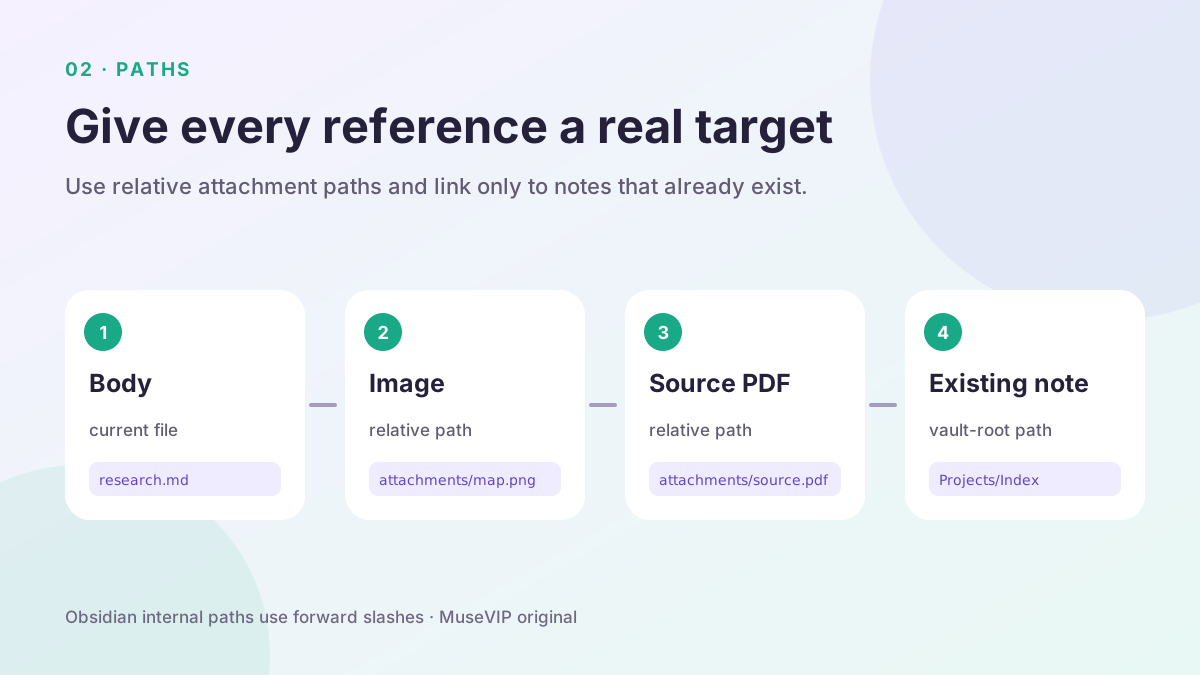
Attachments are ordinary files inside the vault. Obsidian supports common image, audio, video, and PDF formats. With an attachments folder beside this note, use  and [Source PDF](attachments/source-01.pdf). Short filenames without spaces avoid an extra URL-encoding step.
Before linking to an existing note, locate it in Obsidian and use its path from the vault root, such as [[Projects/Research index]]. Wikilink folder paths use forward slashes even on Windows. A link to a missing path can create a new note when clicked, so do not ask Muse to guess a target from its title.
Standard Markdown links are also available when interoperability matters. Obsidian documents that spaces in their destinations need URL encoding. Choose one link style for the package and apply it consistently rather than mixing guessed paths and formats.
06 | Copy the folder manually before adding conversion tools
Obsidian documents two simple routes: drag Markdown files or folders into its File explorer, or place them directly in the vault through the operating system file manager. For this small package, copy the complete muse-obsidian-demo folder into Research/Imports/ and retain the staging copy outside the vault.
Return to Obsidian and wait for the folder to appear in File explorer. Open research.md. If it does not appear, confirm that the destination belongs to the currently open vault rather than another folder with a similar name. Obsidian can manage multiple vaults, so the vault path matters.
The official Importer is useful for a .zip, selected folders inside an archive, templates, or formatting normalization. A direct copy is easier to compare for one Markdown file and its attachments. If you use Importer, inspect its destination, template, options, and preview examples before starting the import.
07 | Verify the note inside Obsidian and on disk
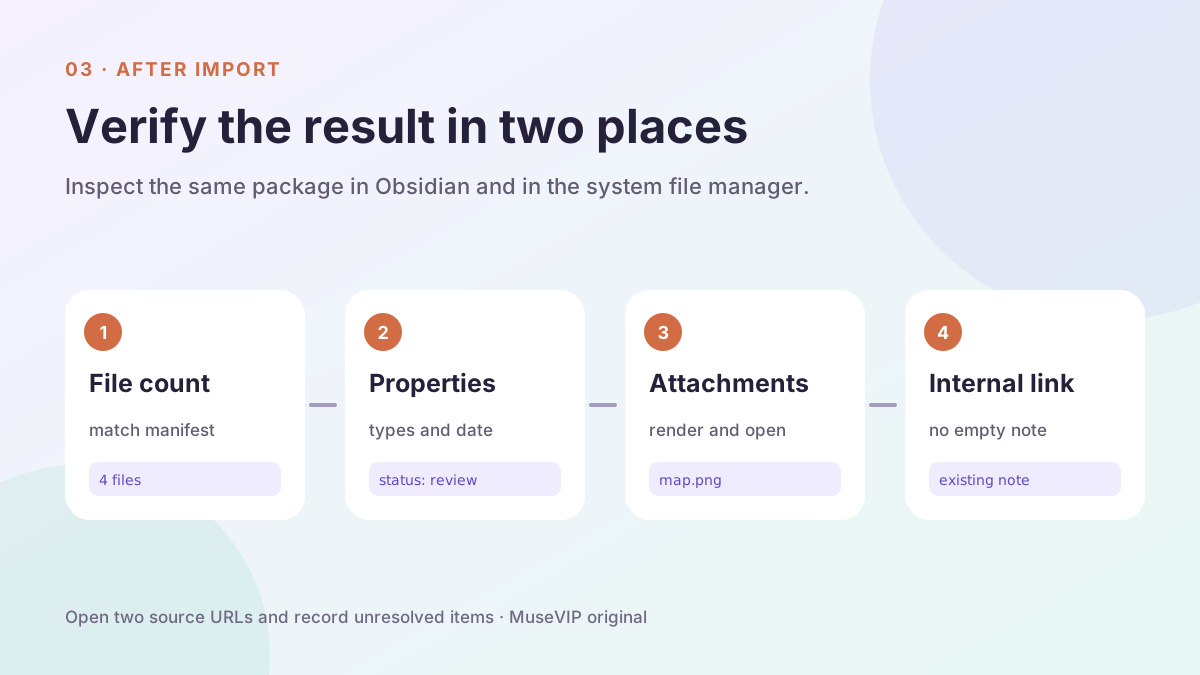
Compare File explorer with manifest.txt. Open the note and inspect property types, heading levels, the rendered image, and the PDF link. Open two external source links and compare the page titles and authors with the note. A plausible link label is not enough.
Check every internal link. Confirm that each one opens the intended existing note and that a path or capitalization error did not create an empty file. Search for one distinctive phrase from the research note and confirm that only this imported copy appears. When an attachment name already exists, compare the files, rename the new one, and update its reference rather than overwriting.
Finish in the system file manager. A working preview does not prove the attachment landed in the directory you intended. Record the import time, destination, file count, and unresolved sources. Keep the staging package until the review is complete.
08 | Repair one package before considering a bridge
When a path is wrong, repair research.md in the staging package and review the references again. If someone has already annotated the vault copy, edit it in Obsidian or save a clearly named new version instead of overwriting it with stale staging content. Re-acquire a damaged attachment from its source and update the manifest size or checksum.
Consider a third-party local bridge only after the manual process works. Review its source, code, requested permissions, and maintainer separately. Before connecting it, confirm that the tool itself can restrict writes to one new directory and can disable deletion, bulk rename, and .obsidian configuration writes. If it exposes the whole vault or relies only on prompt wording, keep the manual import and do not grant access to the existing vault. Require a path and content diff only after those controls are visible, then repeat the same verification afterward.
For a separate look at how a remote tool can reach a local directory, continue with the Windows file-bridge guide. This workflow ends with one research note whose sources open, attachments remain present, and paths can be checked on disk.
References
These sources support the product information in this guide. Musevip is an independent publication and is not affiliated with Meta.
- [1] Meta | How We Designed Muse
- [2] Obsidian Help | Import Markdown files
- [3] Obsidian Help | How Obsidian stores data
- [4] Obsidian Help | Attachments
- [5] Obsidian Help | Internal links
- [6] Obsidian Help | Properties
- [7] Obsidian Help | Accepted file formats
- [8] Obsidian Help | Embed files
- [9] Obsidian Help | Back up your Obsidian files