
This guide focuses on “Muse timer page” and turns the question into practical steps you can check.
01 | Start with a list that is already approved
Write down the practice list before asking Muse to make the timer. Keep each item to details you or your coach have already confirmed, such as the activity name, order, duration, rest time, and rounds. Let the source list supply any instructions or load. Leave gaps blank instead of asking Muse to fill them from a generic routine.
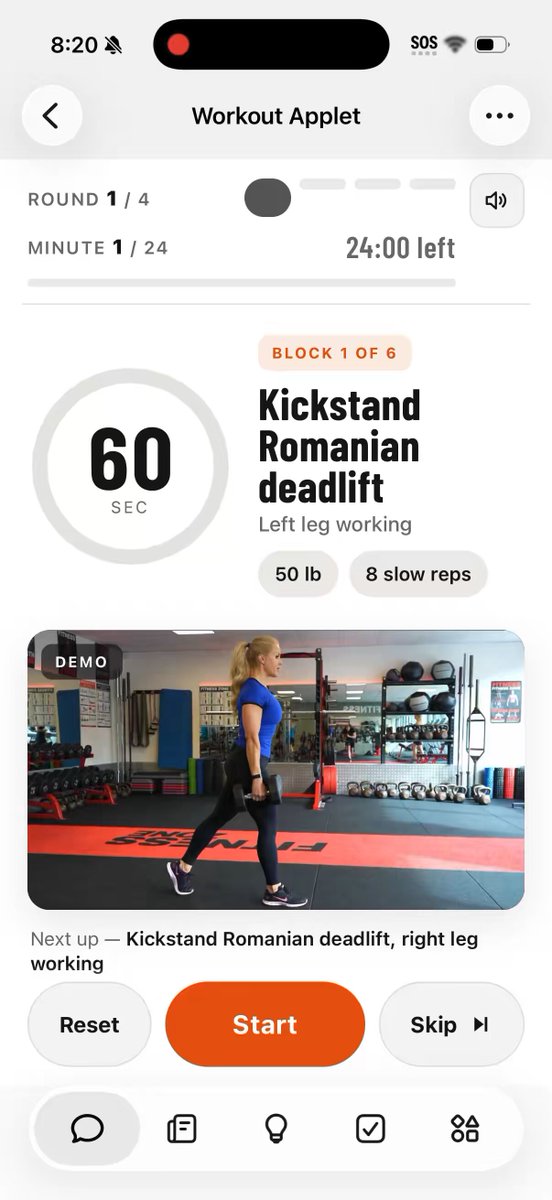
One public demo showed a workout applet with minute progress, activity names, and start, reset, and skip controls. Its author also noted that generated movement form was unreliable. That is a useful boundary: a page can keep time, but it cannot replace a coach's form check. Do not treat generated exercise clips or pose images as instruction.
02 | Decide what the page needs to do
Begin with one straightforward round. Show the current item, seconds remaining, next item, overall progress, and Start, Pause, Resume, and Reset controls. Add rest phases or multiple rounds only if they are in the source list. If you need Skip, have the page show what it skips to so the remaining duration stays clear.
Meta calls these interactive outputs Artifacts and says Muse can create web pages and other content. Its public explanation does not promise that every Artifact downloads as a standalone offline HTML file, or that it keeps timing while a phone is locked or the page is in the background. Ask for a timer to use in the current Artifact first, then check the actual result for sharing or export options.
03 | Give Muse the original list
Paste the list in order and use one unit for all durations. Put each work or rest phase on its own line with a type, name, duration, and next item. Ask Muse to repeat the list as a table. Compare activity names, order, rounds, and rest periods with the source before asking it to build the page.
Try this prompt. Turn the list below, already approved by me and my coach, into an Artifact page that displays a timer during practice. Use only the activity names, order, durations, rest periods, and rounds I provide. Do not add exercises, repetitions, weights, form instructions, or training advice. First show the list back as a table for me to check, then create the page. Include Start, Pause, Resume, Reset, Skip current item, and a mute toggle. Show the current item, remaining time, and next item. Do not generate exercise videos or pose images.
04 | Calculate the countdown from elapsed time
A number refreshing once a second does not mean the browser runs the script exactly on time. MDN notes that browsers can delay or batch timers in hidden tabs, and actual interval callbacks may run later than requested. A timer that simply subtracts one every callback can fall behind when the page is in the background.
Ask Muse to calculate the remaining seconds from an end timestamp, then recompute it whenever the display refreshes. Recalculate when the user returns to the tab. If the timer was paused, set a new end timestamp from the saved remaining time when the user resumes. This can keep the display aligned with elapsed time, but cannot make a browser keep ringing after the page closes or the device sleeps.
05 | Make sound an optional alert
Use sound only as an alert, without music or movement demonstrations. Include a visible mute control and a visual cue. Have the user press Start before enabling a tone. MDN says a browser can reject script-initiated playback, and play() reports success or failure through a Promise. If playback is rejected, keep the timer visible and show that sound is unavailable instead of pretending it is on.
Before first use, lower the volume and run a short test item to check the start, pause, and finish cues. If you plan to use headphones or leave the phone at a distance, confirm that the alert suits that setting. Check mute state, browser permission, and device media volume separately.
06 | Run a short test before entering the full list
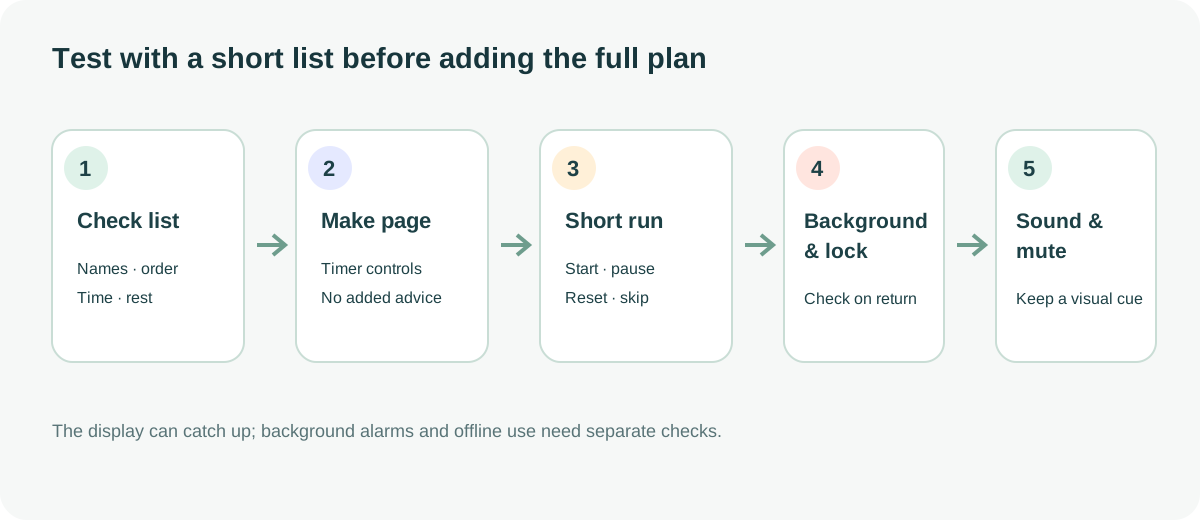
Start with two ten-second test items and a five-second rest between them. Check that the timer advances to the right phase at zero, starts the next item after rest, and stops on a completed screen after the final item. Pause, wait a few seconds, and resume. The time should pick up where it stopped. Reset should return to the first item, and Skip should show the correct next item.
Then check the mute control, a narrow phone screen, a page reload, and switching to another tab. Whether progress survives a reload depends on what the Artifact actually saves. Do not assume it persists. Add the full list only after the short checks pass. If a duration or order is wrong, fix the list or prompt and repeat the same checks.
07 | Check lock-screen and background behavior separately
Start the timer, leave the browser tab in the background for a while, and return to check the remaining time and current phase. Then try a short lock-screen check and see whether the page corrects itself for elapsed time after waking. MDN's Page Visibility API can tell a page when its tab becomes hidden or visible. It is not a background service that overrides operating-system scheduling.
If alerts stop when the browser closes, the page is discarded, or the phone sleeps, document that behavior and keep the page open or use a dedicated timer. Muse can create a web page, but that does not mean offline single-file use, a persistent lock-screen notification, or a background alarm is available. Do not describe unverified background features as supported.
08 | Keep the source list and revise from test results
Add a simple list version or note showing when it was updated and who confirmed it. Before changing order or durations, save the old version, compare every item in the new one, and repeat the short checks. Ask Muse to change only the text or duration you name. Do not let it quietly rewrite activity names, phase logic, or alert behavior.
When a check fails, describe the visible result, such as “After resuming from rest, the timer returned to the previous activity” or “After three minutes in the background, the remaining time did not change.” Tell Muse the expected and actual display, ask it to change only the relevant timer state, then repeat the same check. For a related source-checking workflow, see the Muse report and PDF guide.
References
These sources support the product information in this guide. Musevip is an independent publication and is not affiliated with Meta.
Last reviewed 2026.10.02. Product pages may change.