
This guide focuses on “Muse video tutorial” and turns the question into practical steps you can check.
01 | Begin with a small scene you can review
Define what happens before asking for a style. Rain falls outside a window, the camera approaches a cup on the table, steam rises, and the shot settles on the rim. That is enough for a first short version without adding chases, fights, or several speaking characters.
I reviewed Hailey’s October 1 post and the original clip. The creator describes preparing a six-panel storyboard before asking Muse for video. The roughly 47-second animation above shows a rainy street, a shop, a girl, and a cat shopkeeper. The full task history was not published; the prompts and review process below are our independent walkthrough.
Meta’s model introduction describes native audio and continuing work on synchronization and fast motion. Its July preview does not establish today’s duration, resolution, or reference limits for every Muse account. Inspect your actual video, attachment, and download options first. If access is unavailable, prepare the storyboard and references without claiming a generated result.
02 | Collect a small reference package
For our example, use your own table photograph and describe the cup’s color, location, and lighting. Choose an image without private screen content or unwanted identifying details. Point Muse to the approved file rather than asking it to find a similar cup online.
For a character scene, settle the character’s name, clothing, hairstyle, and props. Conflicting references make continuity harder to judge. Pick the approved version before generating motion.
Keep reference images, written shot notes, and the intended destination together. Decide on portrait or landscape composition before generation. Leave room around essential objects and text instead of relying on a later crop.
03 | Write the shots before arranging a contact sheet
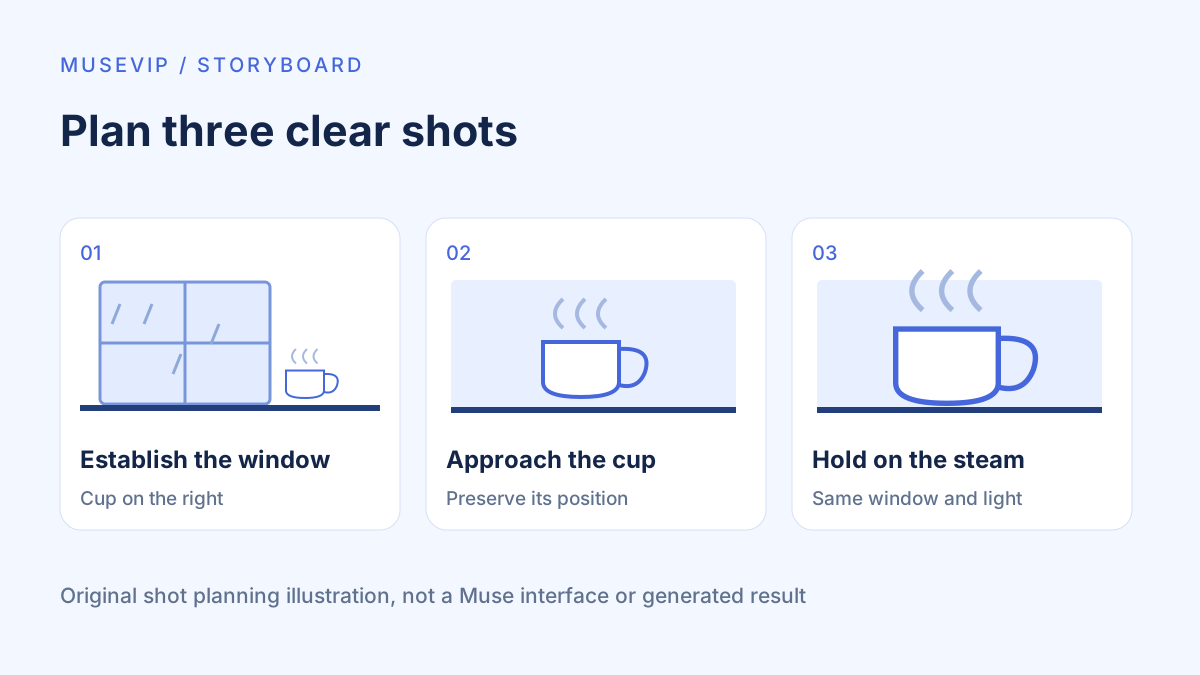
Use three short shot notes. The first establishes the rainy window and the cup on the right side of the table. The second slowly approaches that same cup. The third holds on its rim and steam, with the same window behind it. These notes define order and continuity.
A six-panel contact sheet helps you inspect transitions yourself. Arrange it in a clear reading order and check whether props move between panels. It can be a reference when your account accepts it, but one creator’s result does not guarantee exact panel-to-shot mapping.
Ask Muse to restate the sequence before generating. Correct a misunderstanding at that stage. If the result becomes a literal collage, simplify the request to the first shot and use a single approved frame if your interface supports that input.
04 | Give it a request you can check
Try this independent example. “Use my table photograph and three-shot notes to make one short version supported by this account. Keep the cup white and on the right side of the table beside the window. Establish the rainy window, approach the cup slowly, then hold on the steam. Preserve the room and lighting. Add no people, captions, or logos. Use only quiet rain ambience. Tell me before proceeding if these inputs or the requested duration are unsupported.”
Replace the example with your own files and actual settings. Inspect any displayed allowance or generation cost before submitting. Do not treat this prose as a guaranteed set of product parameters.
If you need narration, approve one short line first. A silent or ambience-only draft makes visual problems easier to isolate than a scene with several simultaneous speakers.
05 | Review the beginning, middle, and end
Watch the full result and pause at several points. Check whether the cup changes color, the window distorts, or steam emerges from an unexpected place. With characters, inspect faces, clothes, and held objects after turns, occlusions, and cuts.
Compare the clip with the written sequence. Record a missing shot, reversed order, or absent camera movement separately. One attractive frame cannot establish continuity across the whole video.
Check required text against the real approved wording. This cup example has no lettering task. The shop signs in Hailey’s animation are visual elements, not verified commercial facts. Generated prices or offers need separate review before an advertisement.
06 | Change one clear problem at a time
For example, ask to keep the cup white in shot two while preserving its position and the shot order. State the error and the intended correction. A vague request for a more premium look gives you less to verify.
A revision may generate a new clip rather than repair individual frames in the old file. Save the previous download, then review the entire replacement. A corrected cup can arrive with a different window.
When a scene needs too many actions, make shorter clips and edit them yourself. That adds a manual step but lets you select and replace shots independently. The image editing guide covers reference corrections.
07 | Listen to the audio separately
Listen from start to finish with headphones. Check unexpected music, missing ambience, added dialogue, and speech timing. Native audio does not establish correct synchronization for every line.
If necessary, request a version without dialogue or replace the sound using audio you may use. Confirm the final file contains the intended track. Muting a browser player only changes playback; it does not remove the file’s audio.
08 | Inspect the downloaded file before publishing
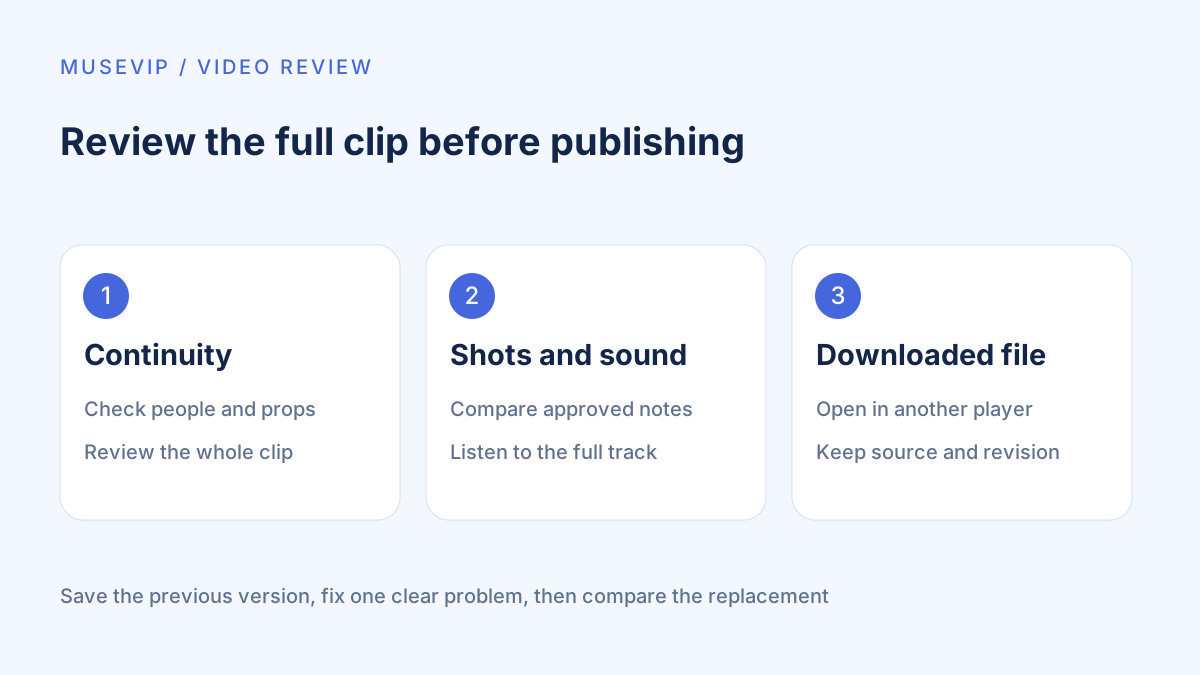
Open the actual download in another player and check duration, composition, and sound. Keep the approved references, shot notes, final file, and a brief revision note together so an older clip is not selected accidentally.
Retain required creator credits and identify generated media. Avoid presenting animation as filmed footage or a real product demonstration. Review the final caption, cover, and video before publishing; the single-post scheduling guide covers the next step.
References
These sources support the product information in this guide. Musevip is an independent publication and is not affiliated with Meta.
Last reviewed 2026.10.02. Product pages may change.