
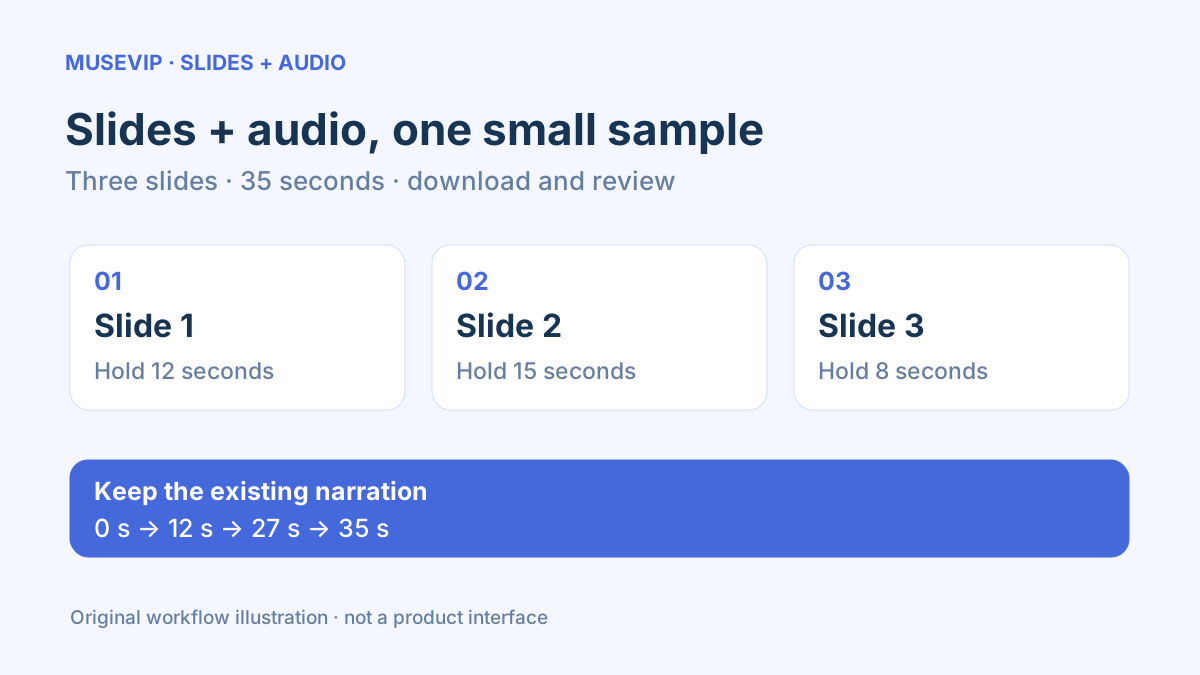
This guide focuses on “Muse slides audio video” and turns the question into practical steps you can check.
01 | Prepare the missing timing sheet
A finished recording and deck still leave one practical question. When should the picture change? If the speaker reaches slide two while slide one remains visible, the export is technically playable but difficult to follow.
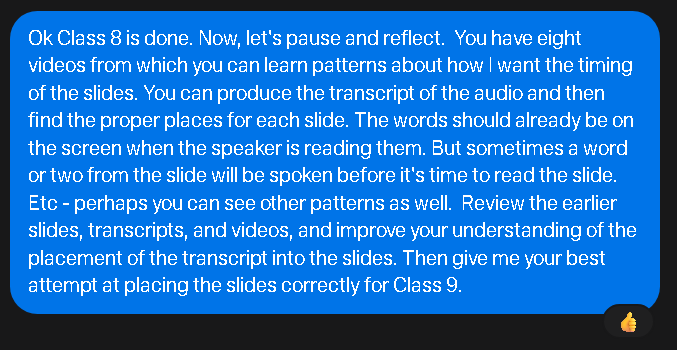
TheNextAlan posted on October 1 about asking Muse to combine lecture recordings and PowerPoint slides. He hoped it could infer timing from earlier videos, but later said completion within his allowance remained uncertain. I read the discussion and original prompt image; it does not establish a successful long-video workflow. This guide uses an independently designed three-slide sample with known timings.
Meta describes Muse as having a computer, file access, and a terminal. Ask what files and assembly tools are actually available in your task. If it cannot read the deck or export a video, request a material inventory and timing sheet to finish with your own tools.
02 | Use a small, verifiable material package
Copy an authorized deck and recording into a separate working folder, keeping the originals intact. Three pages you created yourself are enough for the first pass. Remove student details, customer names, and unpublished images before sending materials to the service.
List page numbers, titles, the actual image files, and the audio filename. Use slide-01.png, slide-02.png, and slide-03.png to keep ordering unambiguous. Have Muse report the files and page count it actually read before continuing.
For a static-image assembly, use one common size such as 1920×1080 and open every image to check text and proportions. Static exports lose animations, staged reveals, and embedded video. Use PowerPoint recording or video export when those elements are essential.
03 | Distinguish start times from durations
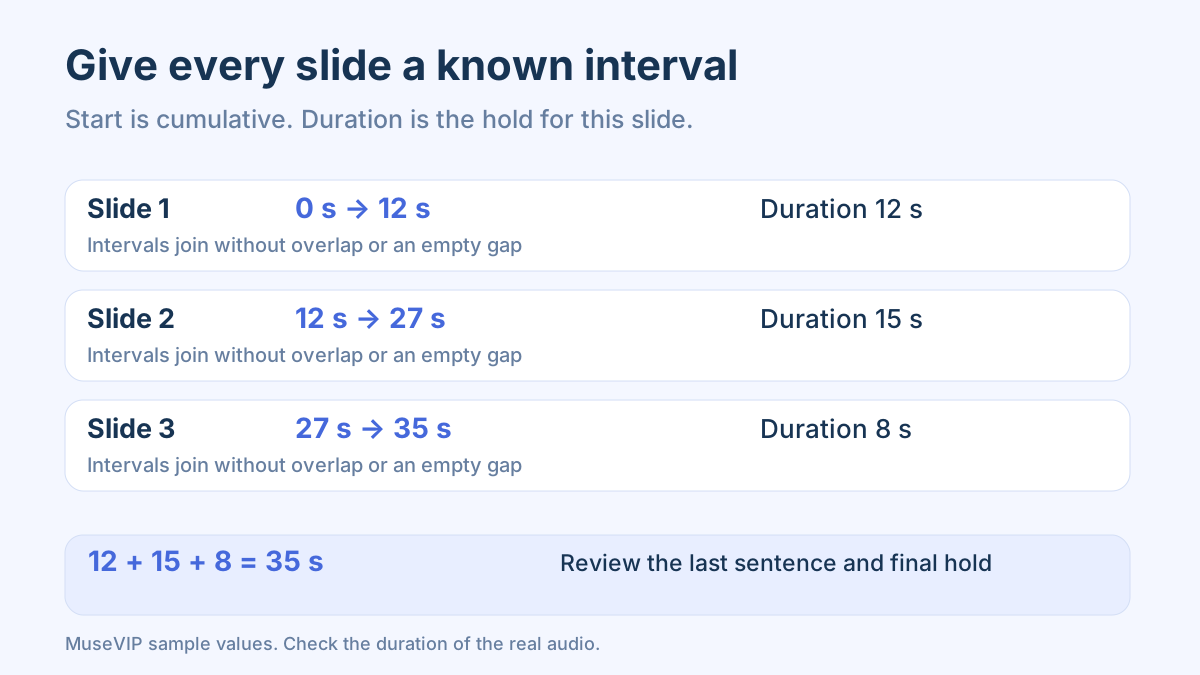
The exercise assumes an audio file that is exactly 35 seconds long. Slide one occupies 0–12 seconds, slide two 12–27, and slide three 27–35. Their durations are 12, 15, and 8 seconds. A start time is cumulative; duration is how long that page stays visible. Entering 27 as slide two’s duration shifts everything that follows.
Add a short phrase heard near each change as a listening reference. Keep any opening silence in the timeline unless you explicitly decide to remove it and rebuild the timings. Mentioning the next title early does not necessarily mean the picture should change immediately.
Review gaps, overlaps, and the final endpoint against the actual audio. If the file is 35.4 seconds, decide what to do with the extra material before fixing the timeline. Thirty-five seconds is a controlled exercise value, not a universal export limit.
04 | Request a plan, then one short export
Use this request. “Process only the three attached slide images and one practice audio file. First report the actual files, image sizes, audio duration, and available tools. Start the pages at 0, 12, and 27 seconds, ending the third page at 35. Preserve the audio and text. Do not synthesize a voice or add music. Create a new file without overwriting the originals. Show the assembly plan and missing inputs before execution.”
Approve one sample once the materials, timings, and tool path are clear. Download the actual output. A completion message alone is insufficient; request a file location, size, and usable download route.
For a deck that needs its animations, PowerPoint for Windows can record narration and timings, then export through File, Export, Create a Video. Check whether recorded timings and narration are selected. Without recorded timings, a default per-slide duration may apply. A separate long audio file still needs correctly configured insertion, playback, and timing.
05 | Use a readable manifest when FFmpeg is available
For the static-image path, create slides.ffconcat with one directive per line. Use ffconcat version 1.0, file slide-01.png, duration 12, file slide-02.png, duration 15, file slide-03.png, and duration 8. Repeat file slide-03.png as the final line to provide a following time point for the last hold. Save plain text with no BOM or extra character before the header.
Keep that manifest, the same-sized PNG files, and narration.wav in one directory. Simple relative names allow concat’s safe-path checks to remain enabled. Confirm an exactly 35-second recording and a build with libx264 and AAC encoders. This reference creates a new file and stops if the output already exists.
ffmpeg -n -f concat -safe 1 -i slides.ffconcat -i narration.wav -map 0:v:0 -map 1:a:0 -vf "fps=25,format=yuv420p" -c:v libx264 -c:a aac -t 35 output-first.mp4
This is a reference to review against your environment, not a Muse-account execution report. Change the manifest and endpoint together for real materials. Adding -shortest can hide a short final hold by ending at the earlier-finishing output stream and clipping the narration tail.
06 | Listen across changes and through the final sentence
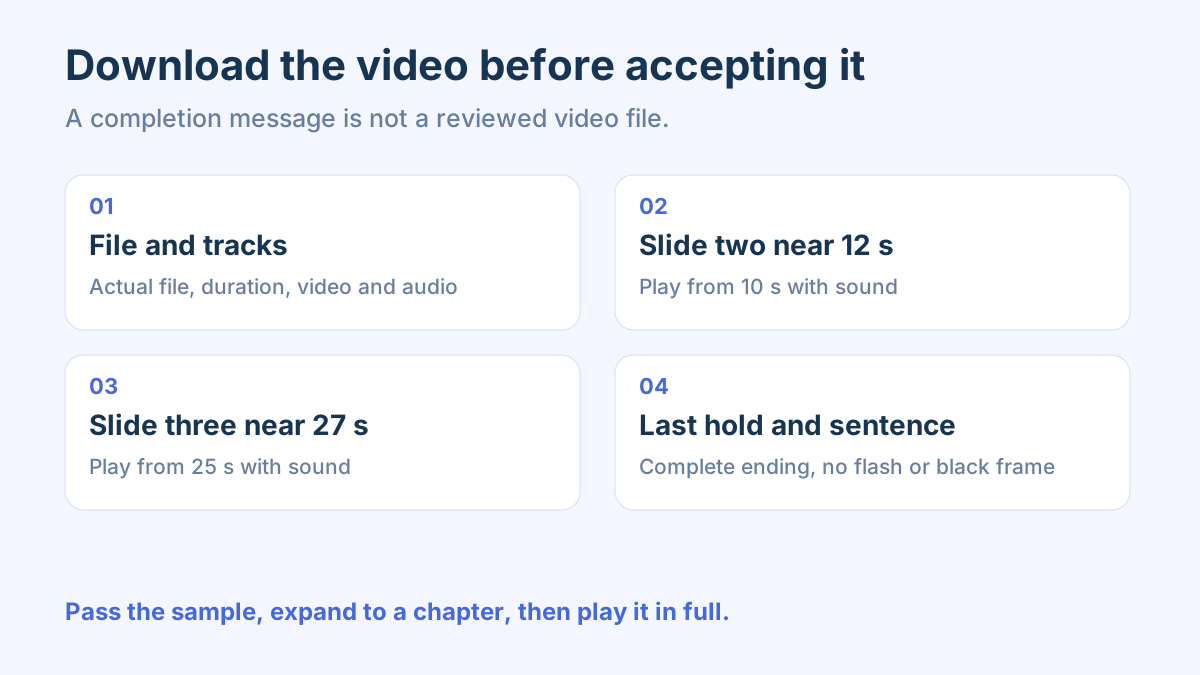
Open the downloaded MP4 and listen to the beginning. Check for inserted silence or changed volume. Play from 10 seconds to review the change near 12, then from 25 to review the change near 27. Keep sound on rather than inspecting a single frame after seeking.
The final slide should stay until 35 seconds and the last sentence should remain complete. A brief final flash points to its duration or the manifest’s last entry. Audio outlasting the picture requires a check of actual duration and output limits. A uniform two-second shift suggests that the opening silence or another offset changed.
If ffprobe is available, inspect ffprobe -v error -show_entries format=duration:stream=codec_type,codec_name,width,height -of json output-first.mp4. It can reveal missing audio, the wrong size, or unexpected duration, but it cannot tell you whether the slide matches the sentence.
07 | Review inferred times before rendering a long lesson
After the fixed sample passes, provide one representative completed segment as a reference. Ask Muse to propose change times with nearby spoken text, the matching slide title, and uncertainties. Repeated titles, previews of a later topic, skipped slides, and digressions can mislead a keyword match.
A transcript helps locate material, but listen to the real recording. Approximate model positions are not approved slide changes or precise subtitle timings. Confirm a few candidates, export another short segment, and expand gradually.
Save reviewed rules such as “change when the title is formally introduced, not when briefly mentioned in advance” with the task materials. Keep examples and corrections for reuse. This does not establish fine-tuning of Muse’s underlying model or permanent learning.
08 | Review the complete file before sharing
Process a long recording by chapter and retain the relationship between the deck, original audio, timing sheet, and final filename. Check each segment’s edges and every change, then play the joined result completely for missing pages and black frames.
Open the actual file in the intended phone and desktop players. MP4 describes a container; the contained codecs must also work there. If slide text is too small on a phone, change the source deck. Share only the reviewed output and approve any public upload separately.
Use the short-audio API review when preparing a transcript. For newly generated scenes, see the storyboard workflow. This tutorial preserves existing slides and narration and concentrates on timing and file review.
References
These sources support the product information in this guide. Musevip is an independent publication and is not affiliated with Meta.
Last reviewed 2026.10.02. Product pages may change.