
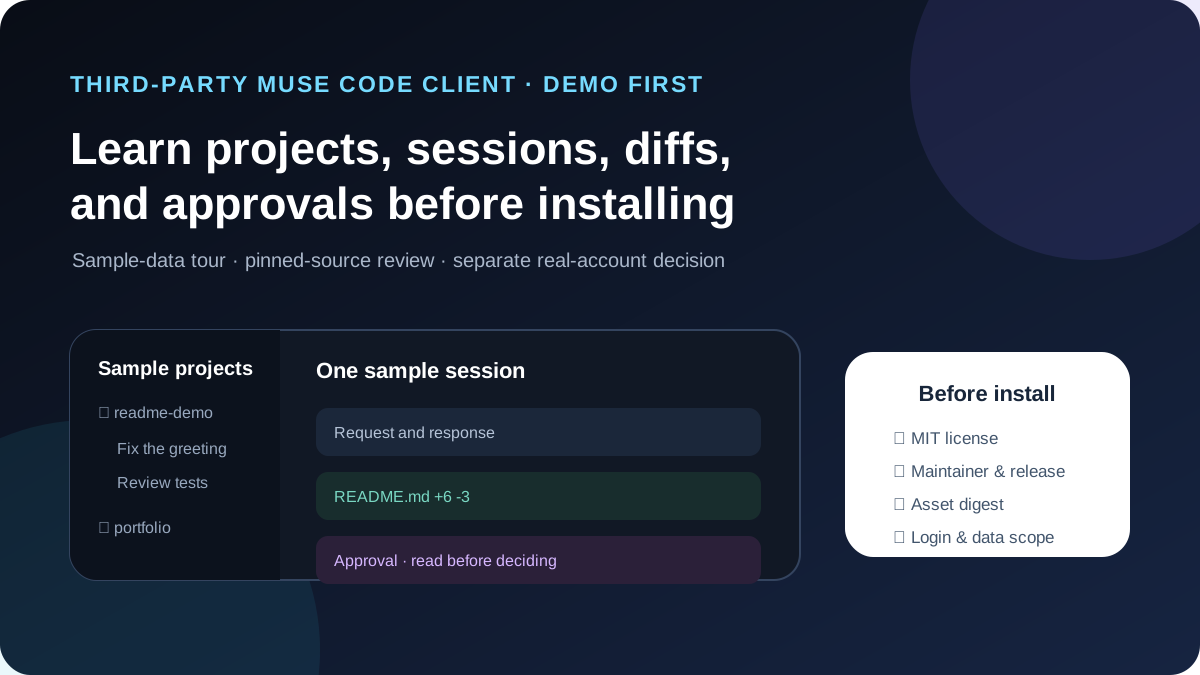
This guide focuses on “Helicon Muse Code” and turns the question into practical steps you can check.
01 | Identify the product before exploring it
Helicon is an open-source desktop and web client maintained by Harjot Singh Rana. It presents projects, sessions, file diffs, and approvals from the Muse Code CLI. Its README and website both say that it is an unofficial community project, not made, sponsored, or endorsed by Meta, and unrelated to the consumer Muse app for Mac.
Meta describes Muse Code as a coding agent. Helicon adds a graphical client while Muse Code remains the agent underneath. This guide stays inside Helicon’s public sample demo. It does not install the application, connect a local repository, or claim a successful login with a Muse Code account.
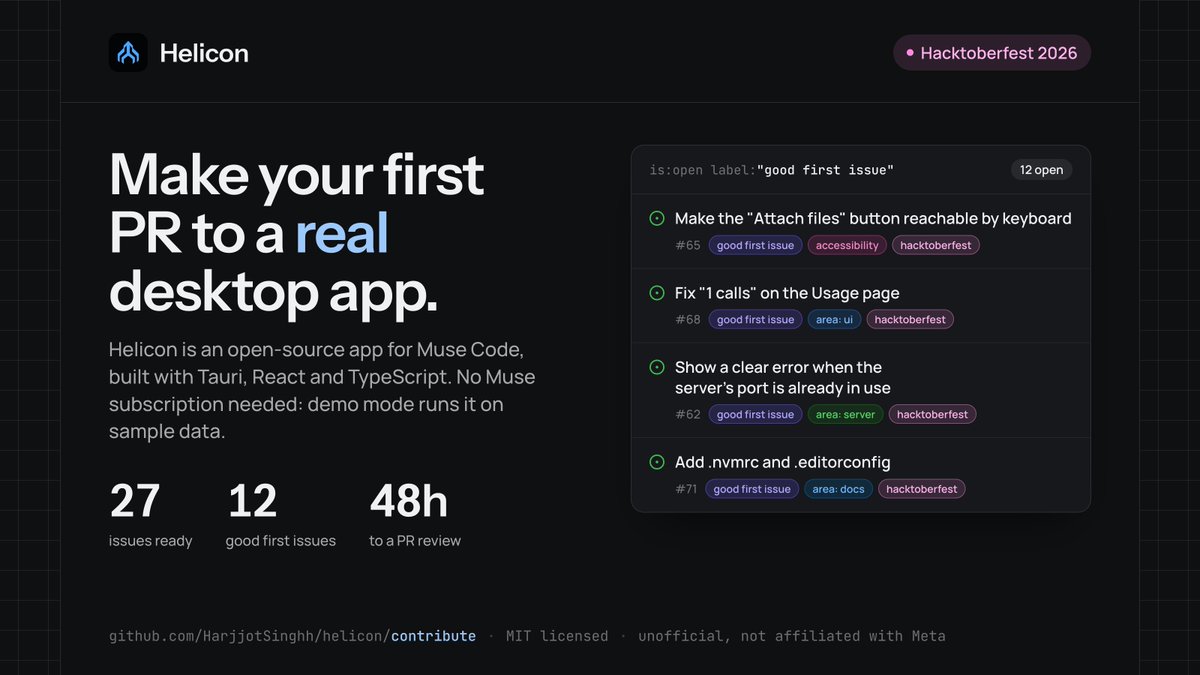
On October 1, 2026, the maintainer shared a Hacktoberfest poster naming Tauri, React, TypeScript, and a demo mode that works on sample data without a subscription. The issue counts and 48-hour review statement shown in that poster were a dated snapshot, not a maintenance guarantee for today.
02 | Begin with the sample demo on the project site
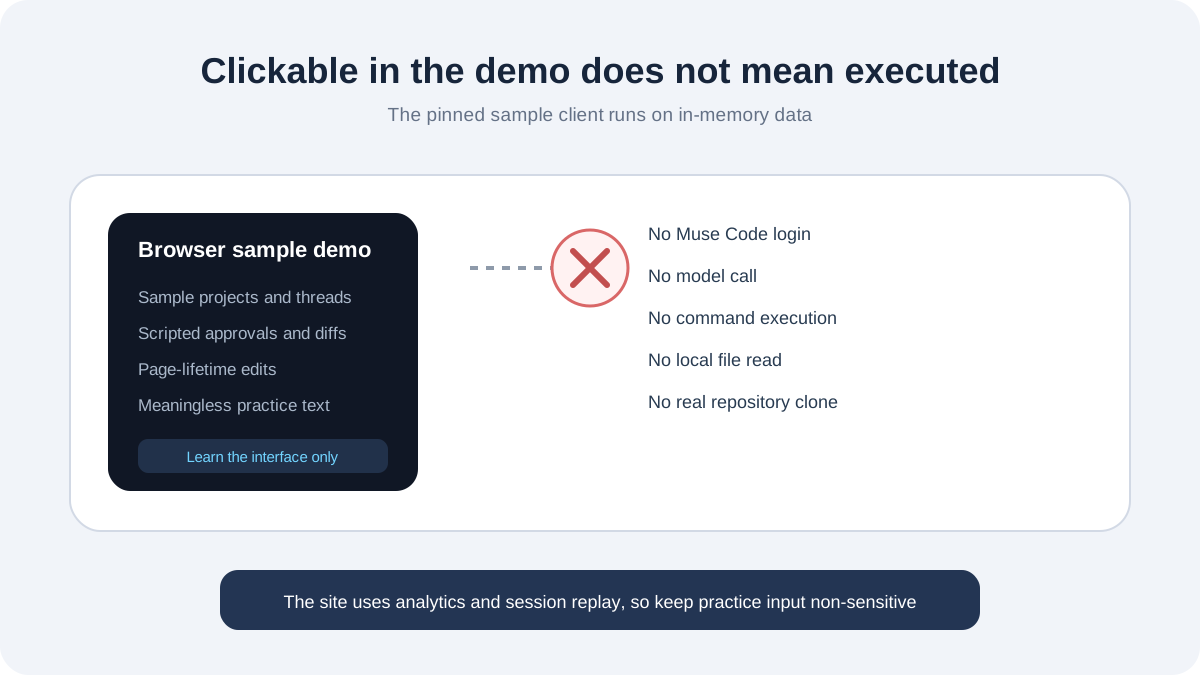
Open Helicon’s official site and find “Try the app right here.” The page identifies it as the real interface running on sample data. The pinned demo client in the repository confirms that projects and threads are in memory, no model calls are made, commands return a sample “not run” result, and in-app login is unavailable.
No Muse Code plan or muse login is needed for this step. The demo can tell you whether the layout of projects, threads, diffs, and approvals makes sense to you. It cannot establish that your CLI will connect, a command will run, or your subscription is active.
The marketing website uses PostHog analytics and session replay, with inputs masked according to its privacy page. Keep demo input meaningless anyway. Do not paste proprietary code, private repository names, tokens, or customer information into a product tour.
03 | Locate the project before the session
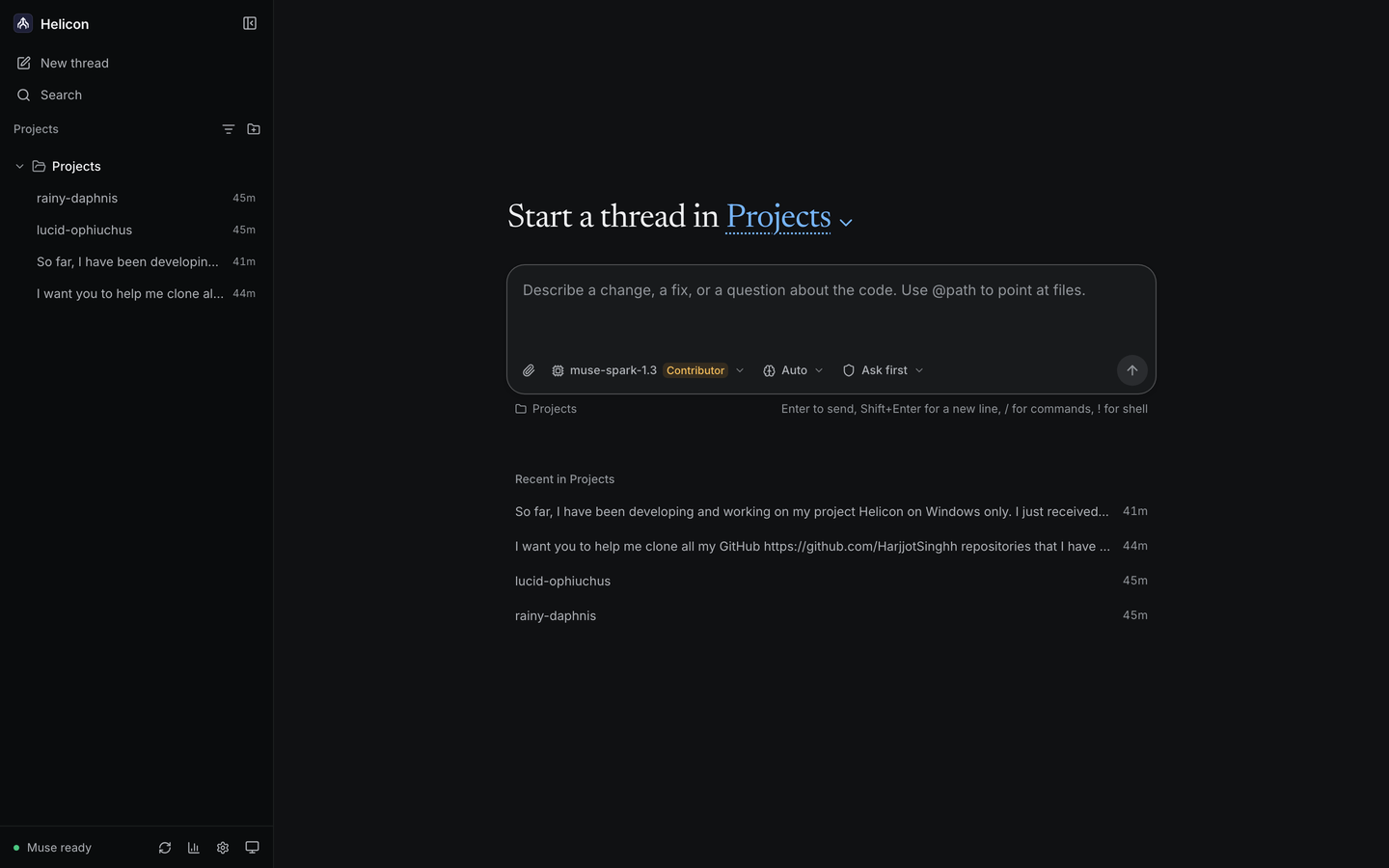
Start with the left sidebar. Projects are grouped by working directory, with sample threads or sessions underneath. Open two entries and watch the project name, thread title, activity time, and main content change together. This pass is for orientation, so leave the composer alone for now.
The Helicon documentation uses projects, sessions, tasks, and threads within the same workflow. Labels may change between versions. Keep three relationships clear: the selected project directory, the history item you opened, and the files and actions shown inside it.
The image below is the original home screenshot from the README at the reviewed commit. It shows the project list, recent sessions, new-thread composer, and status area. It is a repository asset, not a screenshot from our account.
04 | Read one sample session from request to approval
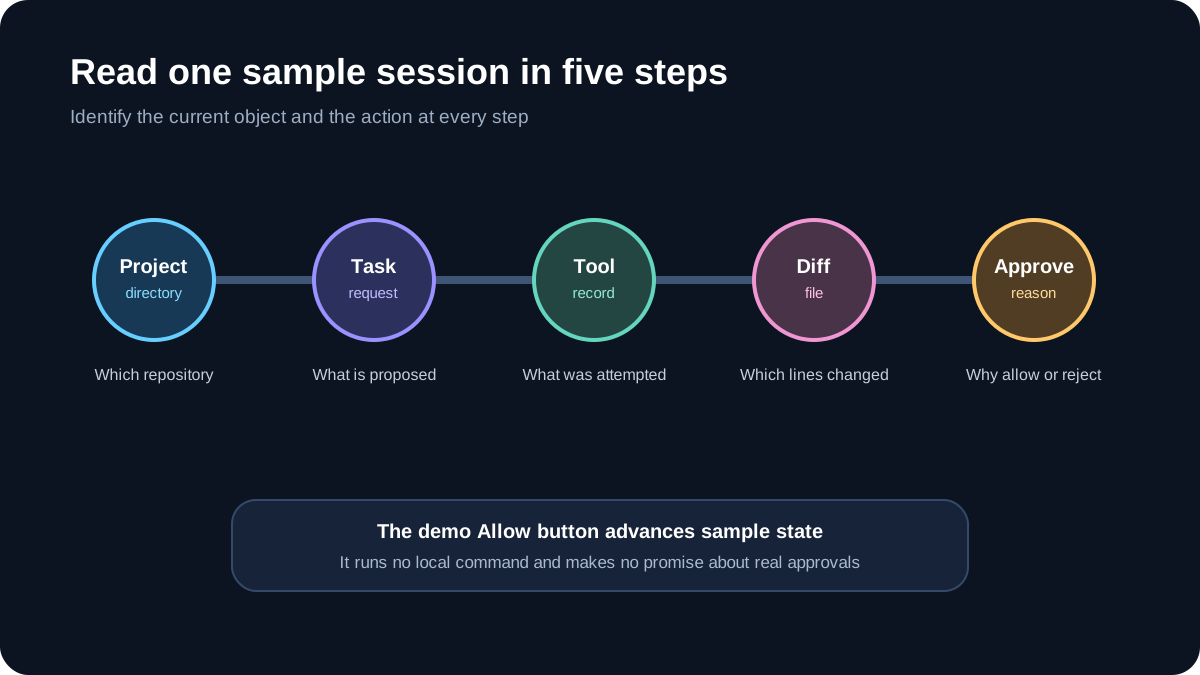
Choose a populated sample thread and find the task request, agent response, tool record, and file change. On a diff, read the filename before the added and removed lines. On an approval card, read the proposed action before the available decision.
The site demo can animate approval and thread state. Its pinned command handler returns sample data and runs nothing on your computer. Clicking Allow shows how a card advances a sample turn. It does not prove that a real install will reject unsafe commands or replace review of Muse Code’s own approval settings.
Make a five-field note with the project, thread title, requested action, changed file, and your reason to allow or reject it. If you can recover those five items from the screen, you understand the basic relationship between the panels.
05 | Keep sample messages, models, and costs in the demo
You can send a harmless question such as “Which file changed in this sample thread?” and watch a new turn appear. The pinned code says the demo makes no model calls, and a model switch only remembers the option you selected. These turns have no value as evidence about a real account.
The website and README label displayed cost values as sample figures or sample data. They are not a bill and do not establish the remaining allowance on a Muse Code plan. Check Meta’s current Muse Code page and your own account for plans, pricing, models, and usage.
The file tree is synthetic too. The demo disables adding projects, cloning repositories, opening files in external applications, and in-app login. A clickable control demonstrates a layout or scripted state change; it does not prove that your operating system and repository will support the real action.
06 | Separate the interface evidence from installation evidence
At the reviewed commit, the landing demo keeps routing, preferences, and timers in memory rather than changing the page URL or persistent storage. Sample file edits last only for the life of that page. That behavior should not be treated as a test of the desktop application’s local SQLite state.
- The demo establishes that the current site presents the real React interface with sample interactions.
- It is suitable for judging whether the project sidebar, session history, diffs, and approval cards are readable.
- It does not establish that a desktop installer will launch or update correctly on your computer.
- It does not show that Helicon can locate your Muse Code CLI, open your workspace, or resume a real session.
- It does not prove that every unsafe command will be blocked. Your approval mode and each decision still matter.
- Sample costs cannot predict a subscription balance, and sample projects are not execution records.
07 | Review the license and maintenance trail
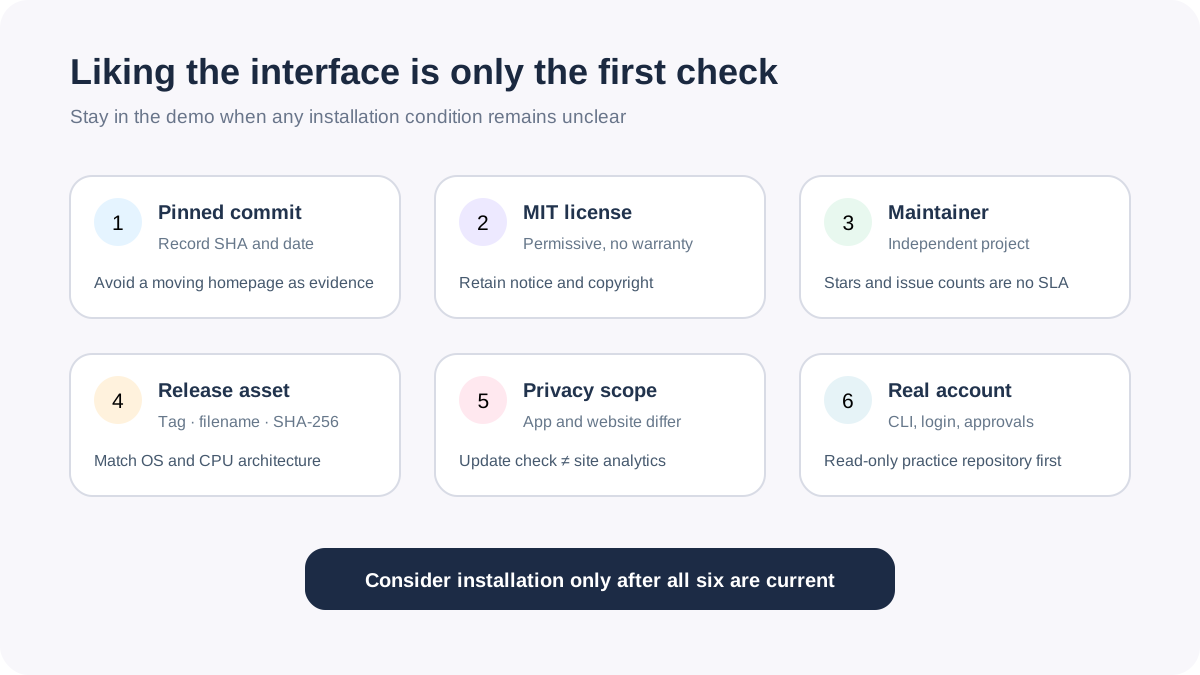
This guide reviewed the default prod branch at commit 0f3c32c188be69adce53fc78cfa907f846e11bea on October 2, 2026. GitHub marked the commit verified, with the message “Release 0.21.0.” The repository root contained a README, MIT license, contribution guide, and security policy.
The MIT license permits use, copying, modification, and distribution when its copyright and permission notice are retained. It also supplies the software as-is without warranty. A permissive license does not guarantee that an installer is safe, maintained indefinitely, compatible with your machine, or supported when something fails.
The project’s About page identifies one independent maintainer and no company or registered legal entity. Before installing, inspect the latest GitHub release, its commit, change record, and private security-reporting route. Dated issue counts, star counts, and review-time promises are poor substitutes for those checks.
08 | Match the installation guide to your machine
At the time of review, the latest non-prerelease was v0.21.0. Its GitHub release listed a Windows x64 setup file, a universal macOS DMG, and a Linux x86_64 AppImage, with SHA-256 digests reported for the assets. Releases can change. Record the tag, filename, and digest shown when you actually download rather than reusing values from this article.
The project says its Windows installer is signed, its macOS build was not yet Apple-notarized, and its Linux AppImage supported x86_64 with FUSE required on some distributions. Pause when the current release, CPU architecture, operating-system warning, or device policy does not match the instructions. Download only through the GitHub release linked by the project site.
Desktop packages bundle Node.js, but real operation still requires a working Muse Code CLI and a completed muse login. Helicon adds no paid tier of its own, while Muse Code access remains a Meta plan or pay-as-you-go service. A free demo does not guarantee that a real account, plan, region, or model is available to you.
09 | Review data and approval boundaries before real login
The project says it uses your existing Muse Code login without storing separate credentials, and stores projects, sessions, and turns in local SQLite. That local database describes Helicon client state only. Real Muse Code task data is still handled under Meta’s privacy terms, so it does not establish that prompts and code stay on the computer. The project also documents an update request to helicon.sh carrying the platform, version, and a weekly rotating hash of the source IP. The website separately uses PostHog analytics and session replay. Review the application and website scopes separately.
If those terms fit your environment, begin with a disposable local practice repository. Let the real client list projects and existing sessions before assigning an edit. Then inspect the approval mode and make one read-only request. Confirm that the diff, command, and paths all point to the practice directory before approving any file write, script, or network action.
Stop at the demo when an installer has an unclear source, a release lacks a matching tag, a digest differs, an operating-system warning is unexplained, the client opens the wrong directory, or approvals do not appear as expected. A clearer interface organizes information; it does not transfer responsibility for a third-party program entering the development environment.
10 | A decision not to install is still useful
Write down three answers after the demo. Decide whether the project and history layout is easier than your terminal, whether the diff and approval cards are readable, and whether the maintenance and installation conditions fit the machine. If the interface helps but the third-party conditions do not, keep using the official Muse Code CLI.
For the official session recovery flow, continue with the Muse Code resume guide. For external tools, use the separate Muse Code MCP guide. Neither workflow requires Helicon, and this evaluation ends with the installation decision.
References
These sources support the product information in this guide. Musevip is an independent publication and is not affiliated with Meta.
- [1] Helicon | Official project site and browser demo
- [2] Helicon | About the project and maintainer
- [3] Helicon | Installation overview
- [4] Helicon | Privacy and update checks
- [5] GitHub | Helicon README at the reviewed commit
- [6] GitHub | Helicon MIT license at the reviewed commit
- [7] GitHub | Browser demo client at the reviewed commit
- [8] GitHub | Browser demo shell at the reviewed commit
- [9] GitHub | Helicon v0.21.0 release
- [10] Meta | Muse Code product page