
This guide focuses on “Muse Pokémon card scanner” and turns the question into practical steps you can check.
01 | Start with the collection problem shown in the video
A card name is easy to recognize; finding the exact printing takes more work. @mitchellmosesai recently showed a Muse-built card scanner that accepts front and back photos and produces a result. That makes a useful starting point for organizing a personal collection.
I checked the demo against the card platforms’ documentation. Printing identification and price labels need the most attention. This guide describes a reviewable prototype, not a test in the creator’s account. Build the photo and identity workflow first, then connect a data source you can actually access.
02 | Photograph one physical card at a time
Assign the physical card a photo ID. Take a clear front and back photo, then close-ups of the collector number, foil surface, corners, or visible damage. Retake a photo if glare hides the text. Give each side its own slot so a changed upload order cannot pair one card’s front with another card’s back.
Ask Muse to show the text it can read before choosing a catalog entry. Leave an unreadable name, number, or set unresolved, and ask which detail needs another photo. You can then distinguish a poor image from several plausible printings.
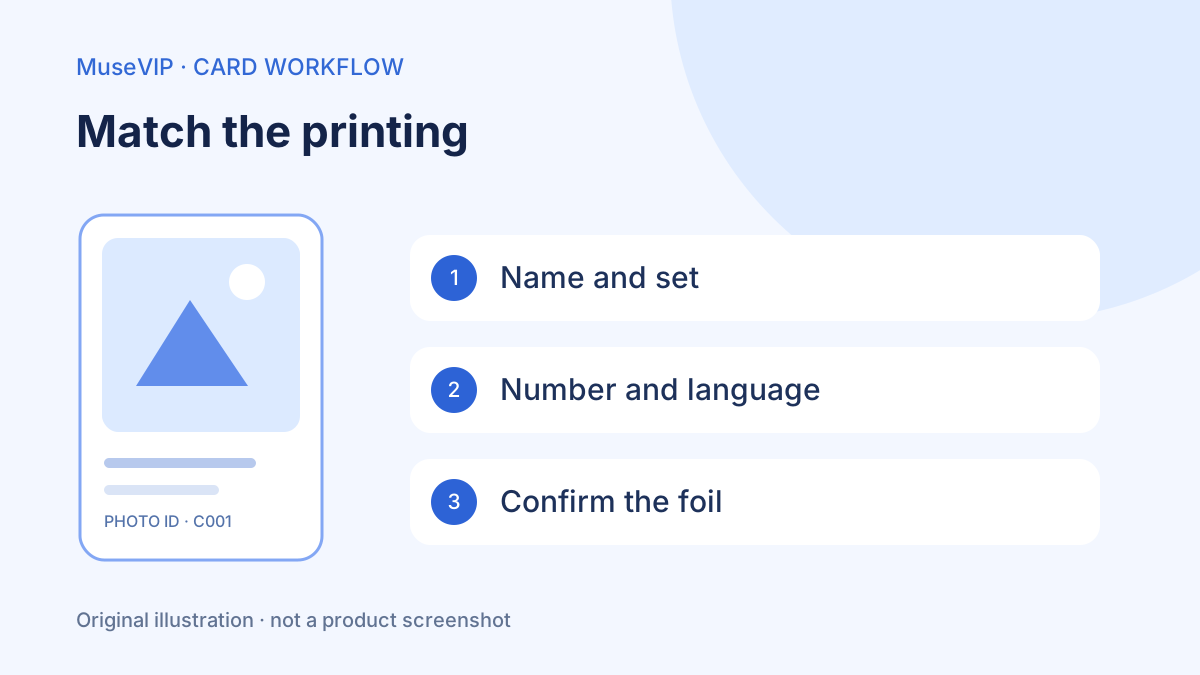
03 | Confirm the set, number, language, and printing
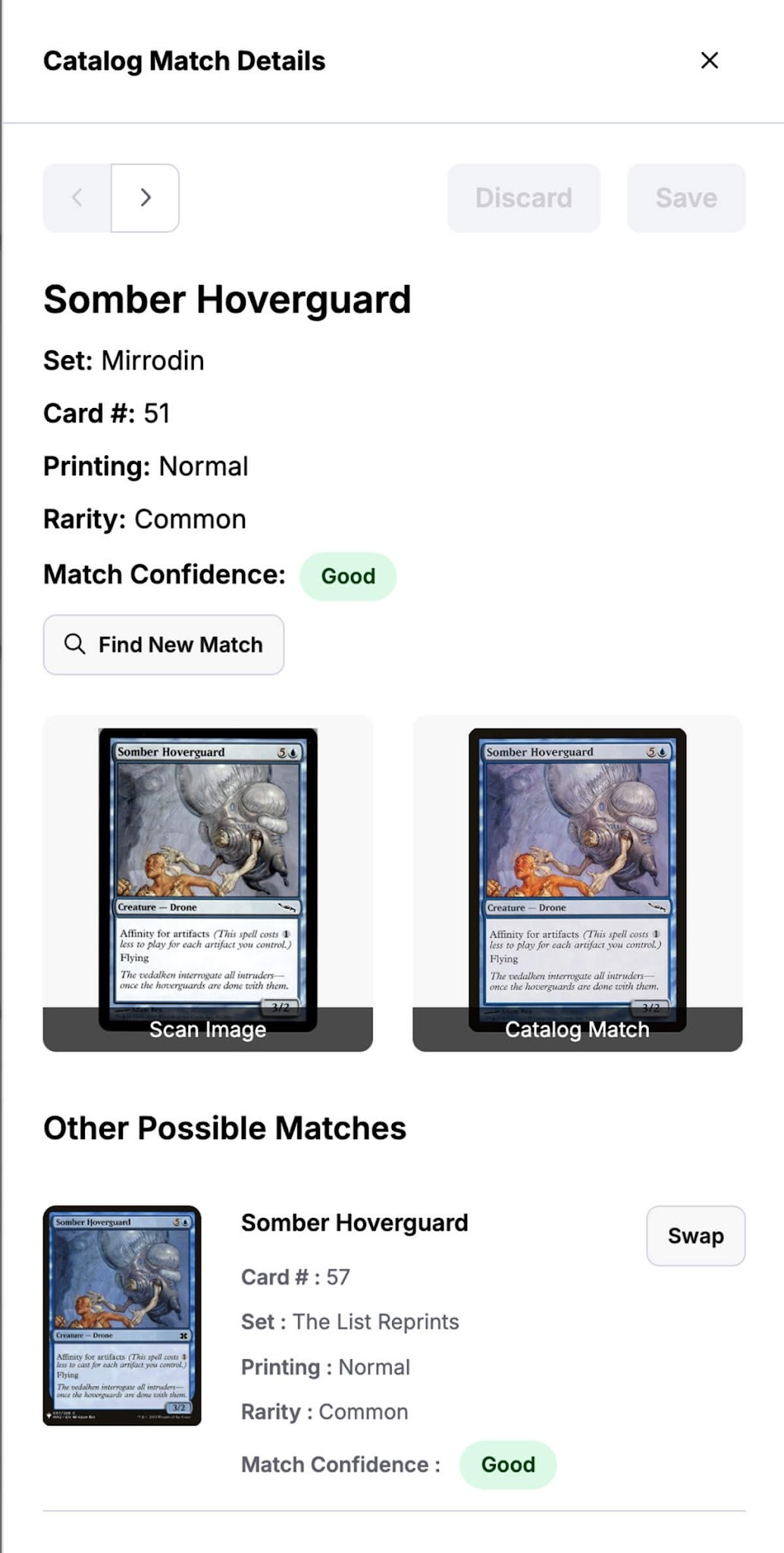
The same card name can appear in several sets or languages, with normal, holofoil, and reverse-holofoil versions. Keep those attributes separate. Display the original photo beside the candidate catalog image, and let the user change the match before accepting it. A visually similar first result can point to the wrong price record.
The TCGplayer screenshot below uses a Magic card to demonstrate its catalog match review. It compares the scan with a catalog image and other candidates. Your Pokémon page can use the same review pattern. TCGplayer describes Scan & Identify as an open beta for Pro sellers; this is its interface, not a built-in Muse integration.
04 | Inspect condition on the physical card
Back-edge wear, a bend, scratches, or surface marks may not show in the front image. TCGplayer uses Near Mint, Lightly Played, Moderately Played, Heavily Played, and Damaged condition categories. Near Mint can allow minor wear; a clean front photo does not establish a perfect card.
Let the page collect front, back, and defect photos, then record your observed issues and your own condition assessment. Mark an incomplete inspection as pending. Do not have Muse assign a PSA grade, certify authenticity, or invent damage information.
05 | Ask Muse for a small page you can review
Meta calls these interactive web outputs Artifacts. Ask Muse for photo slots, candidate review, editable identity fields, and saved confirmed rows. Check photo selection, recognition, and saving in the generated result. A visible button alone does not prove that its underlying action is connected.
Use this request. Create an Artifact for organizing my Pokémon cards, one physical card per row. Keep a photo ID, front and back images, candidate name, set, collector number, language, printing, my condition assessment, and notes. Show source and candidate images side by side and let me change the match. Request a clearer photo when the number is unreadable. Allow reference-price matching only after I confirm the printing. Mark unavailable data as not connected; never invent a price. Keep confirmed rows and offer a draft table export. Do not publish a sale listing.
06 | Keep the price type, currency, and update date
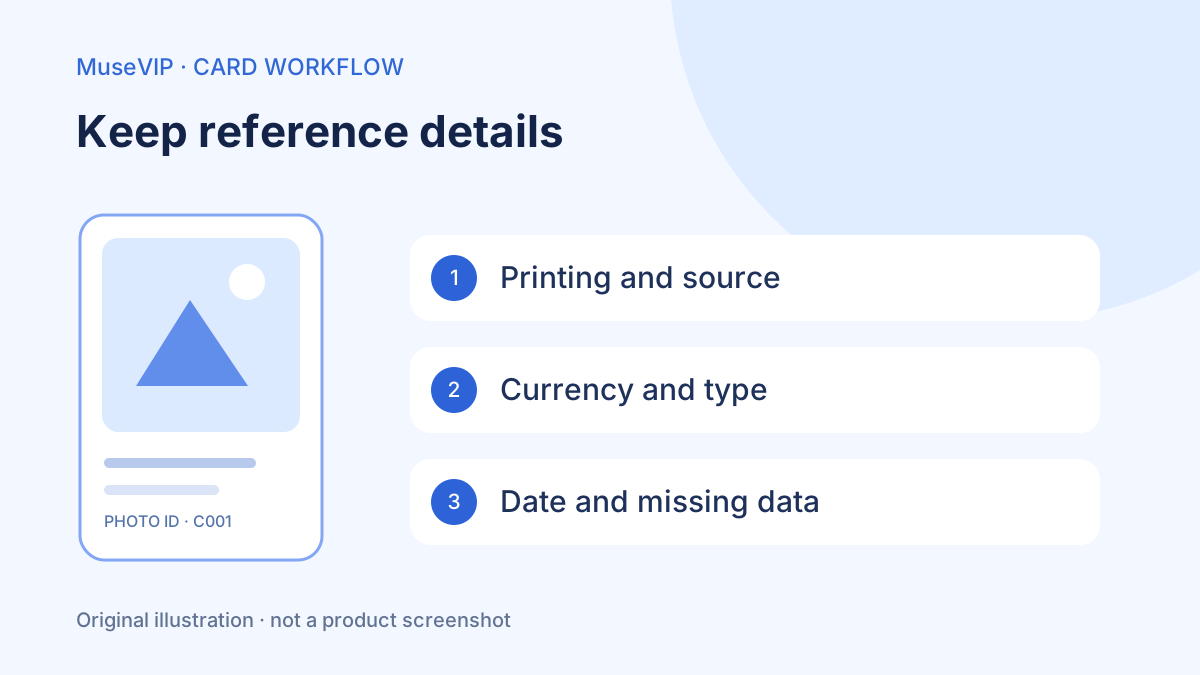
TCGplayer Market Price uses recent actual transactions. It is a platform reference, not a promise that your particular card will sell for that amount. Keep asking prices, transaction-based reference prices, and your own proposed listing price in separate fields.
For every reference, retain its source, exact printing, currency, price type, and update date. TCGplayer card data commonly uses USD while the Cardmarket block uses EUR. Do not add those amounts together without a separate conversion calculation. Missing data means no reference available, not a zero-dollar card. Use the records to organize a collection, and make selling and pricing decisions yourself.
07 | Check the current API registration path
Older signup instructions need an update. The Pokémon TCG API now says new account registration is closed, existing keys continue until March 1, 2027, and users should migrate to Scrydex. This community API is not an official Pokémon product. Do not build a new tutorial around receiving a fresh legacy key.
For automatic data access, review the current provider’s account, plan, usage, and charges first. Scrydex documents an API key and team ID, HTTPS, and keeping the key out of client-side code and public repositories. We have not opened or connected an account. Complete the photo and identity flow, choose a provider you can access, then ask Muse for a server-side integration with explicit failure states.
08 | Try three cases before exporting a listing draft
Use one card whose printing is known. After confirming it, check that the reference still belongs to that printing and includes a date and currency. Next use a photo with an unreadable collector number. It should request another photo instead of selecting a price. Finally remove price data. The card details should remain visible with no reference available, rather than a made-up zero valuation.
Close and reopen the page to check whether confirmed rows persist. If the page does not save them, export and open the file before entering a full collection. A sale draft should contain only your verified identity, quantity, condition, own photos, and defect notes; keep publication manual. For checking an exported workbook, see the Muse Excel result review guide.
References
These sources support the product information in this guide. Musevip is an independent publication and is not affiliated with Meta.
Last reviewed 2026.10.02. Product pages may change.