
This guide focuses on “Muse iPhone widget” and turns the question into practical steps you can check.
01 | Start with what the shared image actually establishes
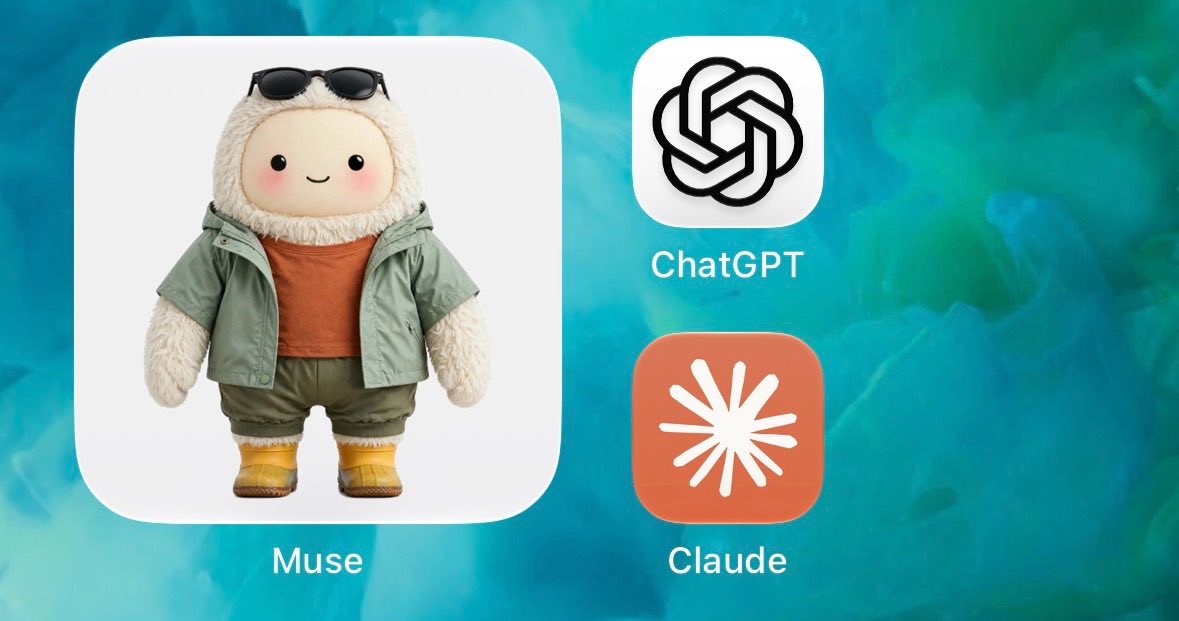
I checked the shared image against Meta’s iPhone pages and Apple’s widget documentation. Meta confirms an official Muse app for iPhone, and Apple documents the system widget workflow. Neither currently publishes a Muse avatar-widget guide. The narrow observation comes from @_simonsmith, whose October 1, 2026 Home Screen image shows a square current avatar with Muse labeled below it.
That is one visible result on one phone at that time. It does not establish rollout across every country, account, or app version, and it does not show a Lock Screen variant. The avatar’s expression or clothing is also not evidence that a task is running, the agent is online, or an approval is waiting.
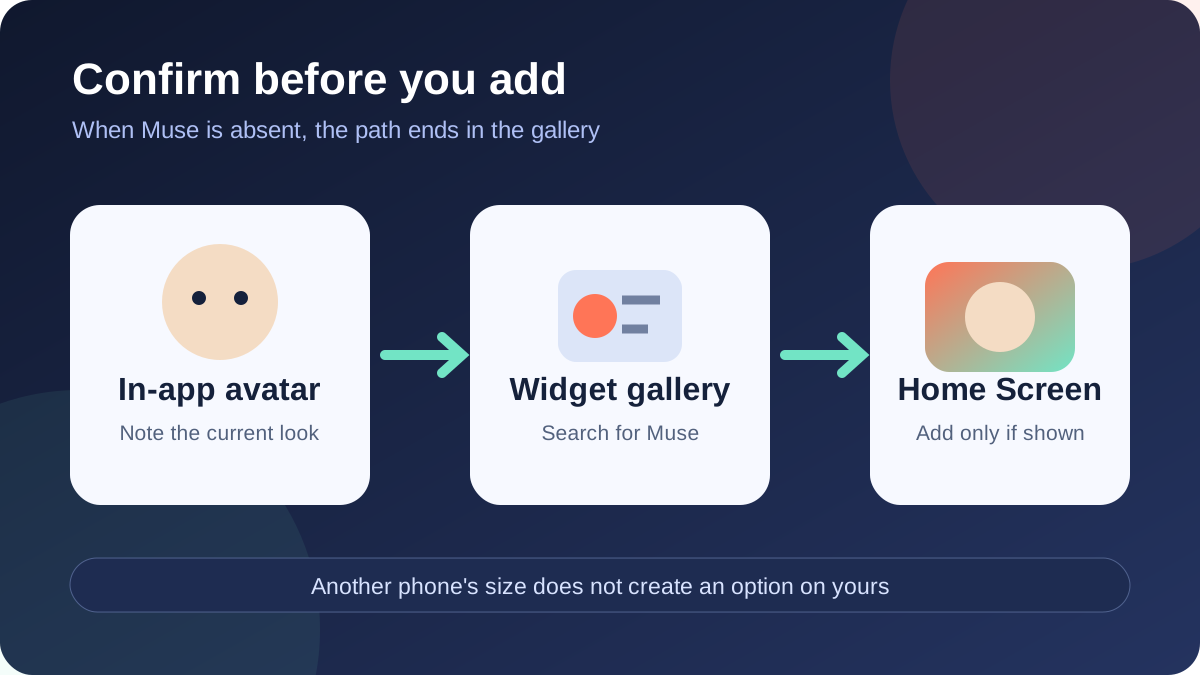
Open the widget gallery on your own iPhone and search for Muse. Continue only when the widget is there. If it is absent, record the app version and date and keep the ordinary Muse app icon instead of guessing at a hidden setting.
02 | Identify the official app and the avatar currently inside it
Follow Meta’s Muse download page or the App Store listing. The listing names Meta Platforms, Inc. as the developer and identifies the app as iPhone only. Open it once after installing or updating and confirm that you are in your own Muse rather than a similarly named app or a saved webpage.
Look at the avatar currently shown inside Muse. There is no need to guess a permanent menu path. Meta’s public download page does not document avatar-editing steps, and the interface can change. Note a few visible traits such as clothing and color so you can compare them with the widget later.
Resolve sign-in or onboarding first if the app does not yet show an avatar. A widget can present only the content the app makes available; it cannot complete account setup or select an avatar for you.
03 | Find Muse in the Home Screen widget gallery
On the Home Screen, touch and hold an empty area until the apps jiggle. Tap Edit, then Add Widget. Apple documents this as the current entry. Search for Muse, open its result, and swipe through the sizes and styles actually offered.
Treat the avatar as available only when you can see that style in the gallery. Choose it, tap Add Widget, drag it into place, and tap Done. If the gallery offers only a simple launcher or no Muse entry at all, use what is present. Another person’s square screenshot cannot supply a missing size on your phone.
Keep it outside a Smart Stack for the first check. Apple says a Smart Stack can rotate widgets according to time, location, and activity, which may move Muse out of view. A standalone placement makes the appearance and tap result easier to verify.
04 | Check the Lock Screen and Today View separately
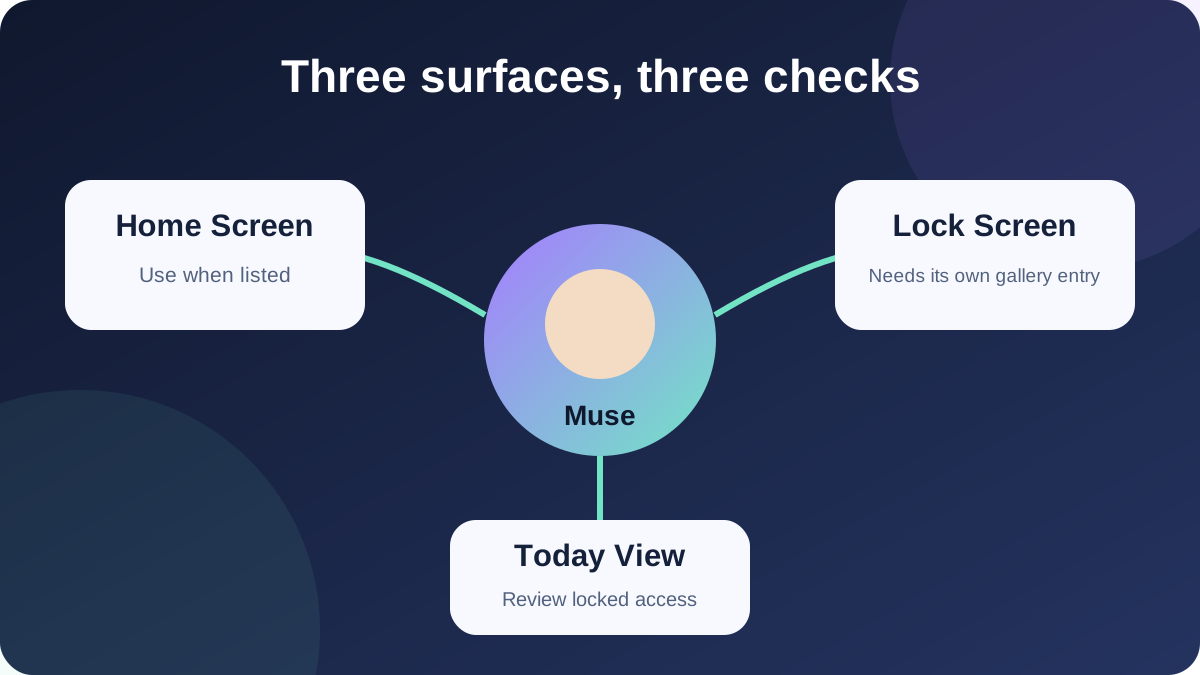
Home Screen support says nothing about the Lock Screen. Apple’s Lock Screen route is to touch and hold the Lock Screen, tap Customize, then Add Widgets. iOS 16 and later provide that system location, while each app still has to supply a suitable widget. Keep the Home Screen version when Muse does not appear in the Lock Screen gallery.
Today View has its own route. Swipe right from the Home or Lock Screen, touch and hold an empty area, then use Edit and Add Widget. It can hold an avatar launcher without taking a permanent Home Screen slot.
Decide who may see the chosen surface. Apple lets the owner control whether Today View and Search are available while the phone is locked through passcode settings. The avatar itself may reveal the style you gave your Muse. An inside Home Screen page is often a better location on a shared phone or a device left face-up in public.
05 | Verify the avatar and tap destination with three actions
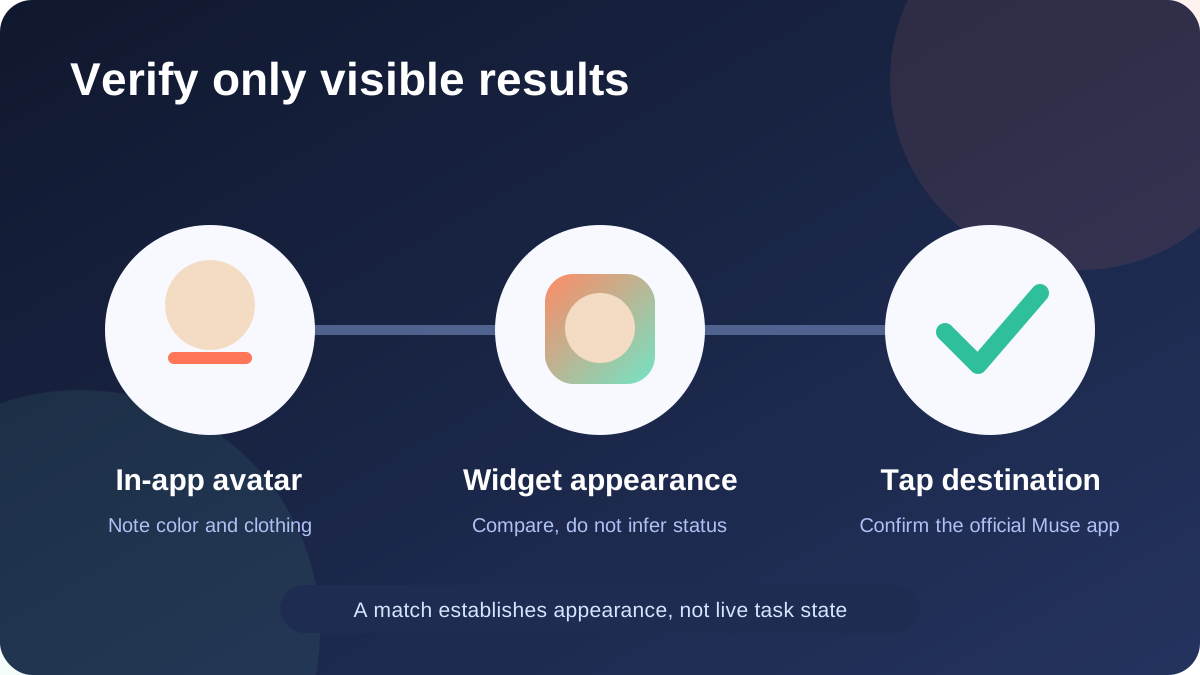
Compare the widget with the avatar you noted inside the app. Matching clothing, colors, and face are enough to record it as the current avatar display. If they differ, reopen Muse and check whether the in-app avatar changed before repeatedly adding the widget.
Tap the widget once. Confirm that it opens the official Muse app and observe whether it lands on the home view, a conversation, or another page. The current behavior is the evidence. Public documentation does not promise one fixed destination or say that tapping the avatar opens the active task.
Send the app to the background and look at the Home Screen again. Record only what you can see, such as “shows avatar A and opens Muse.” Meta says Muse can continue tasks after the app closes and send notifications when attention is needed. That background-task description does not turn the avatar into a task-status light.
06 | Record a slow update instead of promising live refresh
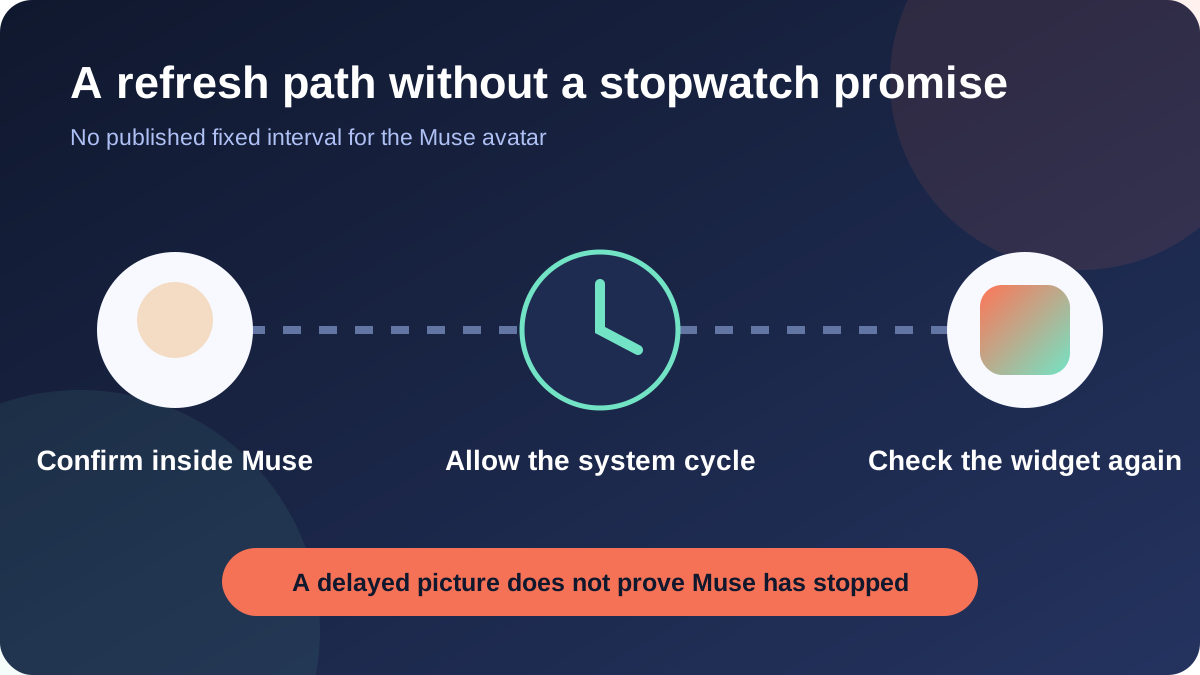
Apple describes widgets as glanceable current information, but it does not promise a fixed refresh interval for every app. Meta’s current public pages do not publish a Muse avatar-widget refresh schedule. If the Home Screen still shows an older avatar, that observation does not establish that Muse is stuck or a task has stopped.
Open Muse and confirm that the new avatar is visible in the app, return to the Home Screen, and allow the normal system update cycle. If it still differs, record the Muse version, iOS version, surface, and time. Touch and hold the widget to see whether Edit Widget is present. Apple notes that only some widgets provide editable settings, so a missing command is not itself an error.
Remove and add the widget again only after those checks. Apple says removing a widget does not uninstall its app. Do not sign out, delete the app, or clear account data merely to force a picture refresh. Keep the normal app icon and wait for current release guidance when a fresh placement still differs.
07 | Use only avatar controls visible in the current app
The App Store description says users can name their Muse and shape how it talks, placing customization within the product direction. Public pages do not give a stable avatar-editing route. When you want another avatar, use a clearly labeled avatar, appearance, or personalization control that is visible in your current app. Stop if none is present instead of following an old screenshot into an invented menu.
Capture the in-app avatar before and after the change while keeping conversations and personal information out of the images. Then observe the widget with the sequence above. This separates a successful in-app change from the time when the widget catches up.
Move the avatar to an inside Home Screen page or remove it when its appearance reveals more than you want on a locked phone. The widget is a lightweight launcher and display. Keeping it is not worth broadening what is visible from the Lock Screen.
08 | Finish with one small acceptance record
Record six fields: Muse app version, iOS version, date checked, widget surface, avatar shown, and tap destination. Add whether the avatar caught up after a reasonable wait. If the interface changes later, those fields help separate a version change, a different surface, and a missing widget.
To move it, touch and hold the widget, enter Home Screen editing, and drag it. To remove it, touch and hold and choose Remove Widget. Apple explicitly says this does not uninstall the app. Continue with the Muse permissions guide when you want to review what the app can access.
This tutorial has a deliberately narrow finish line. You know whether Muse appears in this phone’s gallery, whether its avatar matches the app, where a tap goes, and which surface is appropriate. No avatar change is treated as proof of real-time task activity.
- Muse and the chosen avatar style are present in this phone’s gallery.
- The widget can be compared with the current in-app avatar.
- A tap opens the official Muse app and the destination is recorded.
- Lock Screen and Today View are used only when Muse appears in those galleries.
- Avatar changes are not labeled as online state, task progress, or guaranteed instant refresh.
References
These sources support the product information in this guide. Musevip is an independent publication and is not affiliated with Meta.
Last reviewed 2026.10.02. Product pages may change.