
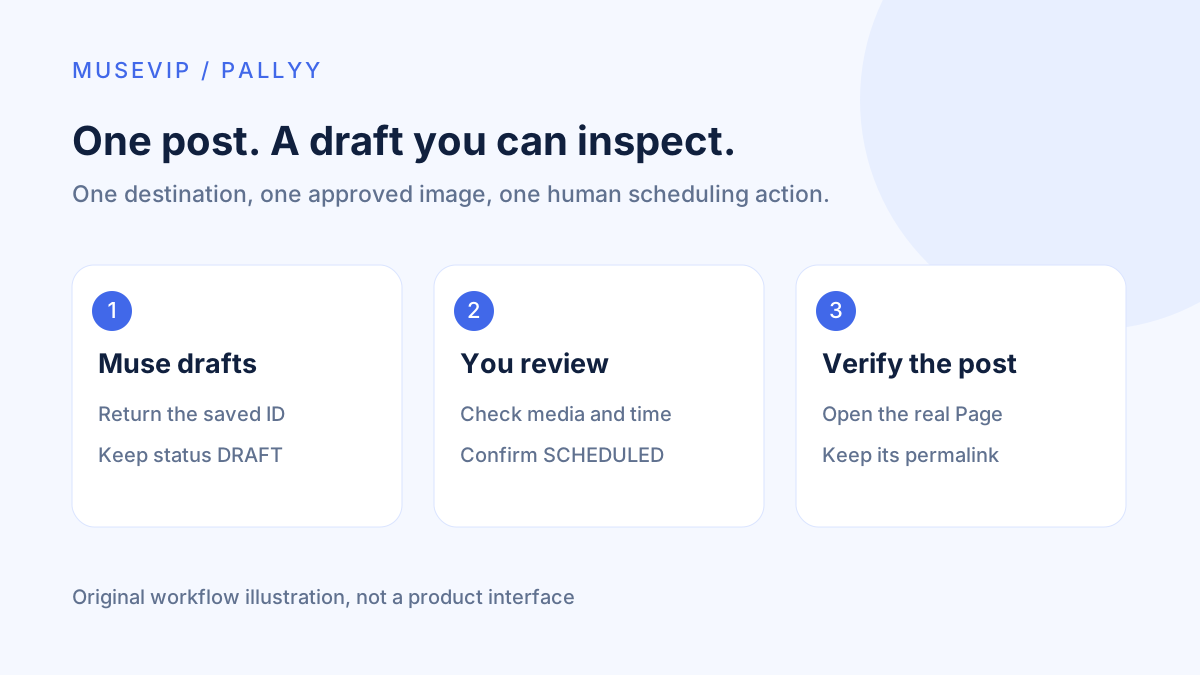
This guide focuses on “Muse Pallyy” and turns the question into practical steps you can check.
01 | Start with one post you can inspect
A shop announcement needs an image, a caption, the right account, and a publication time. Those details often live in separate places. Ask Muse to assemble one reviewable draft before trying a full content calendar.
Pallyy updated its Muse setup guide on September 29. This walkthrough follows the provider’s custom connection route; it is not an account-level test or a promise that every Muse client exposes the same setup. If your connection cannot be established, ask Muse for the caption and media checklist and enter them in Pallyy yourself.
Use one Facebook Page you manage and one approved image. Pallyy supports Facebook Pages, not personal profiles or groups. Check the destination before using this example for your own account.
02 | Identify the exact brand and destination
Find the brand’s Social Set, which groups its connected accounts. Record its actual ID and the Facebook Page’s name and account identifier. Confirm that its connection is healthy. A display name such as “Main account” is too ambiguous when several clients use it.
Prepare a short task sheet with verified event facts, the approved media item, one destination, and a full future date with an explicit timezone. Leave unknown prices, registration links, and deadlines unresolved. Ask Muse to inspect only that set’s accounts and timezone before creating anything, then compare the response with the original dashboard.
If the account cannot be found, resolve the connection first. Do not substitute another similarly named brand. Broader searches can bring unrelated clients into a task that only needs one Page.
03 | Give the connection draft access first
Create a dedicated Pallyy API key restricted to this Social Set. Enable Edit posts and leave Publish posts off. If the image is already in the library, omit media upload access for the first attempt. Draft editing and scheduling are separate grants.
Pallyy’s Muse instructions use a generated client connected to https://app.pallyy.com/mcp with a Bearer API key. Supply that secret only through the client’s secure credential field. If that flow is unavailable, stop at caption preparation. Do not expose the key in chat, a screenshot, or an article.
Inspect the actual tools and confirm they can read the set, create a DRAFT, and return its ID. The provider’s custom route does not establish that Pallyy is a reviewed connector in Meta’s directory. The connector guide covers additional permission checks.
04 | Put the approved image in the library
For the first post, upload your approved image to the correct Pallyy library yourself. Give Muse its filename and intended use, then check the returned thumbnail and media ID. “Use the latest image” can select the wrong revision.
API imports can fetch a public image URL. An accepted import still needs to reach READY and return a mediaLibraryId. Wait while it is PROCESSING and inspect the reason if it fails. Keep private client files private rather than making them public to satisfy an import.
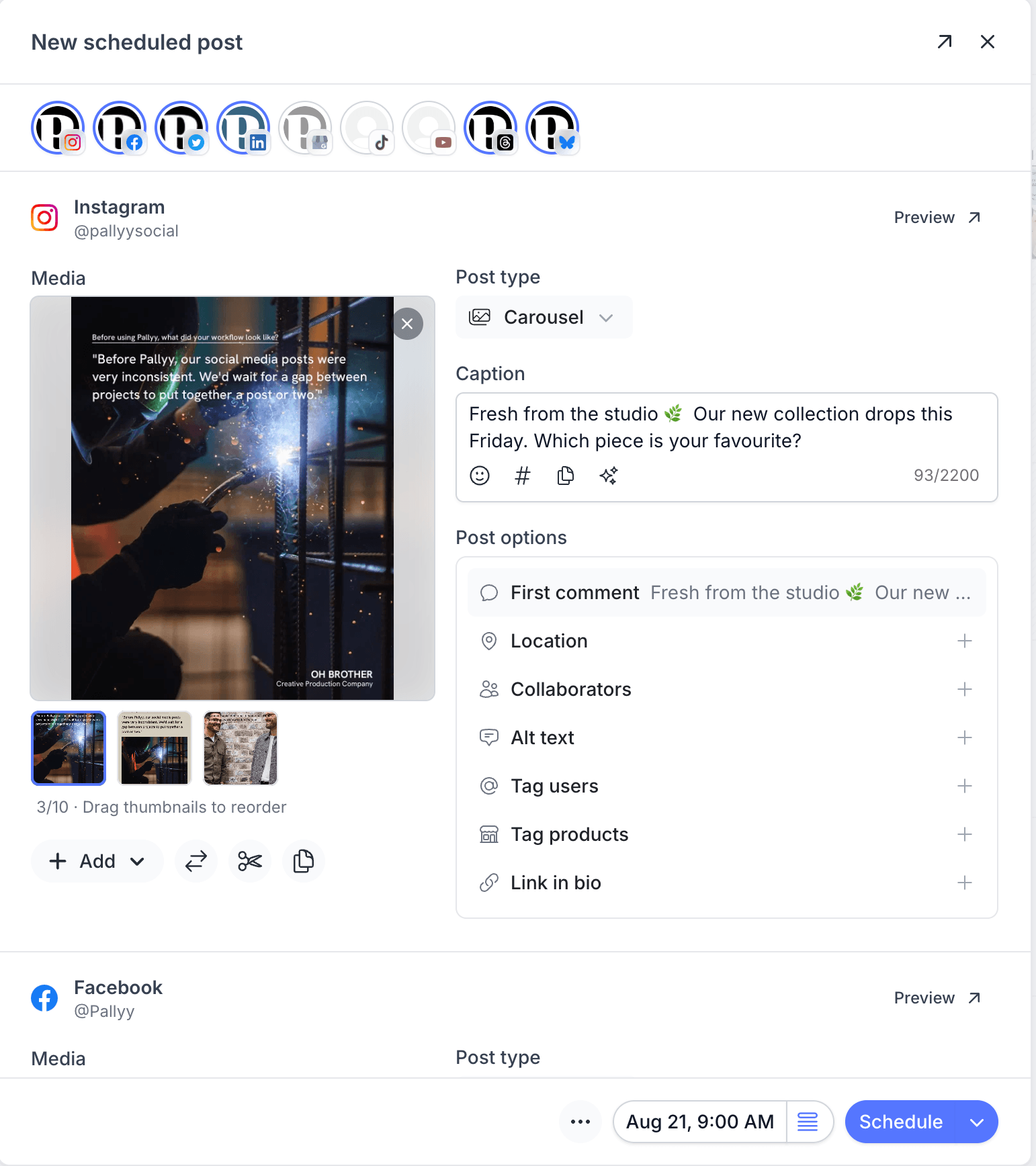
The Muse setup does not promise direct uploads from a phone chat attachment. A library item avoids that extra dependency. The original Pallyy screenshot below shows the composer’s media and caption areas. Its Instagram carousel is a vendor example, separate from this single-image Facebook task.
05 | Request one draft with verifiable output
Try this request. “Create one DRAFT for Facebook Page [actual identifier] in Social Set [actual ID]. Use media ID [actual value] and the approved event facts I provide. The proposed time is October 3, 2026 at 09:00, Asia/Shanghai. Do not copy it to other networks or create repeats. List missing information. Return the saved post ID and its dashboard location.” Replace the example date with a future time when you use it.
Read the facts before polishing the tone. A product photograph does not establish a discount. Supply the real promotion dates and conditions, and remove invented sales figures or customer praise. A concise caption can be lively without adding unsupported claims.
Open the record in Pallyy and check the destination, image, and DRAFT status. A draft with a proposed date still does not publish by itself. If Muse returns only prose without a saved record you can inspect, treat it as a caption and save the draft manually.
06 | Preview the post and resolve the timezone
Inspect the Page identifier and platform preview. Look for cropped prices, cut-off faces, and a link going to the wrong event. Add alt text describing the actual image and any required creator credit. The preview helps catch layout problems; verify the final platform rendering after publication.
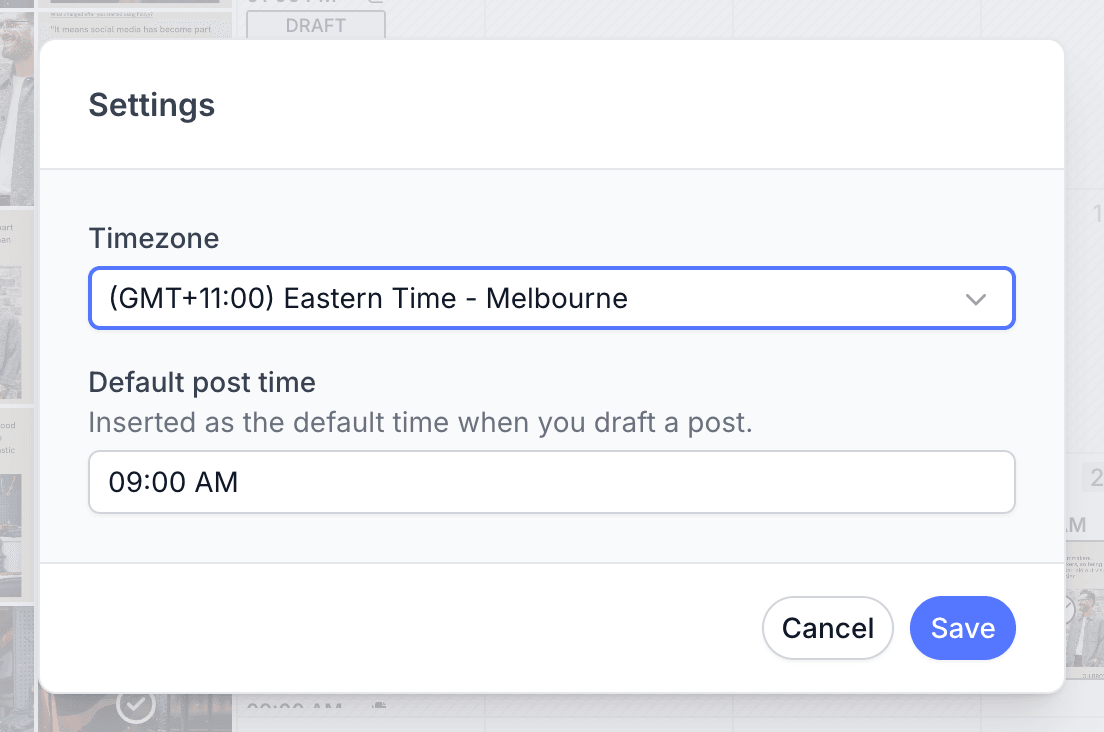
Pallyy has an account timezone and optional per-set timezone settings. Inspect the destination set’s calendar settings. Melbourne in the screenshot is the vendor’s example. Our Shanghai example is 2026-10-03T09:00:00+08:00, equivalent to October 3 at 01:00 UTC.
Ask Muse to identify what it will preserve before making a correction. An API update containing a posts array replaces that list. Verify the existing media and destinations remain in it. Beginning with one new single-platform draft makes this easier to review.
07 | Schedule it yourself after reviewing
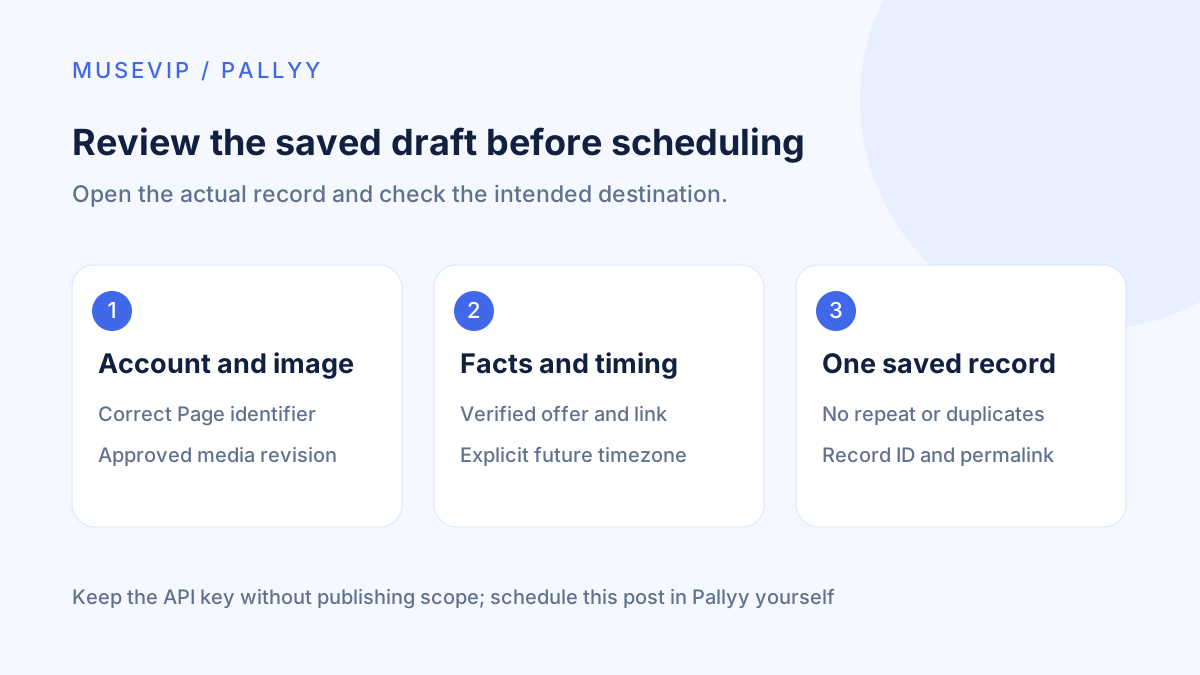
Choose the intended date and time in Pallyy and click Schedule after your review. Keep the assistant’s API key without Publish posts access. Your dashboard action schedules this post; the draft connection does not need additional authority.
Return to the calendar and record the post ID, destination, SCHEDULED status, and actual time. Avoid Publish now, which starts immediate publication. Check the current plan’s image support and remaining allowance. A saved draft does not guarantee every publishing format is available.
For a team using approvals, inspect the separate approval state in the dashboard. A prompt saying “approved” does not complete a system approval. If your account lacks that workflow, review this one post manually before scheduling.
08 | Check the actual post after its scheduled time
SCHEDULED means queued. After the due time, open the Facebook Page, find the real announcement, and keep its permalink. If you later expand to several networks, inspect each platform’s POSTED or FAILED result and link. A post set’s aggregate status alone is insufficient.
Investigate the existing record before retrying. A 401 concerns the key; a 403 can involve scope or plan limits. Check mismatched media against the destination set. Establish whether anything already published before creating another copy.
If the event is cancelled, unschedule the original before publication begins or return it to draft, then confirm it is no longer queued. Revoking a key blocks future API calls; existing scheduled work needs separate attention. Keep the draft ID, chosen time, and final permalink as a compact record for the next post.
References
These sources support the product information in this guide. Musevip is an independent publication and is not affiliated with Meta.
- [1] Pallyy | Connect Meta Muse
- [2] Pallyy | API authentication and scopes
- [3] Pallyy | Social sets
- [4] Pallyy | Media uploads
- [5] Pallyy | Post sets and publishing results
- [6] Pallyy | MCP tools
- [7] Pallyy | Post composer
- [8] Pallyy | Timezones
- [9] Pallyy | Facebook integration
- [10] Pallyy | Schedule your first post
- [11] Pallyy | API errors
- [12] Pallyy | Social scheduling with MCP