
This guide focuses on “Muse Linear” and turns the question into practical steps you can check.
01 | Start with a draft
Before a bug report enters Linear, separate what the person observed from what they guessed. “The button did nothing” is an observation. “The server is down” may be a guess. Muse can help turn the report into a compact issue draft, while the reporter still confirms the reproduction details, team, and priority.
The two public posts that prompted this guide mention a Linear connector and Muse’s tool connections. Neither shows a real bug issue being created successfully. This is a workflow for preparing and reviewing a draft, not evidence that a particular connector completed the task.
02 | Check the connection path and its actions
If your Muse account can connect to Linear, follow the Meta Help Center’s connection and authorization information. Meta’s safety writeup says Muse can create custom connectors for services with an API or CLI. The actions a connector can take depend on what your current client actually lists and what you authorize.
Linear’s official MCP server is a separate connection path. The standard /mcp endpoint exposes read and write tools by default. /mcp/readonly exposes read tools only, and the standard endpoint can also be limited to the read OAuth scope. Linear’s MCP docs do not prove that Muse’s native connector exposes the same tools. Start with read access when gathering context; if Muse can only draft in chat, keep the draft there for now.
03 | Separate reported facts from missing details
Keep the original report or support summary. Ask Muse to extract what action and result were actually reported, what device, system version, page, or account context was supplied, and what remains unknown. Leave absent information blank instead of filling it with a typical answer.
Ask when it happened, how often it repeats, which steps reproduce it, and whether there is a workaround. A screenshot, log, or short recording can help, but redact email addresses, customer names, access tokens, order IDs, and other people’s information first. Linear also advises reviewing who can see third-party integration output when adding private-team data to issues.
04 | Use a consistent issue draft
Linear issue templates can prefill titles, descriptions, and properties. Form templates can also require information such as a title, reproduction steps, or component. Teams may use different fields, so check the selected team’s template and ask Muse to prepare matching text instead of inventing a Severity 1 field or component label.
Try this instruction. Using only the report I provide, prepare a draft Linear bug issue. Separate summary, environment, reproduction steps, actual result, expected result, frequency, user impact, evidence location, and unknowns. Tie each fact to the source sentence or attachment. Put guesses under “Needs confirmation” and leave absent details blank. Do not create an issue, comment, change status, assign an owner, or set priority yet.
05 | Make the reproduction steps usable
Start with a stated initial condition, describe one action per step, and finish with the result the person actually saw. Record the operating system, app version, browser, network context, and time as reported. Mark unknown values as unknown. Do not turn “it will not open” into a click path the user never supplied.
Describe the expected result as the task the person meant to complete. Keep the actual result to a visible change in the product. If the report only says the experience is poor, ask which task was blocked, how often it happens, and who is affected. A team can discuss solutions after there is a reproducible entry point.
06 | Search similar issues without auto-merging
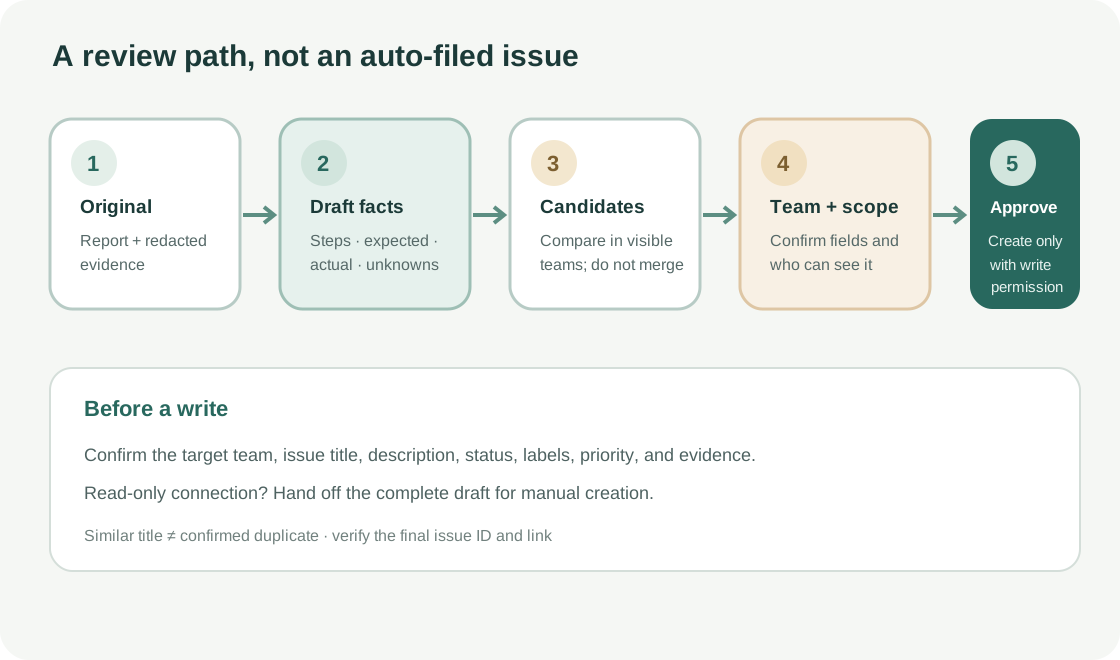
Search the right workspace and visible team for distinctive error text, the affected page, the action path, and the product version. Linear currently documents Triage Intelligence for Business and Enterprise workspaces. An admin enables it, after which it can suggest issue relations for items that enter Triage. It applies to an existing issue, not a draft in Muse chat. Search manually before creating a new draft. Review every suggestion on an existing issue; it is not a confirmed duplicate.
Open each candidate and compare its trigger, version, observed result, resolution state, and evidence. If the symptoms look alike but the reproduction differs, keep the reports separate and relate them according to team practice. If the evidence is inconclusive, list the candidate link and the similarities and differences for a maintainer. Mark an issue Duplicate only after the owner confirms it. Linear changes that issue to its system-managed Duplicate status and links it to the original, so a title match alone should never trigger the action.
07 | Let a person choose team, status, and priority
Each Linear issue belongs to one team, and teams can have their own statuses, labels, and templates. Let the draft suggest a likely team with its reason, then have the reporter choose from teams they can access. For HR details, customer records, security information, or unreleased plans, check team visibility and integration access before sending the material to any connector.
Priority is optional in Linear, with No priority, Low, Medium, High, and Urgent values. A reported impact does not automatically make the team’s priority decision. Leave the field blank unless the team’s rules or an owner specify it. Use only statuses and labels available for the selected team.
08 | Create only after approval, then verify the issue
Show the draft with its target team, template, status, labels, priority, and attachments. Ask the reporter whether to create this exact issue. After the person approves, Muse should submit a create request only if the connected tool actually offers that action and has write permission. With read-only access, hand the complete draft to the user to submit manually.
Check the created item in Linear. Verify its issue ID, link, team, title, description, status, and evidence attachments. If the response only says “done” and gives no openable link, search the target team before saying the issue exists. Save the approved draft with the final issue link; the team remains responsible for the engineering decision.

References
These sources support the product information in this guide. Musevip is an independent publication and is not affiliated with Meta.
- [1] Meta Help Center: How Muse works with Connectors
- [2] Meta: How We Built Safety Into Muse
- [3] Linear MCP server
- [4] Linear issue templates
- [5] Linear issue relations and duplicates
- [6] Linear teams and workflows
- [7] Linear priorities
- [8] Linear private teams
- [9] Linear issue creation
- [10] Linear Triage Intelligence