
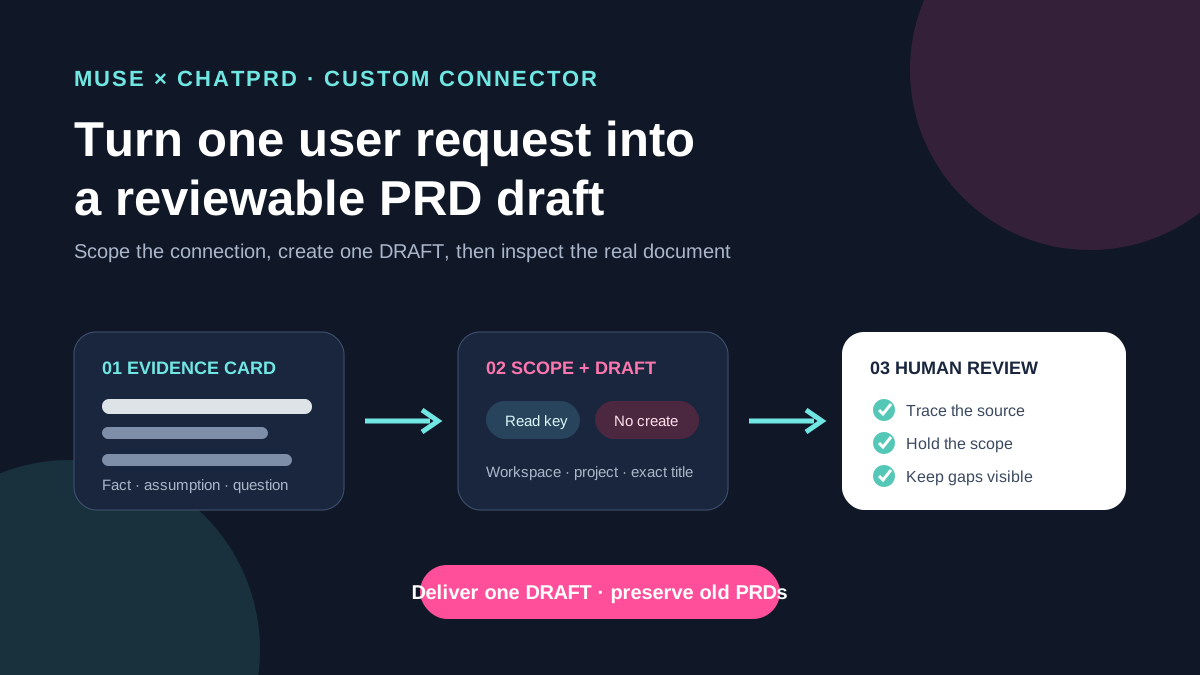
This guide focuses on “Muse ChatPRD connector” and turns the question into practical steps you can check.
01 | Treat ChatPRD as a custom connector for now
ChatPRD announced its Muse connection on October 1, 2026. In a follow-up, the publisher said it was a custom connector and had not yet become an official connector in the Muse catalog. ChatPRD also published a connector brief specifically for Muse, covering its REST API, bearer-key authentication, scopes, and error behavior.
That route is separate from ChatPRD’s general MCP service. This guide follows https://app.chatprd.ai/connectors/muse.md and its REST connector API. It does not assume that consumer Muse connects through https://app.chatprd.ai/mcp. MuseVIP has not connected a live account, so your current connector card and returned tools remain the deciding evidence.
The launch image shows ChatPRD mascots with laptops. It contains no connector card, API key, or completed PRD and should not be read as an operational screenshot.

02 | Begin with a read-only key
Ask Muse to follow the published connector brief and configure read access only. A clear request is Help me set up a custom connector from https://app.chatprd.ai/connectors/muse.md. Do not create or rewrite a document yet. Meta says custom-connector credentials belong in its Secure Credentials Store. Never paste the ChatPRD key into ordinary chat, a prompt, or a screenshot.
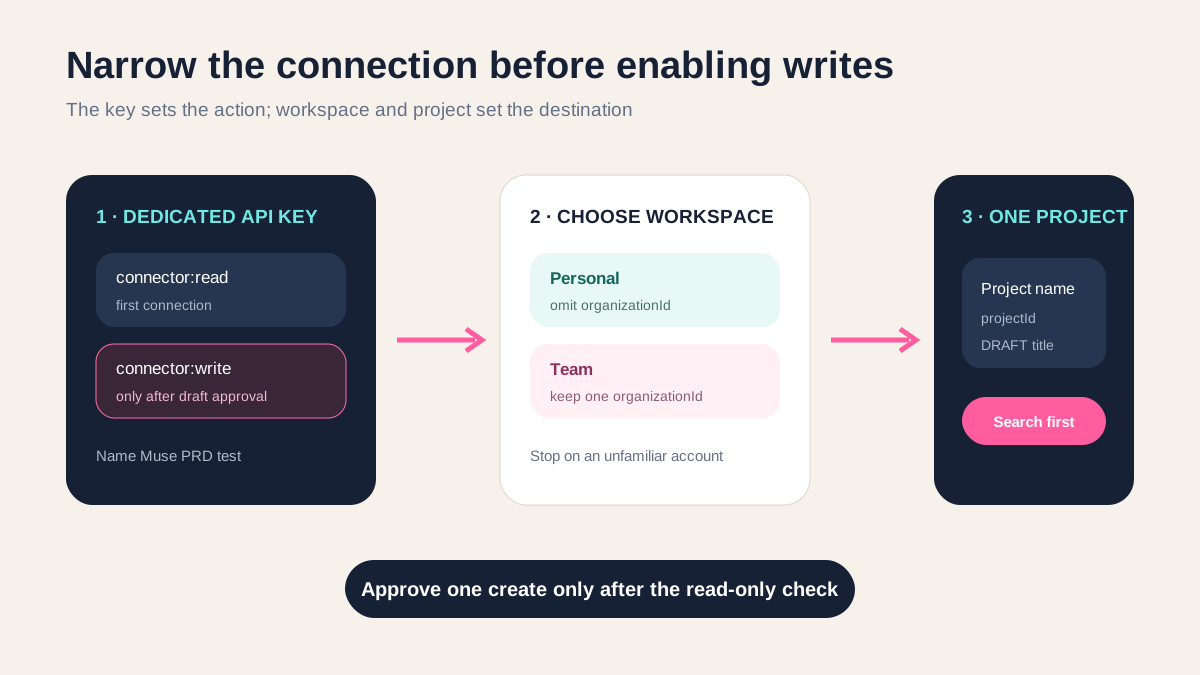
ChatPRD distinguishes connector:read from connector:write. Its brief says a new key remains read-only unless the person enables write access. Give this trial a dedicated key name, such as Muse PRD test, so it can be revoked without disturbing another client.
Review the data boundary before connecting. ChatPRD’s privacy policy includes prompts, documents, files, and integration data in Customer Content and describes service providers and external AI providers used to operate the product. Remove names, emails, contract figures, and customer identifiers that the draft does not need.
03 | Verify identity and workspace before searching
After setup, ask Muse to report only the ChatPRD account, plan, key name, scopes, and visible organizations. Do not list document bodies. ChatPRD provides /me for this check, including the key scopes and team organizations that the account can reach.
Choose a personal or team destination explicitly. Omitting organizationId selects the personal workspace. A team document requires the same organization ID on later reads and writes. Projects have separate IDs returned by the projects call. If the draft belongs in a team, list a small set of project names and IDs and choose one yourself.
Stop when the account, organization, or project is unfamiliar. Public documentation does not promise that an agent will infer the intended workspace from similar names.
04 | Convert the request into a small evidence card
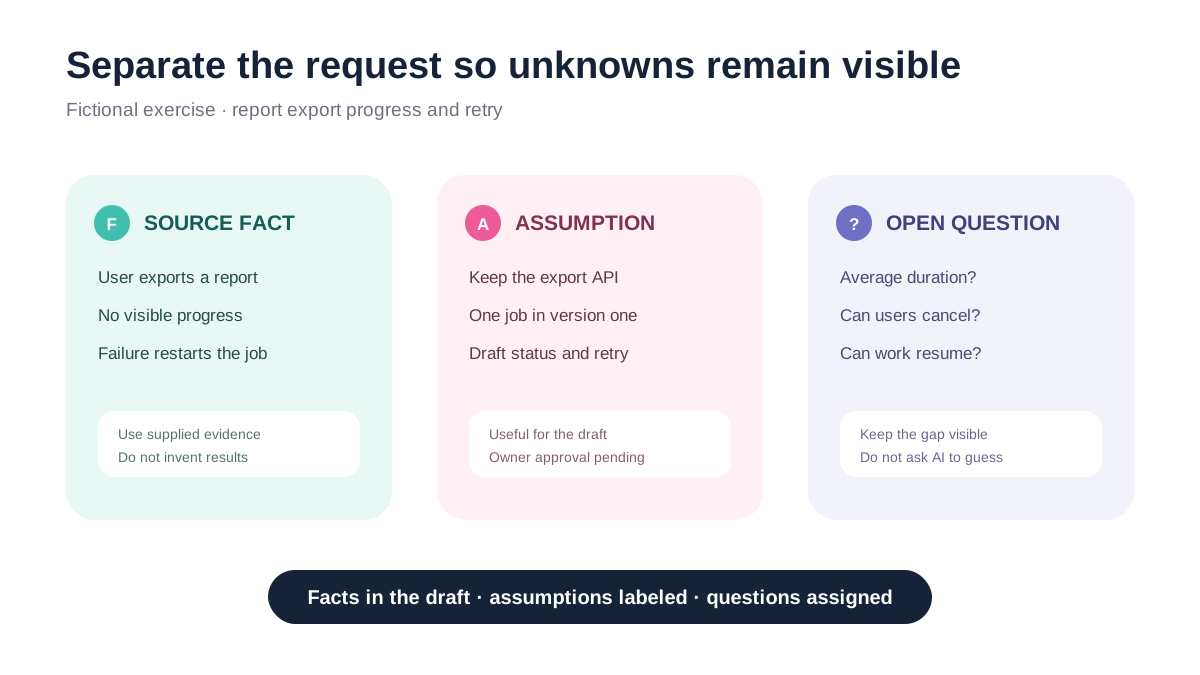
Use a labeled exercise request. A report export currently gives no visible progress, and a failed export has to start again. The user wants progress and a retry path. This is a fictional teaching example, not a measured customer study.
Write the known current behavior and the user’s requested outcome. Add a constraint that the first version keeps the existing export API. Limit scope to one export job, visible status, and failure recovery. Leave average duration, cancellation, and resumable processing as open questions.
Mark every line as [Source fact], [Working assumption], or [Open question]. The labels let a reviewer distinguish supplied evidence from the choices made to produce a coherent first draft.
05 | Review the complete draft in conversation first
Keep write access off while Muse drafts complete Markdown in the conversation. Ask for the problem, target user, current flow, goals, non-goals, requirements, edge cases, success measures, dependencies, and open questions. Preserve the evidence label beside each requirement.
Use a bounded instruction such as Use only my evidence card. Draft the PRD in this conversation and do not call create or update. Separate facts, assumptions, and questions. Leave a metric open when its baseline, owner, or time window is missing. Do not search unrelated documents, share, export, or publish anything.
Read every number. A ten-percent retention target or a thirty-second export limit has no standing unless it came from the supplied material or an identified owner. Turn unsupported values back into questions.
06 | Create one uniquely named draft after approval
Enable write access only after the Markdown passes review. Choose a title that is easy to search exactly, such as DRAFT Export progress and retry 2026-10-02. ChatPRD says document creation is not idempotent, so a repeated request can create a duplicate. Search the full title before creating.
Name the personal or team workspace, the project ID, and the one allowed action. Tell Muse to create one new Markdown document only when the exact title has no match. Existing documents must remain unchanged. The create response includes an ID, title, thread ID, and stable URL; have Muse return the title, destination, and URL.
Stop on a 401 or 402. The first can indicate a missing, revoked, or read-only key. The second indicates that the current plan does not satisfy the API requirement. Repeating create is not a permission test.
07 | Open the returned URL and conduct the product review
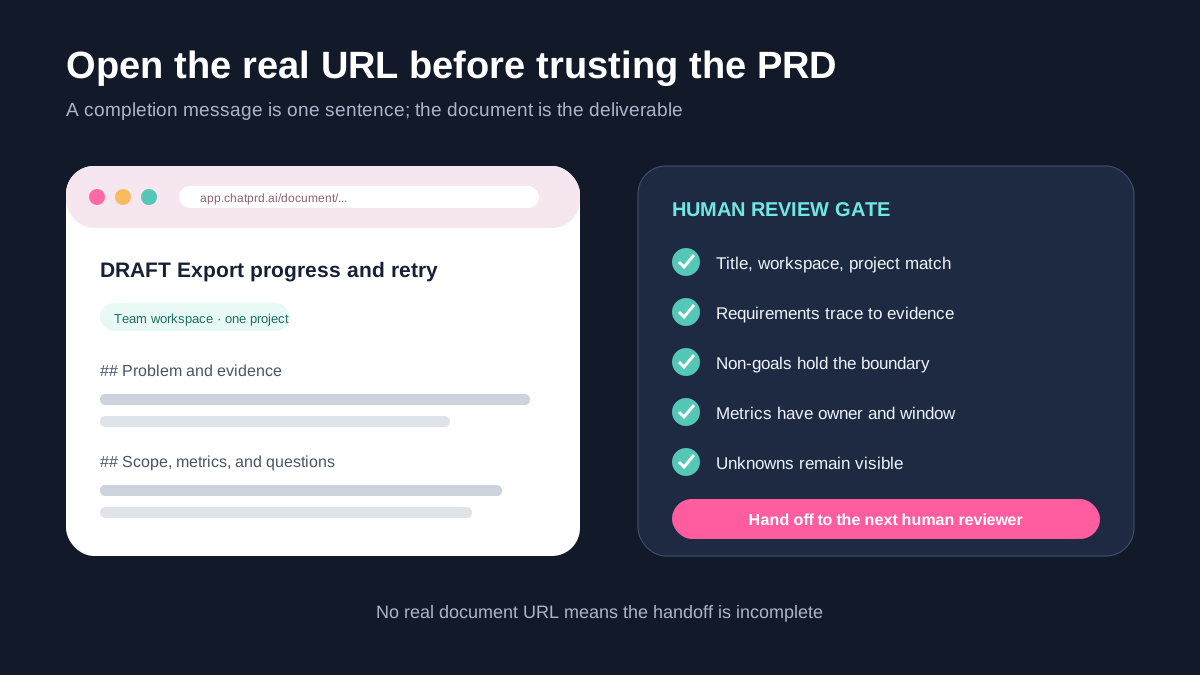
Open the actual ChatPRD URL rather than accepting a completion message. Verify the title, workspace, and project. The problem must trace to the supplied request, the target user should remain narrow, and non-goals should hold back work such as a notification center or batch exports when it was never approved.
Inspect each requirement for an action, visible result, and failure state. A success measure needs a definition, current baseline, owner, and time window. Keep it open when any part is missing. Name concrete dependencies, and review refreshes, repeated clicks, lost connectivity, and state after retry.
Finish with the evidence labels. Split sentences that blend a fact with an assumption. Move unsupported requirements into a candidate or question section until an owner approves them.
08 | Read the latest document before any connector edit
Direct editing in the ChatPRD editor is the simplest correction path, and its documentation describes version history for significant changes. If the connector should make another pass, approve one change at a time, such as adding three reviewed edge cases.
ChatPRD’s update call replaces the complete Markdown document. It is not a partial patch. The connector must read the latest content and send its updatedAt value as expectedUpdatedAt. A teammate editing first produces a 409 conflict; fetch the new version and reapply only the approved change instead of overwriting it.
Open the URL after every revision and inspect the full document and version. Avoid changing the goal, scope, and metrics together when only one correction was requested.
09 | Deliver a draft and close the temporary access
The handoff should contain the document title, ChatPRD URL, workspace, project, open questions, and the next human reviewer. Keep the document labeled DRAFT; do not automatically share, export, or publish it. Use the source-checked report workflow when the next deliverable needs formal citations.
For a one-time task, revoke the dedicated ChatPRD key and disconnect the custom connector in Muse. Meta says disconnection stops future exchange, while information already used for the task can remain in conversation history or memory and needs a separate review.
If the current Muse client cannot create this custom connector or cannot show verifiable scopes, use the same evidence card manually in ChatPRD and follow its documented PRD editor workflow. The Muse permissions guide provides a broader connection review.
References
These sources support the product information in this guide. Musevip is an independent publication and is not affiliated with Meta.
Last reviewed 2026.10.02. Product pages may change.