
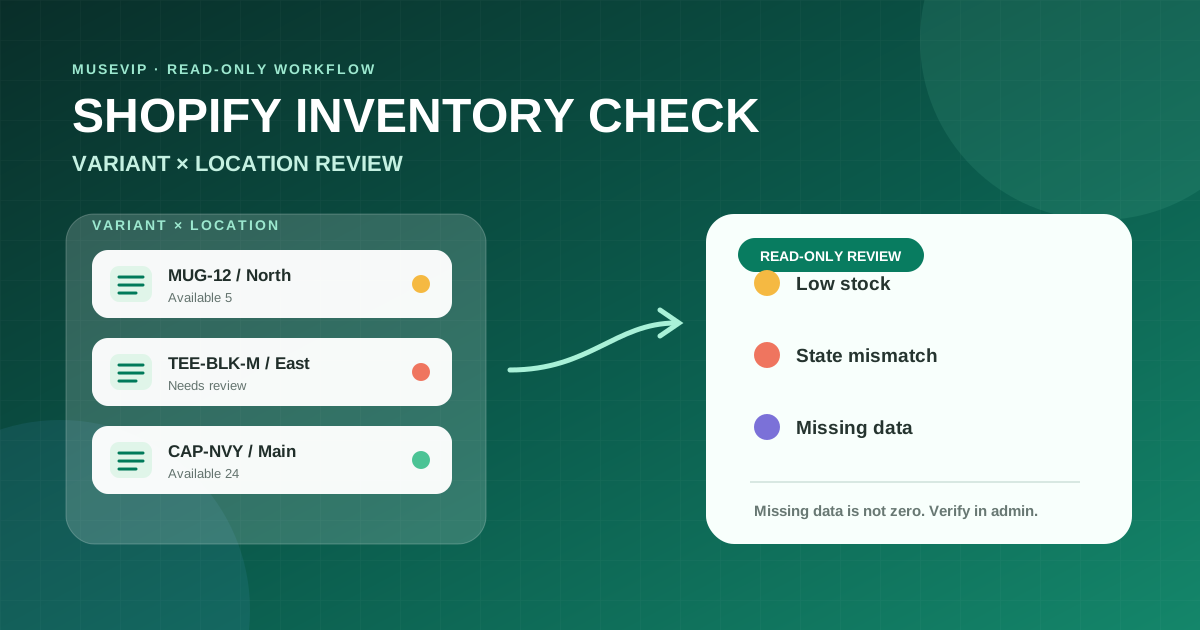
This guide focuses on “Muse Shopify inventory” and turns the question into practical steps you can check.
01 | Use the connector to build a review queue
A catalog total can hide a sold-out size, and physical stock can look healthy while most units are already committed or unavailable. The useful first task is a snapshot that identifies rows for review. Quantity edits, transfers, and purchasing come later, after somebody checks Shopify.
Shopify announced on September 29, 2026 that its Muse connector was live for conversations about orders, inventory, and analytics. Shopify’s dedicated help page also says the connector can work with inventory and other store data. The effective capabilities depend on approved data access, the Shopify user’s permissions, and Muse connector settings.
This workflow is based on those official materials. It is not a hands-on test of your store.
02 | Lock the audit to one store
Shopify says its Muse integration connects one store at a time. Ask Muse for the connected store name and domain, then compare them with the Shopify admin. A domain is safer than a similar display name when an organization owns several stores.
Switch through the current authorization flow when the wrong store is connected. Shopify specifically advises starting a new AI conversation afterward. A conversation created before the switch can continue using the earlier connection and keep requesting authorization for the store you left.
The integration is started from Muse and authorized in Shopify admin. It is not installed from the Shopify App Store. Shopify advises using the official integration instead of creating an API token or a custom bridge for this task.
03 | Review both access layers
Shopify separates the integration’s data access from the staff user’s permissions. Data access determines whether the connector can read or write a category of store data. User permissions place a second limit on what the connected person can do.
Choose read-only access when the installation screen offers a scope that fits this audit. Decline an excessive request. Shopify notes that shared data then leaves its environment and is governed by the tool provider’s terms and privacy policy.
A prompt saying read-only is still useful, but it does not replace the permission screen. State that the job must not adjust quantities, change fulfillment locations, edit product status, create a transfer or purchase order, or contact a supplier.
04 | Build one row per variant and location
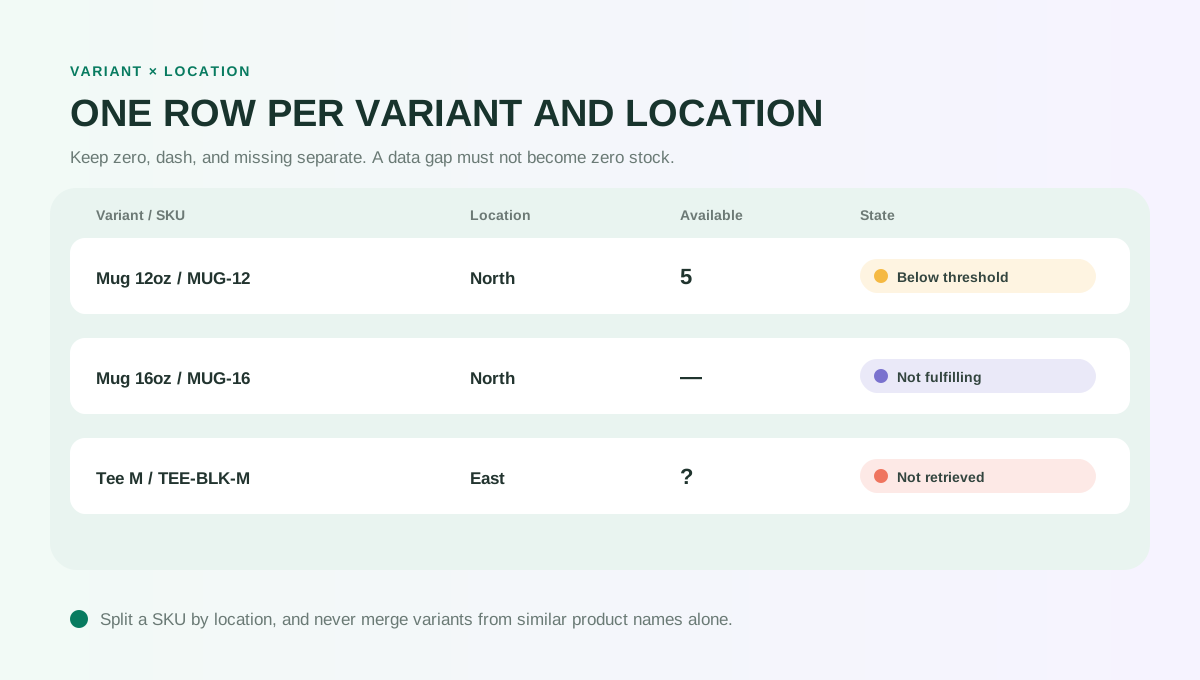
A shirt with three sizes and four colors can have twelve separate variants. Shopify recommends a unique SKU for each variant. The same variant keeps its SKU across locations, while its inventory quantities are tracked independently at each location.
Capture store, product, variant, SKU, location, tracking status, whether the location fulfills the variant, snapshot time, and all five quantity states. Missing or duplicate SKUs belong in a data-quality queue. Similar product titles are not enough to merge rows.
Retail stores, warehouses, and fulfillment apps can each hold units. A location that does not fulfill new orders can still show On hand stock while Available is displayed as a dash. Preserve the dash as a configuration state rather than converting it to zero.
05 | Translate Shopify quantity states correctly
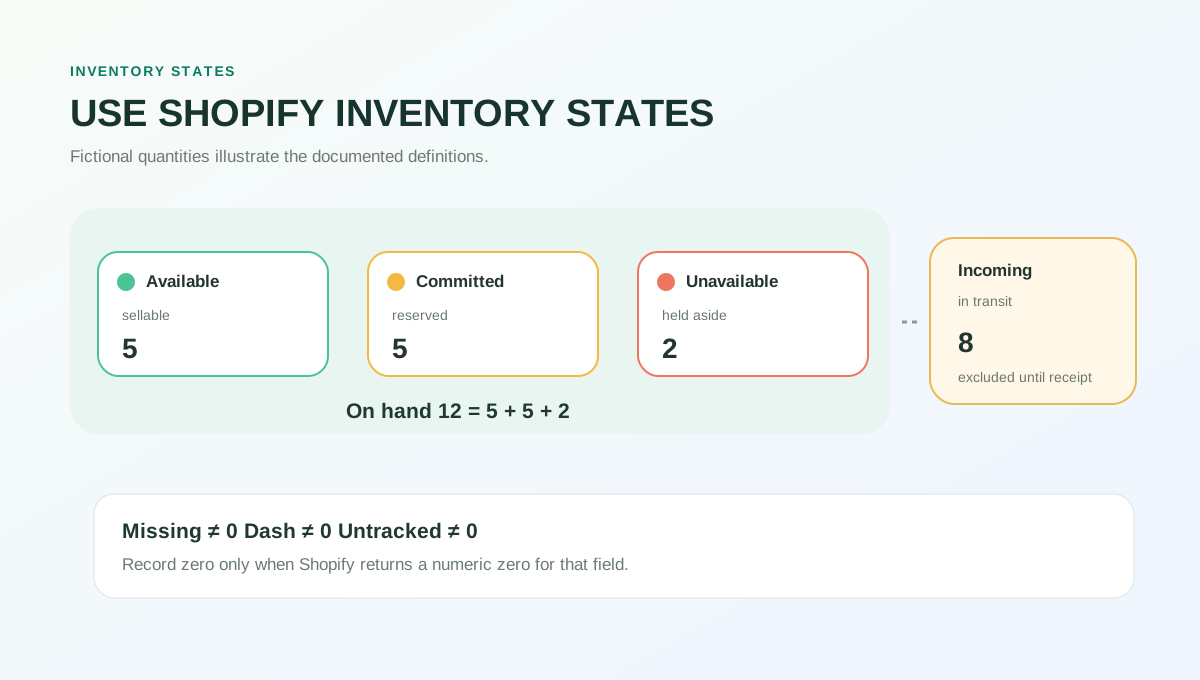
On hand is the physical total at a location. Shopify defines it as Available plus Committed plus Unavailable. Available can be sold. Committed is reserved for an unfulfilled order, a draft order, or certain transfers. Unavailable covers units held by an app or set aside for damage, quality control, or safety stock.
Incoming represents units moving to the location through a transfer, purchase order, or app. It is excluded from Available and On hand until it is received and changes state. An incoming shipment therefore cannot repair today’s sellable quantity on paper.
Zero, missing, untracked, and a dash have different meanings. An untracked variant might not appear on the Inventory page. Available can be a dash at a location that does not fulfill the variant. Record zero only when Shopify returns a numeric zero.
06 | Test the arithmetic with a fictional row
Consider a fictional Cedar Mug, 12 oz variant with sample SKU DEMO-MUG-12 at North Warehouse. Available is 5, Committed is 5, Unavailable is 2, and Incoming is 8. On hand should be 12 because 5 plus 5 plus 2 equals 12. The incoming eight units are not part of that total yet.
If your review threshold is Available at or below 6, this row becomes a low-stock candidate. Keep Available 5 and Incoming 8 in separate columns, and mark the arrival status for review. Do not conclude that no replenishment decision is needed. Sales rate, supplier lead time, safety stock, and shipment confidence remain unknown.
When a reported On hand value does not equal its three components, flag the row as a definition or retrieval issue and inspect the variant at that location. Do not invent a component to balance the equation.
07 | Label candidates without changing the store
Each condition creates a review candidate, not an automatic correction. Shopify can allow a tracked item to keep selling below zero, and multi-location routing affects whether customers see an item as available. Put the setting next to the quantity instead of collapsing every condition into out of stock.
- Available is at or below the threshold you supplied, with variant, SKU, location, and snapshot time preserved.
- Committed occupies a large share of On hand and needs an order or fulfillment review.
- Unavailable contains units whose reason still needs inspection.
- Incoming is positive while transfer, purchase order, or receipt status is unavailable.
- SKU is missing, duplicated, or differs only by case or spacing.
- Tracking is disabled, the location does not fulfill the variant, or Available is a dash.
- Available is zero or negative and Continue selling when out of stock needs to be checked.
08 | Run a bounded read-only prompt
Replace the store, locations, SKU list, and threshold. Begin with a short product set so you can verify the fields before expanding the audit.
Use the currently connected Shopify store for a read-only inventory audit. First report the store name and domain, then wait for my confirmation. Inspect only [locations] and [product or SKU list], and include the snapshot time. Do not use another store.
Return one row per variant and location with product, variant, SKU, location, tracking status, fulfillment status, Available, Committed, Unavailable, On hand, Incoming, Continue selling when out of stock, and the Shopify source location. Keep missing, dash, permission failure, and untracked as separate values. Do not convert them to zero.
Flag Available at or below [threshold], On hand equations that do not reconcile, positive Incoming with no retrievable arrival status, and missing or duplicate SKUs. Do not forecast demand or calculate an order quantity.
Return only the inventory table, review candidates, and questions. Do not adjust inventory, change a location or product status, create a transfer or purchase order, contact a supplier, or publish any change.
09 | Verify in Shopify before taking action
Sample two or three rows from every candidate type. In Products, Inventory, or the variant detail page, select the same location and compare SKU, tracking, Available, Committed, Unavailable, On hand, Incoming, and the overselling setting. A total across locations is not a replacement for a location row.
Check the timestamp as well. Orders, fulfillment, receiving, and app synchronization can change quantities quickly. Pull a fresh snapshot before anyone adjusts inventory or prepares a purchase order, then have an authorized operator make the decision in Shopify.
Revoke unused connector access by uninstalling the integration in Shopify admin. Shopify says uninstalling stops the tool from reading or editing store data and is also required when you want to reinstall it with a smaller access level. Retain only the audit output that your internal data policy requires.
References
These sources support the product information in this guide. Musevip is an independent publication and is not affiliated with Meta.
- [1] Shopify Help: Shopify connector for Muse
- [2] Shopify Help: Authorizing AI tool access to your store
- [3] Shopify Help: Understanding inventory states
- [4] Shopify Help: Viewing inventory
- [5] Shopify Help: Adjusting inventory quantities in bulk
- [6] Shopify Help: Inventory at multiple locations
- [7] Shopify Help: Using SKUs to manage inventory
- [8] Shopify Help: Selling when out of stock