
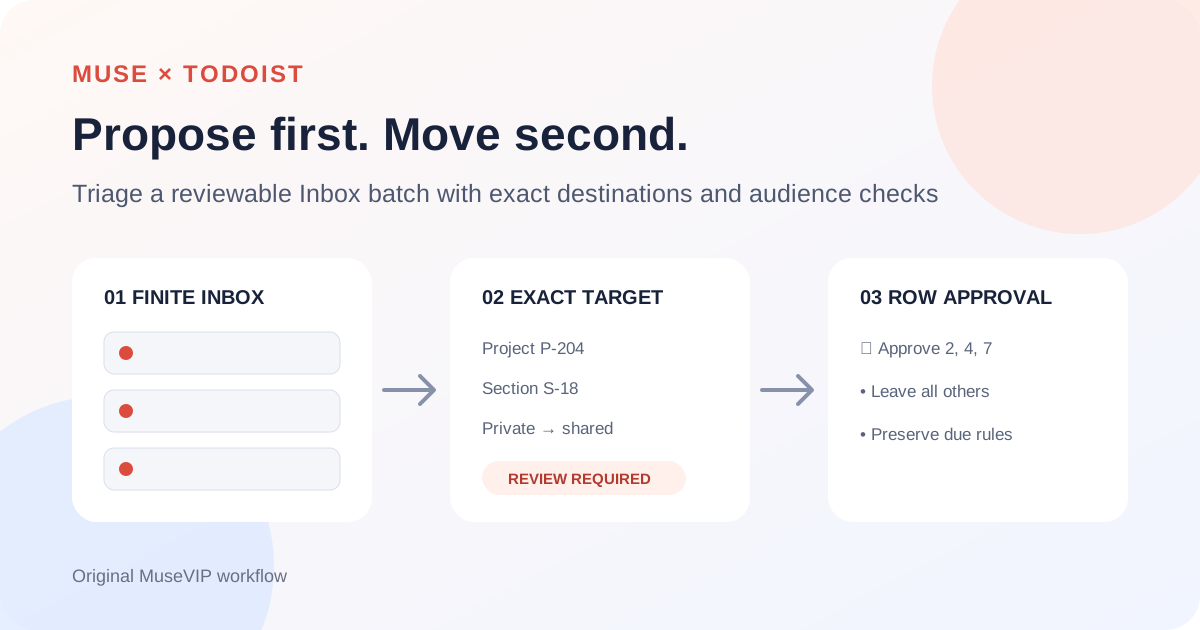
This guide focuses on “Muse Todoist” and turns the question into practical steps you can check.
01 | Start with a batch you can actually review
An Inbox can mix client work, household errands, and one-line reminders. A request to sort everything at once leaves too much room for a similar project name, an unexpected shared destination, or an accidental date edit. Start with a finite batch, such as the first 15 active tasks, and review a proposal before anything moves.
Todoist announced its native Muse connector on September 30, 2026. Its current help page says the connector can find, add, and update tasks and projects, including moving a task to another project. “Sort my Todoist Inbox into projects” is one of the official examples. This guide turns that capability into four explicit stages: inventory, proposal, approval, and execution.
The official collaboration image contains no task list or action result. The workflow below is based on published Todoist and Meta material and does not claim access to your account.

02 | Check the account and permission request
Todoist documents the connection path as Muse Settings, Connectors, Todoist, and Continue, followed by sign-in and approval on Todoist. The sign-in happens directly with Todoist, so Muse does not see the Todoist password. If the connector is absent, search for its name and remember that Muse availability still depends on account and region.
The connector can read and change Todoist data. Verify which Todoist account is signed in and read the requested access before approving it. Muse asks for approval before important actions by default, but you still need to inspect the exact proposed moves. A prompt restriction is useful context, not a substitute for the authorization screen.
The opening frame from Todoist’s demonstration is an empty Muse conversation. It does not show a completed connection, any project, or any permission scope, so use the current official interface as the source of truth.
03 | Take a read-only Inbox snapshot
Ask Muse for the first 15 active Inbox tasks and require a snapshot time, returned count, and a note about any remaining results. Todoist sends new tasks to the Inbox when no project is selected. If the batch is incomplete, label it that way rather than presenting it as the full Inbox.
For every row, retain the task title, task ID or source URL, current project and section, description, labels, priority, assignee, parent or subtask relationship, and complete due information. Due information includes the original expression, date, time, timezone, and recurrence. A field that the connector does not return should say “not returned,” which is different from zero, no date, or unassigned.
Todoist’s API models task ID, project_id, and section_id as separate fields, and a section ID can be null. The consumer Muse connector may not expose raw IDs. Keep them when they are available; otherwise record the gap and verify it in Todoist.
04 | Name the exact project and section
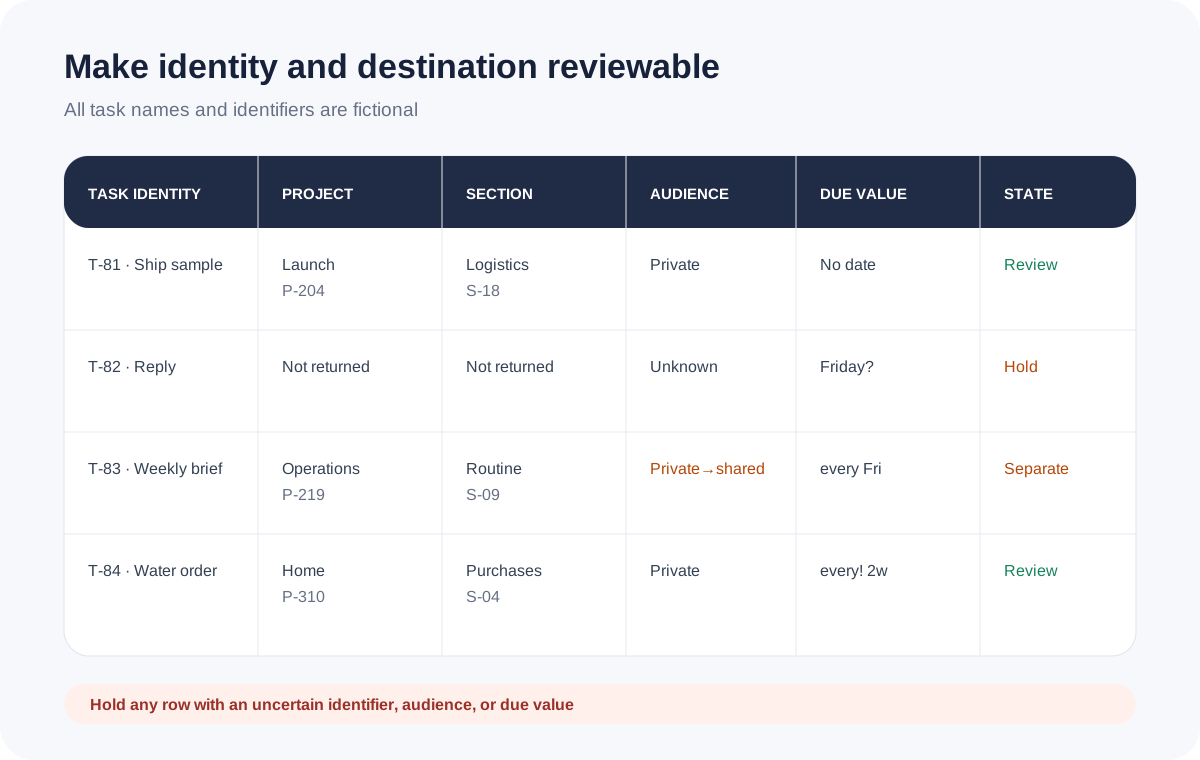
Read the existing project and section inventory before proposing a destination. Each proposal should carry project name, project ID, section name, and section ID. Todoist uses sections to divide projects, and similar names are common. A destination described only as “Operations” or “Next” is not precise enough for an approved move.
If an identifier is unavailable, stop that row for review. A Todoist project link can help locate the destination, but the reviewer should still open it. A vague task such as “reply to her” also stays in the Inbox until someone supplies the missing context.
Give one short reason for each proposal without rewriting the task. If no existing destination fits, report “no suitable project.” Do not create a new project as a side effect of Inbox cleanup.
05 | Treat a shared destination as an audience change
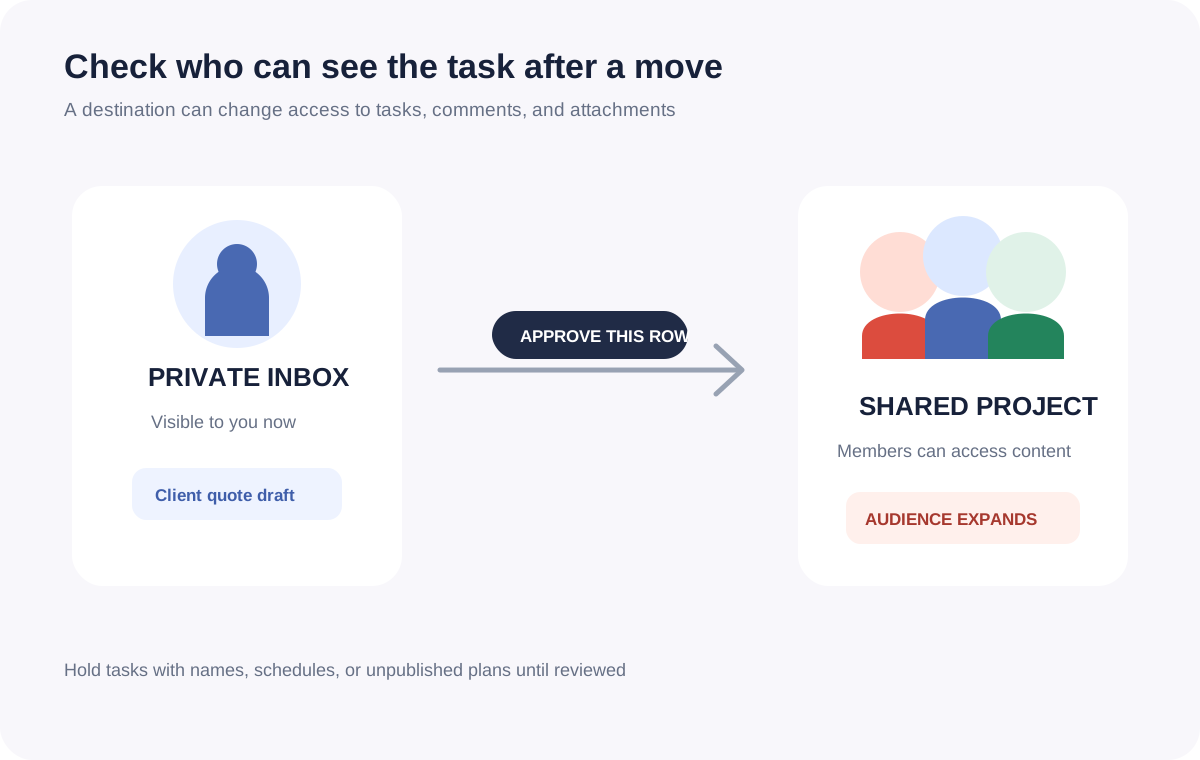
Todoist says people in a shared personal project can access its tasks, comments, and attachments and can add, assign, complete, or comment on tasks. Moving a private Inbox item into that project therefore changes who may see its contents. Add a personal-or-shared column and identify any audience expansion.
Approve those rows separately. Leave tasks with client names, personal appointments, or unpublished plans in the Inbox until the destination is checked. Sharing a parent project does not automatically share its subprojects, so inspect the destination’s current access in Todoist.
Do not assign anyone during this pass. A Todoist task can have one assignee in a shared project. Preserve an existing assignee and leave an unassigned task unassigned. Choosing a folder and choosing a responsible person are separate decisions.
06 | Preserve every date and recurrence value
The only approved mutation in this workflow is a move. Preserve due date, time, timezone, recurrence, deadline, priority, labels, description, assignee, and completion state. Do not add a date to an undated task or reschedule an overdue one during triage.
Recurring tasks need extra care. Todoist calculates `every` and `every!` differently, and typing a new date into a task name can replace the recurrence. Capture the original recurrence text and structured due values, then compare them after the move.
A weekday written in the task title does not prove that a due date exists. Report only the date field that was actually returned. Likewise, a word such as “urgent” is not permission to change priority.
07 | Deduplicate by identity and approve by row number
Two identical titles can be separate tasks, while two references can point to one task. Prefer task ID or the original Todoist task URL for identity. Collapse the same ID within this batch, but keep different IDs as separate rows even when the titles match.
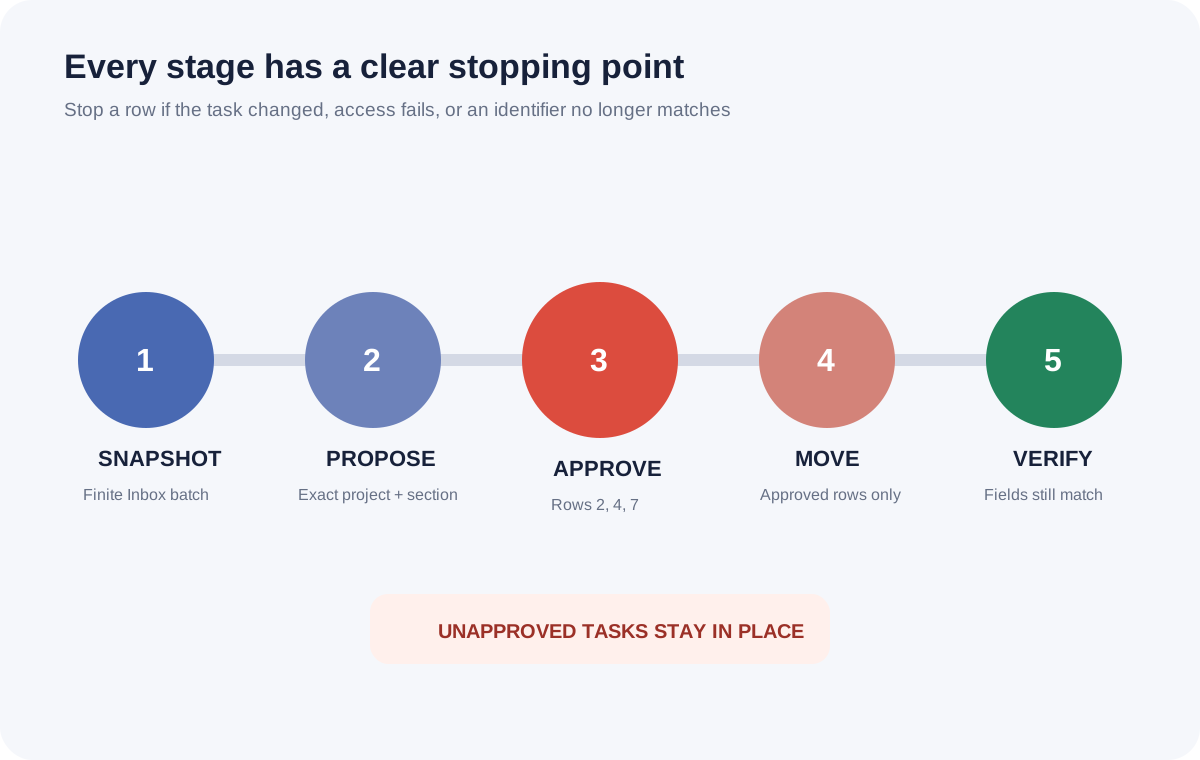
Ask Muse for a numbered move list containing task ID, source URL, current Inbox location, target project_id, target section_id, audience change, and the fields that must remain unchanged. Approve exact rows, for example, “Approve 2, 4, and 7; leave the rest untouched.”
Execute a small batch and return success, failure, or skipped for each row. If access is missing, an identifier no longer matches, the task changed after the snapshot, or a new sharing warning appears, stop that row. Do not substitute a project with a similar name.
08 | Copy the prompt and verify the result in Todoist
Replace the batch size with an amount you can inspect. Five tasks is a sensible first run when projects have complicated sharing rules.
Read the first 【15】 active tasks in my current Todoist Inbox and make no changes yet. State the snapshot time, number returned, and whether more tasks remain. For each row, keep the title, task ID or source URL, current project and section, description, labels, priority, assignee, parent or subtask relationship, and the original due expression, date, time, timezone, and recurrence. Mark unavailable fields as “not returned.”
Read my existing projects and sections and propose at most one destination per task. Include project name, project_id, section name, section_id, a short reason, and any change from private to shared visibility. Leave tasks with missing identifiers, unclear context, or uncertain audience in the Inbox. Deduplicate by ID or source URL, never by title alone.
Return a numbered proposal and wait for my row-by-row approval. After approval, move only those rows. Do not complete, delete, rename, reschedule, change recurrence, change priority, change labels, edit descriptions, create projects, or assign people. Read the moved tasks again and report their actual project and section plus whether every protected field still matches the snapshot.
Open Todoist afterward and spot-check destination, section, dates, and project members. Stop before the next batch if anything differs. You can disconnect Todoist in Muse Connectors or revoke Muse under Todoist Integrations. Todoist notes that disconnection stops future exchange, while information already used in a chat or memory may need separate removal. For a dependency audit after triage, see the <a href="/en/guides/muse-asana-blocked-tasks/">Asana blocked-task guide</a>. For an operating summary, use the <a href="/en/guides/muse-small-business-weekly-brief/">weekly business brief</a>.
References
These sources support the product information in this guide. Musevip is an independent publication and is not affiliated with Meta.
- [1] Todoist Help: Use Todoist in Muse
- [2] Todoist Help: Use the Inbox
- [3] Todoist Help: Introduction to projects
- [4] Todoist Help: Collaborate in a shared project
- [5] Todoist Help: Introduction to recurring dates
- [6] Todoist Help: Manage multiple tasks
- [7] Todoist API v1 reference
- [8] Meta Newsroom: Muse for Small Business