
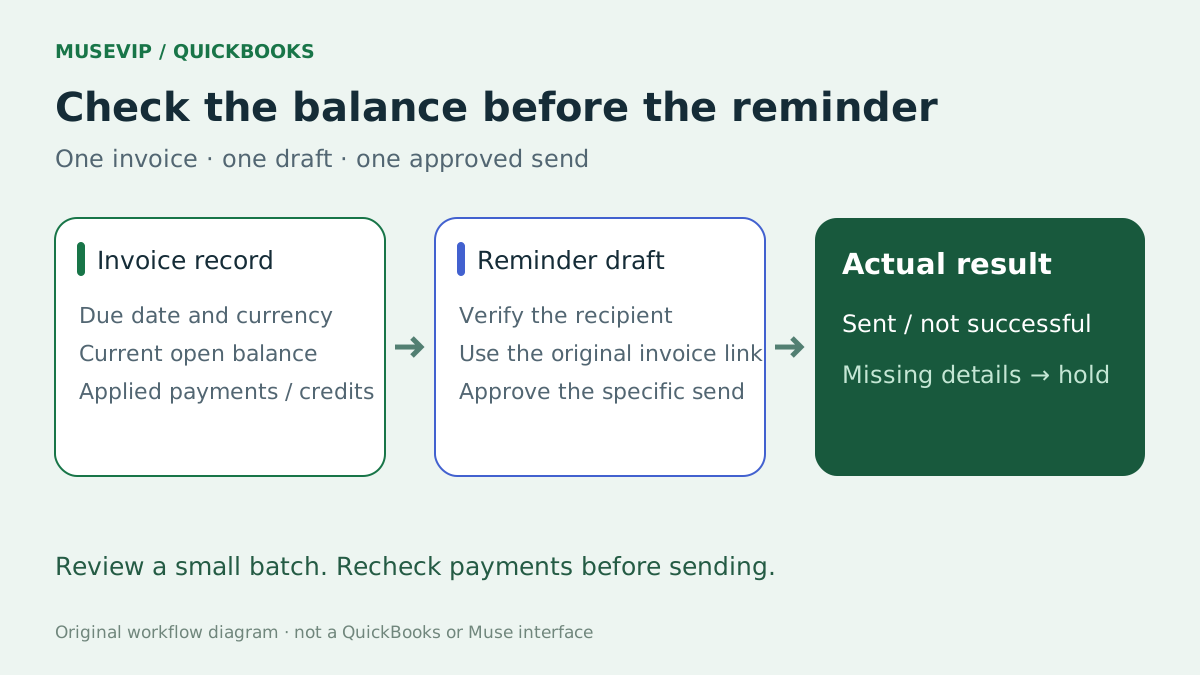
This guide focuses on “Muse QuickBooks overdue invoices” and turns the question into practical steps you can check.
01 | Start with invoices that actually need attention today
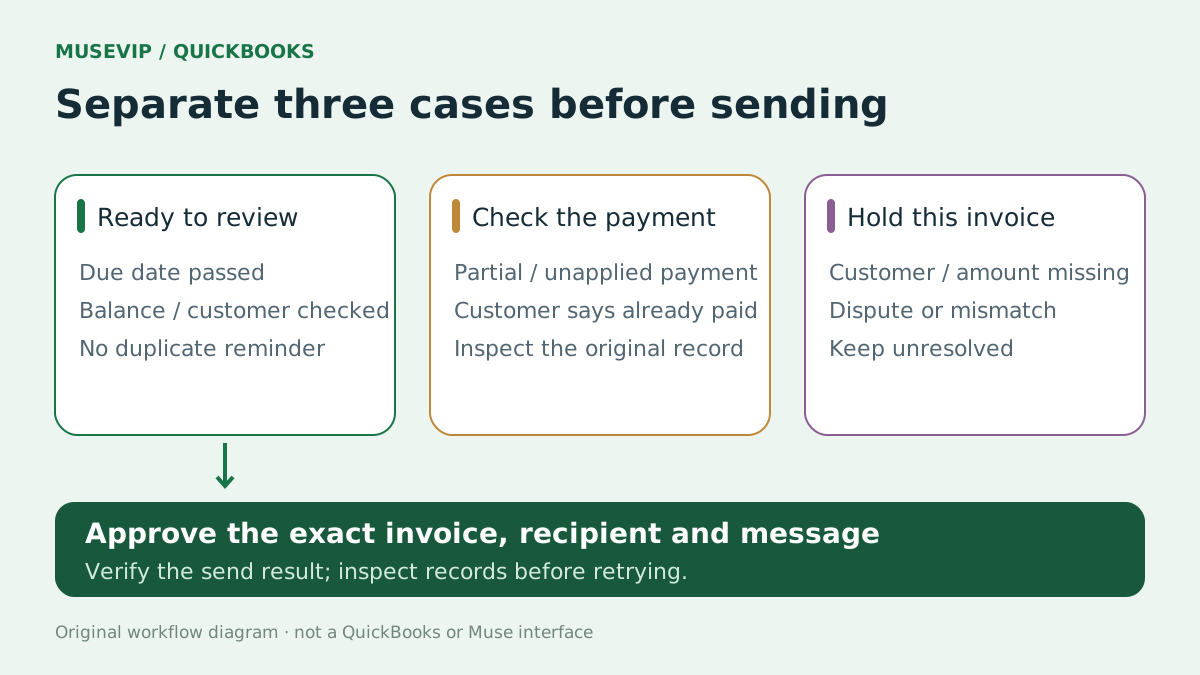
“Remind everyone who is overdue” sounds efficient until the list includes a partial payment, a customer you contacted yesterday, or an unresolved billing question. Give Muse a batch you can inspect rather than permission to chase an entire customer list.
Intuit’s September 29 announcement lists overdue-invoice tracking and payment reminders among its Muse workflows. This guide combines that announcement with QuickBooks Online help; MuseVIP has not tested the connector in a live business account. Payroll, tax filing and book closing are outside this invoice-follow-up task.

02 | Check the company and the document type
Confirm the company linked in Muse and open the same company file in QuickBooks. Include the company, cutoff date, business time zone and currency in the request. If you run more than one business, do not rely on the previous conversation’s default identity. Inspect the current authorization and returned data.
An invoice bills your customer. A vendor bill is money you owe, a sales receipt records an immediate sale and payment, and a statement summarizes a customer’s transactions at a point in time. Keep vendor bills out of a customer reminder list.
A useful first brief is “Check customer invoices for [company] as of [date and time zone], at most [10]. Keep the original invoice number, returned record ID or link, customer, currency, due date and remaining balance. Return candidates only. Do not edit books, create invoices or send reminders.” Ten is your chosen batch size, not a product limit.
03 | Use transaction detail and keep a route back to the invoice
Where your plan provides it, find Accounts receivable aging detail under Reports, Standard reports. A summary shows outstanding totals; detail helps trace individual transactions. If the connector cannot retrieve the full records, supply an export you are allowed to share and include its timestamp, report range and filters.
Keep one invoice per row with its actual identity, due date, original amount, current balance, currency, last visible reminder and any exception. Missing fields remain missing. Similar customer names or invoice labels need a check in the original record, not a guessed match.
Define your candidate rule, such as due before the cutoff with a positive outstanding balance. Reopen the current invoice before sending because a payment may have arrived since the report was generated. Keep currencies separate and preserve each invoice’s own balance.
04 | Check applied payments and credits before quoting an amount
Use the remaining balance, not the original invoice total. In a simple arithmetic example, an invoice for 2,000 with a correctly applied payment of 500 has 1,500 remaining in the same currency. QuickBooks records payments against selected invoices, including partial amounts. A customer saying they transferred money is a reason to check, not permission to mark the invoice paid.
Set aside unapplied payments, duplicate records and payments the customer says are already complete. The person responsible for receipts should resolve them. Do not record a payment again when QuickBooks Payments has already processed it. This task does not authorize bookkeeping adjustments.
Credit memos and delayed credits have different effects. A credit on the customer account does not prove it has been applied to this invoice. Inspect the actual application and current balance. Do not casually net credits across customers or currencies; unresolved differences stay outside the sending batch.
05 | Draft a reminder that makes the next step clear
The message should identify the invoice, its due date, the verified amount still due, the original invoice link and how to reply if payment or billing details need checking. Keep the tone ordinary. Do not invent late fees, legal language or payment promises, and do not substitute another payment destination.
Try “Draft a short reminder for candidate [3] only. Use the checked customer name, invoice number, currency, remaining balance, due date and original payment link. If anything is missing, ask rather than guess. Let the customer reply with payment details if they have already paid. Return the recipient, subject, body and corresponding invoice. Do not send yet.”
Review the real recipient and CC addresses, the source customer record, any attachment and any internal notes. When one customer has several invoices, choose individual reminders or a clearly traceable summary rather than merging them into an unsupported total.
06 | Approve one send and verify the actual result
Approve the reviewed recipient, text and invoice only, with no changes to amounts, dates or other invoices. Ask for the actual send result and an explicit “unavailable” if it cannot be inspected. When the connector cannot send, open the invoice in QuickBooks, choose Send reminder, review the message and send it manually.
Check the invoice and available sending record afterwards. A completed chat response is not proof of delivery. Before retrying an error or unknown outcome, inspect existing records to avoid a duplicate email. Save the invoice, recipient, timestamp and actual result; keep unsuccessful items separate.
07 | Check existing reminders before making follow-up recurring
QuickBooks has its own automatic reminder settings under Account and settings, Sales, Reminders. Inspect the switch, date rules and template; matching unpaid invoices already emailed can be reminded. Avoid running a new Muse follow-up alongside an existing reminder you have forgotten.
A weekly review list can be enough. You choose the invoices to contact, the ones recently contacted and the disputed ones. Any ongoing Muse task depends on current account capabilities and actual runs. Changing a native reminder rule needs its own reviewed settings plan, beyond approving a single message.
Stopping a Muse task and disabling QuickBooks reminders are separate checks. Keep sent, unsent and unresolved results, then refresh balances and contact history for the next batch instead of recycling last week’s list.
08 | Finish with records you can reopen
A useful outcome is a traceable invoice table, approved messages, actual send results and reasons for items you could not handle. It does not require rebuilding the business’s books. Check the customer, amount and invoice identity before expanding the batch.
For a new checkout destination, read <a href="/en/guides/muse-stripe-payment-link/">creating a Stripe Payment Link with Muse</a>. For a broader operating review, see <a href="/en/guides/muse-small-business-weekly-brief/">the small-business weekly brief</a>. Each workflow needs its own source records.
References
These sources support the product information in this guide. Musevip is an independent publication and is not affiliated with Meta.
Last reviewed 2026.10.01. Product pages may change.