
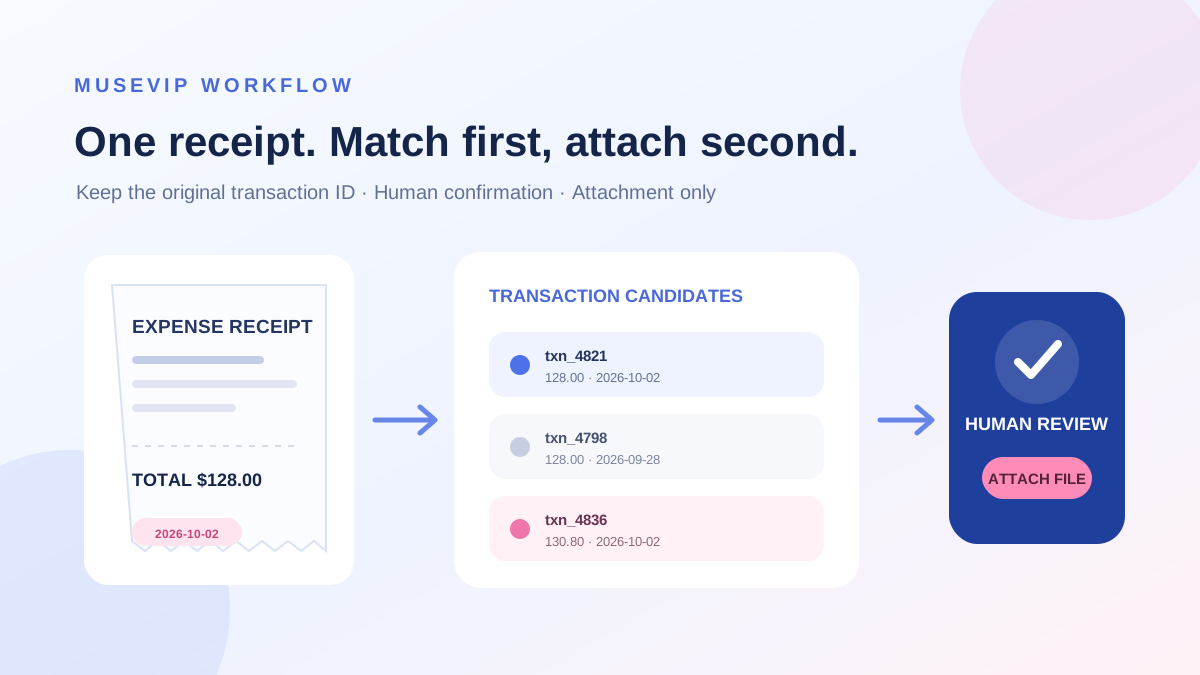
This guide focuses on “Muse receipt matching” and turns the question into practical steps you can check.
01 | Read the creator demo within its actual scope
Ledger Labs founder and practicing CPA Charlie Barmore described a setup in which he pared LedgerBug back to its accounting core, then connected personal agents such as Muse and GrokBot through MCP. In his account, they help attach receipts, make journal entries, and ask for clarification. Ledger Labs describes LedgerBug as a double-entry control plane shared by people and agents through an API or MCP.
This is the creator’s own environment. The official product page labels LedgerBug as a private beta and does not publish a universal receipt tool name, schema, or installation recipe. This guide isolates one reviewable task: find candidates for one receipt and wait for a person to confirm the original transaction ID before attaching the file.
02 | Handle one completed expense and one receipt
Start with an expense transaction that already exists in the ledger and preserve its original transaction ID. Do not ask Muse to create a second transaction with the same amount or change a pending transaction to posted. This workflow archives supporting evidence; it does not pay, reimburse, or operate a bank account.
Prepare one receipt copy. Redact an unnecessary name, home address, membership number, card suffix, or QR code, while retaining the merchant, total, currency, purchase date, and any tax amount needed for comparison. Keep the original separately and give the upload copy a stable file name so a later review can spot duplicates.
03 | Use four fields to find candidates without declaring a match
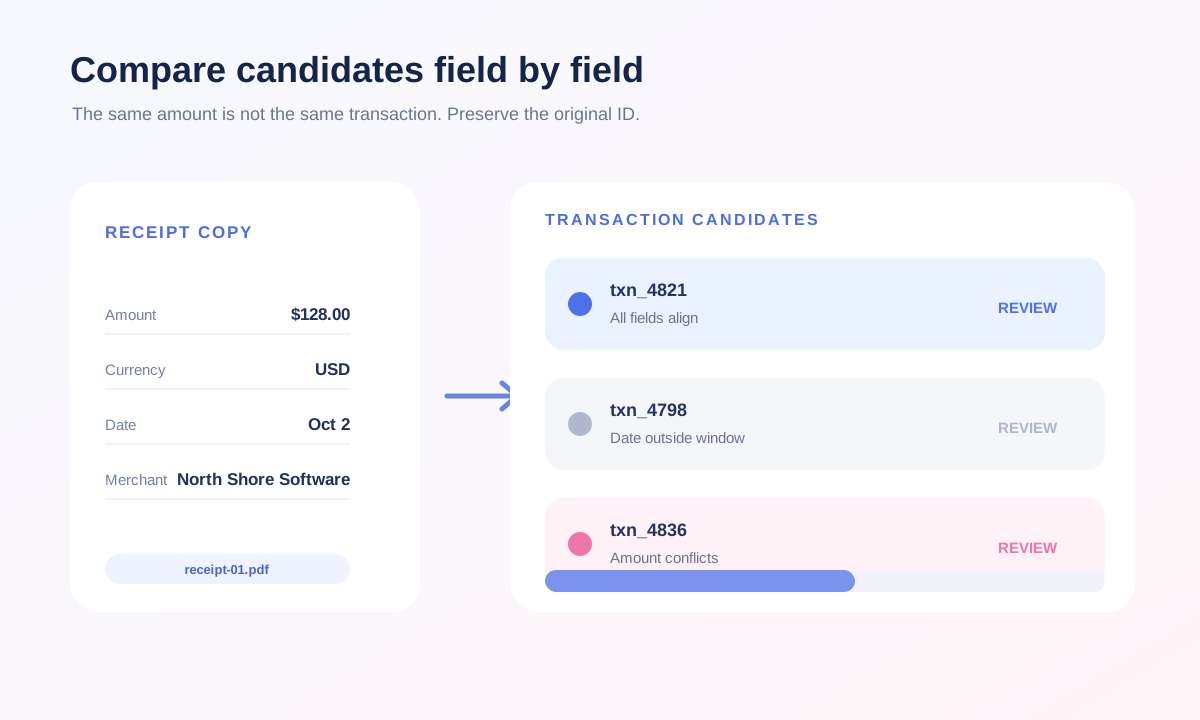
Candidate search should cover amount, currency, date, and merchant. Amount and currency need an exact match. Give dates a narrow window that reflects the actual settlement pattern. Allow normal merchant abbreviations, but do not merge records just because both descriptions say software or meals. Keep purchase and posting dates as separate fields.
Ask Muse for a short candidate list. Each row should retain the original transaction ID, raw description, amount, currency, purchase date, posting date, and the reasons it did or did not fit. An empty result is valid. Two same-value transactions stay side by side. A home-made confidence score cannot replace the review.
04 | Give Muse a read-only request first
Connector names, approval cards, and available tools can vary by account. Stop if your current Muse interface does not expose the expected LedgerBug or MCP connection. A button in another accounting product is not evidence of the same integration.
- Find existing transaction candidates for this one expense receipt. Read only. Do not create, modify, delete, or post a transaction.
- Extract the merchant, total, currency, purchase date, and necessary tax amount. List unreadable or uncertain fields instead of guessing.
- Keep each candidate’s original transaction ID, raw description, amount, currency, purchase date, and posting date. Require exact amount and currency and stay within my approved date window.
- Return no more than five candidates and show matching and conflicting fields for each. Return an empty list when no reliable candidate exists. Do not attach the receipt yet.
- Do not create a journal entry, choose a tax category, split a transaction, send a message, make a payment, reimburse anyone, or connect a bank.
05 | Have a person confirm the complete transaction ID
Reject a candidate with the wrong currency, different amount, or an out-of-window date before reviewing its raw merchant description. Two transactions from the same merchant for the same amount can happen on one day. Use an order number, a necessary card fragment, or the receipt time to resolve them. If the evidence is still incomplete, mark the receipt pending.
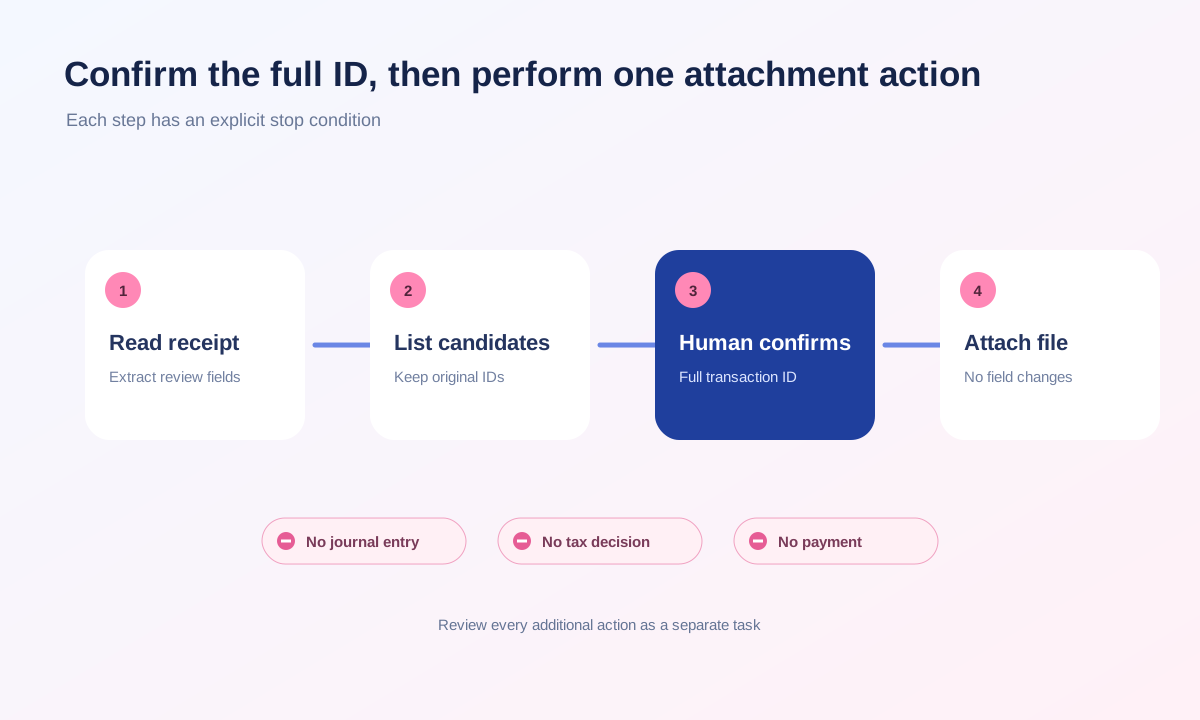
The confirmation should include the full transaction ID and receipt file name. Ask Muse to repeat which file it is about to attach to which existing transaction, then wait for explicit approval. Do not approve row 2 in a changing list; sorting or refreshed results can make that label point to a different transaction.
06 | Approve one attachment action only
Ledger Labs says the professional remains the reviewer of record and agent actions should be attributable, reviewable, and reversible. The approval should expose the target transaction ID, file name, and action. Treat a new journal entry, account change, tax code, split, or reimbursement status as a separate task with its own review.
Use a final request like this. Attach receipt-2026-10-02-01.pdf as a supporting document to transaction ID txn_example_4821. Show the target ID and file name before execution. Perform one attachment action only. Do not change transaction fields, create an entry, choose a tax category, pay, or send a message. Stop if the attachment already exists or the response is unclear. Replace the example ID with the one you reviewed.
07 | Reopen the record and inspect the activity trail
Open the original transaction ID again. Confirm that the attachment previews, has the intended file name, and appears once. Amount, currency, dates, merchant, and status should be unchanged. Then inspect the Muse activity view or any LedgerBug audit trail available to you and retain the action time, actor, target ID, and result. Meta documents activity and permission views, while the exact fields depend on the current account.
If the interface reports success but the file does not open, keep the original file and response details rather than clicking repeatedly. Retries can create duplicate attachments. If a bank sync later updates the transaction, continue following the original ID instead of making a corrected duplicate.
08 | Test the workflow with three outcomes
First, use a receipt whose amount, currency, date, and merchant point to one transaction. Approval should add one readable attachment and nothing else. Second, use two same-merchant, same-amount transactions. The flow should stop on candidate review until you supply more evidence. Third, use a receipt with no corresponding transaction. It should return no match and never create a transaction or journal entry.
This guide links one receipt to an existing transaction ID. The monthly spending ledger guide turns a batch of transactions into a reviewable monthly table. The QuickBooks overdue follow-up guide prepares reminder drafts for unpaid invoices. Keep the objects, allowed actions, and acceptance checks separate.
References
These sources support the product information in this guide. Musevip is an independent publication and is not affiliated with Meta.
Last reviewed 2026.10.02. Product pages may change.