
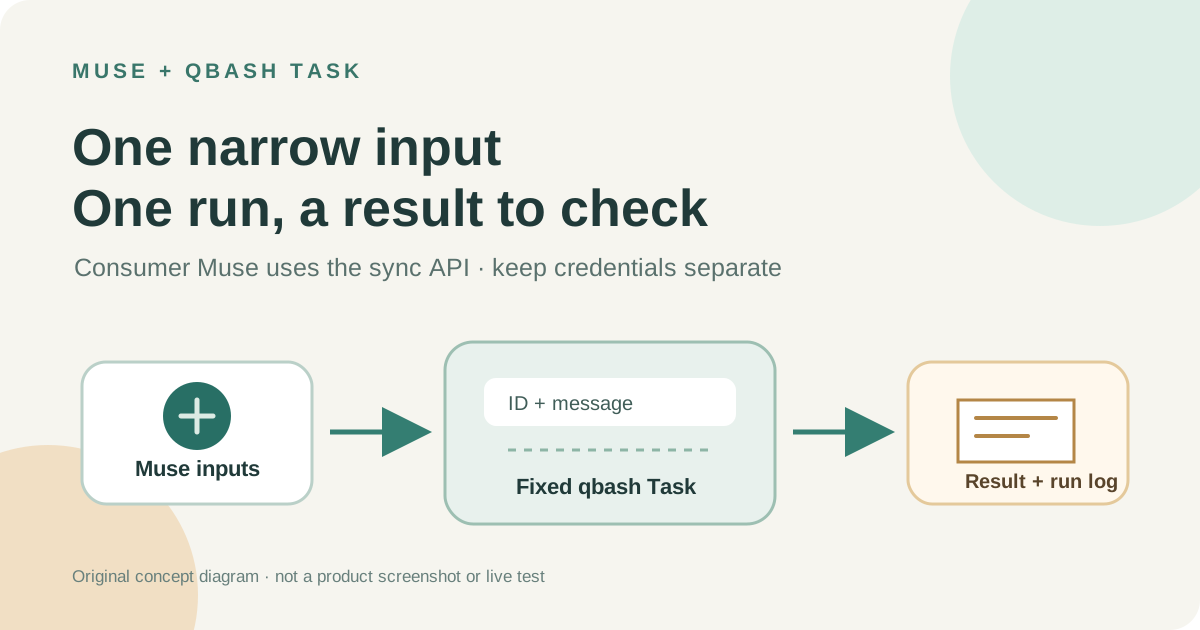
This guide focuses on “Muse qbash Task” and turns the question into practical steps you can check.
01 | Choose the connection this guide actually covers
A small fixed operation can live in a qbash Task. For example, Muse can send a fictional support message and receive one of three labels, such as billing, delivery, or other. Muse starts the request, while the Task owns input validation and the response shape. That gives you one narrow operation to inspect instead of exposing a whole service catalog.
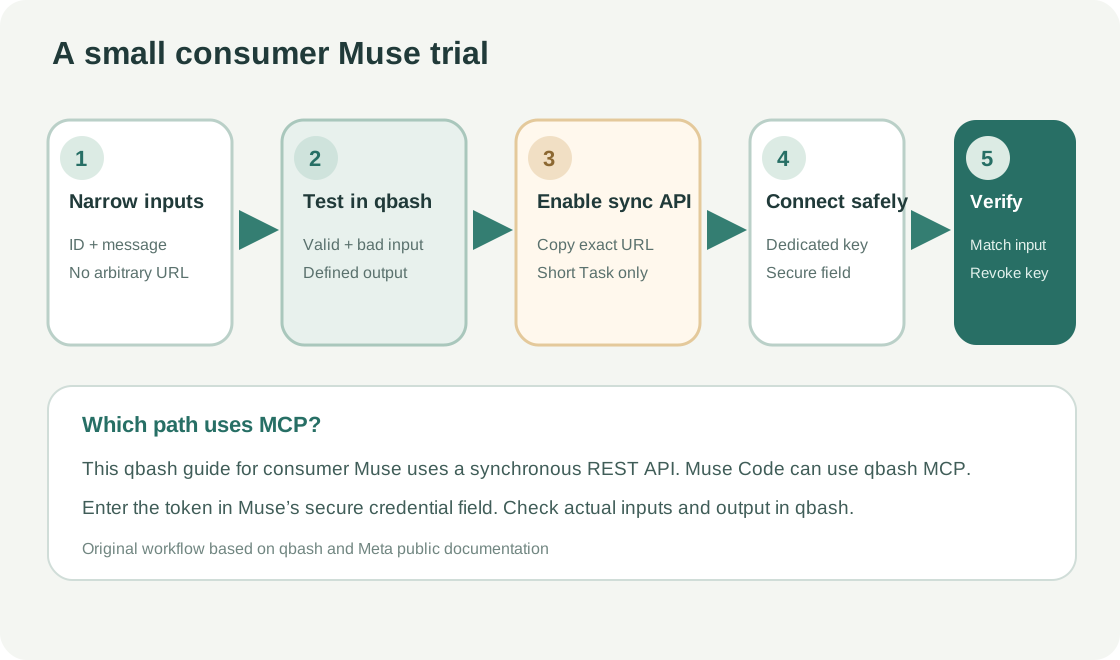
qbash’s consumer Muse guide uses a synchronous REST API custom connector. It says consumer Muse does not support custom MCP connectors. Muse Code is a separate developer product that can call the same Task through a qbash MCP server. This tutorial follows the REST route for consumer Muse; it does not claim that every Muse connector must use REST. The steps are based on public documentation and were not run in a live qbash or Muse account.
02 | Keep the first Task easy to verify
Start with an operation that cannot change an outside system. This walkthrough uses a made-up support message and returns a classification. Declare two required text inputs, such as request_id and message. Return only request_id, category, summary, and review_required.
Describe the expected format and length for each field, then reject blank or oversized values in the Task code. Do not let Muse provide an arbitrary URL, HTTP method, secret name, or Python expression. If the Task later calls an external service, keep its host and method fixed in the code and accept only the business identifier the operation needs.
03 | Test normal and bad inputs in qbash first
Run one ordinary fictional request, then check a blank ID, an oversized message, and an output outside the allowed labels. qbash tests can use Python asserts to check helper functions. External services, HTTP calls, and model requests do not automatically become harmless mocks. Supply mocks for them. Get the validation and fixed rules working before attaching a credential or opening the API entry point.
Each save creates a Task version. Review the code you plan to expose before enabling the entry point. qbash records versions and run logs, including status, inputs, outputs, and errors, so you can match a later call to the version that ran it.
04 | Enable the synchronous API
In the Task’s Settings, open Triggers and enable the synchronous API entry point. It waits for the Task and returns its result in the same request, which fits a short operation where Muse needs the answer in the current turn. qbash recommends keeping synchronous calls to roughly 30 seconds or less. Long-duration Tasks and agent Tasks are not supported by this entry point.
After saving, copy the generated Endpoint URL from the Task and use Code samples to check the exact JSON body. Do not build the URL yourself or reuse a documentation placeholder. An asynchronous webhook returns 202 when work is queued. That response does not mean the Task has finished, so it is a different fit when the conversation needs an immediate result.
05 | Create a bearer key just for Muse
Generate a dedicated organization Secret for the API token and select it for this Task’s synchronous API. Label it for the Muse connection, then save the generated value in a trusted password manager. Do not put the value in Task code, connector instructions, or chat. A dedicated key can be revoked without rotating unrelated Task or provider credentials.
If the Task later calls another service, bind a separate credential with only the required access inside qbash. The Muse-facing API key and the Task’s upstream service credential have different jobs. For the first test, avoid an upstream integration and use fictional data.
06 | Give Muse the request and response contract
Send Muse the Endpoint URL shown in qbash, the HTTP method, exact input names, and the response field to read. You can ask it this way. Create a custom connector named Support Label Trial. Send POST JSON to this HTTPS endpoint with only request_id and message. Ask me to add a Bearer credential through Secure Credentials Store. Read the result field from the response and report a qbash error as a failed run. Do not send a reply, edit a ticket, or call any other operation.
Meta’s Help Center says Muse can guide users through creating a custom connector and stores its credentials in the Secure Credentials Store. Follow the account’s current sign-in and authorization screens. Add the qbash token only when Muse shows its dedicated credential card. If the flow asks for the token in ordinary chat or offers no secure credential field, stop and review the setup.
07 | Run one fictional sample and match the result
After connecting, give Muse one made-up message, such as “Demo ID DEMO-001. Tracking says delivered, but I did not receive the package.” Ask it to send only that ID and message, without replying to a customer. Check that it uses only the declared inputs. A completed synchronous call returns the value passed to qbash.output(...) in result, along with an execution_id.
Open the matching record in qbash Logs. Compare the actual input, output, and status. Make sure the returned ID matches, the category is allowed, and the summary does not add facts that were absent from your sample. Confirm that no key appears in the Task input, chat, or output. A completion message in Muse alone is not enough to verify the run.
08 | Handle failures and remove the connection
A 401 points to missing or invalid authentication. A 422 can indicate input validation or a Task failure. A 429 may mean the concurrency limit was reached. Inspect the qbash execution record before retrying; do not keep submitting the same request blindly. If the Task times out or outgrows the synchronous window, shorten it or use an asynchronous callback and accept that the final result will not return in the same turn.
When the trial is over, disconnect the connector in Muse Settings → Connectors and remove its saved value from Secure Credentials Store. In qbash, remove the dedicated Secret from the API trigger and review any remaining callers. Meta notes that information already used for tasks can remain in Muse memories or conversation history after disconnecting. To use MCP with the same Task in developer-facing Muse Code, see the Muse Code MCP setup guide.
References
These sources support the product information in this guide. Musevip is an independent publication and is not affiliated with Meta.
Last reviewed 2026.10.02. Product pages may change.