
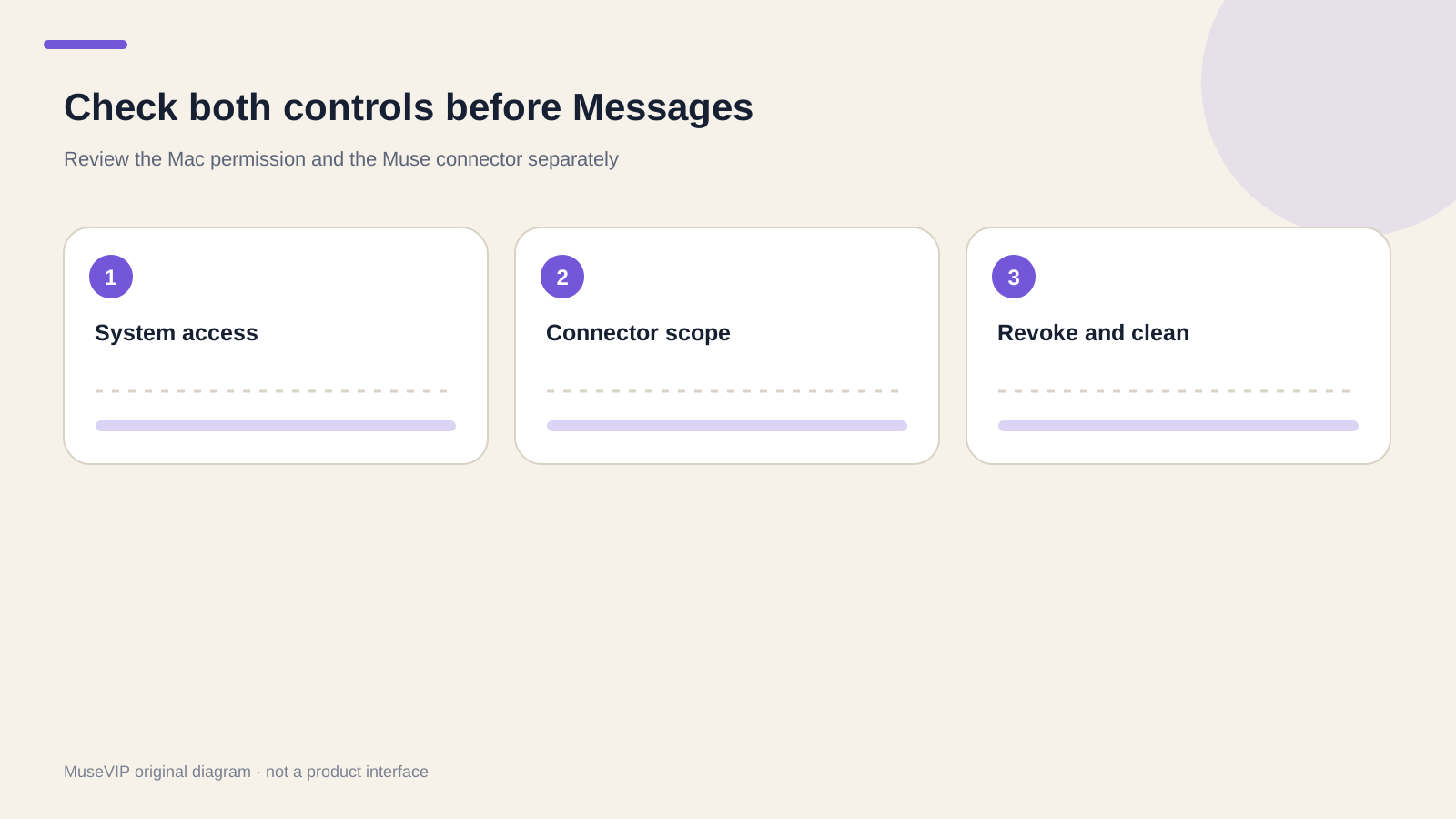
This guide focuses on “Muse Mac Messages permissions” and turns the question into practical steps you can check.
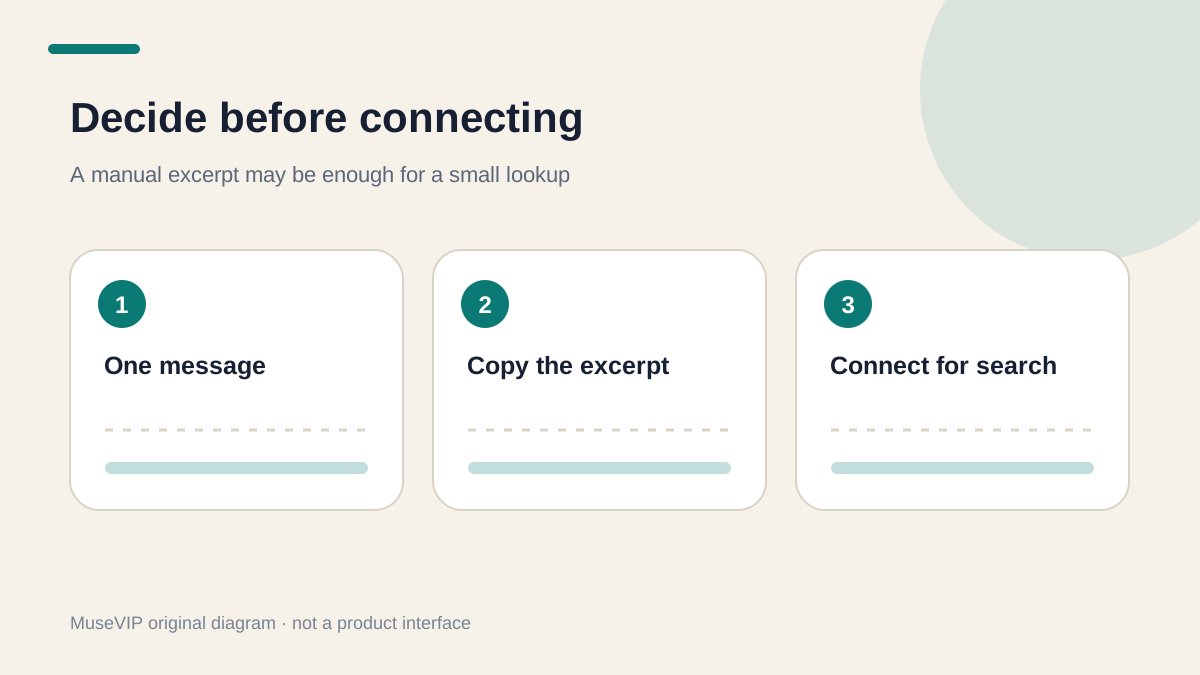
01 | Decide whether the lookup needs a connection at all
For one message, copying the relevant text into Muse is often simpler. A connector becomes useful when the task genuinely needs to search across several conversations or dates. Define that task first: “Find the Saturday dinner address. Do not send anything or summarize unrelated conversations.”
Meta’s Mac download page says Muse can pull from Messages, Calendar, and Notes with permission. This is a capability of the Muse Mac app. The mobile app, WhatsApp conversation, and web chat do not stand in for the Mac system permission described here. If your Mac client has no Messages option, use a manual excerpt instead of adding an unrelated app in System Settings.
MuseVIP has not tested this workflow with a live Messages account. Labels can change across Muse and macOS releases. The durable check is whether macOS grants Muse protected file access and whether Muse enables its Messages connector.
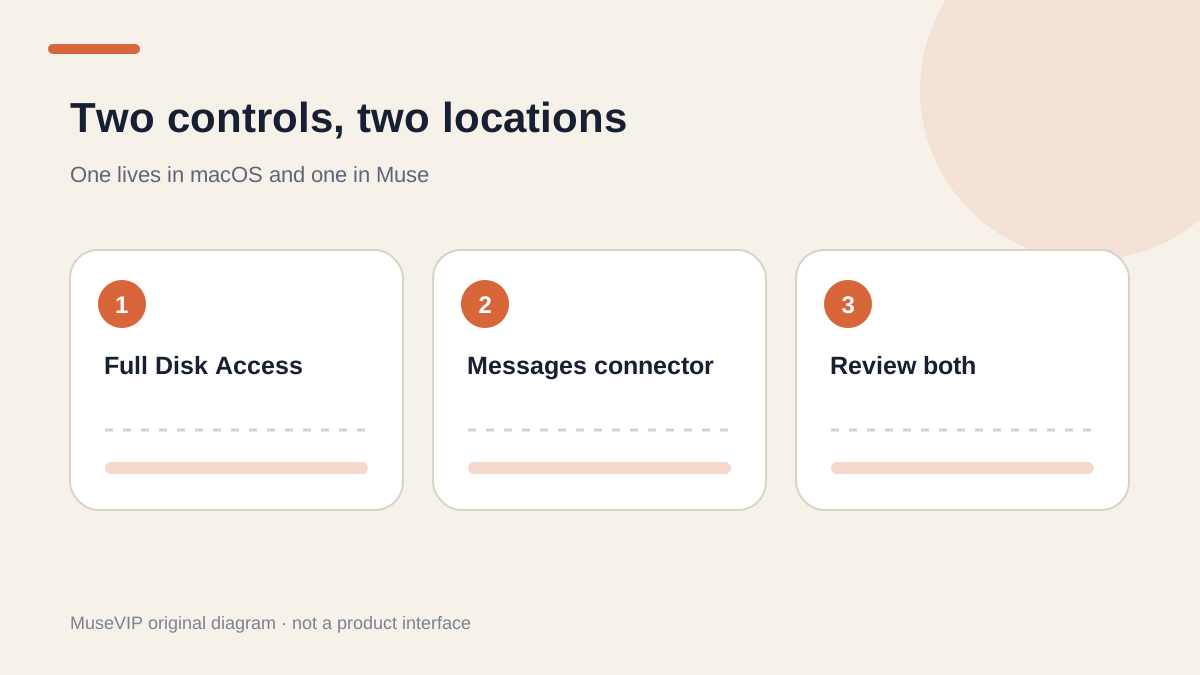
02 | Treat Full Disk Access and the connector as separate controls
The system layer is Full Disk Access. Apple describes it as access to all files on the computer, including data from other apps such as Mail, Messages, Safari, and Home. It is broader than permission to read one chosen thread.
Muse adds an application-level Messages connector. In its public response to a recent permissions dispute, Meta said that reading Messages content on Mac requires both Full Disk Access and the Messages connector to be enabled. That is Meta’s account of the product mechanism. Reporting also records a conflicting user observation, and the public record does not let this guide diagnose that individual incident.
Record both visible states before making a change. Review both again when you revoke access. A disconnected label in one place does not demonstrate that the other control changed with it.
03 | Inspect Full Disk Access on the Mac first
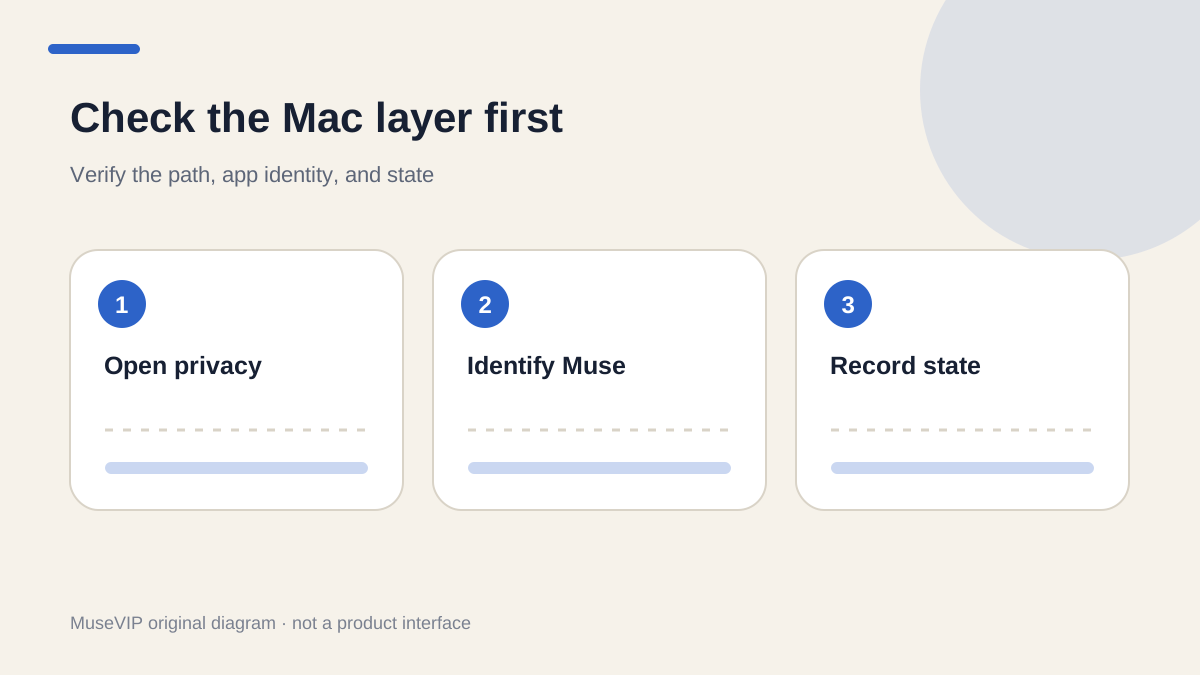
Open Apple menu, System Settings, Privacy & Security, then Full Disk Access. Find the entry that belongs to Muse and observe its current state before changing it. Apple says this category can expose Messages data as well as other app data, Time Machine backups, and some administrative settings.
Verify the app name, icon, and installation source. Meta publishes the official Muse for Mac download on its Muse download page. If the list contains duplicate names, an old version, or a helper you cannot identify, return to the Applications folder and resolve the identity before granting anything. Managed Macs may also enforce an administrator policy.
Write down only what the system shows: “Muse is listed and off,” for example. Asking Muse whether it has Full Disk Access is not a substitute for the visible macOS control.
04 | Then review the Messages connector inside Muse
Open Muse Settings, Connectors, and select Messages. Read the scope and choices shown by the current client. Meta’s general connector instructions say setup begins in this list and can include additional authorization steps. Use the controls on your screen rather than assuming a fixed button sequence.
For a lookup, choose the narrowest available retrieval scope. This job does not require sending, deleting, or changing messages. If the available scope is broader than you accept, leave the connector off. Stop as well if the approval card contains an action unrelated to the lookup.
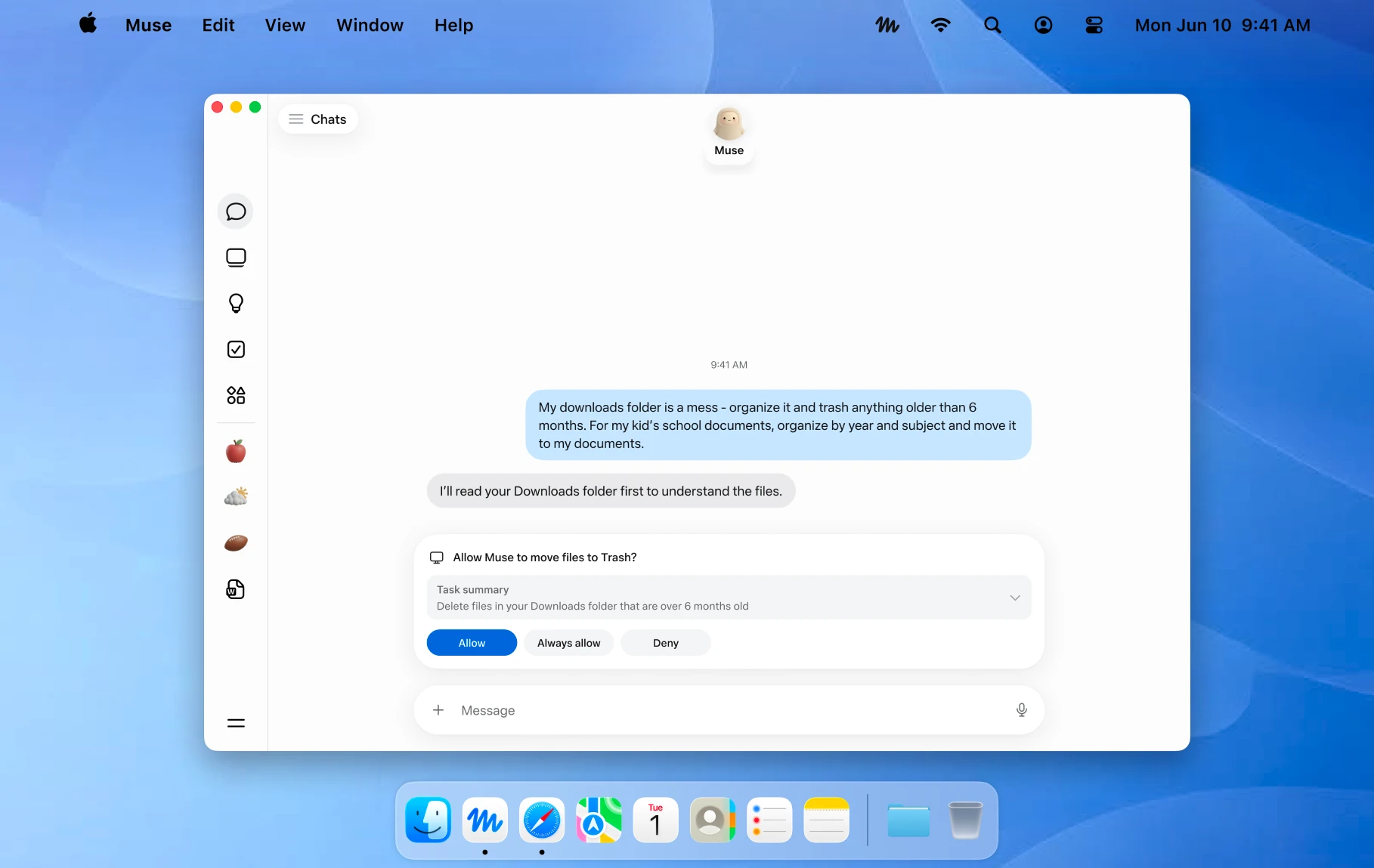
Meta’s official Mac image below shows a file task and a separate action approval card. It helps identify the idea of a visible approval, but it is not a Messages setup screen and does not establish your connector state.
05 | Run one low-sensitivity read-only lookup
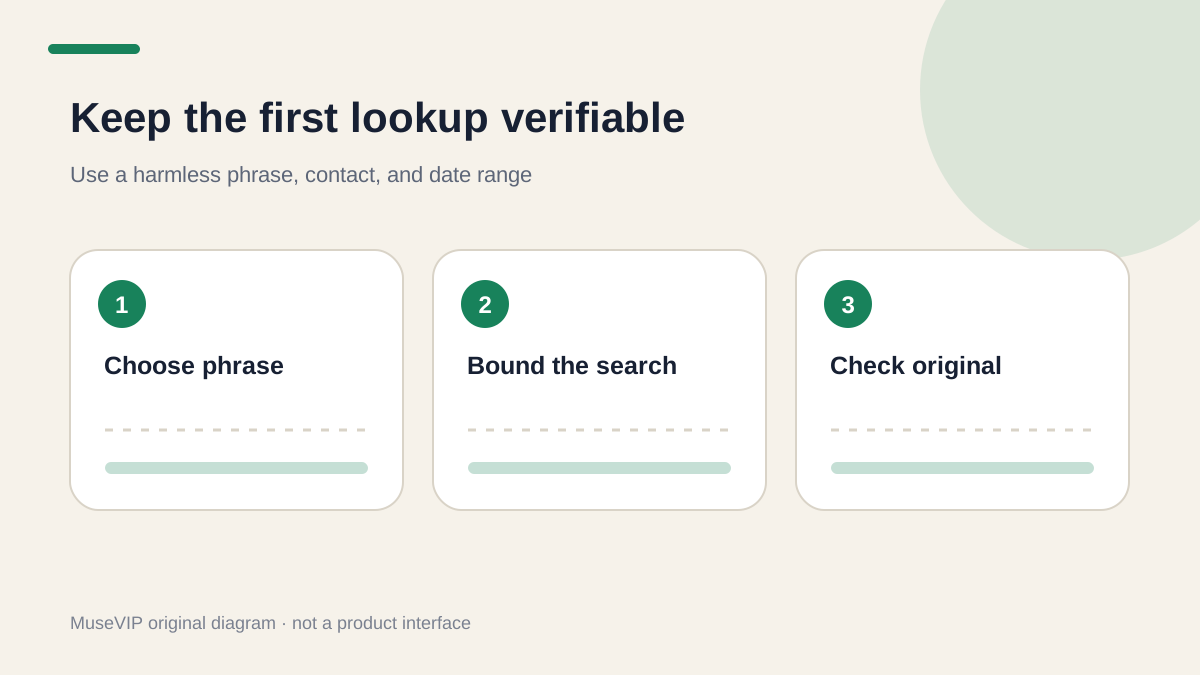
Choose a conversation with no identity documents, passwords, medical details, or client secrets. Use something you can immediately verify in Messages, such as an ordinary dinner address. Note the contact, date, and one harmless distinctive phrase.
Use a bounded request: “In Messages, look only for the message where [contact] mentioned [phrase] between [dates]. Return the original time and the one necessary sentence. Do not send a message or search other contacts. If it is absent, say so.” Compare the result with the original thread yourself.
One matching result proves only that this lookup returned matching content. It does not prove the permission is limited to that thread or predict later behavior. The small test catches a wrong account, contact, or date before you attempt a wider job.
06 | Verify permissions outside the chat
Muse can describe what it plans to do, but a chat explanation is not a system permission record. Meta has acknowledged that Muse gave an incorrect explanation of its own data path in the recent dispute. Treat statements such as “I did not have access” or “I only saw a notification” as claims to investigate, not as the control state.
Return to the two visible settings. Check Full Disk Access on the Mac and the Messages connector in Muse. Then inspect the task activity and source context to make sure the result did not come from a browser, email, or a different contact. Use the <a href="/en/guides/muse-activity-log-review/">Muse activity-log guide</a> for the broader review path.
If the result exceeds the request, stop the task and preserve the time, original prompt, both setting states, and relevant activity entry. Avoid changing several controls while continuing the conversation because that destroys the clean sequence you need for a useful report.
07 | Revoke both layers when the lookup is finished
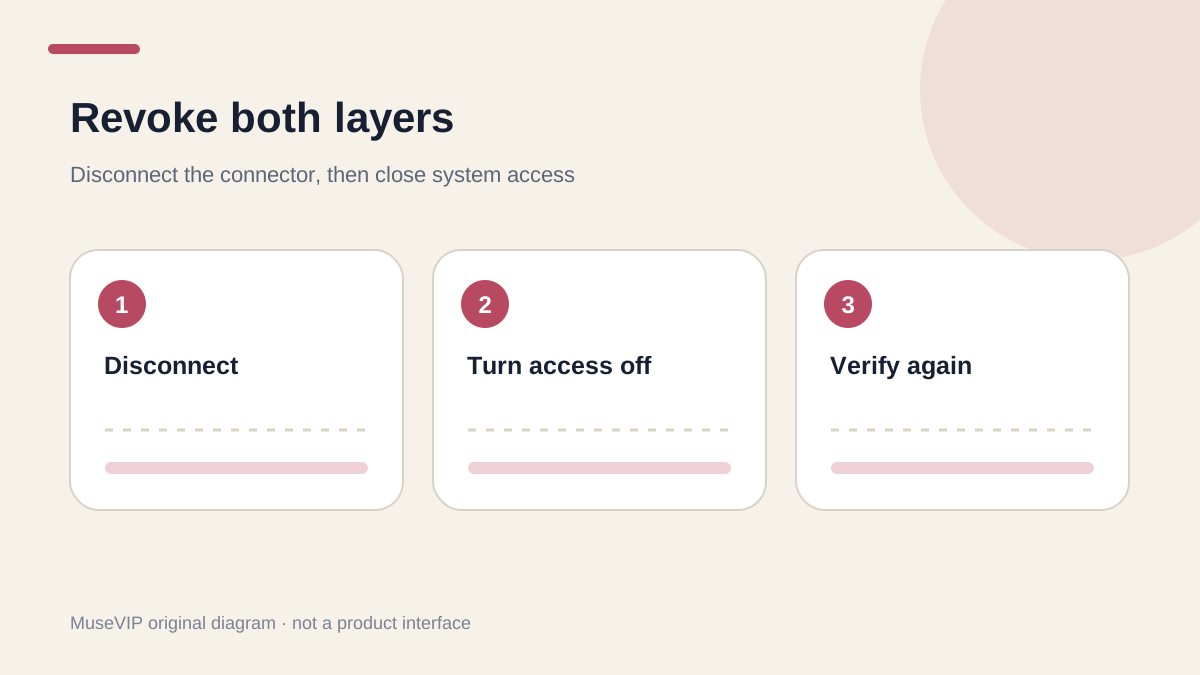
Disconnect Messages in Muse Settings under Connectors. Meta’s help page says disconnecting stops Muse from exchanging data with that connector. Record the time and the status shown after the change.
Return to System Settings, Privacy & Security, Full Disk Access and turn off the Muse entry. This withdraws the broader file permission at the Mac layer. If macOS or Muse asks you to quit or reopen the app, follow the prompt and then revisit the same page to confirm the setting remains off.
You can open a fresh task and ask Muse to report whether the connector is currently available without using remembered content. The chat answer remains secondary to the two settings pages. For a wider permissions review, see the <a href="/en/guides/muse-privacy-and-permissions/">Muse privacy and permissions guide</a>.
08 | Clean up retained information separately
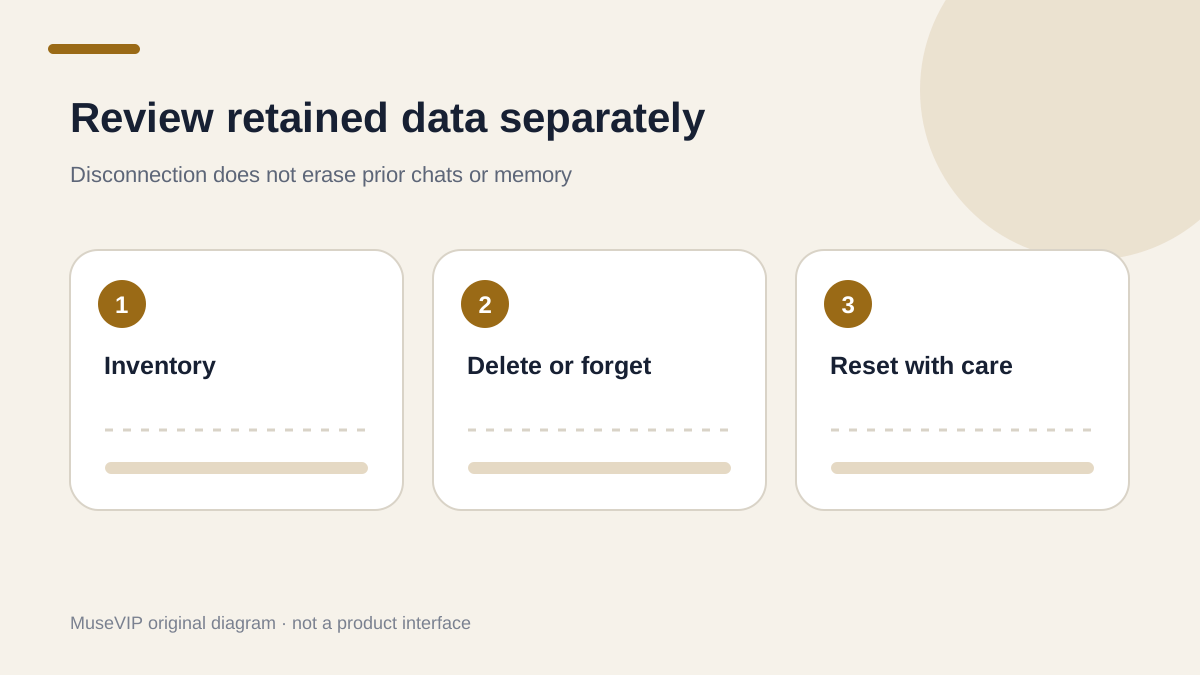
Disconnecting blocks future exchange; it does not erase information already used. Meta says connector information used for earlier tasks may remain in Muse memories and conversation history. Ask for an inventory of Messages-related topics, files, and memories, then verify those locations before deleting anything.
Delete the relevant message or side chat and use the forget skill for a named topic when appropriate. Meta warns that Muse may retain something it learned after the source item is deleted, so deletion and forgetting are separate checks. You can also inspect and edit the Memory file. Reset Muse is the last resort because it permanently removes chats, files, and active tasks and cannot be undone.
A bounded cleanup request is: “List the contacts, topics, memories, and files used or saved during the Messages task on [date]. Do not read Messages again. Wait for me to name individual items before deleting or forgetting anything. Do not reset Muse or delete unrelated chats and files.”
References
These sources support the product information in this guide. Musevip is an independent publication and is not affiliated with Meta.
Last reviewed 2026.10.02. Product pages may change.