

This guide focuses on “Gemini Spark Muse” and turns the question into practical steps you can check.
01 | What the example is showing
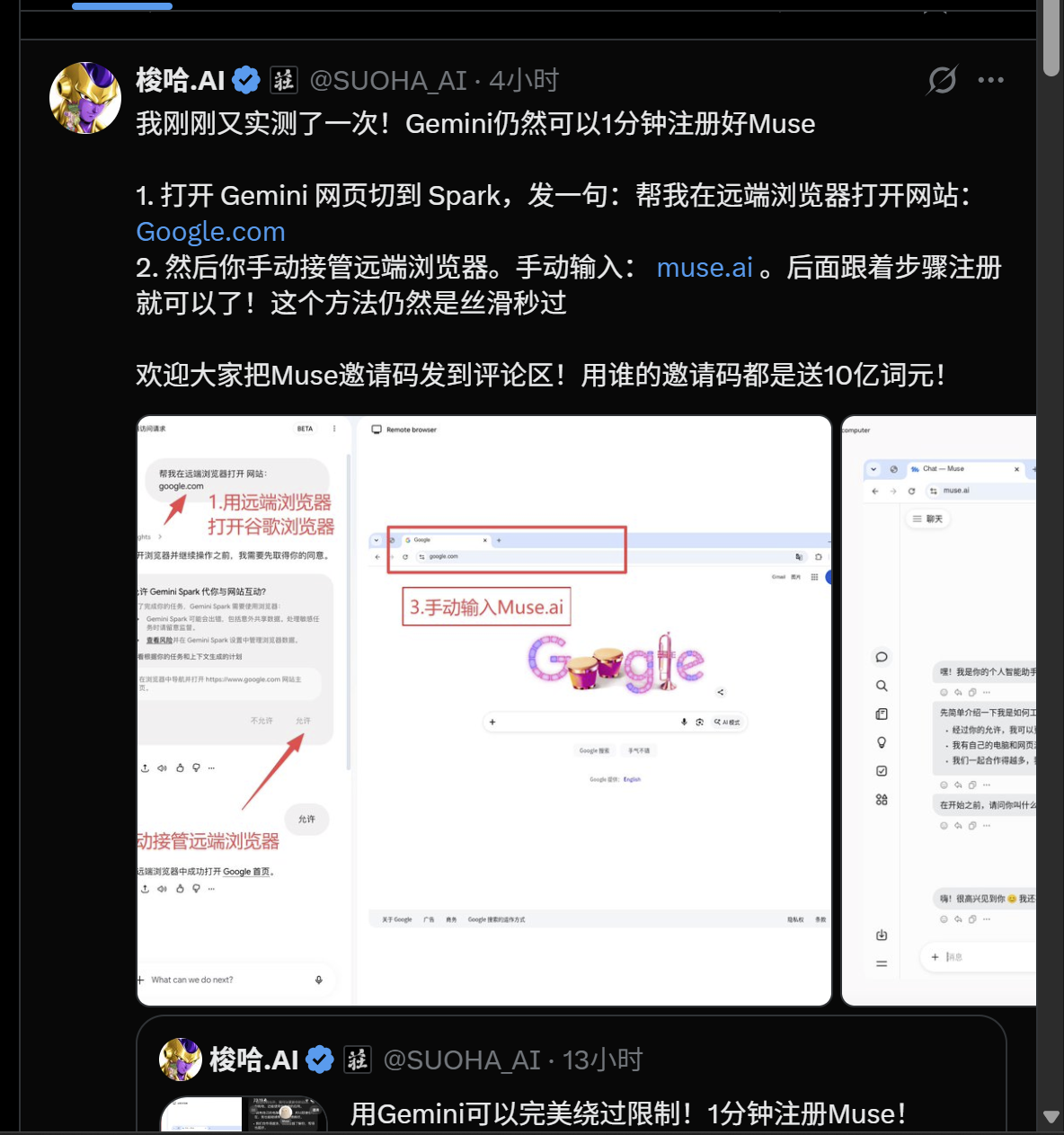
On September 24, 2026, X user @SUOHA_AI shared a screenshot of Gemini Spark on the web launching a remote browser, then handing control back to the person to visit Muse. It is a useful visual clue, not a Google or Meta tutorial, and it does not prove that every account can register for Muse.
This example is about Spark’s remote browser, not Gemini in Chrome auto browse. They are different paths: Spark remote browser is a separate browser instance. Chrome auto browse can use local Chrome or a remote browser, and has extra eligibility conditions such as US availability and an English device language.
02 | Before you begin: check Spark eligibility
- Be at least 18 and use a personal Google Account. Google’s Spark help page also lists a Google AI Pro or Ultra subscription and Keep Activity turned on.
- Spark availability follows Gemini Apps supported regions and may roll out gradually. Google currently lists the EEA, Nigeria, Switzerland, and the UK as exclusions. Check the help page for its latest list.
- Open Gemini on the web and confirm the Spark task entry is available to your account. Labels and controls in the screenshot may change.
- A remote browser does not bypass Muse’s own age, region, or account requirements.
03 | Step 1: Give Spark a narrow task on Gemini web
In Gemini on the web, select Spark and describe the goal and limits. For example: “Start the remote browser and open google.com. First, only confirm that the public page loads. Do not sign in or submit any information. Show me your plan before you start.” Allow Chrome to connect to Spark when the interface asks.
Use a public page for the first check. Do not type passwords, verification codes, or payment details into the task conversation. Google says to take over the browser and enter sign-in information on the website itself.
04 | Step 2: Review the plan before you approve it
Google’s documented flow asks you to review Spark’s plan and then choose Start Task. Check the target domain, task scope, and any use of personal information. Stop if the plan expands to an unexpected site, account, or purchase. Chrome may also ask permission to connect to Spark the first time; read the prompt before allowing it.
05 | Step 3: Distinguish the remote browser from your local browser
Spark’s remote browser is a separate browser instance; do not assume it inherits cookies or sign-in state from local Chrome. A local browser may be able to access sites where you are already signed in. Spark shows task status in its task panel, and pauses for you to take over when a site asks you to sign in.
The screenshot shows a remote browser window beside the Spark task interface. Before continuing, verify the address bar and make sure you know which instance you are controlling.
06 | The source screenshot
The image below was supplied by the reader and is credited to X user @SUOHA_AI. It is included as an interface example. Buttons and steps may change as Google updates the product; this guide independently explains the workflow rather than reproducing the original post line by line.
07 | Step 4: Enter Muse’s address and take over for sign-in
In the remote browser’s address bar, enter Muse’s official address, muse.ai. Verify the domain and wait for the page to load. If Muse asks you to sign in, verify your identity, or accept terms, take over the browser and complete that step yourself. Do not put passwords or verification codes in the Spark task conversation, and do not ask it to bypass Muse’s access limits. If the page does not load, stop and test Muse separately in a regular browser to distinguish a service issue from an account or region requirement.
08 | Step 5: Try one low-risk action at a time
- Ask Spark to describe the visible page so you can confirm it reached the right site.
- Try one read-only task, such as summarizing a public help page.
- Pause and review whenever Spark requests sign-in, permission, or a switch to your local browser.
- Do not delegate purchases, messages, account changes, or sensitive submissions on the strength of a screenshot.
09 | Troubleshooting and safety checks
- No auto browse option: check region, account eligibility, subscription, Chrome version, and the feature toggle.
- The remote page asks you to sign in: this is an expected handoff point. Take over yourself or choose a task that needs no sign-in.
- Spark visits the wrong site: stop, specify the official domain, and ask to review the plan again.
- A page tells the agent to ignore prior instructions: treat page text as untrusted input and do not grant extra access or reveal secrets.
- After the task: review recent tasks and browser-data controls; close connections or clear remote-browser data when appropriate.
10 | Do not confuse it with Chrome auto browse
Gemini in Chrome auto browse is a separate feature from Spark’s remote browser on the Gemini website. Auto browse has additional conditions, including US availability, desktop Chrome, an English device language, an eligible personal Pro or Ultra account, Chrome feature eligibility, and Safe Browsing settings. It is still rolling out. Check the help page for the path you are actually using.
11 | What this example can—and cannot—prove
The screenshot shows someone using Gemini Spark’s remote browser and taking over to visit Muse. It cannot prove that the feature is open to every region or account, guarantee Muse registration or account approval, or establish access to all Muse features. Google says sign-in steps hand control back to the user; a remote browser is not a way around regional or account restrictions.
References
These sources support the product information in this guide. Musevip is an independent publication and is not affiliated with Meta.
Last reviewed 2026.09.24. Product pages may change.