
This guide focuses on “Muse real-time voice” and turns the question into practical steps you can check.
01 | Before you begin: check for voice access
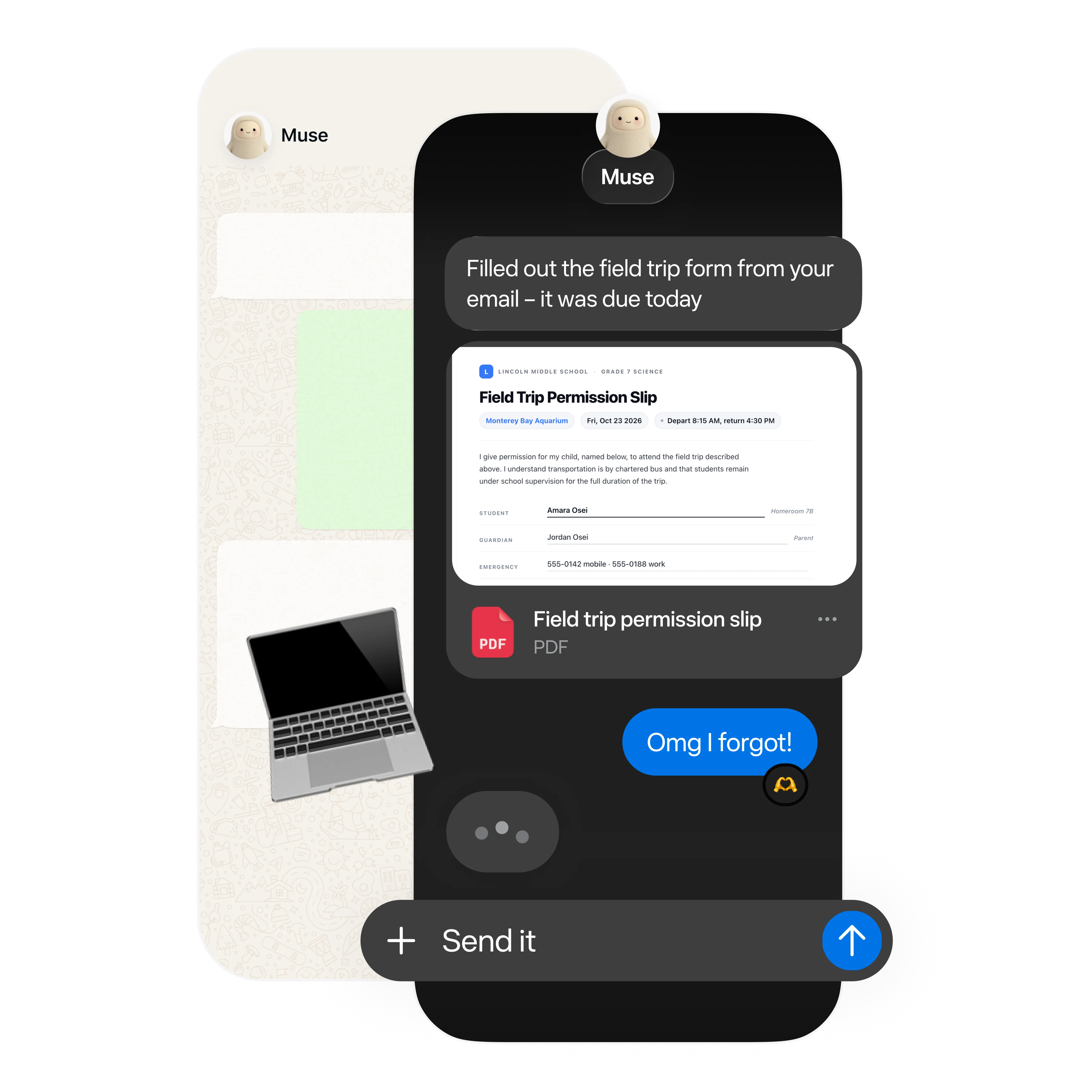
Open Muse in the app or on the website where you already use it, then look for a voice control in the current conversation. Meta introduced a real-time voice experience at Connect, but features may roll out gradually. If you do not see the option, wait for official access instead of installing an unofficial extension. The image below comes from Muse’s official product page and illustrates its messaging and browser task interface; the actual controls depend on your account.
02 | Step 1: Start with one small task
Start voice chat using the control shown in your interface. Pick a task that is easy to check and does not act on your behalf, such as finding the date and location of a public event. State the goal, scope, and limits together: “Check the event’s public page, tell me the date, location, and registration deadline, and list your source. Summarize only; do not register or send a message.”
03 | Step 2: Add the format and stop conditions
For a task with several items, add the details one by one. For example: “Put these three events in a table with the date, location, cost, and source. Mark anything you cannot verify. Stop and ask me if a step requires signing in, paying, or submitting a form.” Meta described handling tasks while a voice conversation continues; the controls and availability depend on your account.

04 | Step 3: Listen to the plan before it proceeds
After you give the task, listen to how Muse restates it. Check the search scope, requested format, and actions it must avoid. Add any missing limit. If the task expands to other websites, contacts, or accounts, pause and clarify before continuing.
05 | Step 4: Check the result before taking another action
- Verify dates, names, and prices against the original pages.
- Ask Muse to identify sourced details and anything that still needs confirmation.
- Review the final text yourself before sending a message, registering, buying, or submitting a form.
- If the task drifts, stop it and narrow the request before trying again.
06 | Common issues
- No voice option: check for an app update, then follow the access shown on your account.
- Muse misunderstands: split the request into a goal, scope, and limits.
- The result has no evidence: ask for sources and leave unverifiable details out.
- A step requires sign-in or submission: pause and handle it yourself after review.
References
These sources support the product information in this guide. Musevip is an independent publication and is not affiliated with Meta.
Last reviewed 2026.09.24. Product pages may change.