
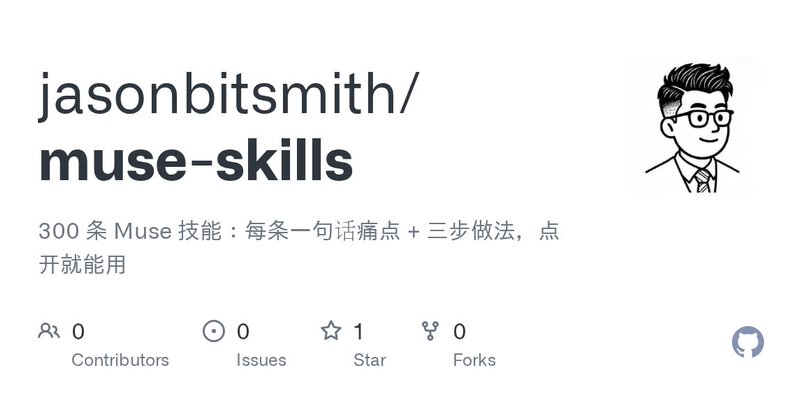
This guide focuses on “Muse skills library” and turns the question into practical steps you can check.
01 | Use the library to choose one useful task
Jason describes muse-skills as a community library of 300 Muse ideas, organized around everyday activities, work, files and other situations. On October 5, 2026, its root directory contained README.md, with scenario descriptions and suggested steps. You can read the library without installing software. The original document is in Chinese.
Pick one problem you want to solve today, then turn the idea into a task using your own inputs. Whether Muse can carry it out depends on your account and available tools. This guide checks the repository against Meta’s connector and permission explanations; it does not claim that we executed these tasks in your account.
02 | Find the relevant section in the README
Open jasonbitsmith/muse-skills on GitHub and scroll to the README’s contents. Choose a nearby category, then use your browser’s Find command, usually Ctrl+F on Windows or Command+F on a Mac. Chinese search terms such as 文件 for files or 日历 for calendar can help you locate the original entries. Translating the page can make navigation easier, but check the original before acting on an ambiguous instruction.
Record the problem, required inputs and intended action from one entry. Avoid pasting the entire library into a conversation. Ideas described as automatic or daily need a separate check of scheduling, time zone, completion signals and stop conditions. Complete a one-off task first.
03 | Ask what is missing before starting
Meta’s Muse for Small Business announcement directs users to the app settings for the currently available connector list. A community entry cannot establish access for your account. Check the relevant service, connection state and permitted data before asking Muse to work with mail, a drive or a calendar.
Try this preliminary request. Identify the inputs and tools needed for this task. Tell me what you can currently access and what is missing. Do not execute yet. If a connector is unavailable, use files or screenshots you are allowed to provide, and limit the conclusion to that material rather than the full account.
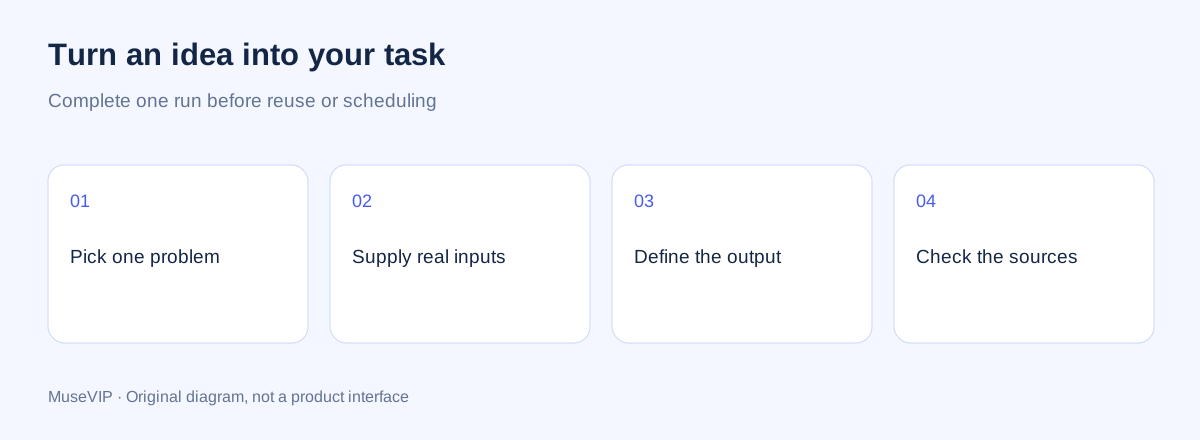
04 | Worked prompt example: make an index of supplied files
For this illustrative exercise, prepare three product specification files you may use for practice. The goal is a traceable file index, with no changes to the source folder. This is a prompt example, not a report of a completed run.
Copy and adapt this request. Using only the three product specifications I provide, make a file index. For each file, include its name, the version or date visible inside it, a purpose summary of no more than three sentences, and the supporting section or page. If the filename date and document date differ, list both separately. Write “not found” for unavailable fields. Do not rename, move or delete files, and do not read other directories. First list the files you received; begin only when all three are present.
If your actual goal is to find the latest specification across a connected drive, specify an authorized folder instead. Ask for candidates and date evidence, then choose the document yourself. A filename containing “final” does not establish that it is the most recent version.
05 | Check the result against the actual files
These checks are MuseVIP’s addition to the example. A result you can trace to a document is easier to use than an unsupported completion message.
- Check that each supplied file has one row, with no invented additional files.
- Open one document and verify whether the reported version or date comes from its contents, filename or metadata.
- Follow a cited page or section and make sure the summary describes that file.
- Keep missing values visible. Conflicting versions should remain candidates with evidence for your decision.
- For an error, name the file and field, provide the correct evidence, and request a focused correction.
06 | Understand what ideas, connectors and Skills do
An idea proposes a problem to tackle. A connector provides access to a service. An installable Skill needs the format and invocation method supported by the relevant tool. A README list alone does not establish that each entry can be installed as a plugin. At the time of this review, use this repository for reading and selecting tasks.
After a workflow proves useful, save its input requirements, steps and acceptance checks in a note for reuse. For a formal skill file, follow our reusable Skills tutorial and check the documentation for your tool. Muse’s consumer app and Muse Code do not necessarily have the same installation workflow.
07 | Questions that come up when a copied prompt does not work
Are these 300 official features? They are community scenario suggestions. Check each task against your account’s capabilities and the connector list in the current app settings.
Do I need a Muse subscription to read it? No Muse subscription is needed to browse a public GitHub README. Account eligibility, task usage limits and tool access must still be checked before execution.
What if the connector is missing? Start with permitted files, redacted screenshots or public pages, and keep the output within those inputs. For sign-in, use the product’s login and authorization flow rather than pasting a full browser cookie export into an ordinary chat.
Does copying a daily-task prompt schedule it? A sentence in a library does not confirm a scheduled task. Check the available ongoing-task workflow, frequency, time zone, stop condition and completion notification. A manual first run is a useful starting point.
References
These sources support the product information in this guide. Musevip is an independent publication and is not affiliated with Meta.
Last reviewed 2026.10.05. Product pages may change.