
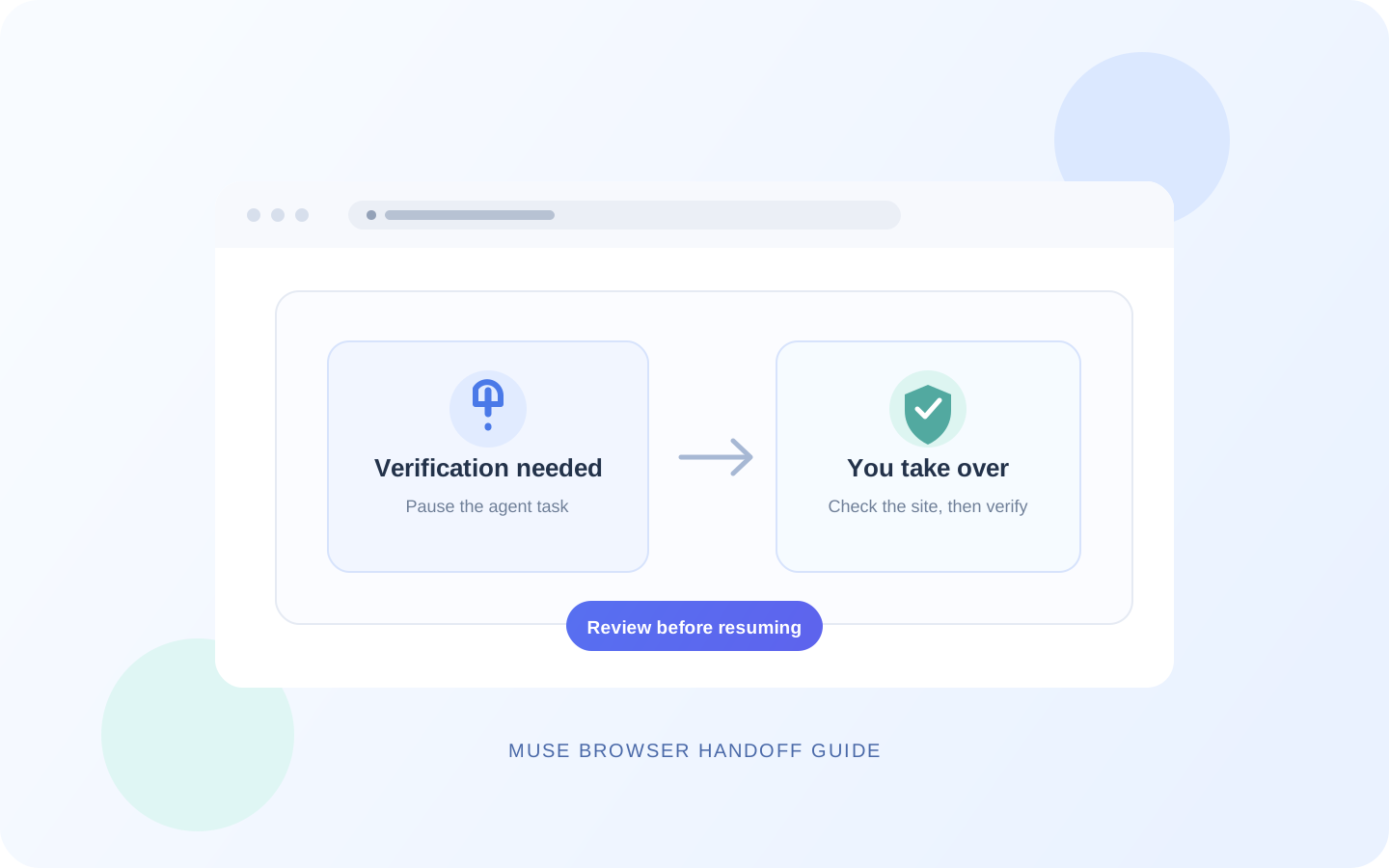
This guide focuses on “Muse CAPTCHA” and turns the question into practical steps you can check.
01 | Pause instead of retrying the CAPTCHA
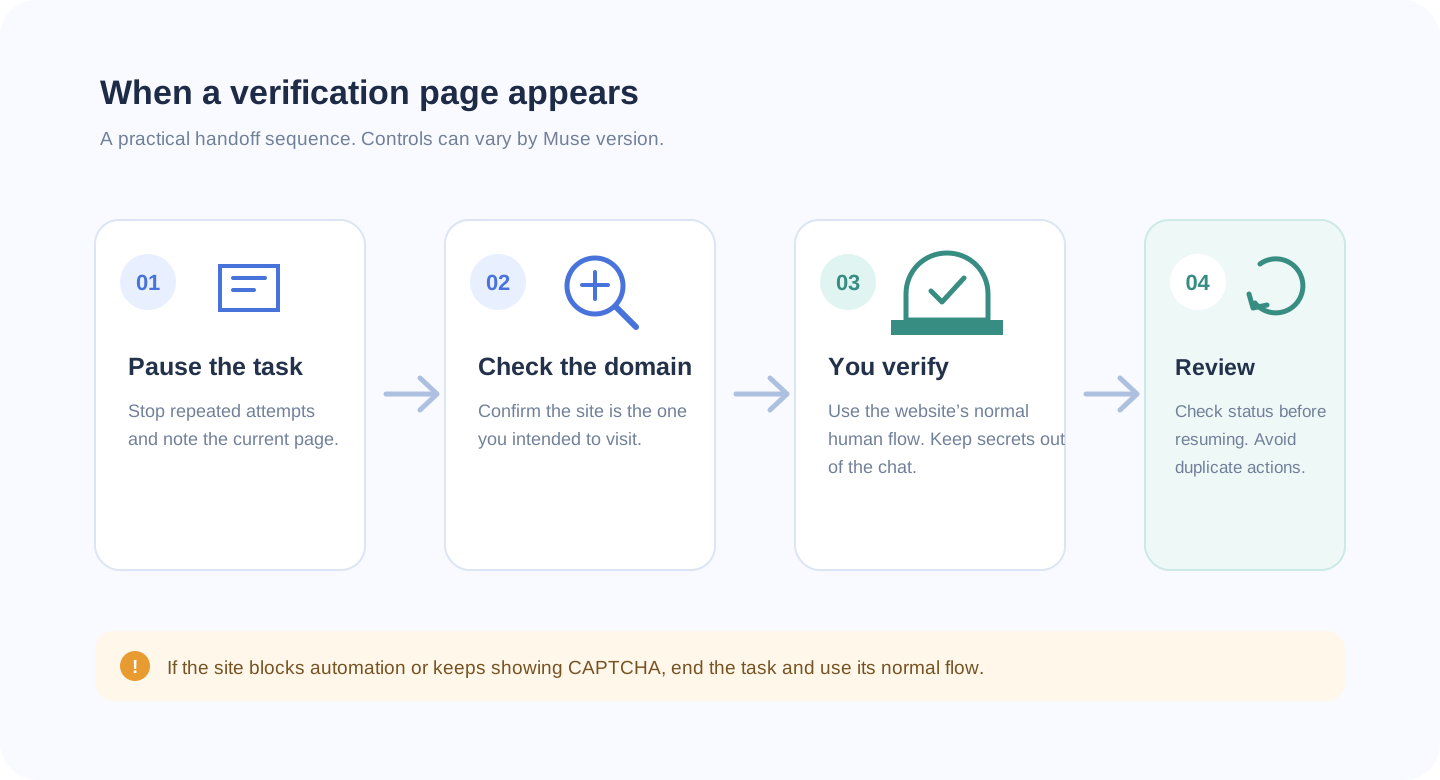
If Muse reaches a CAPTCHA, slider, human check, or login wall while browsing, pause the task. A CAPTCHA is a website’s way to check a visitor. Repeatedly asking an agent to guess answers, imitate clicks, or find another route around the check can trigger site limits and may conflict with the site’s rules.
Meta says users can see Muse’s browser activity and take over at any time. The agent pauses while the user is in control. Button names may change across versions, so use the pause or takeover control shown in your current Muse client.
02 | Take over step by step
- 1. Pause the task and note the page Muse reached and what it planned to do next.
- 2. Check the address bar. Continue only if it is the site you meant to visit; leave if the page redirected to an unfamiliar domain.
- 3. Complete a site-approved CAPTCHA or sign-in yourself in the browser. Do not paste passwords, text-message codes, or recovery codes into the Muse conversation.
- 4. If the check asks for an ID upload, payment, or extra personal information, stop and verify the site and request first.
- 5. Return to Muse when you are done. Review the page state and next step before deciding whether to resume the task.
03 | An X screenshot is one user’s example, not a universal instruction
X user OJRenick shared a screenshot of a Muse conversation on September 22, 2026. In that exchange, Muse asks whether the user wants to handle a CAPTCHA or let Muse attempt it. This is one user-reported interaction, not Meta’s official operating guidance, and it does not show that every account has the same options.
This guide recommends that the person handle the CAPTCHA. A human check is the site asking its visitor to verify access. Use the normal human flow provided by the website.
04 | Keep sign-in details in the secure browser flow
Meta says Muse’s sign-in flow uses a custom client interface to capture account credentials and send them directly to secure credential storage, where the main agent cannot see the password. This is Meta’s description of its design. Enter credentials only in the secure credential interface provided by your Muse client or in the target site’s normal sign-in form. Do not paste a password into chat.
05 | After verification, check that nothing was submitted twice
- Check whether the website is signed in or the previous action has already completed.
- If the task involved booking, commenting, ordering, or submitting a form, check the account’s actual status before trying again.
- If a CAPTCHA keeps appearing, the account is restricted, or the site blocks automated access, end the Muse task and use the website’s normal flow or try again later.
- Do not grant extra account permissions just to continue a task when those permissions are unrelated to its goal.
06 | Based on public documentation; controls may change
This guide is based on Meta’s public browser safety explanation and a user-reported example. It does not treat OJRenick’s screenshot as a product guarantee, and we have not tested the CAPTCHA flow on every account. Meta says Muse pauses when a user takes over the browser. If your client does not offer a clear handoff control, end the current task and complete verification in a regular browser.
References
These sources support the product information in this guide. Musevip is an independent publication and is not affiliated with Meta.
Last reviewed 2026.09.24. Product pages may change.