
This guide focuses on “Muse grocery list” and turns the question into practical steps you can check.
01 | Start with the three recipes you will actually cook
Saving a recipe is easy. Standing in a store and checking three different ingredient lists takes more effort. Pick a small set of meals for this trip, then ask Muse for one list you can inspect before you shop.
Bryan Person shared a personal Muse project that sorts a grocery route by sections of his local store. Heshie shared a separate example of turning an Instagram recipe into a printable PDF. This tutorial combines the practical problems of getting readable ingredients and making a usable shopping list. We have not tested their accounts or verified their completion times.
Muse’s design article describes working with supplied information and producing documents and web pages. The workflow below uses those broad capabilities; it does not assume a dedicated recipe-import button or require purchase permissions.
02 | Give each source a serving count and an identifier
Label your recipes R1, R2, and R3. Include a readable source, its original serving count, and how many servings you want. If a screenshot is unclear or a video never gives a quantity, leave that item unresolved rather than filling in a plausible amount.
Provide a separate pantry inventory with amounts and units. “Rice: 500 g” is useful; “we have rice” needs a follow-up. Mark estimates as estimates and verify them before shopping.
- Recipe fields: ID, dish, original servings, planned servings, ingredient, quantity, unit, and source location.
- Pantry fields: ingredient, usable quantity, unit, and inventory date. Unknown amounts stay blank.
- Preferences: meals, people, ingredients your household excludes, shopping budget, and substitutions that require a question.
03 | Extract each recipe before combining anything
First ask for the ingredients as written in each source. Keep the original amount alongside any proposed adjusted amount, so a later total still has a trail back to the recipe.
Scaling quantities can produce a planning draft, but it does not prove cooking times, seasoning, or equipment will scale the same way. Preserve any guidance from the recipe author. Put unexplained cooking changes in a separate list for you to review.
- Prompt: Extract ingredients from R1 to R3 with original quantities, units, serving counts, and source locations. Mark missing amounts as unresolved. Put proposed serving adjustments in a separate column and explain the basis. Do not merge ingredients yet, estimate nutrition, or buy anything.
04 | Match the ingredient and its form before adding quantities
All-purpose flour and self-raising flour remain different items. Dry rice and cooked rice remain separate, as do fresh tomatoes and canned tomatoes. Ask about ambiguous names before merging them.
Add quantities directly only when the ingredient, form, and units match. Do not treat grams and milliliters as interchangeable. Keep “one cup,” “one bunch,” or “one onion” in the source unit unless you have an agreed conversion.
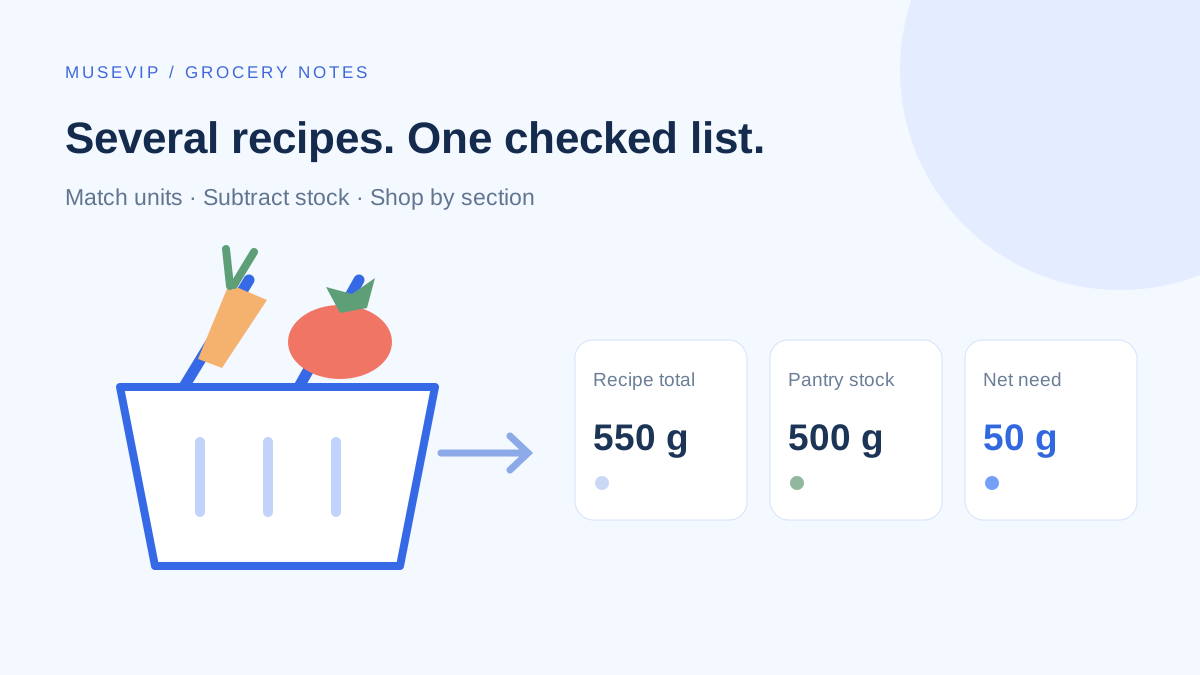
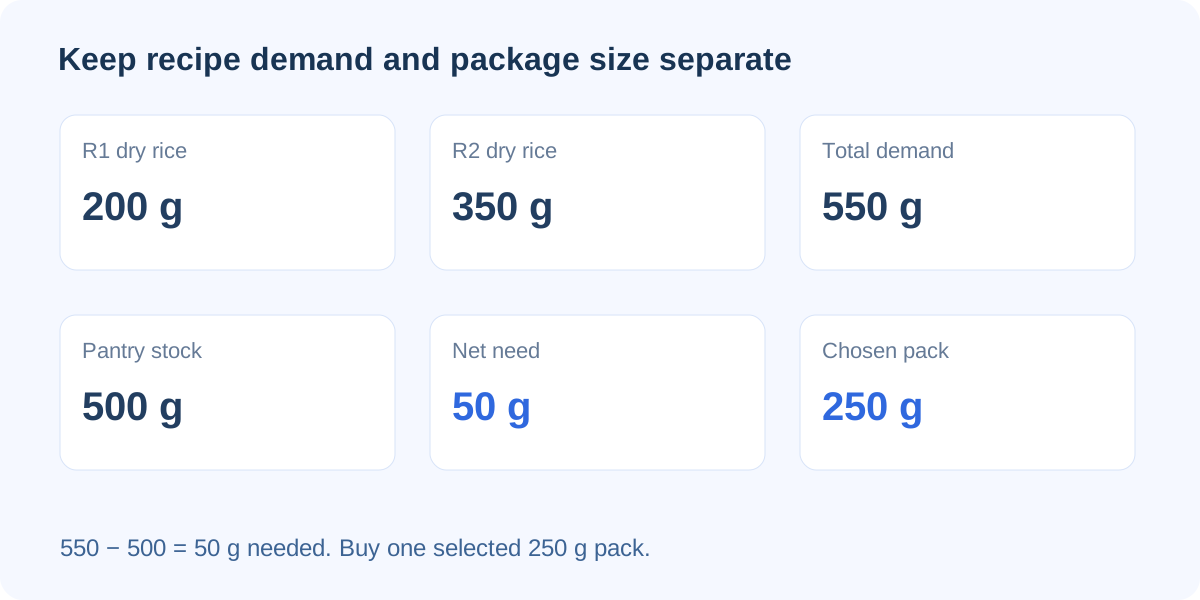
Here is an editor-created arithmetic example, not a recipe: R1 needs 200 g of dry rice and R2 needs 350 g. Total demand is 550 g. With 500 g of confirmed pantry stock, the net need is 50 g. If you choose a 250 g bag, the purchase list shows one bag while the calculation still says 50 g needed.
05 | Separate recipe demand from what you will purchase
Request a detailed audit table and a short shopping checklist. The table keeps source recipes, total demand, confirmed stock, net need, package choice, and open questions. The checklist contains only items to purchase.
If you look at online products, record the selected package and lookup time. Prices, stock, and substitutions can change. A completed list does not prove that a cart is correct or an order was placed.
- Prompt: Combine only ingredients I confirmed are equivalent. Subtract usable stock from total demand; show zero net need when stock is sufficient, while preserving the calculation. Keep unresolved units, substitutions, and inventory in a questions section. Round the purchase amount up using my selected package size and show both net need and package amount. Add no unrequested ingredients and place no order.
- Before leaving, check one ingredient shared by two recipes, one pantry item you already have enough of, and one item with mismatched units. Trace each back to its inputs, then review the rest.
06 | Use store sections unless you can verify aisle numbers
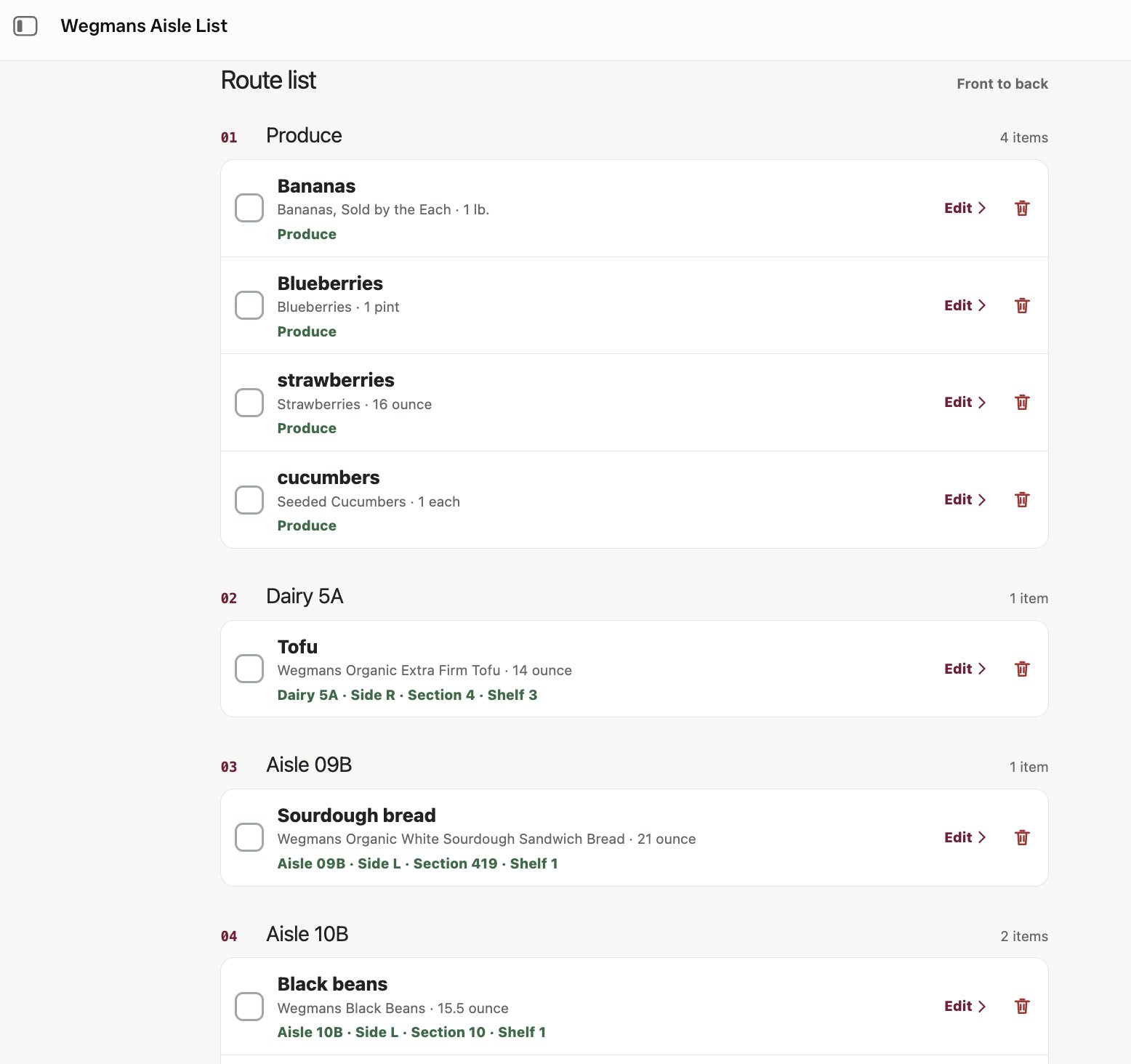
Give Muse the section order you normally follow, or ask for broad categories. Without a reliable map or location data for that specific store, leave exact aisle and shelf positions blank.
The image below is Bryan Person’s personal project. It shows section and location fields, but those positions belong to his example. They are not a Meta interface or a map of your own store. Clear store-specific positions when changing locations.
07 | Put the checked list somewhere your household can use
Plain text is enough. For Google Keep on a computer, choose New list next to the note field, then add a title and checked items. You can show checkboxes from an existing note’s More menu and drag rows into order.
To edit together, add a collaborator to the note and save. Collaborators can change its content; send a copy when you only want to share a view. Deleting a shared note you own deletes it for collaborators too. Check one item together before using it. This is a manual handoff, not a claim that Muse has a Keep connector.
08 | When a meal changes, recalculate only its contribution
If you drop R2, remove that recipe’s ingredient contribution and recalculate the affected rows. Keep recipe IDs, inventory dates, and changes visible instead of requesting a different menu from scratch.
The deliverable is a list with no accidental duplicates, traceable quantities, visible open questions, and checkboxes you can use on your phone. Online ordering is a later step: review packages, substitutions, delivery details, and the final total before submission. See Muse shopping and checkout checks for that workflow.
References
These sources support the product information in this guide. Musevip is an independent publication and is not affiliated with Meta.
Last reviewed 2026.10.01. Product pages may change.