
This guide focuses on “Muse shopping” and turns the question into practical steps you can check.
01 | First, check what your Muse account actually has
Open your own Muse page and look for shopping or ongoing tracking controls. A screenshot on X does not mean the same button is live for every account. Meta’s original launch said Muse was rolling out first in the US on iOS, Android, and the web, and availability can change. What matters is what you can see after signing in today.
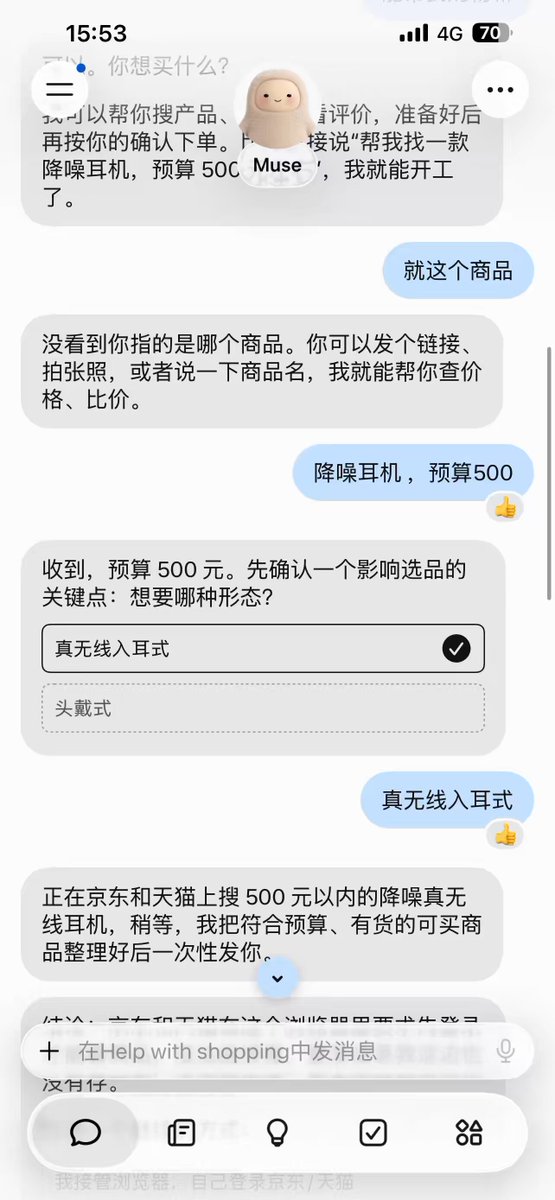
X user @0xlangeai shared a handy example: set a 500-yuan budget for noise-cancelling earbuds, add that you want in-ear models, then let Muse search. The useful part is the setup: give it a budget and a filter before it starts. Open the actual product pages before deciding whether a result is a good deal.
02 | Step 1: Be specific. ‘Find me headphones’ is too vague
Does your budget include delivery? Do you want earbuds or over-ear headphones? Are refurbished options okay? Muse has to guess when those details are missing. Tell it what you want, where you are shopping, and that this first pass is just research.
Try this: ‘Find in-ear noise-cancelling headphones under [budget] from stores that normally deliver to [region]. Give me three options with the exact model, item price, tax and delivery, stock, delivery estimate, return window, and product page. If you cannot check something, say so instead of guessing. Research only: do not sign in, contact a seller, add to cart, order, or pay.’
03 | Step 2: Compare the same model, then look at the real total
Don’t compare the big numbers yet. Similar listings can be different colors, bundles, versions, or refurbished units. Ask Muse to list the exact model, seller page, discount terms, and when it checked the price. Then open the page yourself and make sure the item is still in stock.
Add up tax, delivery, and any coupon requirements. Check the delivery area and return window too. If a store hides its price behind a sign-in, have Muse mark it unverified and move on. It should not guess or ask for your payment details just to finish a comparison.
04 | Step 3: Want to keep an eye on a price? Set a clear stop date
If your account has Goals, reminders, or ongoing monitoring, give Muse the product link, exact model, price you would actually pay, and an end date. Add: ‘Tell me if it drops; don’t buy it for me.’ The available schedule and duration depend on the controls in your account. The Tech Girl’s YouTube video shows a product tracker and a price-drop alert, but that is one creator’s demo—not a promise that every account has the same feature.
When an alert comes in, check the listing again. Is it the right color? A member-only price? Is the coupon still active, and is the item in stock? The checkout total is the number that matters.

05 | Step 4: Before buying, take one last look
- Is this the store you meant to use, and does the web address look right?
- Do the model, color, quantity, and condition match what you picked?
- Did the discount apply? What is the total after tax and delivery?
- Are the delivery address, arrival date, returns, and any subscription terms clear?
- If Muse asks you to approve a purchase, read exactly what it plans to buy and how much it will charge. Meta describes a purchase-approval step; check the prompt shown in your own account.
- After submitting, check the seller’s order page before trying again. You don’t want a second order because the first confirmation was unclear.
06 | Copy this prompt and make it yours
Swap in the details in brackets. Skip private information that is not needed for the search.
- Compare [product and exact specs]. Keep the item price below [amount] and the delivered total below [amount].
- Only check stores that normally deliver to [region]. Start with the brand’s site and retailers I name.
- For each result, give me the exact model, item price, tax, delivery, discount terms, stock, arrival estimate, return window, product page, and time checked.
- List different versions separately. If a page is blocked, unclear, or out of date, mark it unverified; don’t guess.
- For now, research only. Don’t sign in, share payment details, contact sellers, order, or pay without my approval.
- If this account supports price tracking, watch [product link/model] until [date]. Tell me if the delivered total falls below [target] or stock changes. Do not buy automatically.
07 | Hit a sign-in page or CAPTCHA? Take over
Have Muse stop and tell you what it needs. Open the store yourself, check that the address is legitimate, and decide whether to continue. Handle passwords, CAPTCHAs, payment details, and checkout yourself. If you cannot verify the price, leave it out or use another public listing.
08 | When is this worth doing?
This is useful when you know roughly what you want but don’t want to check a dozen stores one by one. Let Muse make the shortlist and watch for changes if your account supports it. If you are still unsure about the specs, seller, total, or return policy, keep the task at research—don’t push it toward checkout.
References
These sources support the product information in this guide. Musevip is an independent publication and is not affiliated with Meta.
Last reviewed 2026.09.27. Product pages may change.